
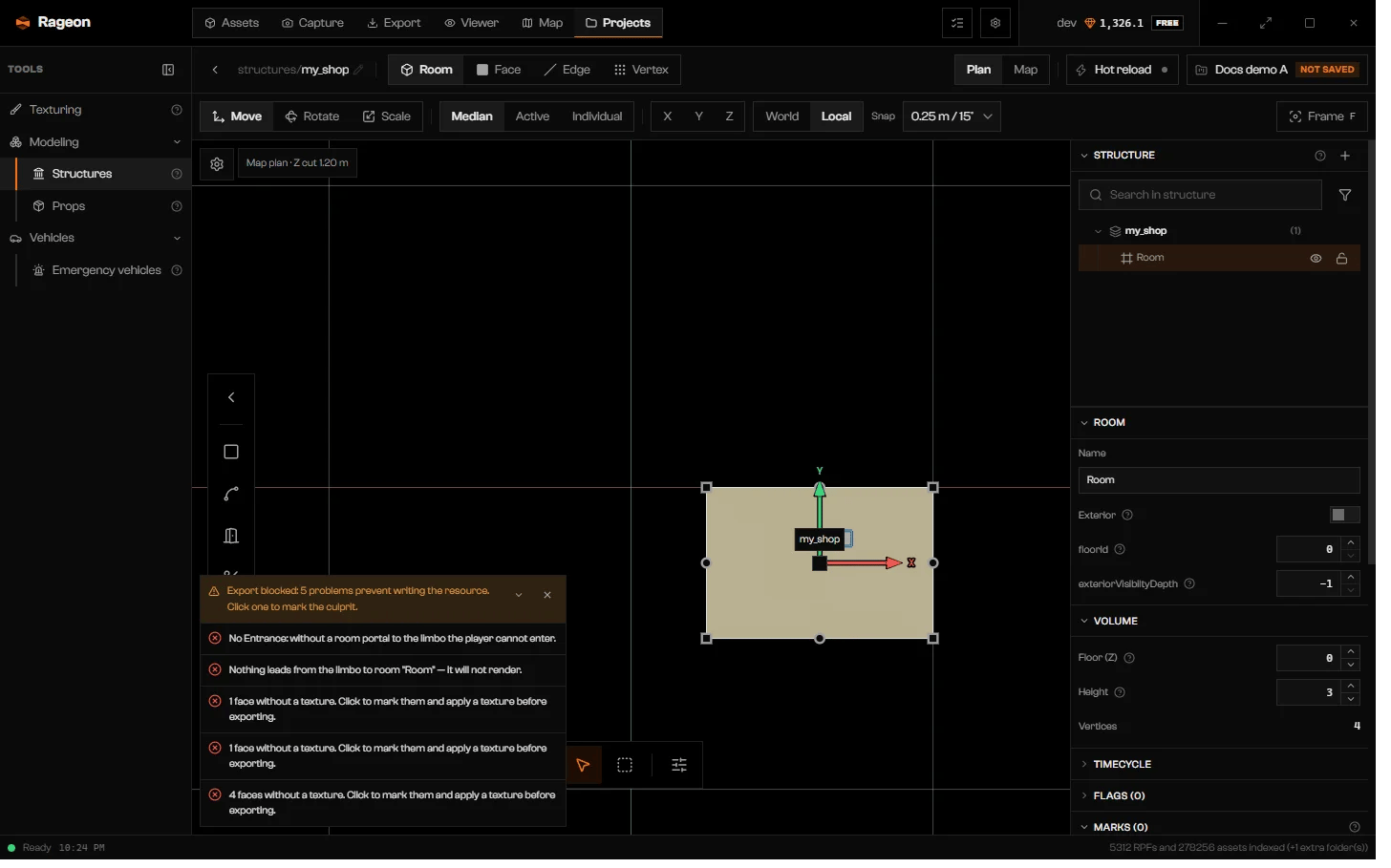
Plan view: a room selected, and the Export blocked strip over the view.
The layout
From top to bottom: the structure bar, the transform bar, then the view with the dock on its left and the details column on the right.
The Face, Edge, and Vertex levels switch to Edit geometry: see Geometry. Hot reload is covered in Hot reload. A gear at the top-left of the view opens Structure rendering, the same settings as the Map tab: see Rendering quality.
There are no Undo or Redo buttons while a structure is open. Press Ctrl+Z and Ctrl+Shift+Z (or Ctrl+Y). Hiding and locking in the tree cannot be undone.
The structure name in the bar is locked while the structure has unsaved changes: press Ctrl+S, then rename.
Camera and navigation
In the Map view, the default camera mode is Orbit.
The orientation cube at the top-right does the same: click a face or an axis to look from that side, and click again for the opposite.
Free mode: the right button looks around, W A S D move, Space or E go up, Q goes down, Shift speeds up, and the wheel changes the speed.
Plan view
A label at the top-left readsMap plan · Z cut … with the cut height. Right-drag rotates the plan, and Shift locks it to 15° steps. Middle-drag or Alt with left-drag pans, and the wheel zooms toward the pointer. Frame (F) restores the north-up framing. The Camera section of the View panel is disabled in Plan.
Entering Plan frames the rendering box, or the structure if there is none, and turns the section cut on. The cut is not saved.
The View panel
Click View (N) to open a column next to the details column. It stays open while you fly.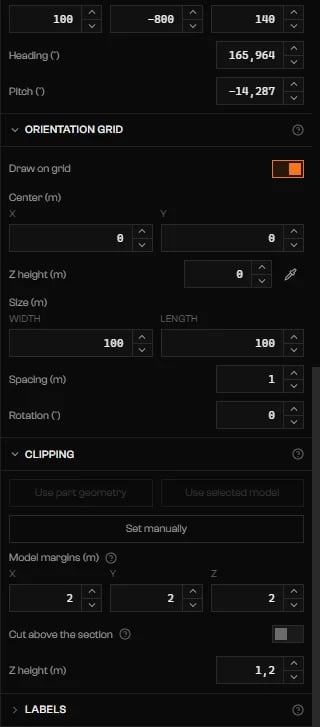
Camera, Orientation grid, and the start of Clipping.
Grid
Draw on grid shows the grid. The grid sets the floor of new rooms, even inside an existing model.
If the grid ends up outside the visible space, a warning tells you to adjust the grid height or the cut.
Rendering box and cut
The rendering box limits what the Map draws to the area around your work, so you see the structure instead of the whole city. The cut hides everything above a height.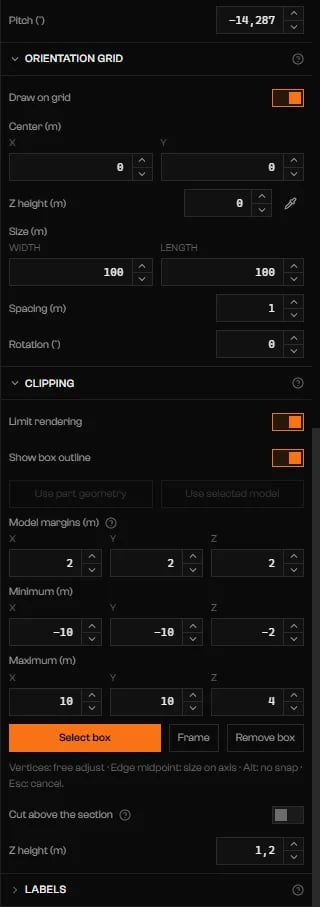
Clipping with the rendering box on: margins, minimum and maximum, and Cut above the section.
The box, the grid, the cut, and the labels are editing aids. They are saved with the structure and never exported.
Labels
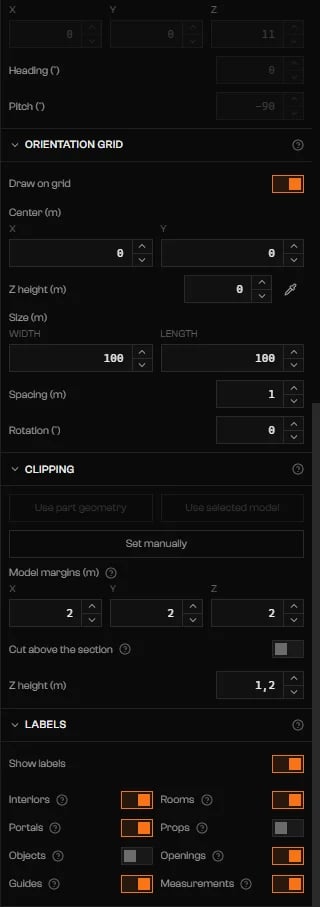
Labels with a toggle for each kind of text in the scene.
Select things
Shift adds to the selection and Ctrl toggles. Shift or Ctrl with a drag in empty space draws a marquee over the centers of items. Box selection (B) does the same with a rectangle tool. The interior marker is a square with the structure’s name, shown while nothing is selected and only once the part has rooms, geometry, or props. Select it and the gizmo works on the whole part: Move interior (G) and Rotate interior (R) change its position and heading, and Frame interior (F) flies to it. Select map objects (Shift+M, Map view) selects buildings and props of the world map. The Object node that appears has an Actions menu. Focus rendering puts the rendering box around the object, moves the grid to its base height, and sets the cut 1.2 m above that floor. While the part is empty it also moves the part’s origin to the center of the object’s base. Edit geometry, New part with this model, and Remove from map are covered in Geometry.Snapping
While you draw or move, the cursor snaps to what is under it and shows a square and a label: Vertices, Edge midpoints, Intersections, Face centers, Edges, Reference points, Rulers, or Measurements. Hold Ctrl while drawing, or Alt on handles, to place freely.Transform bar
While G, R, or S is armed you can type a value:
- flips the sign, X, Y, Z pick the axis, Enter confirms, and Esc cancels. Shift with a handle drag duplicates the selection first. Rooms and portals have their own handles: see Rooms and Portals and openings.
The structure tree
The Structure section lists everything in the scene by part, in the order you leave it: rooms, portals, openings, props, lights, entity sets, marks, objects, and groups. Clicking a row selects it, activates its part, and switches to the tool that edits it.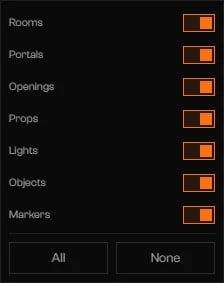
Filter types in the tree and in view clicks.
- Filter types hides kinds from the tree and from clicks in the view. It turns orange while something is off.
- The eye hides a node in the view, and the lock protects it from edits. On a part they apply to everything inside.
- Drag rows to reorder, to move them into or out of groups and sets, or between parts. Drop a prop or light on the middle of a room to put it in that room.
- F2 or a double-click renames rooms, lights, objects, marks, groups, sets, and parts. Portals, openings, and props cannot be renamed there. A portal row shows an internal id.
- Delete removes the selected rows. Deleting a part asks first. Deleting a group dissolves it: the children go back to the root of the part.
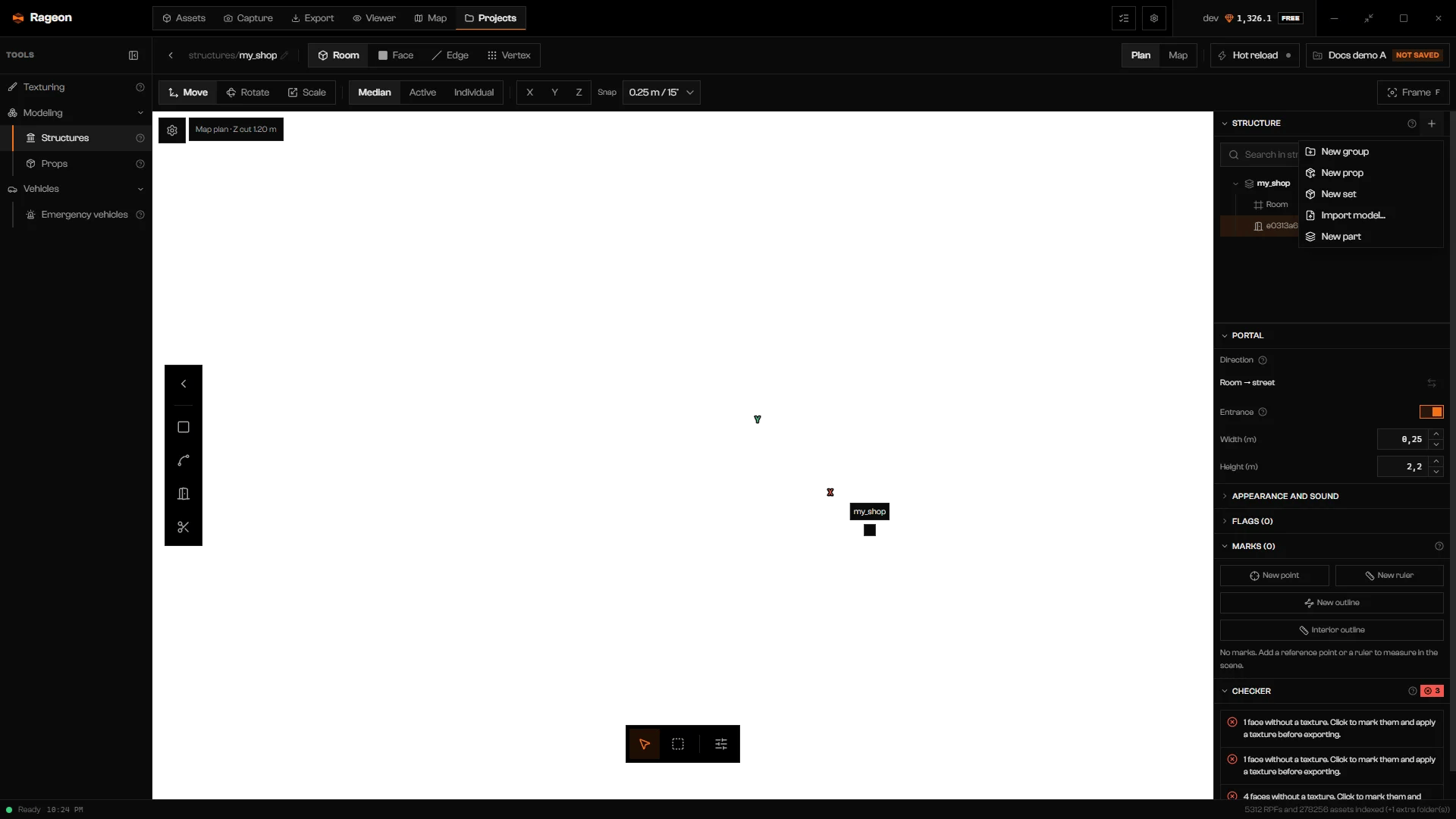
The Add to structure menu.
.glb, .ydr, or .ydr.xml file), and New part. Press F2 to rename a new part. A group is only organization in the tree: it does not go out in the export.
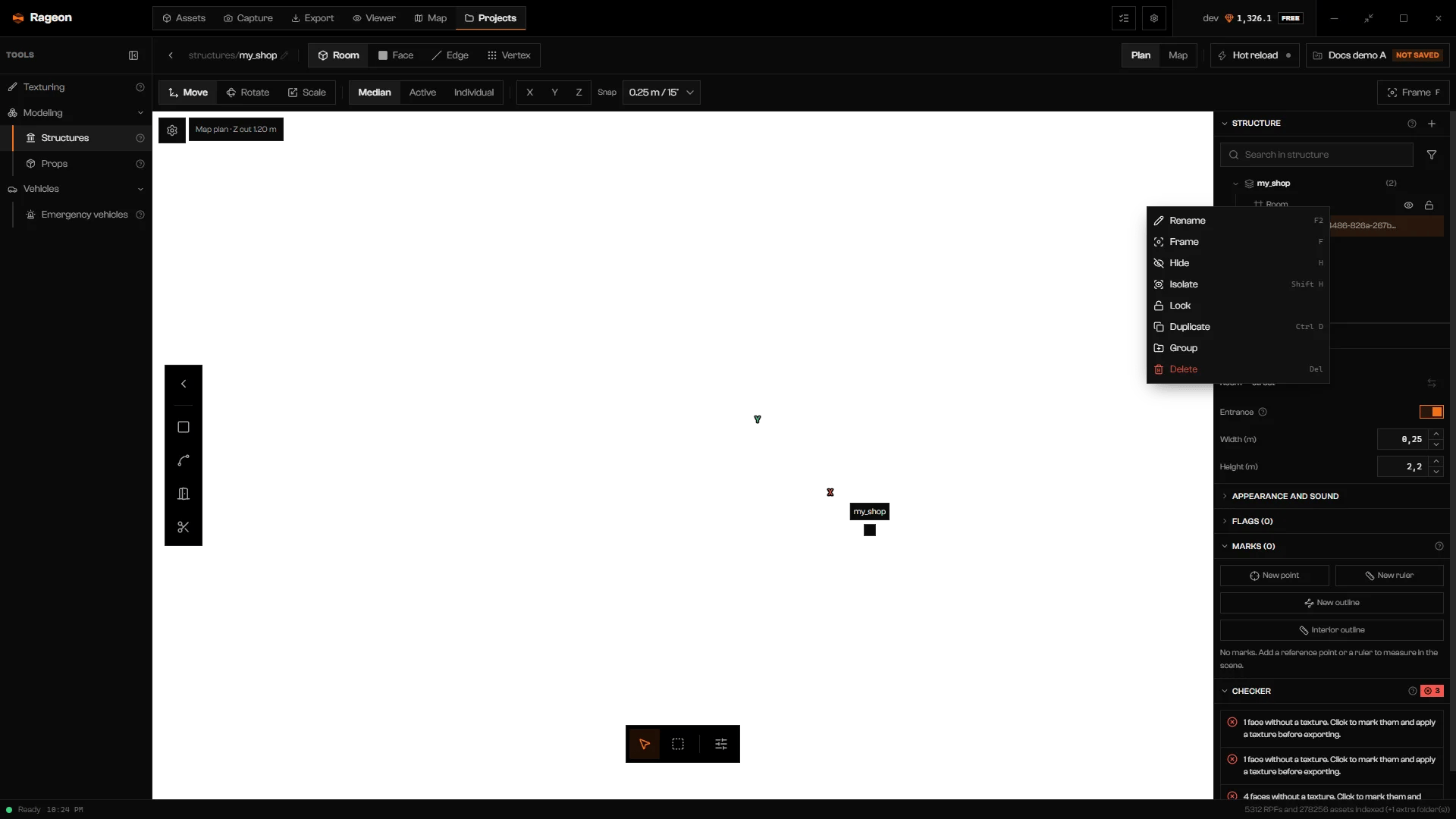
The right-click menu of a tree row.
Shortcuts
Shortcuts are ignored while a text field, a select, or a dialog has focus.Troubleshooting
Preparing the map…
Preparing the map…
The view loads the world first. Wait for the progress bar. If it stops, click Try again.
The map library isn't ready yet. Generate it in the Map tab — it's the same for both.
The map library isn't ready yet. Generate it in the Map tab — it's the same for both.
Open the Map tab and generate the library. See Library.
Couldn't move the camera: …
Couldn't move the camera: …
The camera panel needs the world to be running, and it is off in Plan. Switch to Map and wait for the map.
The grid is outside the visible space. Adjust the grid height or the cut.
The grid is outside the visible space. Adjust the grid height or the cut.
Set Z height (m) under Orientation grid, or use the eyedropper on a vertex, or turn the cut off.