
Open the tool
Open a project in Projects, then click Structures under Modeling in the left rail. A project must be open. A structure opens in the Map view, inside the real map.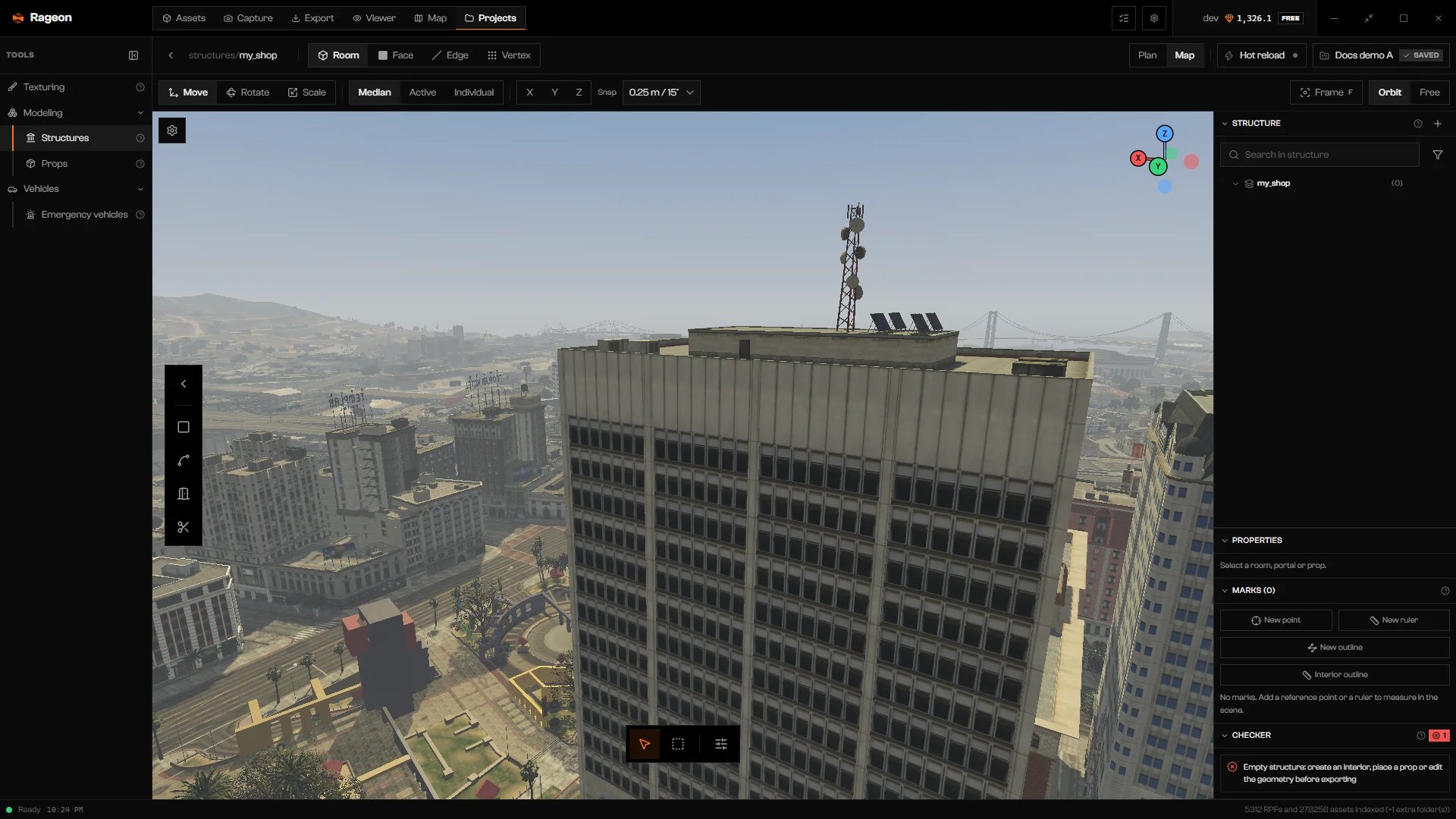
A new structure open in the Map view: the structure bar, the tool dock on the left, and the details column on the right.
Concepts
The street appears as street in the portal sheet. The game calls the same thing the limbo, and some Checker messages use that word.
Placement
A new structure and an imported game interior both start at world position 0, 0, 0, far from any street. Move the part before you build, or after:- Anchor it to a building or prop with Select map objects › Focus rendering. See Your first interior.
- Type Position (m) in the Part sheet.
- Drag the interior marker with the gizmo. The marker is the square with the structure’s name, shown while nothing is selected and only once the part has rooms, geometry, or props. See Editor views.
Interior box and editing aids
You do not edit the interior’s box: it follows the rooms. Two similar-looking things are editing aids only, saved with the structure and never exported: the Rendering box under Clipping, and the Interior outline marks. See Editor views and Marks.What to read next
- Your first interior: from an empty project to one room, exported and loaded in game.
- Create and import: the structure list, new structures, importing a game interior.
- Editor views: Map and Plan views, camera, grid, tree, shortcuts.
- Rooms, Portals and openings, Checker, Export.
- Beyond the interior: Props in structures, Geometry, Lights, Water, Textures, Marks, Flags.