Drop points, rulers, and outlines as reference in the scene, and generate the outline of an interior from its geometry.
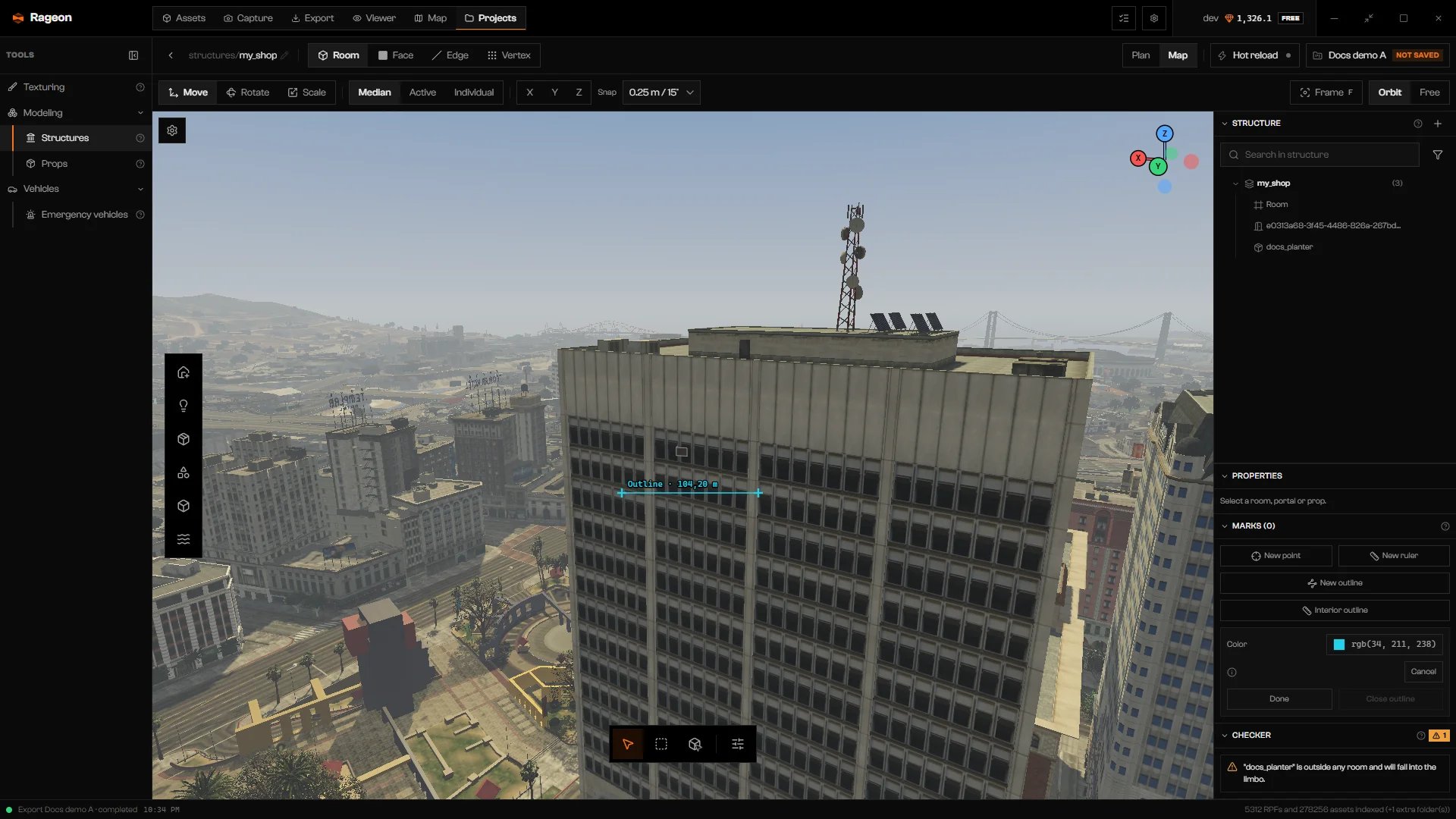
Marks are reference shapes in meters that you place to measure and line things up. They are fixed to world coordinates and saved with the structure. The Marks (N) section sits at the bottom of Structure details.
Click New point, New ruler, or New outline, then click in the scene. A small card shows Color and Cancel. For an outline it also has Done (at least 2 points) and Close outline (at least 3).Each mark gets its own section with a name, Color, Hide behind objects, its coordinates, and its measurement. Hide behind objects decides whether the mark shows through objects or respects scene depth. Outlines also have Closed outline.
Interior outline proposes closed outlines from your editable geometry. Use it to get the outline of an interior built from geometry objects.
1
Open the generator
Click Interior outline and choose Geometry: All editable geometry or one object. It starts on the first object in the list.
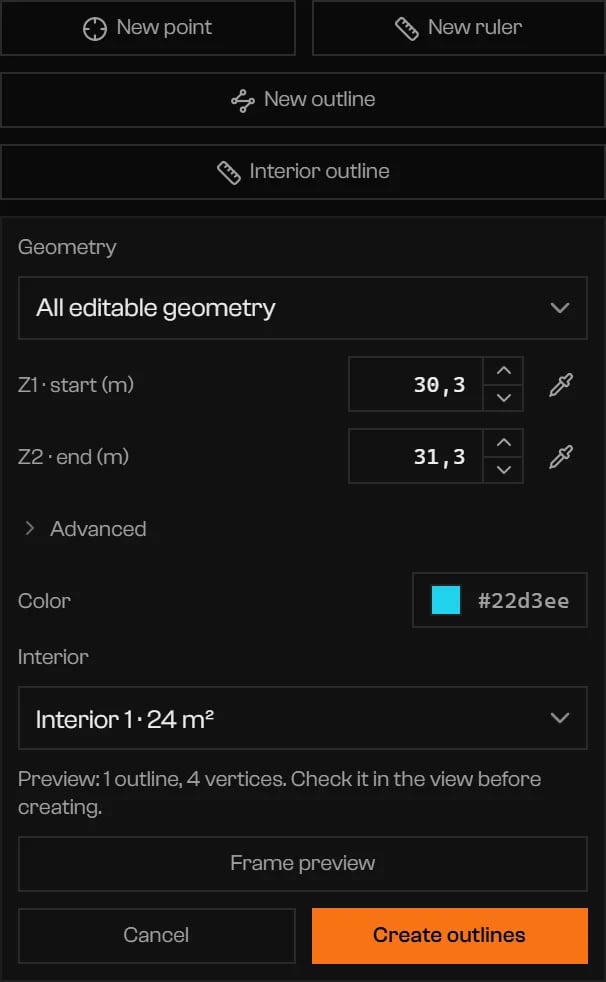
The generator with a height range and one detected interior.
2
Set the height range
Z1 · start (m) and Z2 · end (m) are the heights Rageon scans for a closed interior. Pick a range between the floor and the ceiling. The pipette (Take the height from the view) reads a height from the scene.
3
Check the preview
The outline is drawn in the view. If more than one interior is found, Interior switches between them (Interior 1 · 24 m²) or shows All interiors. Frame preview looks at the result.
4
Create the outlines
Click Create outlines to keep them as marks. Cancel discards the preview.
Open Advanced when the result is wrong:
Option
What it does
Default
Close gaps up to (m)
Ignores small voids between pieces of geometry.
0
Interior padding (m)
Pulls the outline in from the walls by this distance.
0
Group details (m)
Groups protrusions and moldings up to this depth into the same face. Larger ones stay as separate faces.
The structure has no geometry to scan. Draw or import some in Geometry.
No closed interior in this range. Avoid floor and ceiling or adjust Close gaps.
The height range hits the floor or ceiling. Move Z1 · start (m) and Z2 · end (m) between them, or raise Close gaps up to (m).
No interior meets the minimum area. Adjust the area, the height range or Close gaps.
Lower Minimum area (m²), change the range, or raise Close gaps up to (m).
The padding eliminates the interior. Reduce the value.
Lower Interior padding (m) under Advanced.
Couldn't calculate the outline. Try another height range.
Change Z1 · start (m) and Z2 · end (m).
Z2 must be greater than Z1. Enter valid heights.
Swap the two heights.
Could not separate the faces. Adjust Group details to gather moldings and protrusions.
Raise Group details (m) under Advanced.
{"docsConfig":{"theme":"mint","$schema":"https://mintlify.com/docs.json","name":"Rageon","colors":{"primary":"#f97316","light":"#fb923c","dark":"#c2410c"},"logo":{"light":"https://mintcdn.com/rageon/NnSHzDe1phDyv79M/logo/mark.png?fit=max\u0026auto=format\u0026n=NnSHzDe1phDyv79M\u0026q=85\u0026s=e0ae0889d31e1576f579125f3ef6685e","dark":"https://mintcdn.com/rageon/NnSHzDe1phDyv79M/logo/mark.png?fit=max\u0026auto=format\u0026n=NnSHzDe1phDyv79M\u0026q=85\u0026s=e0ae0889d31e1576f579125f3ef6685e","href":"https://rageon.dev"},"favicon":"https://mintcdn.com/rageon/tGC-5rfc07564TOG/favicon.png?fit=max\u0026auto=format\u0026n=tGC-5rfc07564TOG\u0026q=85\u0026s=7525da8dae81e50d0056d02037548e02","appearance":{"default":"dark"},"navbar":{"links":[{"href":"https://rageon.dev/pricing","label":"Pricing"}],"primary":{"type":"button","label":"Download","href":"https://rageon.dev/download"}},"footer":{"socials":{"website":"https://rageon.dev"}},"icons":{"library":"lucide"},"styling":{"latex":false},"navigation":{"languages":[{"language":"en","default":true,"href":"start/introduction"},{"language":"pt-BR","href":"pt-BR/start/introduction"},{"language":"es","href":"es/start/introduction"}]}},"deployment":{"deploymentMetadataValue":{"subdomain":"rageon","hasAudioNarration":false,"actualSubdomain":"rageon","customDomains":["docs.rageon.dev"],"gitSource":{"type":"github","owner":"rageoon","repo":"rageon-docs","deployBranch":"main","contentDirectory":"","isPrivate":true,"mountPath":"","label":"","_id":"6ada8d872e2812485d3d490a"},"chroma":{"latestBuiltDeploymentHistoryId":"6ada8d882e2812485d3d4910","collectionId":"d8abb39d-b557-4128-b440-bcb1bb1501eb","liveDeploymentHistoryId":"6ada8d882e2812485d3d4910","schemaVersion":"v3"},"entitlements":{"AI_CHAT":{"status":"ENABLED"},"WEB_MCP":{"status":"ENABLED"},"NARRATION":{"status":"ENABLED"}},"buildId":"6ada8d96fbb15298db52c70c","clientVersion":"0.0.3939","searchFilterCounts":[{"language":"en","tag":"Projects","count":43},{"language":"es","tag":"Proyectos","count":43},{"language":"pt-BR","tag":"Projetos","count":43},{"language":"en","tag":"Structures","count":16},{"language":"es","tag":"Estructuras","count":16},{"language":"pt-BR","tag":"Estruturas","count":16},{"language":"en","tag":"Map","count":15},{"language":"es","tag":"Mapa","count":15},{"language":"pt-BR","tag":"Mapa","count":15},{"language":"en","tag":"Getting started","count":14},{"language":"en","tag":"Viewer","count":14},{"language":"es","tag":"Primeros pasos","count":14},{"language":"es","tag":"Visor","count":14},{"language":"pt-BR","tag":"Primeiros passos","count":14},{"language":"pt-BR","tag":"Visualização","count":14},{"language":"en","tag":"Assets","count":12},{"language":"en","tag":"Capture","count":12},{"language":"es","tag":"Assets","count":12},{"language":"es","tag":"Captura","count":12},{"language":"pt-BR","tag":"Assets","count":12},{"language":"pt-BR","tag":"Captura","count":12},{"language":"en","tag":"Texturing","count":11},{"language":"es","tag":"Texturizado","count":11},{"language":"pt-BR","tag":"Texturização","count":11},{"language":"en","tag":"Export","count":8},{"language":"es","tag":"Exportar","count":8},{"language":"pt-BR","tag":"Exportar","count":8},{"language":"en","tag":"Help","count":6},{"language":"es","tag":"Ayuda","count":6},{"language":"pt-BR","tag":"Ajuda","count":6}],"searchSettings":{"isFiltersEnabled":true,"showContentSnippets":true}},"assistantConfig":{"enableAskAiButton":false,"enableStarterQuestions":false,"enableContextualStarterQuestions":false,"enableAskAiSearchBar":true},"hasChatPermissions":true,"hasWebMcpPermissions":true,"toggles":[{"name":"kill-isr","enabled":true,"variant":{"name":"disabled","enabled":false,"feature_enabled":true},"impressionData":false},{"name":"agent-mintlify-slack","enabled":true,"variant":{"name":"disabled","enabled":false,"feature_enabled":true},"impressionData":false},{"name":"editor-v7-file-tree","enabled":true,"variant":{"name":"disabled","enabled":false,"feature_enabled":true},"impressionData":false},{"name":"agent-integrations-settings","enabled":true,"variant":{"name":"disabled","enabled":false,"feature_enabled":true},"impressionData":false},{"name":"automations-pr-grouping","enabled":true,"variant":{"name":"disabled","enabled":false,"feature_enabled":true},"impressionData":false},{"name":"custom-prefix","enabled":true,"variant":{"name":"disabled","enabled":false,"feature_enabled":true},"impressionData":false},{"name":"analytics-v7","enabled":true,"variant":{"name":"disabled","enabled":false,"feature_enabled":true},"impressionData":false},{"name":"user-flows-analytics","enabled":true,"variant":{"name":"disabled","enabled":false,"feature_enabled":true},"impressionData":false},{"name":"no-publish-flow","enabled":true,"variant":{"name":"disabled","enabled":false,"feature_enabled":true},"impressionData":false},{"name":"workos-onboarding","enabled":true,"variant":{"name":"disabled","enabled":false,"feature_enabled":true},"impressionData":false},{"name":"llms-txt-v2","enabled":true,"variant":{"name":"disabled","enabled":false,"feature_enabled":true},"impressionData":false},{"name":"pause-universal-search-reconcile","enabled":true,"variant":{"name":"disabled","enabled":false,"feature_enabled":true},"impressionData":false},{"name":"snapshot-serving-live","enabled":true,"variant":{"name":"disabled","enabled":false,"feature_enabled":true},"impressionData":false},{"name":"stripTemperatureMiddleware","enabled":true,"variant":{"name":"disabled","enabled":false,"feature_enabled":true},"impressionData":false},{"name":"per-site-search-delta","enabled":true,"variant":{"name":"disabled","enabled":false,"feature_enabled":true},"impressionData":false},{"name":"support-platform-pylon-zendesk","enabled":true,"variant":{"name":"disabled","enabled":false,"feature_enabled":true},"impressionData":false},{"name":"snapshot-serving","enabled":true,"variant":{"name":"disabled","enabled":false,"feature_enabled":true},"impressionData":false},{"name":"instant-rollback","enabled":true,"variant":{"name":"disabled","enabled":false,"feature_enabled":true},"impressionData":false},{"name":"granular-notifications-server","enabled":true,"variant":{"name":"disabled","enabled":false,"feature_enabled":true},"impressionData":false},{"name":"granular-notifications","enabled":true,"variant":{"name":"disabled","enabled":false,"feature_enabled":true},"impressionData":false},{"name":"editor-private-page-search","enabled":true,"variant":{"name":"disabled","enabled":false,"feature_enabled":true},"impressionData":false},{"name":"automations-fable","enabled":true,"variant":{"name":"disabled","enabled":false,"feature_enabled":true},"impressionData":false},{"name":"fixed-ai-action-pricing","enabled":true,"variant":{"name":"disabled","enabled":false,"feature_enabled":true},"impressionData":false},{"name":"automation-resolve-merge-conflict","enabled":true,"variant":{"name":"disabled","enabled":false,"feature_enabled":true},"impressionData":false},{"name":"scoped-publishing","enabled":true,"variant":{"name":"disabled","enabled":false,"feature_enabled":true},"impressionData":false},{"name":"mintql","enabled":true,"variant":{"name":"disabled","enabled":false,"feature_enabled":true},"impressionData":false},{"name":"page-level-analytics","enabled":true,"variant":{"name":"disabled","enabled":false,"feature_enabled":true},"impressionData":false},{"name":"editor-version-history-v2","enabled":true,"variant":{"name":"disabled","enabled":false,"feature_enabled":true},"impressionData":false},{"name":"editor-nav-generations","enabled":true,"variant":{"name":"disabled","enabled":false,"feature_enabled":true},"impressionData":false},{"name":"billing-page-v2","enabled":true,"variant":{"name":"disabled","enabled":false,"feature_enabled":true},"impressionData":false},{"name":"workspace-projects","enabled":true,"variant":{"name":"disabled","enabled":false,"feature_enabled":true},"impressionData":false},{"name":"assistant-v5","enabled":true,"variant":{"name":"disabled","enabled":false,"feature_enabled":true},"impressionData":false},{"name":"byok-sep-25","enabled":true,"variant":{"name":"disabled","enabled":false,"feature_enabled":true},"impressionData":false},{"name":"fork-pr-previews","enabled":true,"variant":{"name":"disabled","enabled":false,"feature_enabled":true},"impressionData":false},{"name":"revalidation-jwt","enabled":true,"variant":{"name":"disabled","enabled":false,"feature_enabled":true},"impressionData":false},{"name":"vite-origin","enabled":true,"variant":{"name":"disabled","enabled":false,"feature_enabled":true},"impressionData":false},{"name":"editor-agent-model-picker","enabled":true,"variant":{"name":"disabled","enabled":false,"feature_enabled":true},"impressionData":false},{"name":"billing-updated-9-15","enabled":true,"variant":{"name":"disabled","enabled":false,"feature_enabled":true},"impressionData":false},{"name":"hobby-abuse-scan","enabled":true,"variant":{"name":"disabled","enabled":false,"feature_enabled":true},"impressionData":false},{"name":"dashboard-inbox","enabled":true,"variant":{"name":"disabled","enabled":false,"feature_enabled":true},"impressionData":false}],"isAtlas":false,"googleFontsInlined":false},"customCss":[],"page":{"pagePath":"projects/structures/marks","slug":"/projects/structures/marks","pageMetadata":{"title":"Marks","icon":"ruler","description":"Drop points, rulers, and outlines as reference in the scene, and generate the outline of an interior from its geometry.","href":"/projects/structures/marks"},"description":{"compiledSource":"\"use strict\";\nconst {jsx: _jsx} = arguments[0];\nconst {useMDXComponents: _provideComponents} = arguments[0];\nfunction _createMdxContent(props) {\n const _components = {\n p: \"p\",\n ..._provideComponents(),\n ...props.components\n };\n return _jsx(_components.p, {\n children: \"Drop points, rulers, and outlines as reference in the scene, and generate the outline of an interior from its geometry.\"\n });\n}\nfunction MDXContent(props = {}) {\n const {wrapper: MDXLayout} = {\n ..._provideComponents(),\n ...props.components\n };\n return MDXLayout ? _jsx(MDXLayout, {\n ...props,\n children: _jsx(_createMdxContent, {\n ...props\n })\n }) : _createMdxContent(props);\n}\nreturn {\n default: MDXContent\n};\n","frontmatter":{},"scope":{}},"pageType":"default","mdx":{"mdxSource":{"compiledSource":"\"use strict\";const{Fragment:_Fragment,jsx:_jsx,jsxs:_jsxs}=arguments[0];const{useMDXComponents:_provideComponents}=arguments[0];function _createMdxContent(props){const _components={a:`a`,p:`p`,strong:`strong`,tbody:`tbody`,td:`td`,th:`th`,thead:`thead`,tr:`tr`,..._provideComponents(),...props.components},{Accordion,AccordionGroup,Frame,Heading,OptimizedImage,Step,Steps,Table}=_components;if(!Accordion)_missingMdxReference(`Accordion`,true);if(!AccordionGroup)_missingMdxReference(`AccordionGroup`,true);if(!Frame)_missingMdxReference(`Frame`,true);if(!Heading)_missingMdxReference(`Heading`,true);if(!OptimizedImage)_missingMdxReference(`OptimizedImage`,true);if(!Step)_missingMdxReference(`Step`,true);if(!Steps)_missingMdxReference(`Steps`,true);if(!Table)_missingMdxReference(`Table`,true);return _jsxs(_Fragment,{children:[_jsxs(_components.p,{children:[`Marks are reference shapes in meters that you place to measure and line things up. They are fixed to world coordinates and saved with the structure. The `,_jsx(_components.strong,{children:`Marks (N)`}),` section sits at the bottom of `,_jsx(_components.strong,{children:`Structure details`}),`.`]}),`\n`,_jsx(Frame,{caption:`Drawing a new outline on the side of a building.`,children:_jsx(OptimizedImage,{src:`https://mintcdn.com/rageon/_nzjx4zmIQAxf8Hl/images/structures/structures-marks.webp?fit=max\u0026auto=format\u0026n=_nzjx4zmIQAxf8Hl\u0026q=85\u0026s=178ab4b43628dc9523b1492eec3d992b`,alt:`Marks section with New point, New ruler, New outline, and Interior outline, and an outline being drawn in the scene`,\"data-og-width\":`1920`,width:`1920`,\"data-og-height\":`1080`,height:`1080`,\"data-path\":`images/structures/structures-marks.webp`,\"data-optimize\":`true`,\"data-opv\":`3`,srcset:`https://mintcdn.com/rageon/_nzjx4zmIQAxf8Hl/images/structures/structures-marks.webp?w=280\u0026fit=max\u0026auto=format\u0026n=_nzjx4zmIQAxf8Hl\u0026q=85\u0026s=61ffecc2dcb9f83a659b7ac1f000765e 280w, https://mintcdn.com/rageon/_nzjx4zmIQAxf8Hl/images/structures/structures-marks.webp?w=560\u0026fit=max\u0026auto=format\u0026n=_nzjx4zmIQAxf8Hl\u0026q=85\u0026s=43d448ff92d7f2869193d6da6909553f 560w, https://mintcdn.com/rageon/_nzjx4zmIQAxf8Hl/images/structures/structures-marks.webp?w=840\u0026fit=max\u0026auto=format\u0026n=_nzjx4zmIQAxf8Hl\u0026q=85\u0026s=174e3507b72117bacb2857ab52883d4c 840w, https://mintcdn.com/rageon/_nzjx4zmIQAxf8Hl/images/structures/structures-marks.webp?w=1100\u0026fit=max\u0026auto=format\u0026n=_nzjx4zmIQAxf8Hl\u0026q=85\u0026s=34b09cf501e8b99f41b8d977182c8b68 1100w, https://mintcdn.com/rageon/_nzjx4zmIQAxf8Hl/images/structures/structures-marks.webp?w=1650\u0026fit=max\u0026auto=format\u0026n=_nzjx4zmIQAxf8Hl\u0026q=85\u0026s=9dbf2f44bc9fba4140f465120bd2c1b6 1650w, https://mintcdn.com/rageon/_nzjx4zmIQAxf8Hl/images/structures/structures-marks.webp?w=2500\u0026fit=max\u0026auto=format\u0026n=_nzjx4zmIQAxf8Hl\u0026q=85\u0026s=314c9e8bf4a67c2e126c11cf8101e556 2500w`})}),`\n`,_jsx(Heading,{level:`2`,id:`draw-a-mark`,children:`Draw a mark`}),`\n`,_jsxs(_components.p,{children:[`Click `,_jsx(_components.strong,{children:`New point`}),`, `,_jsx(_components.strong,{children:`New ruler`}),`, or `,_jsx(_components.strong,{children:`New outline`}),`, then click in the scene. A small card shows `,_jsx(_components.strong,{children:`Color`}),` and `,_jsx(_components.strong,{children:`Cancel`}),`. For an outline it also has `,_jsx(_components.strong,{children:`Done`}),` (at least 2 points) and `,_jsx(_components.strong,{children:`Close outline`}),` (at least 3).`]}),`\n`,_jsxs(_components.p,{children:[`Each mark gets its own section with a name, `,_jsx(_components.strong,{children:`Color`}),`, `,_jsx(_components.strong,{children:`Hide behind objects`}),`, its coordinates, and its measurement. `,_jsx(_components.strong,{children:`Hide behind objects`}),` decides whether the mark shows through objects or respects scene depth. Outlines also have `,_jsx(_components.strong,{children:`Closed outline`}),`.`]}),`\n`,_jsx(Heading,{level:`2`,id:`interior-outline`,children:`Interior outline`}),`\n`,_jsxs(_components.p,{children:[_jsx(_components.strong,{children:`Interior outline`}),` proposes closed outlines from your editable geometry. Use it to get the outline of an interior built from geometry objects.`]}),`\n`,_jsxs(Steps,{children:[_jsxs(Step,{title:`Open the generator`,children:[_jsxs(_components.p,{children:[`Click `,_jsx(_components.strong,{children:`Interior outline`}),` and choose `,_jsx(_components.strong,{children:`Geometry`}),`: `,_jsx(_components.strong,{children:`All editable geometry`}),` or one object. It starts on the first object in the list.`]}),_jsx(Frame,{caption:`The generator with a height range and one detected interior.`,children:_jsx(OptimizedImage,{src:`https://mintcdn.com/rageon/_nzjx4zmIQAxf8Hl/images/structures/structures-interior-outline.webp?fit=max\u0026auto=format\u0026n=_nzjx4zmIQAxf8Hl\u0026q=85\u0026s=f8e40a016047e0d9229f89f9be5e9c81`,alt:`Interior outline generator with Geometry, Z1 start, Z2 end, Advanced, Color, Interior, and Create outlines`,\"data-og-width\":`606`,width:`606`,\"data-og-height\":`982`,height:`982`,\"data-path\":`images/structures/structures-interior-outline.webp`,\"data-optimize\":`true`,\"data-opv\":`3`,srcset:`https://mintcdn.com/rageon/_nzjx4zmIQAxf8Hl/images/structures/structures-interior-outline.webp?w=280\u0026fit=max\u0026auto=format\u0026n=_nzjx4zmIQAxf8Hl\u0026q=85\u0026s=9717d0aafc7aee0fe0eee4d92a96d69b 280w, https://mintcdn.com/rageon/_nzjx4zmIQAxf8Hl/images/structures/structures-interior-outline.webp?w=560\u0026fit=max\u0026auto=format\u0026n=_nzjx4zmIQAxf8Hl\u0026q=85\u0026s=1c4083a6503568c1cec9dea192942cd8 560w, https://mintcdn.com/rageon/_nzjx4zmIQAxf8Hl/images/structures/structures-interior-outline.webp?w=840\u0026fit=max\u0026auto=format\u0026n=_nzjx4zmIQAxf8Hl\u0026q=85\u0026s=3cd5f751db55c4cb0d801456a76bca8a 840w, https://mintcdn.com/rageon/_nzjx4zmIQAxf8Hl/images/structures/structures-interior-outline.webp?w=1100\u0026fit=max\u0026auto=format\u0026n=_nzjx4zmIQAxf8Hl\u0026q=85\u0026s=bc51a0e8235bf4fd716c5689e29fe0f0 1100w, https://mintcdn.com/rageon/_nzjx4zmIQAxf8Hl/images/structures/structures-interior-outline.webp?w=1650\u0026fit=max\u0026auto=format\u0026n=_nzjx4zmIQAxf8Hl\u0026q=85\u0026s=58dadf711f8015e5a31f96f808b7a38e 1650w, https://mintcdn.com/rageon/_nzjx4zmIQAxf8Hl/images/structures/structures-interior-outline.webp?w=2500\u0026fit=max\u0026auto=format\u0026n=_nzjx4zmIQAxf8Hl\u0026q=85\u0026s=e4df5a0fbd2cfcf93af97d730cf23fda 2500w`})})]}),_jsx(Step,{title:`Set the height range`,children:_jsxs(_components.p,{children:[_jsx(_components.strong,{children:`Z1 · start (m)`}),` and `,_jsx(_components.strong,{children:`Z2 · end (m)`}),` are the heights Rageon scans for a closed interior. Pick a range between the floor and the ceiling. The pipette (`,_jsx(_components.strong,{children:`Take the height from the view`}),`) reads a height from the scene.`]})}),_jsx(Step,{title:`Check the preview`,children:_jsxs(_components.p,{children:[`The outline is drawn in the view. If more than one interior is found, `,_jsx(_components.strong,{children:`Interior`}),` switches between them (`,_jsx(_components.strong,{children:`Interior 1 · 24 m²`}),`) or shows `,_jsx(_components.strong,{children:`All interiors`}),`. `,_jsx(_components.strong,{children:`Frame preview`}),` looks at the result.`]})}),_jsx(Step,{title:`Create the outlines`,children:_jsxs(_components.p,{children:[`Click `,_jsx(_components.strong,{children:`Create outlines`}),` to keep them as marks. `,_jsx(_components.strong,{children:`Cancel`}),` discards the preview.`]})})]}),`\n`,_jsxs(_components.p,{children:[`Open `,_jsx(_components.strong,{children:`Advanced`}),` when the result is wrong:`]}),`\n`,_jsxs(Table,{children:[_jsx(_components.thead,{children:_jsxs(_components.tr,{children:[_jsx(_components.th,{children:`Option`}),_jsx(_components.th,{children:`What it does`}),_jsx(_components.th,{children:`Default`})]})}),_jsxs(_components.tbody,{children:[_jsxs(_components.tr,{children:[_jsx(_components.td,{children:_jsx(_components.strong,{children:`Close gaps up to (m)`})}),_jsx(_components.td,{children:`Ignores small voids between pieces of geometry.`}),_jsx(_components.td,{\"data-numeric\":`true`,children:`0`})]}),_jsxs(_components.tr,{children:[_jsx(_components.td,{children:_jsx(_components.strong,{children:`Interior padding (m)`})}),_jsx(_components.td,{children:`Pulls the outline in from the walls by this distance.`}),_jsx(_components.td,{\"data-numeric\":`true`,children:`0`})]}),_jsxs(_components.tr,{children:[_jsx(_components.td,{children:_jsx(_components.strong,{children:`Group details (m)`})}),_jsx(_components.td,{children:`Groups protrusions and moldings up to this depth into the same face. Larger ones stay as separate faces.`}),_jsx(_components.td,{\"data-numeric\":`true`,children:`0.25`})]}),_jsxs(_components.tr,{children:[_jsx(_components.td,{children:_jsx(_components.strong,{children:`Minimum area (m²)`})}),_jsx(_components.td,{children:`Drops interiors smaller than this.`}),_jsx(_components.td,{\"data-numeric\":`true`,children:`1`})]})]})]}),`\n`,_jsx(Heading,{level:`2`,id:`troubleshooting`,children:`Troubleshooting`}),`\n`,_jsxs(AccordionGroup,{children:[_jsx(Accordion,{title:`Add editable geometry to generate the outline.`,id:`add-editable-geometry-to-generate-the-outline`,children:_jsxs(_components.p,{children:[`The structure has no geometry to scan. Draw or import some in `,_jsx(_components.a,{href:`/projects/structures/geometry`,children:`Geometry`}),`.`]})}),_jsx(Accordion,{title:`No closed interior in this range. Avoid floor and ceiling or adjust Close gaps.`,id:`no-closed-interior-in-this-range-avoid-floor-and-ceiling-or-adjust-close-gaps`,children:_jsxs(_components.p,{children:[`The height range hits the floor or ceiling. Move `,_jsx(_components.strong,{children:`Z1 · start (m)`}),` and `,_jsx(_components.strong,{children:`Z2 · end (m)`}),` between them, or raise `,_jsx(_components.strong,{children:`Close gaps up to (m)`}),`.`]})}),_jsx(Accordion,{title:`No interior meets the minimum area. Adjust the area, the height range or Close gaps.`,id:`no-interior-meets-the-minimum-area-adjust-the-area-the-height-range-or-close-gaps`,children:_jsxs(_components.p,{children:[`Lower `,_jsx(_components.strong,{children:`Minimum area (m²)`}),`, change the range, or raise `,_jsx(_components.strong,{children:`Close gaps up to (m)`}),`.`]})}),_jsx(Accordion,{title:`The padding eliminates the interior. Reduce the value.`,id:`the-padding-eliminates-the-interior-reduce-the-value`,children:_jsxs(_components.p,{children:[`Lower `,_jsx(_components.strong,{children:`Interior padding (m)`}),` under `,_jsx(_components.strong,{children:`Advanced`}),`.`]})}),_jsx(Accordion,{title:`Couldn't calculate the outline. Try another height range.`,id:`couldnt-calculate-the-outline-try-another-height-range`,children:_jsxs(_components.p,{children:[`Change `,_jsx(_components.strong,{children:`Z1 · start (m)`}),` and `,_jsx(_components.strong,{children:`Z2 · end (m)`}),`.`]})}),_jsx(Accordion,{title:`Z2 must be greater than Z1. Enter valid heights.`,id:`z2-must-be-greater-than-z1-enter-valid-heights`,children:_jsx(_components.p,{children:`Swap the two heights.`})}),_jsx(Accordion,{title:`Could not separate the faces. Adjust Group details to gather moldings and protrusions.`,id:`could-not-separate-the-faces-adjust-group-details-to-gather-moldings-and-protrusions`,children:_jsxs(_components.p,{children:[`Raise `,_jsx(_components.strong,{children:`Group details (m)`}),` under `,_jsx(_components.strong,{children:`Advanced`}),`.`]})})]})]})}function MDXContent(props={}){const{wrapper:MDXLayout}={..._provideComponents(),...props.components};return MDXLayout?_jsx(MDXLayout,{...props,children:_jsx(_createMdxContent,{...props})}):_createMdxContent(props)}return{default:MDXContent};function _missingMdxReference(id,component){throw new Error(`Expected `+(component?`component`:`object`)+\" `\"+id+\"` to be defined: you likely forgot to import, pass, or provide it.\")}","frontmatter":{},"scope":{"config":{},"pageMetadata":{"title":"Marks","icon":"ruler","description":"Drop points, rulers, and outlines as reference in the scene, and generate the outline of an interior from its geometry.","href":"/projects/structures/marks"}}},"mdxSourceWithNoJs":null},"mdxExtracts":{"tableOfContents":[{"title":"Draw a mark","slug":"draw-a-mark","depth":2,"children":[]},{"title":"Interior outline","slug":"interior-outline","depth":2,"children":[]},{"title":"Troubleshooting","slug":"troubleshooting","depth":2,"children":[]}],"codeExamples":{}},"jsLinks":[],"subdomain":"rageon","siteName":"Rageon","title":"Marks - Rageon","navMaps":{"firstHrefInVersion":{},"firstHrefInLanguage":{"en":{"href":"/projects/structures/marks","matchLevel":0},"pt-BR":{"href":"/pt-BR/projects/structures/marks","matchLevel":1},"es":{"href":"/es/projects/structures/marks","matchLevel":1}}},"lastModified":"2026-10-22T22:26:50.617Z","originalFileLocation":"projects/structures/marks.mdx","locale":"en"},"headHtml":"\u003cscript data-mint-head>(function(){var d=document.documentElement,p=null;if(!p){try{p=localStorage.getItem(\"isDarkMode\")}catch(e){}if(p==='true')p='dark';else if(p==='false')p='light';if(p!=='light'\u0026\u0026p!=='dark'\u0026\u0026p!=='system')p=\"dark\"}var r=p==='system'?(matchMedia(\"(prefers-color-scheme: dark)\").matches?'dark':'light'):p;d.classList.remove(r==='dark'?'light':'dark');d.classList.add(r);d.setAttribute(\"data-theme-preference\",p)})();\u003c/script>\u003cmeta data-mint-head name=\"description\" content=\"Drop points, rulers, and outlines as reference in the scene, and generate the outline of an interior from its geometry.\">\u003cmeta data-mint-head name=\"application-name\" content=\"Rageon\">\u003cmeta data-mint-head name=\"generator\" content=\"Mintlify\">\u003clink data-mint-head rel=\"icon\" type=\"image/png\" sizes=\"192x192\" href=\"/mintlify-assets/_mintlify/favicons/rageon/ZtuCQ-reSINKWczI/_generated/favicon/android-chrome-192x192.png\" media=\"(prefers-color-scheme: light)\">\u003clink data-mint-head rel=\"apple-touch-icon\" type=\"image/png\" sizes=\"180x180\" href=\"/mintlify-assets/_mintlify/favicons/rageon/ZtuCQ-reSINKWczI/_generated/favicon/apple-touch-icon.png\">\u003clink data-mint-head rel=\"icon\" type=\"image/png\" sizes=\"16x16\" href=\"/mintlify-assets/_mintlify/favicons/rageon/ZtuCQ-reSINKWczI/_generated/favicon/favicon-16x16.png\" media=\"(prefers-color-scheme: light)\">\u003clink data-mint-head rel=\"icon\" type=\"image/png\" sizes=\"32x32\" href=\"/mintlify-assets/_mintlify/favicons/rageon/ZtuCQ-reSINKWczI/_generated/favicon/favicon-32x32.png\" media=\"(prefers-color-scheme: light)\">\u003clink data-mint-head rel=\"shortcut icon\" type=\"image/x-icon\" href=\"/mintlify-assets/_mintlify/favicons/rageon/ZtuCQ-reSINKWczI/_generated/favicon/favicon.ico\" media=\"(prefers-color-scheme: light)\">\u003clink data-mint-head rel=\"icon\" type=\"image/png\" sizes=\"192x192\" href=\"/mintlify-assets/_mintlify/favicons/rageon/ZtuCQ-reSINKWczI/_generated/favicon-dark/android-chrome-192x192.png\" media=\"(prefers-color-scheme: dark)\">\u003clink data-mint-head rel=\"icon\" type=\"image/png\" sizes=\"16x16\" href=\"/mintlify-assets/_mintlify/favicons/rageon/ZtuCQ-reSINKWczI/_generated/favicon-dark/favicon-16x16.png\" media=\"(prefers-color-scheme: dark)\">\u003clink data-mint-head rel=\"icon\" type=\"image/png\" sizes=\"32x32\" href=\"/mintlify-assets/_mintlify/favicons/rageon/ZtuCQ-reSINKWczI/_generated/favicon-dark/favicon-32x32.png\" media=\"(prefers-color-scheme: dark)\">\u003clink data-mint-head rel=\"shortcut icon\" type=\"image/x-icon\" href=\"/mintlify-assets/_mintlify/favicons/rageon/ZtuCQ-reSINKWczI/_generated/favicon-dark/favicon.ico\" media=\"(prefers-color-scheme: dark)\">\u003cmeta data-mint-head property=\"og:title\" content=\"Marks - Rageon\">\u003cmeta data-mint-head property=\"og:description\" content=\"Drop points, rulers, and outlines as reference in the scene, and generate the outline of an interior from its geometry.\">\u003cmeta data-mint-head property=\"og:site_name\" content=\"Rageon\">\u003cmeta data-mint-head property=\"og:url\" content=\"https://docs.rageon.dev/projects/structures/marks\">\u003cmeta data-mint-head property=\"og:type\" content=\"website\">\u003cmeta data-mint-head property=\"og:image\" content=\"https://rageon.mintlify.app/_mintlify/api/og/v2?division=Structures\u0026amp;title=Marks\u0026amp;description=Drop+points%2C+rulers%2C+and+outlines+as+reference+in+the+scene%2C+and+generate+the+outline+of+an+interior+from+its+geometry.\u0026amp;theme=dc798bdc6d01b550c8b95f0f\u0026amp;signature=03e2ece577130c53d6bae02adee21c62d722922a94d5b0f439d1698061b8c8ff\">\u003cmeta data-mint-head property=\"og:image:width\" content=\"1200\">\u003cmeta data-mint-head property=\"og:image:height\" content=\"630\">\u003cmeta data-mint-head name=\"twitter:card\" content=\"summary_large_image\">\u003cmeta data-mint-head name=\"twitter:title\" content=\"Marks - Rageon\">\u003cmeta data-mint-head name=\"twitter:description\" content=\"Drop points, rulers, and outlines as reference in the scene, and generate the outline of an interior from its geometry.\">\u003cmeta data-mint-head name=\"twitter:image\" content=\"https://rageon.mintlify.app/_mintlify/api/og/v2?division=Structures\u0026amp;title=Marks\u0026amp;description=Drop+points%2C+rulers%2C+and+outlines+as+reference+in+the+scene%2C+and+generate+the+outline+of+an+interior+from+its+geometry.\u0026amp;theme=dc798bdc6d01b550c8b95f0f\u0026amp;signature=03e2ece577130c53d6bae02adee21c62d722922a94d5b0f439d1698061b8c8ff\">\u003cmeta data-mint-head name=\"twitter:image:width\" content=\"1200\">\u003cmeta data-mint-head name=\"twitter:image:height\" content=\"630\">\u003cmeta data-mint-head name=\"msapplication-config\" content=\"/mintlify-assets/_mintlify/favicons/rageon/ZtuCQ-reSINKWczI/_generated/favicon/browserconfig.xml\">\u003cmeta data-mint-head name=\"apple-mobile-web-app-title\" content=\"Rageon\">\u003cmeta data-mint-head name=\"msapplication-TileColor\" content=\"#f97316\">\u003clink data-mint-head rel=\"canonical\" href=\"https://docs.rageon.dev/projects/structures/marks\">\u003clink data-mint-head rel=\"alternate\" type=\"application/xml\" href=\"/sitemap.xml\">\u003clink data-mint-head rel=\"alternate\" type=\"text/markdown\" href=\"/projects/structures/marks.md\">\u003clink data-mint-head rel=\"alternate\" hreflang=\"en\" href=\"https://docs.rageon.dev/projects/structures/marks\">\u003clink data-mint-head rel=\"alternate\" hreflang=\"pt-BR\" href=\"https://docs.rageon.dev/pt-BR/projects/structures/marks\">\u003clink data-mint-head rel=\"alternate\" hreflang=\"es\" href=\"https://docs.rageon.dev/es/projects/structures/marks\">\u003clink data-mint-head rel=\"alternate\" hreflang=\"x-default\" href=\"https://docs.rageon.dev/projects/structures/marks\">\u003cscript data-mint-head type=\"application/ld+json\">{\"@context\":\"https://schema.org\",\"@graph\":[{\"@type\":\"Organization\",\"@id\":\"https://docs.rageon.dev/#organization\",\"name\":\"Rageon\",\"url\":\"https://docs.rageon.dev\",\"logo\":{\"@type\":\"ImageObject\",\"url\":\"https://mintcdn.com/rageon/NnSHzDe1phDyv79M/logo/mark.png?fit=max\u0026auto=format\u0026n=NnSHzDe1phDyv79M\u0026q=85\u0026s=e0ae0889d31e1576f579125f3ef6685e\"}},{\"@type\":\"WebSite\",\"@id\":\"https://docs.rageon.dev#website\",\"name\":\"Rageon\",\"url\":\"https://docs.rageon.dev\",\"publisher\":{\"@id\":\"https://docs.rageon.dev/#organization\"}},{\"@type\":\"WebPage\",\"@id\":\"https://docs.rageon.dev/projects/structures/marks#webpage\",\"url\":\"https://docs.rageon.dev/projects/structures/marks\",\"name\":\"Marks\",\"description\":\"Drop points, rulers, and outlines as reference in the scene, and generate the outline of an interior from its geometry.\",\"dateModified\":\"2026-10-22T22:26:50.617Z\",\"isPartOf\":{\"@id\":\"https://docs.rageon.dev#website\"},\"breadcrumb\":{\"@id\":\"https://docs.rageon.dev/projects/structures/marks#breadcrumb\"}},{\"@type\":\"BreadcrumbList\",\"@id\":\"https://docs.rageon.dev/projects/structures/marks#breadcrumb\",\"itemListElement\":[{\"@type\":\"ListItem\",\"position\":1,\"name\":\"Structures\",\"item\":\"https://docs.rageon.dev/projects/structures/overview\"},{\"@type\":\"ListItem\",\"position\":2,\"name\":\"Marks\",\"item\":\"https://docs.rageon.dev/projects/structures/marks\"}]},{\"@type\":[\"Article\",\"TechArticle\"],\"@id\":\"https://docs.rageon.dev/projects/structures/marks#article\",\"headline\":\"Marks\",\"name\":\"Marks\",\"description\":\"Drop points, rulers, and outlines as reference in the scene, and generate the outline of an interior from its geometry.\",\"url\":\"https://docs.rageon.dev/projects/structures/marks\",\"mainEntityOfPage\":{\"@id\":\"https://docs.rageon.dev/projects/structures/marks#webpage\"},\"dateModified\":\"2026-10-22T22:26:50.617Z\",\"publisher\":{\"@id\":\"https://docs.rageon.dev/#organization\"},\"isPartOf\":{\"@id\":\"https://docs.rageon.dev#website\"}}]}\u003c/script>\u003cscript data-mint-head type=\"application/ld+json\">{\"@context\":\"https://schema.org\",\"@type\":\"WebSite\",\"name\":\"Rageon\",\"creator\":{\"@type\":\"Organization\",\"name\":\"Mintlify\",\"url\":\"https://mintlify.com\"}}\u003c/script>","siteName":"Rageon","nav":{"global":null,"languages":[{"language":"en","default":true,"tabs":[{"tab":"Getting started","icon":"rocket","pages":[{"title":"Getting started","href":"/start/introduction"}]},{"tab":"Assets","icon":"box","pages":[{"title":"Assets","href":"/assets/browse"}]},{"tab":"Viewer","icon":"eye","pages":[{"title":"Viewer","href":"/viewer/overview"}]},{"tab":"Capture","icon":"camera","pages":[{"title":"Capture","href":"/capture/overview"}]},{"tab":"Export","icon":"download","pages":[{"title":"Export","href":"/export/overview"}]},{"tab":"Map","icon":"map","pages":[{"title":"Map","href":"/map/library"}]},{"tab":"Projects","icon":"folder-kanban","groups":[{"group":"Projects","icon":"folder-kanban","pages":[{"title":"Projects","icon":"folder-kanban","href":"/projects/overview"},{"title":"Export as a resource","icon":"package","href":"/projects/export"},{"title":"Hot reload","icon":"zap","href":"/projects/hot-reload"}]},{"group":"Texturing","icon":"paintbrush","pages":[{"title":"Texturing","icon":"paintbrush","href":"/projects/texturing/overview"},{"title":"Layers and tools","icon":"layers","href":"/projects/texturing/layers-and-tools"},{"title":"Model and global textures","icon":"image","href":"/projects/texturing/model-textures"},{"title":"Liveries","icon":"car","href":"/projects/texturing/liveries"},{"title":"Clothing variants","icon":"shirt","href":"/projects/texturing/clothing-variants"},{"title":"Tattoos, patches, and face overlays","icon":"scan-face","href":"/projects/texturing/tattoos-and-overlays"},{"title":"Weapon skins","icon":"crosshair","href":"/projects/texturing/skins"},{"title":"Weapon tints","icon":"palette","href":"/projects/texturing/tints"},{"title":"License plates","icon":"rectangle-horizontal","href":"/projects/texturing/license-plates"},{"title":"AI generation","icon":"sparkles","href":"/projects/texturing/ai-generation"},{"title":"Minimap","icon":"map","href":"/projects/texturing/minimap"}]},{"group":"Structures","icon":"building-2","pages":[{"title":"Structures","icon":"building-2","href":"/projects/structures/overview"},{"title":"Your first interior","icon":"flag","href":"/projects/structures/first-interior"},{"title":"Create and import","icon":"folder-plus","href":"/projects/structures/create-and-import"},{"title":"Editor views","icon":"scan-eye","href":"/projects/structures/editor-views"},{"title":"Rooms","icon":"square-dashed","href":"/projects/structures/rooms"},{"title":"Portals and openings","icon":"door-open","href":"/projects/structures/portals-and-openings"},{"title":"Props in structures","icon":"armchair","href":"/projects/structures/props-in-structures"},{"title":"Geometry","icon":"box","href":"/projects/structures/geometry"},{"title":"Lights","icon":"lightbulb","href":"/projects/structures/lights"},{"title":"Water","icon":"waves","href":"/projects/structures/water"},{"title":"Textures","icon":"image","href":"/projects/structures/textures"},{"title":"Entity sets","icon":"toggle-right","description":"Group props into an entity set the game can switch on and off together.","href":"/projects/structures/entity-sets"},{"title":"Marks","icon":"ruler","href":"/projects/structures/marks"},{"title":"Flags","icon":"flag","description":"Set flags on props, rooms, portals, the interior part, and collision faces, and merge the exteriors of rooms.","href":"/projects/structures/flags"},{"title":"Checker","icon":"shield-check","href":"/projects/structures/checker"},{"title":"Export","icon":"package-open","href":"/projects/structures/export"}]},{"group":"Props","icon":"box","pages":[{"title":"Props","icon":"box","href":"/projects/props/overview"},{"title":"Your first prop","icon":"rocket","href":"/projects/props/first-prop"},{"title":"Prop editor","icon":"move-3d","href":"/projects/props/editor"},{"title":"Export props","icon":"package","href":"/projects/props/export"}]},{"group":"Emergency vehicles","icon":"siren","pages":[{"title":"Emergency vehicles","icon":"siren","href":"/projects/emergency-vehicles/overview"},{"title":"Colors, parts and extras","icon":"palette","href":"/projects/emergency-vehicles/appearance"},{"title":"Lightbars","icon":"lightbulb","href":"/projects/emergency-vehicles/lightbars"},{"title":"Sirens","icon":"audio-lines","href":"/projects/emergency-vehicles/sirens"},{"title":"Handling","icon":"gauge","href":"/projects/emergency-vehicles/handling"},{"title":"Checker","icon":"shield-check","href":"/projects/emergency-vehicles/checker"}]}]},{"tab":"Account and settings","icon":"user-cog","pages":[{"title":"Account and settings","href":"/account/overview"}]},{"tab":"Help","icon":"life-buoy","pages":[{"title":"Help","href":"/help/troubleshooting"}]}]},{"language":"pt-BR","pages":[{"title":"pt-BR","href":"/pt-BR/projects/structures/marks"}]},{"language":"es","pages":[{"title":"es","href":"/es/projects/structures/marks"}]}]},"title":"Marks - Rageon","buildId":"dpl_5UDDZ9hnigTkoV7QtvQ39eUp84nu","deploymentId":"dpl_5UDDZ9hnigTkoV7QtvQ39eUp84nu","dynamics":["07c022d89b","a74be98ba7"],"chunks":["Frame-CUTvSGqu.js","DynamicMarkdown-BGu84FgU.js","zoom-image-lightbox-ChyC7Hte.js","PlusIcon-DXkY3IBj.js","lightbox-handle-r17bVUz3.js"]}