
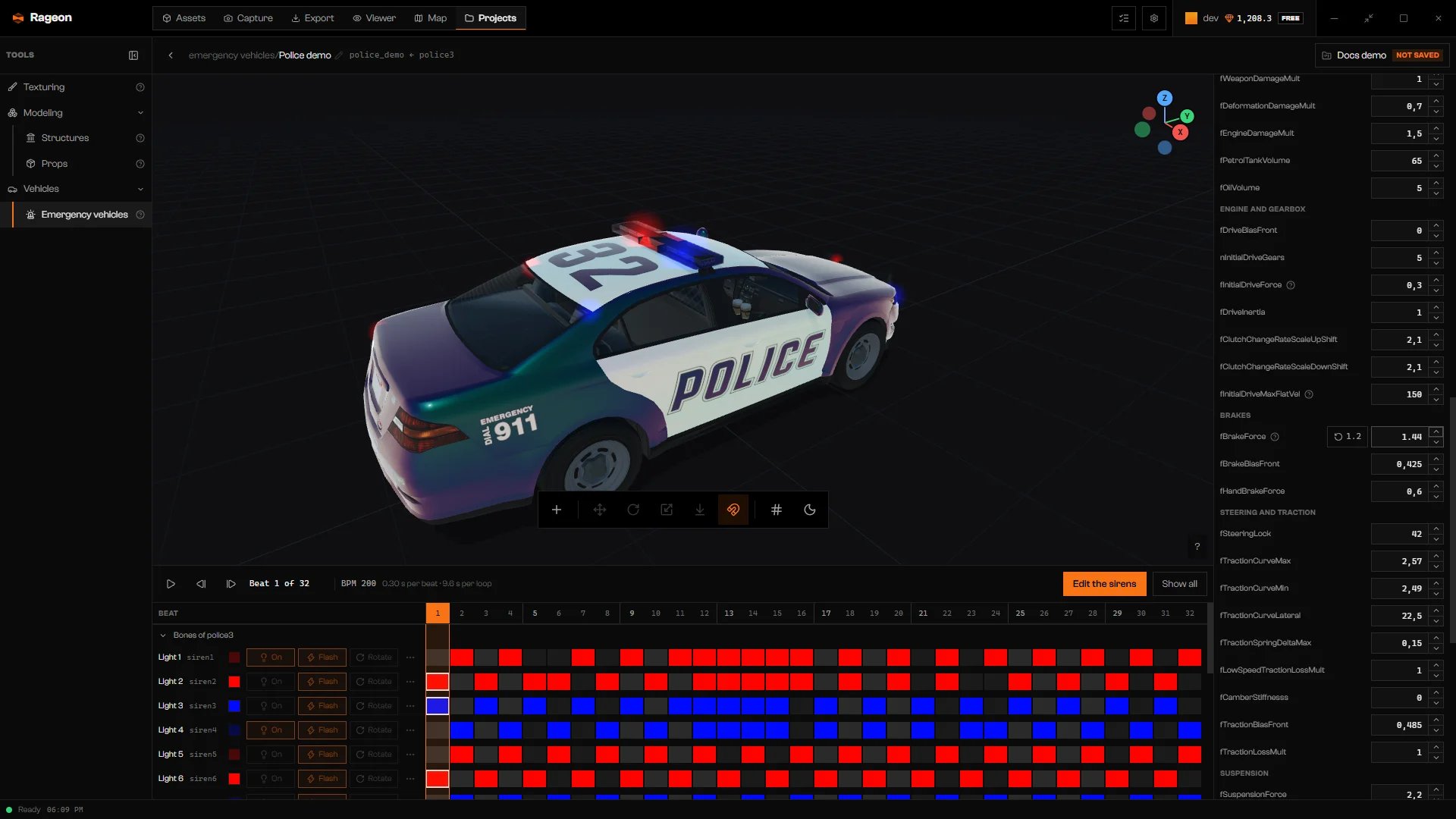
Handling with changed fields and the reset buttons.
Change a value
Open Handling and edit the field. The orange badge on the section counts the changed fields. Click the stock-value button of a field (Reset … to stock) to restore it, or Reset everything to stock to drop all changes. Fields are grouped as Mass and damage, Engine and gearbox, Brakes, Steering and traction, Suspension, and Other. Each has the game’s own name, such asfMass or fBrakeForce. Fields starting with n take whole numbers.
The stage does not simulate handling. Export the project and drive the vehicle on your server to check the result.
Shared handling
With Changes the game model, several vehicles can share onehandlingId, so your changes also affect those vehicles. New model exports a separate handling entry.
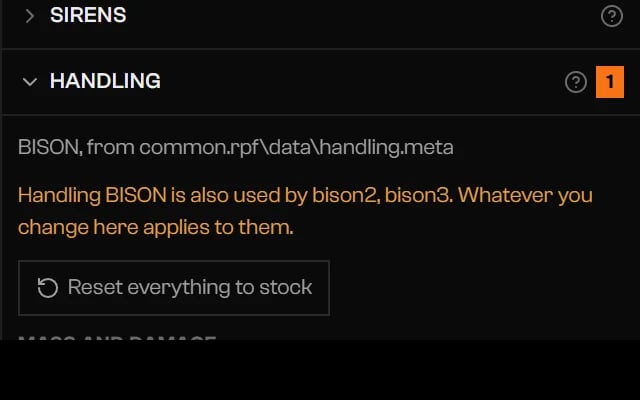
A handling shared with other models.
Fields the car does not have
If a vehicle carries a field that the car’s stock handling does not have, the section shows it in red under Fields the stock handling does not have. The export rejects the model while those fields remain. Click Remove on each one.Troubleshooting
The stock handling of "…" doesn't have the field "…" that "…" changes.
The stock handling of "…" doesn't have the field "…" that "…" changes.
Click Remove on the field in the red group of Handling.
Handling … is also used by …. Whatever you change here applies to them.
Handling … is also used by …. Whatever you change here applies to them.
This is a warning. Accept it, or use New model instead.
Reading the handling of police3…
Reading the handling of police3…
The game files are loading. The fields appear when it ends.
The handling of … is read when the GTA sources are ready.
The handling of … is read when the GTA sources are ready.
Wait until the game files finish loading.
Could not read the handling of …: …
Could not read the handling of …: …
Rageon could not read the car. Check that the car is in your game files.