
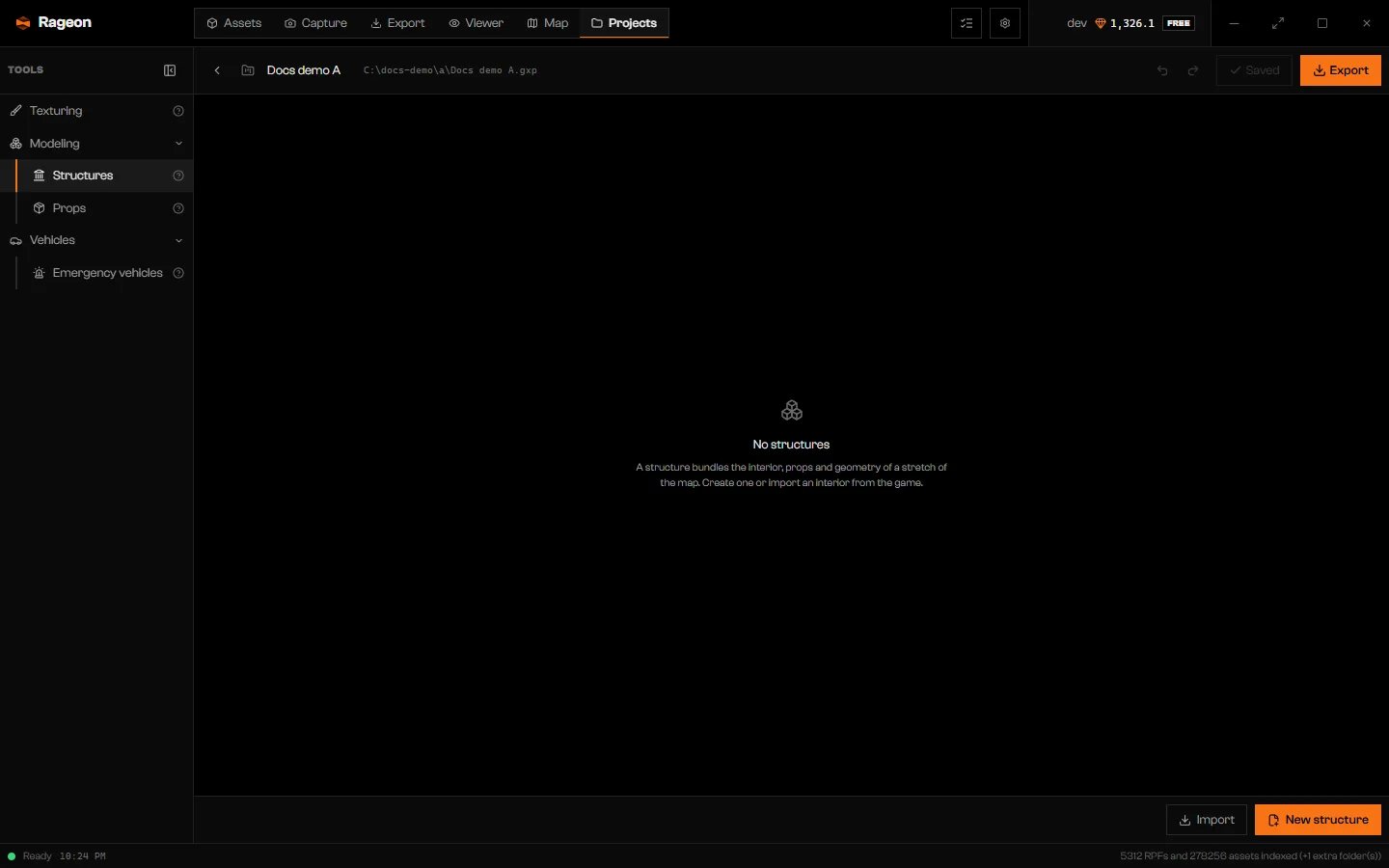
A project with no structures yet.
Create a structure
Click New structure
Type a name
_. The name needs at least one letter or number.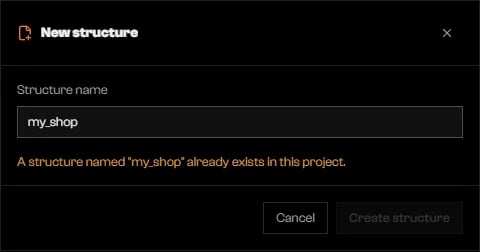
A name that already exists in the project blocks the button.
Click Create structure
Manage the list
- Double-click a name, or press F2, to rename. The file is renamed too, and the new name follows the same rule.
- The trash button on a card (Delete …) asks for confirmation and removes the file from the project folder.
- A card with a warning icon is a file that does not open. You cannot open or rename it, but you can delete it.
- Inside the editor, Back to structures list returns here. If the structure has unsaved changes, Discard throws them away and Cancel stays.
Import a game interior
Import opens a game interior as a structure you can edit. It needs the game indexed, the same index the Assets tab uses.Click Import
.ytyp files of the index.Search by name
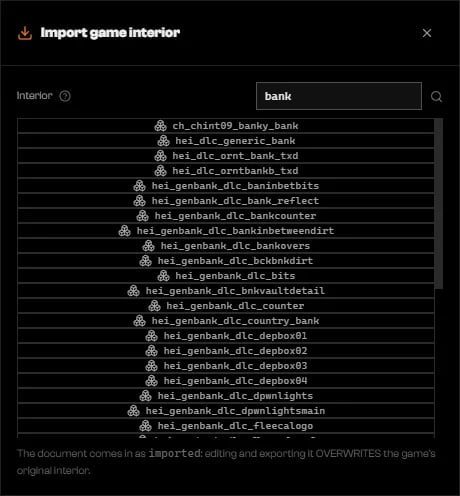
Searching interiors by name.
Click a row
Set where it sits
p0, p1, and so on.
Limits of an import:
- Each room is a box taken from the game’s room bounds, not the real floor plan.
- The shell stays empty. On export the game interior’s own model is used. The Checker warns about this: see Checker.
- A room without a usable box arrives with no outline. The Checker blocks the export until you delete that room and draw a new one. Create room always adds a new room; it cannot fill in the empty one.
- What could not be carried over appears as a banner on the list:
… warning(s) on import: ….
Start from a building on the Map
In the Map tab, select a building or prop. The Object node has an Open in Projects menu: Create interior, Edit geometry, and Edit texture. Create interior creates a structure named after the object, anchored at the object, then opens it in Structures. Edit geometry does the same and copies the model’s geometry. Edit texture opens Texturing instead. Under the button,In project … names the project that receives it, or Pick the project in the Projects tab reads there when none is open. With no project open, Projects shows a bar saying “New structure from …. Open or create the project that will receive it.” The structure is created as soon as you open a project. A name already in use is numbered: name_2.
See Selection for picking objects on the Map.
Limits and plans
The number of structures per project and of interiors per structure depends on your plan. See pricing.Troubleshooting
A structure named "…" already exists in this project.
A structure named "…" already exists in this project.
The structure name needs at least one letter or number.
The structure name needs at least one letter or number.
Your plan allows up to … structure(s) per project.
Your plan allows up to … structure(s) per project.
Your plan allows up to … interior(s) per structure.
Your plan allows up to … interior(s) per structure.
No interior with that name in the index.
No interior with that name in the index.
.ytyp files in the index.Room "…" came without a computed box: it was imported without a floor plan and needs to be drawn.
Room "…" came without a computed box: it was imported without a floor plan and needs to be drawn.
Portal … has … corners instead of four: it was left out.
Portal … has … corners instead of four: it was left out.
Portal … links rooms that do not exist (… → …): it was left out.
Portal … links rooms that do not exist (… → …): it was left out.
Could not read …: …
Could not read …: …
Could not create the structure. Try again.
Could not create the structure. Try again.