
Create geometry
Open the tool and pick a shape
9. The Geometry node opens. Choose a Shape and set Z level (m) if the base is not on the floor. Exit tool (X) in the node closes it.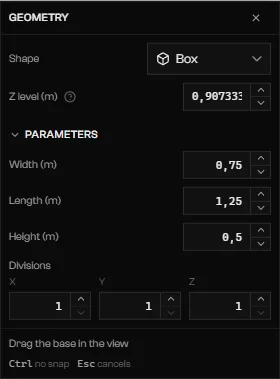
The Geometry node on Box.
Draw the base, then the height
Ctrl for no snap. A horizontal Plane is complete on release.Edit the result
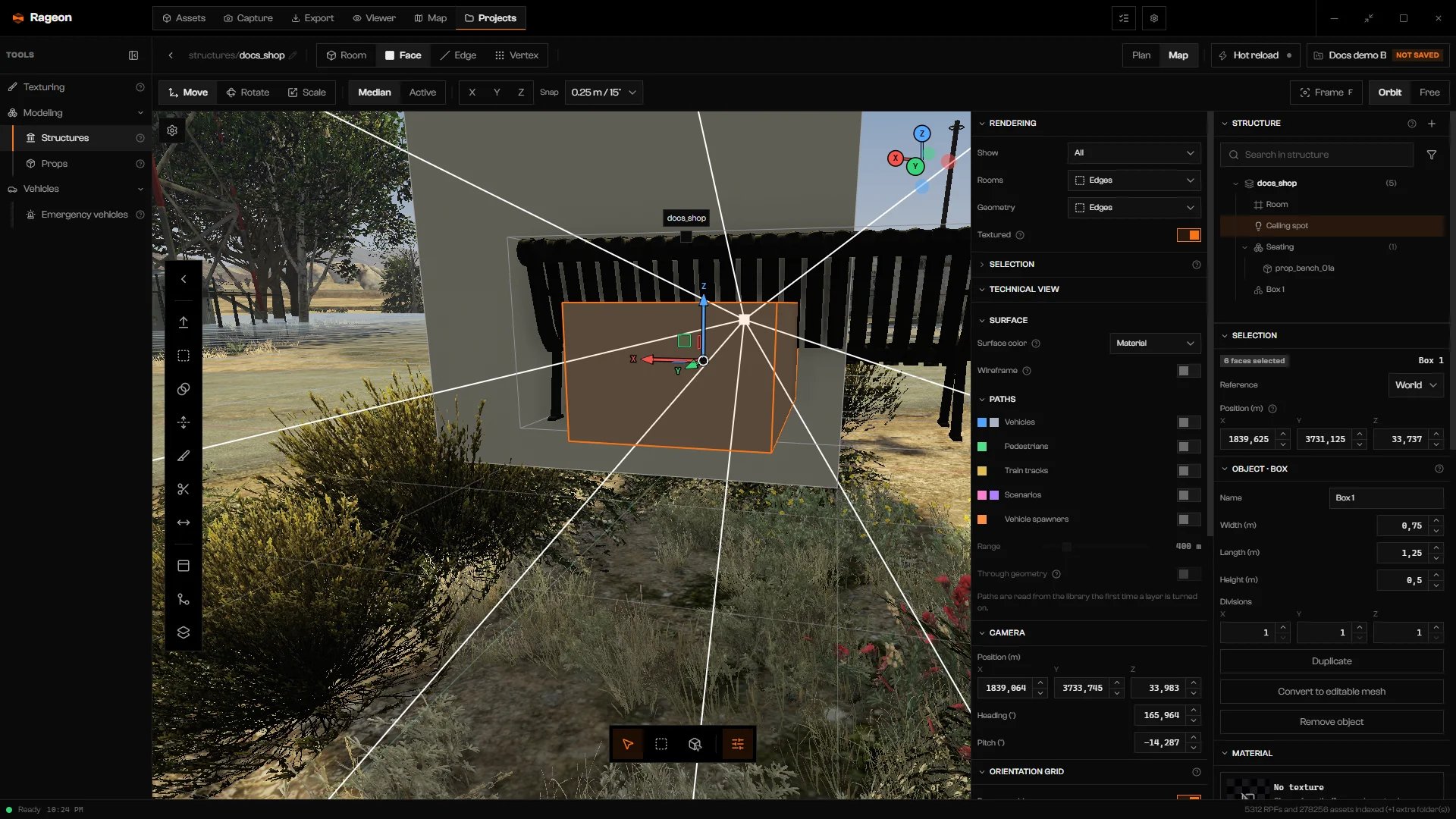
A new box: Selection and Object · Box sections on the right.
Shapes
Enter to close. Backspace removes the last point. At least three points that do not cross are needed. Outline then asks for the height like a box: move the pointer and click. Flat outline is created as soon as it closes.
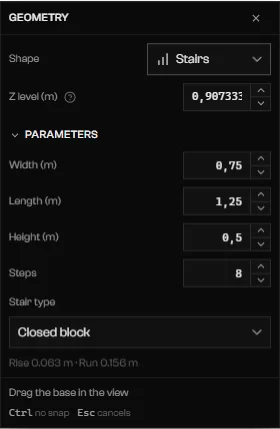
Stairs with Stair type and the rise and run readout.
Edit geometry
Enter with Edit geometry (7), by clicking a geometry object in the tree, by choosing Face, Edge, or Vertex in the options bar, or right after you draw a shape. 1, 2, and 3 switch to Vertex, Edge, and Face while editing. Back to structure leaves.
Selection in Structure details says what is marked. Position (m) moves the whole selection by its center, in the coordinates chosen in Reference (World or Project; Δ model for a copied map model).
Box selection
Turn on Box selection (B) in the bottom dock, then drag a rectangle. Everything whose center falls inside is selected. Without the toggle, Shift or Ctrl plus drag does the same.
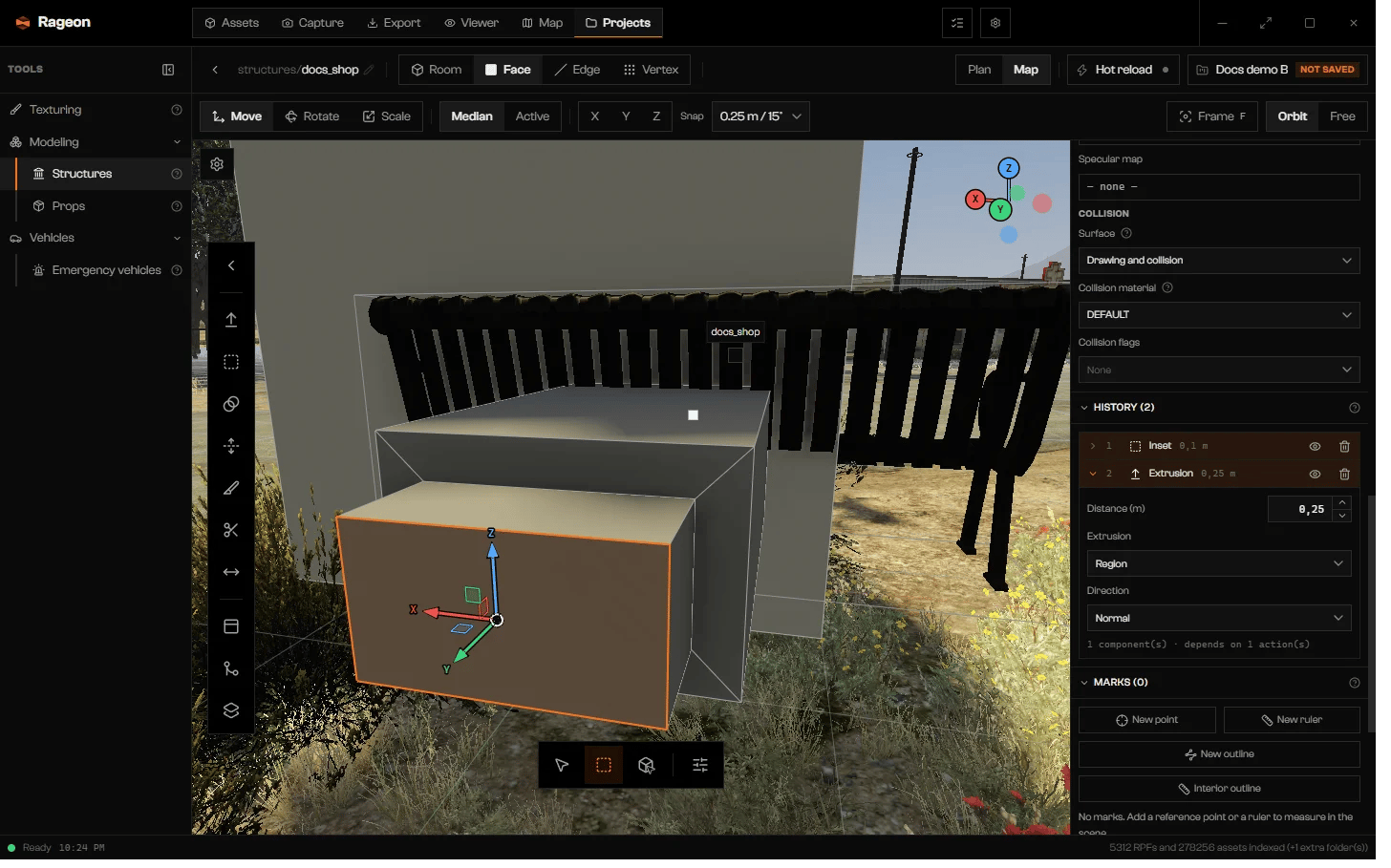
Box selection armed in Face mode.
Alt Z toggles them. L selects linked geometry under the cursor, Ctrl L links to the selection, and H, Shift H, Alt H hide, isolate, and show all.
Tools
The Modeling tools dock holds these. Drag in the view, then click or pressEnter to confirm. A floating guide shows the value. Each tool switches the selection level it needs: Extrude leaves Vertex, Inset, Bisect, and Knife go to Face, and Bevel goes to Edge.
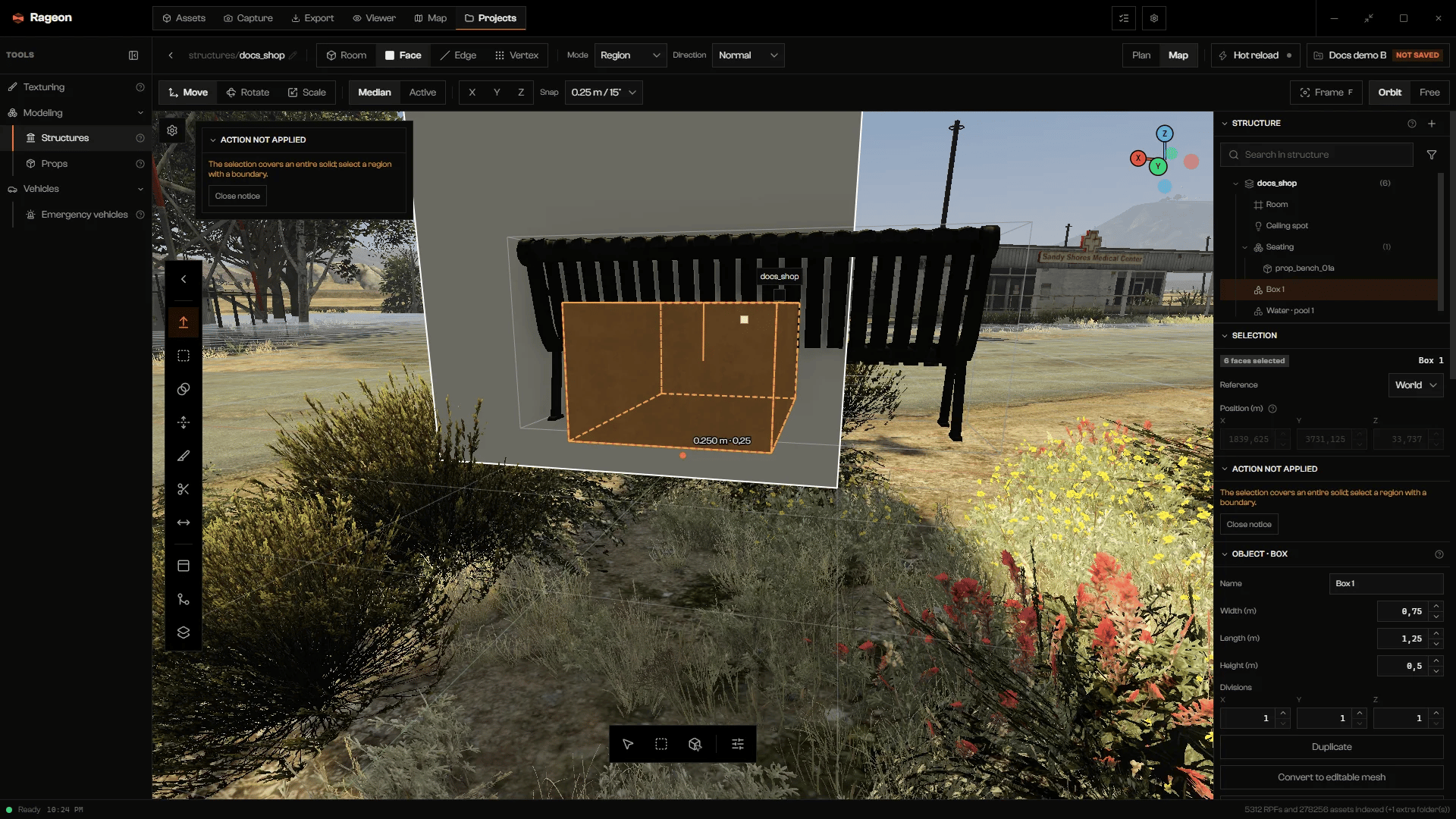
Extrude active, with Mode and Direction in the top bar.
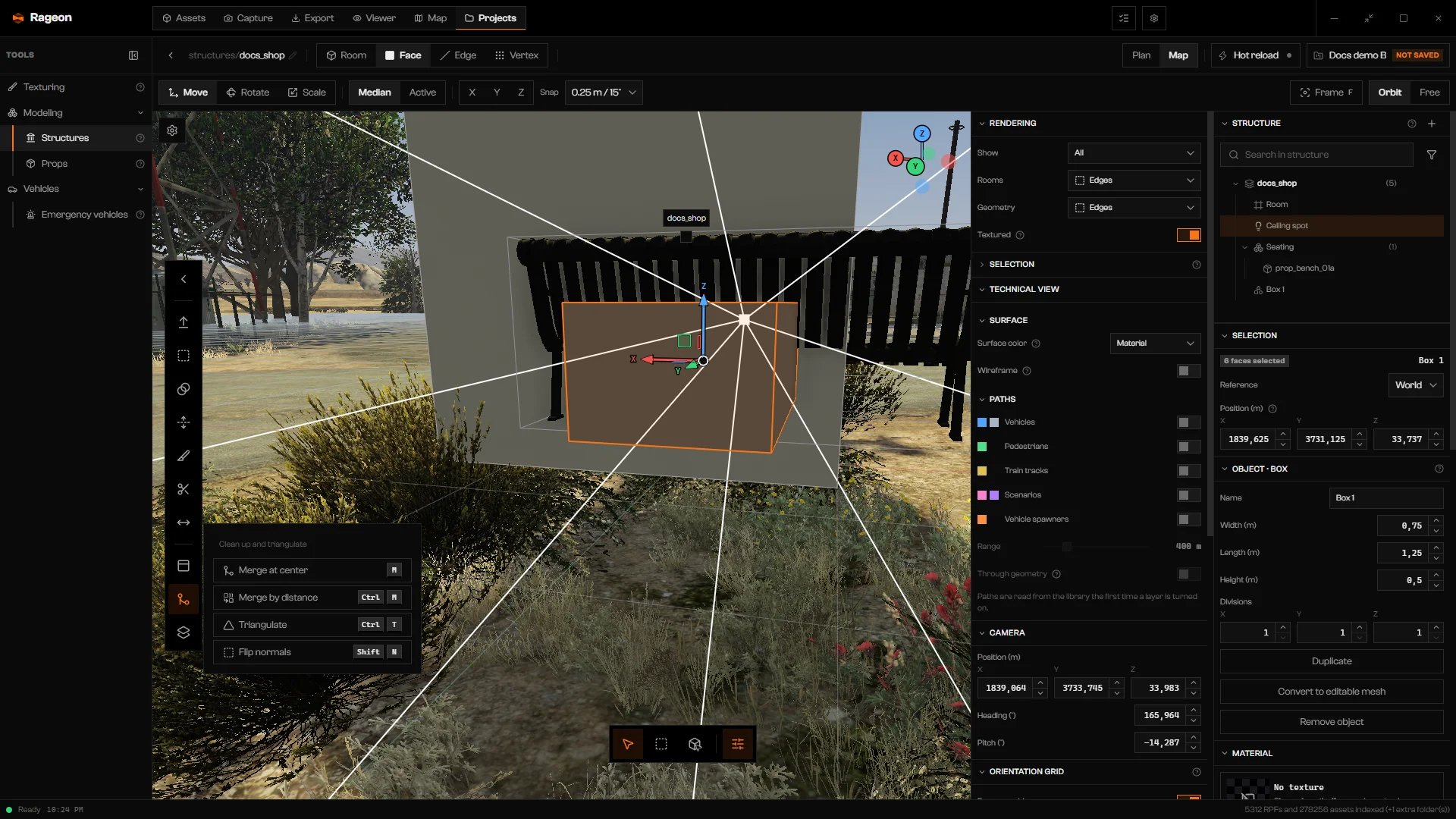
The Clean up and triangulate menu.
History
Every action goes into History (N) in order. Click a row to open its numbers and mark its components in the view. The eye turns an action off without deleting it, and the trash removes it.Ctrl Z undoes the last one. The newest action opens by itself, so you can change its numbers right away: Distance (m), Width (m), Segments, Cuts, and so on.
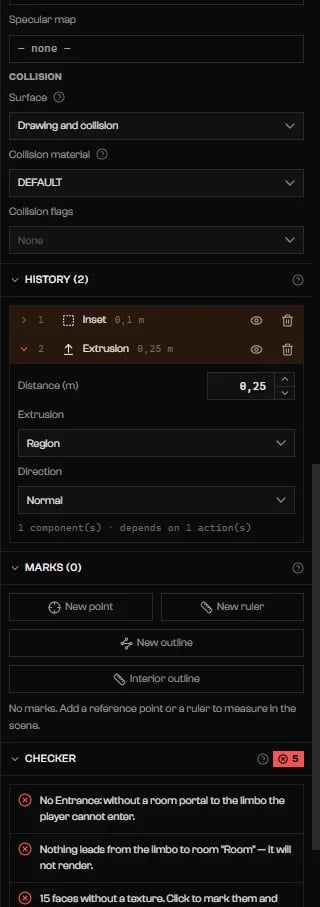
History with an Inset and an open Extrusion.
When an action is refused
If the geometry cannot take an action, Action not applied says why and nothing changes. Change the selection and try again. When an earlier action lost the components it was applied to, Use current selection re-targets it to what is selected now and Remove dependent detail drops the action that relies on the missing component. Close notice dismisses the message.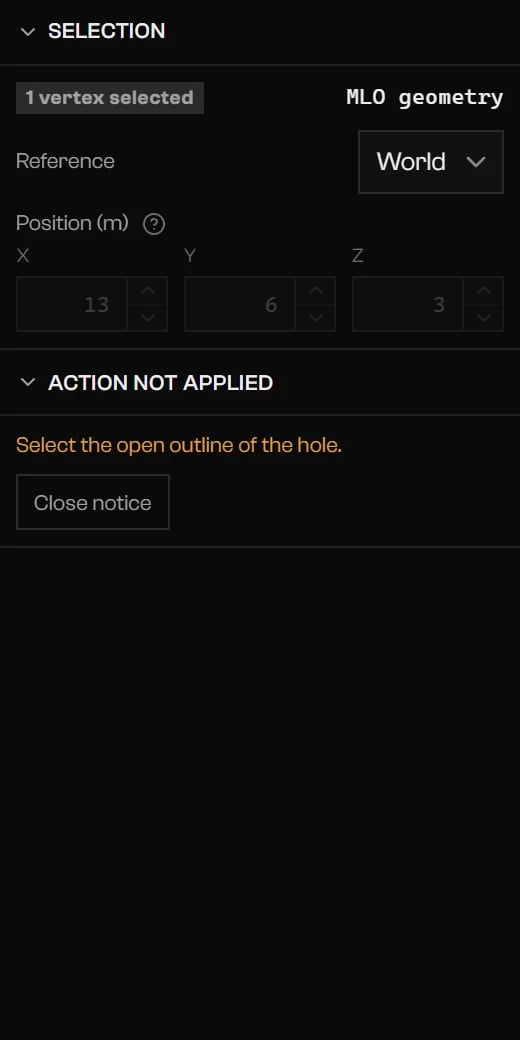
A refused Fill with the reason, Use current selection, and Close notice.
Shapes you can still tune
An object drawn with Create geometry keeps its parameters in Object. Duplicate places a copy beside it. Convert to editable mesh swaps the parameters for face-by-face editing, andCtrl Z undoes the conversion. Remove object deletes the object after you confirm.
Edit a building from the world map
Select the model
Shift M) and click a building or prop.Open Actions
Choose Edit geometry
Ctrl Z undoes it). Convert to prop is disabled (replaces the map) for objects that replace a map model.
Import a model
Click Add to structure (+) > Import model… and choose a .glb, .ydr, or .ydr.xml file. Each mesh becomes an object in the active part, and Edit geometry opens with its faces selected. Save the project first: the model’s images are copied into its folder.
Collision and material
Select faces and scroll to Material. One selection with mixed materials reads Different materials.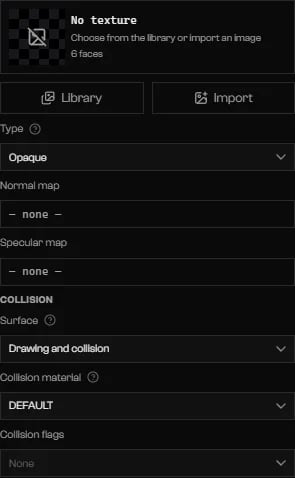
Material with the texture card, Type, and Collision.
Collision
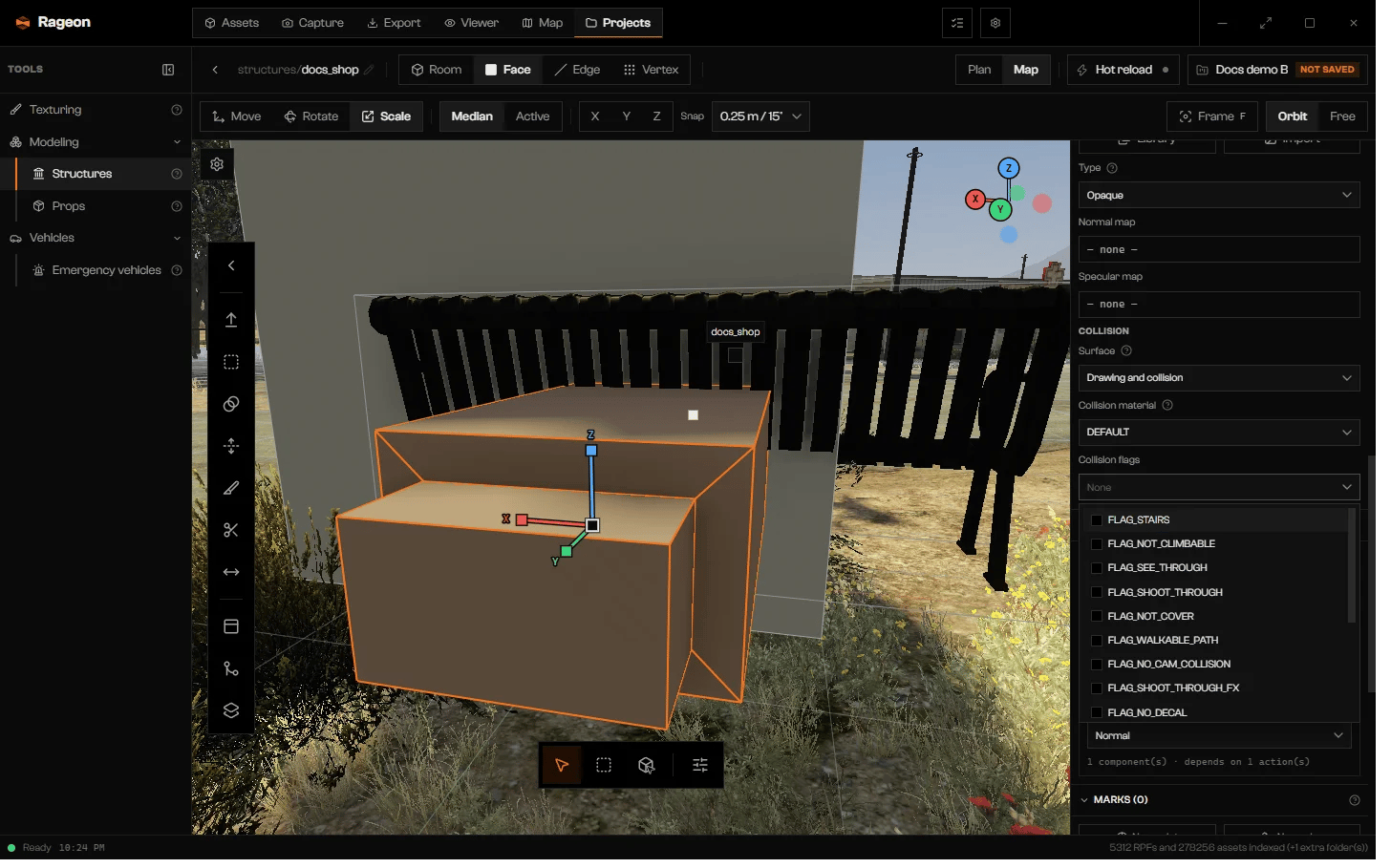
The Collision flags list open.
Troubleshooting
Point at a surface or the work plane.
Point at a surface or the work plane.
Dimensions must be greater than zero.
Dimensions must be greater than zero.
Use at least 3 points without crossing edges, with a minimum area of 0.25 m².
Use at least 3 points without crossing edges, with a minimum area of 0.25 m².
Use at least 2 path points.
Use at least 2 path points.
Enter.The selection covers an entire solid; select a region with a boundary.
The selection covers an entire solid; select a region with a boundary.
Loop cut needs a quad strip. Use Bisect on triangles or n-gons.
Loop cut needs a quad strip. Use Bisect on triangles or n-gons.
This transformation leaves a face non-planar. Cut the face before deforming it.
This transformation leaves a face non-planar. Cut the face before deforming it.
Wait for the editor or select faces to apply.
Wait for the editor or select faces to apply.
This model has no editable faces. Move the camera closer and try another piece.
This model has no editable faces. Move the camera closer and try another piece.
This model is already in the project. Select its faces to continue editing.
This model is already in the project. Select its faces to continue editing.
Could not import the model: …
Could not import the model: …
.glb, .ydr, or .ydr.xml file with real faces, not only points or lines, and save the project first.… without a texture. Click to mark them and apply a texture before exporting.
… without a texture. Click to mark them and apply a texture before exporting.