
siren1 to siren20 bones, so a bar with many lights may not fit.
Add a lightbar
Open the catalog
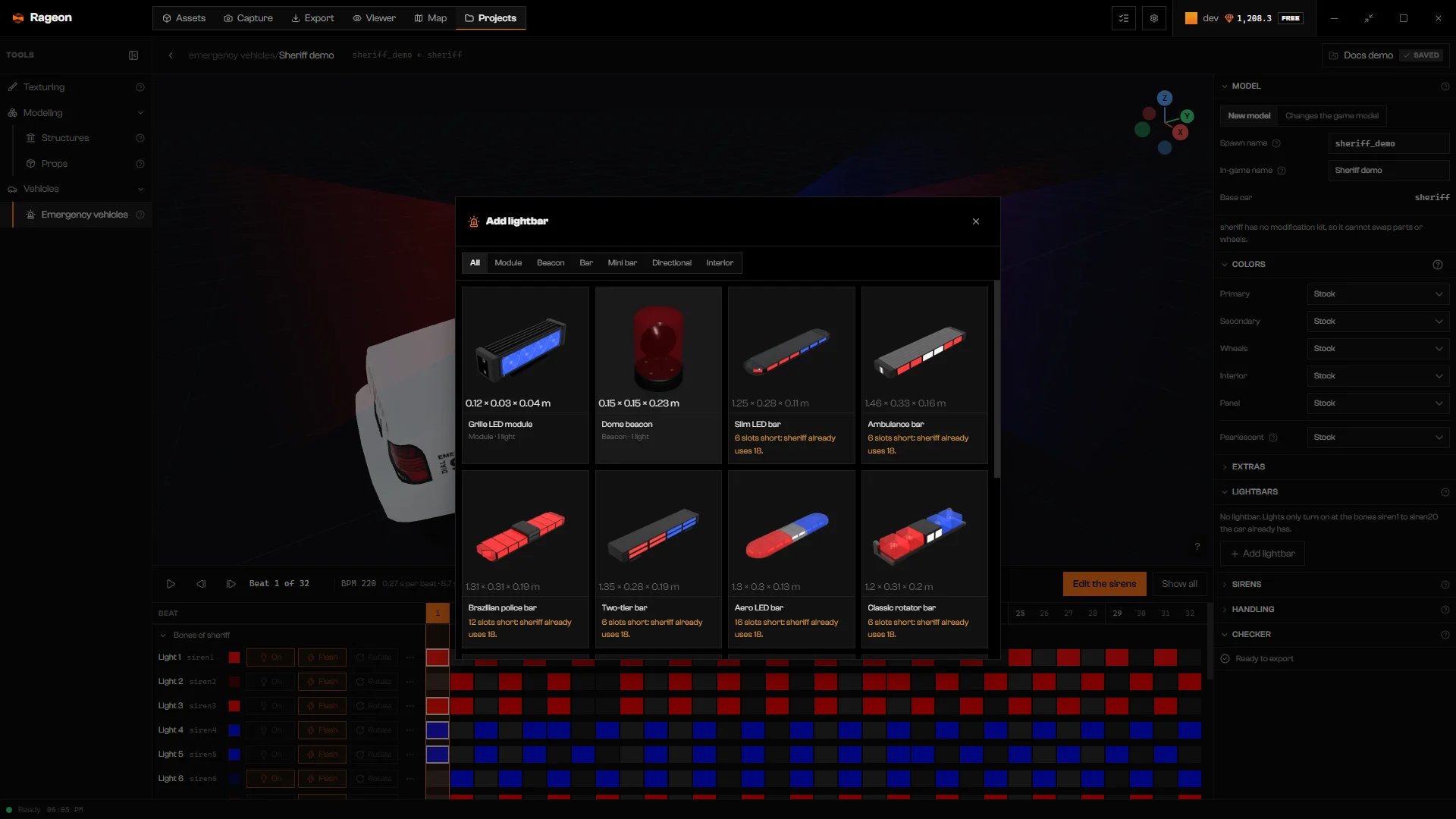
The lightbar catalog with a Slim LED bar previewed.
Click a card
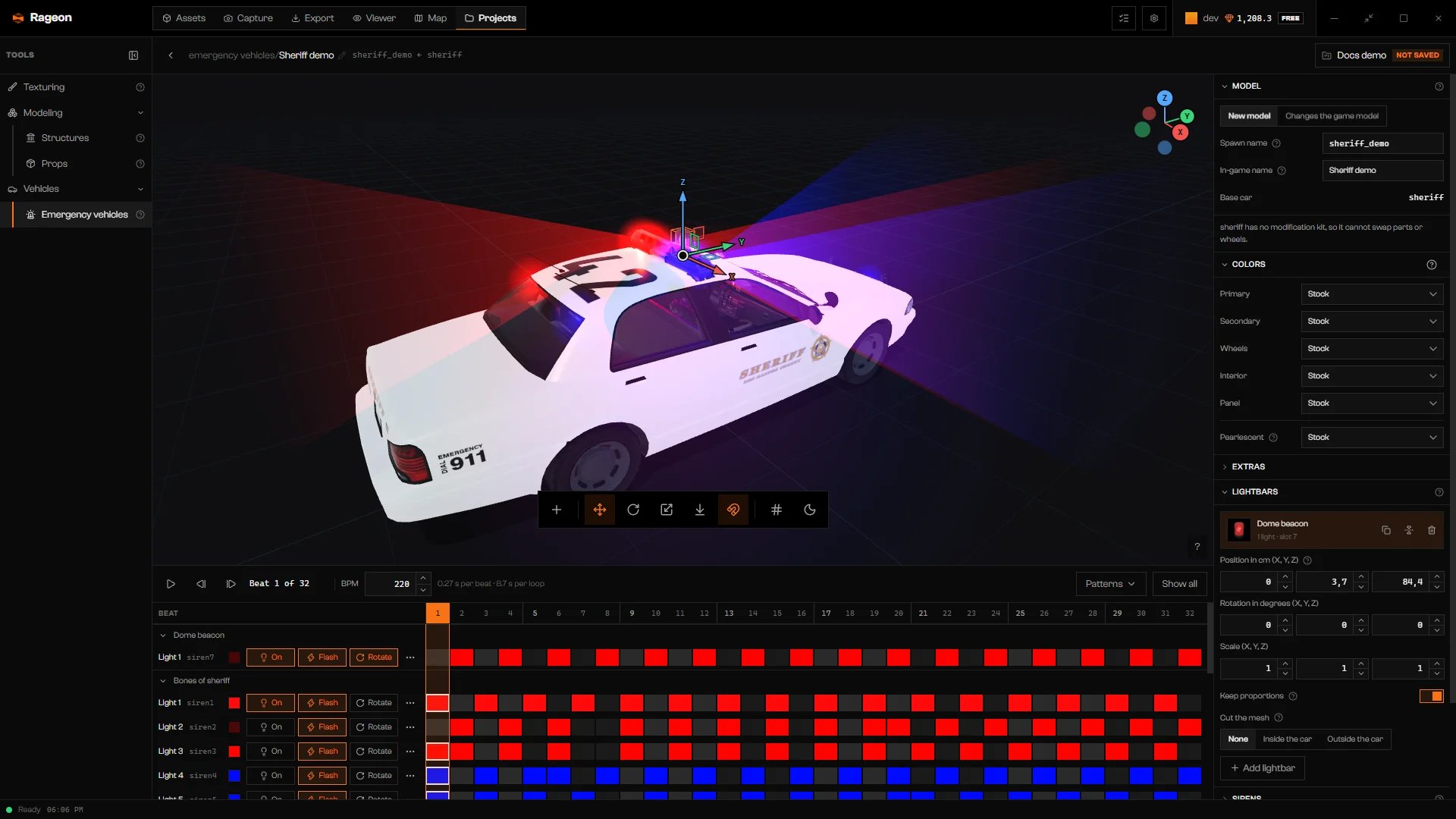
A lightbar placed on the car with the Move gizmo.
Place it
Select a lightbar on the stage or in the Lightbars list, then use the gizmo or type values.- Move, Rotate, and Scale in the dock switch the gizmo. The keys G, R, and S start the same gestures. Hold Ctrl while dragging for steps of 1 cm, 5°, or 0.05 scale. During a G, R, or S gesture, use X, Y, or Z to lock an axis, enter a value, and press Enter to confirm; Esc cancels the gesture. Ctrl+S and Ctrl+E confirm it before saving or exporting; Ctrl+Z cancels the gesture.
- Snap rests the lightbar on the bodywork by its mounting face.
- Snapping is on by default and turns the guides on or off while you drag. With it on, dragging from the middle slides the bar along the body. Hold Alt to release the snap at once.
- The Pose of the selected lightbar group has Position in cm (X, Y, Z), Rotation in degrees (X, Y, Z), and Scale (X, Y, Z). Positions are in car space: X to the right, Y forward, Z up, from the vehicle root. Keep proportions is on by default and scales all three axes together.
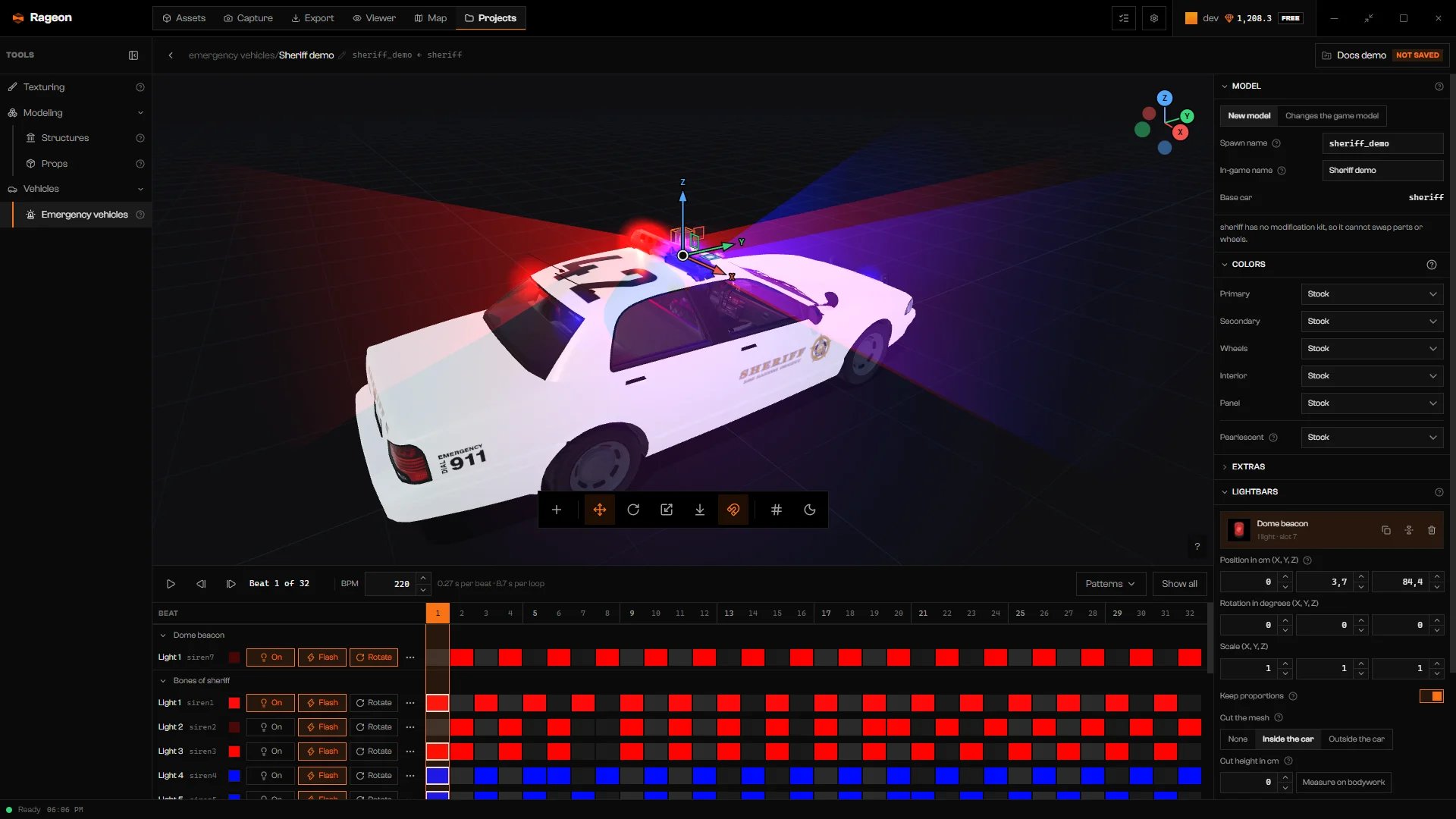
The pose fields and the Cut the mesh control.
Cut the mesh
Cut the mesh removes the part of the lightbar that passes a plane parallel to its contact face. Choose Inside the car to remove what enters the bodywork, or Outside the car to remove what sticks out. None keeps the whole model. The cut applies on the stage and in the exported model. Set the plane with Cut height in cm, measured outward from the contact face. Measure on bodywork puts the plane flush with the body under the piece.Duplicate, mirror, remove
The Lightbars list offers Duplicate …, Mirror … (a copy on the other side of the car), and Remove …, with the lightbar’s name in each action. Copies take free slots. With a lightbar selected and focus outside the timeline, Ctrl+D duplicates it and Delete removes it. Removing a lightbar does not shift the slots of the others. Add lightbar is disabled until the game sources are ready and the car has opened on the stage. Wait for the sirens and siren bones to load before adding or copying a lightbar.Troubleshooting
… slots short: … already uses …
… slots short: … already uses …
Missing … slots in siren to add "…".
Missing … slots in siren to add "…".
The car's sirens have not been read yet.
The car's sirens have not been read yet.
No bodywork in the direction of the mounting face to rest against.
No bodywork in the direction of the mounting face to rest against.
No bodywork under the contact face: the cut stayed on the face itself.
No bodywork under the contact face: the cut stayed on the face itself.
The lightbar "…" is more than 0.5 m from the car's box. Check the position.
The lightbar "…" is more than 0.5 m from the car's box. Check the position.
Lightbar "…" is not in the installed catalog.
Lightbar "…" is not in the installed catalog.
The lightbar "…" needs a free slot from 1 to 20 per light, without repeating stock bones or other lightbars.
The lightbar "…" needs a free slot from 1 to 20 per light, without repeating stock bones or other lightbars.
Emergency vehicles and Texturing write the same "….yft". Remove the lightbars or the Texturing edit for this model.
Emergency vehicles and Texturing write the same "….yft". Remove the lightbars or the Texturing edit for this model.