Build one room with an Entrance, check it, export it, and load it on a FiveM server.
This tutorial builds a small shop: one room, one Entrance, one texture. Use a throwaway project and a test server. You need the game indexed, as in the Assets tab, the Map library generated (see Library), and a project that is open in Projects.
1
Create the structure
Click Structures under Modeling, then New structure. Type my_shop in Structure name and click Create structure.
The New structure dialog with a name typed.
The editor opens in the Map view. The Checker reports that the structure is empty. That is expected.
2
Anchor it to a place
The structure starts at world position 0, 0, 0, far from any street. Fly to the spot you want with right-drag and the wheel, or open View (N) › Camera and type Position (m). Then:
Click Select map objects (Shift+M) in the bottom dock.
Click a building or prop at that spot.
In the Object node, click Actions › Focus rendering.
Click Select (V) to leave map picking.
The part’s origin, the grid, and the rendering box move to that object. The camera stays where it was: press F to frame the part.
The origin moves only while the part is still empty. A part that already has content keeps its position. To move it later, type Position (m) in the Part sheet.
3
Draw the room
Click Plan in the structure bar. Click Interior (1) in the dock: Create room is already active. Choose Rectangle and drag a rectangle of about 6 m by 4 m on the grid. The cursor snaps to what is under it; hold Ctrl to place freely.
Create room is active; the bar offers Rectangle, Polygon, and Floor (m).
The room appears in the tree as Room. Press V to go back to Select.
4
Add the Entrance
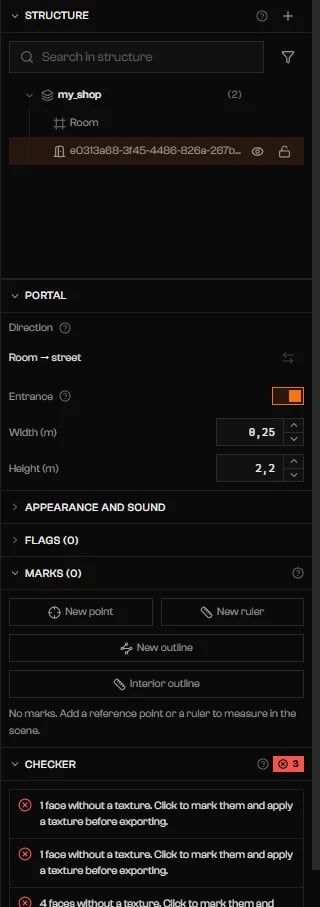
Click Entrance (3) and click twice along the wall that faces the street. The wall opens and a portal to the street appears, marked Entrance. Press V, then click the portal in the tree to adjust its Width (m) and Height (m).
An Entrance portal: direction Room to street, with Width and Height.
The tree lists the portal by an internal id, not by a name. A physical door is a prop attached to the portal: see Props in structures.
5
Name the room
Click the room in the tree. In Room, type shop in Name. Turn Exterior on if you want thick outer walls where the street sees the room.
6
Texture the walls
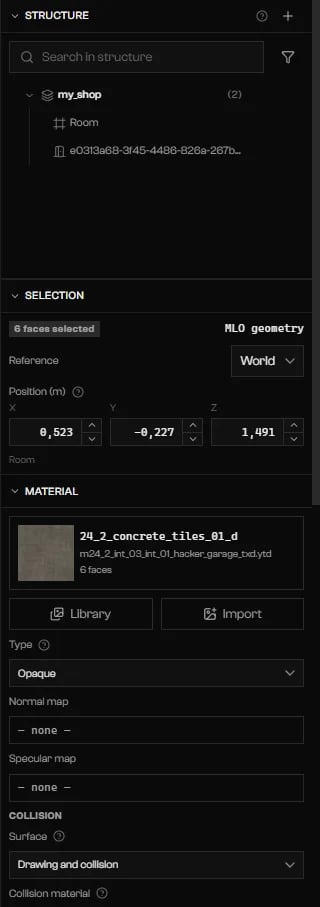
A new room has no texture, and the Checker blocks the export until it has one. Click a Checker row that reads ”… without a texture. Click to mark them and apply a texture before exporting.” The tool switches to Edit geometry with those faces selected. In Material, click Library, pick a texture, and click Apply texture. Repeat for every texture row left.
Clicking a texture row selects the faces; Material takes a texture from the Library.
The Checker should read Ready to export. Warnings may remain; they do not block. Press Ctrl+S: the project badge reads Saved. A project you never saved asks where to keep it first.
8
Export to the server
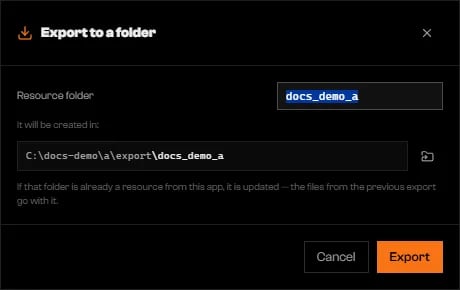
Press Ctrl+E. A folder picker opens: choose the server’s resources/ folder, or a category folder inside it. In Export to a folder, set Resource folder, then click Export.
The first export asks for a resource folder name and shows the final path.
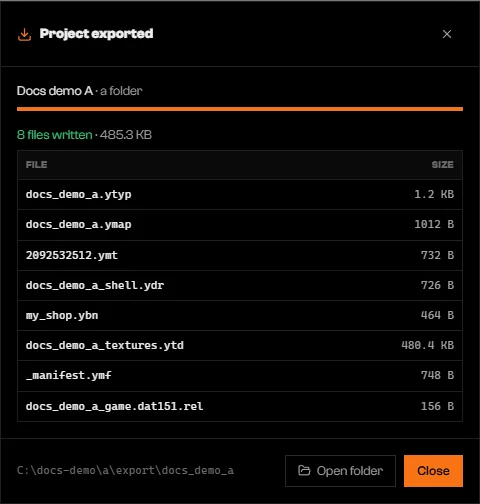
Project exported lists the files written. Click Open folder to see them.
The result: the files written for the structure.
9
Load it in game
Add ensure my_shop to server.cfg, using your resource folder name, and restart the server. Join, go to the part’s Position (m), and walk in through the Entrance.
The game draws an interior in full only when you are inside it or looking through one of its portals. From outside, you see the shell.
Change the structure, press Ctrl+S, then Ctrl+E. The export goes to the same folder with no dialogs and replaces the previous resource. To see changes without restarting, try Hot reload; rooms and portals still need an export.
Check the server console: the resource must have started. Confirm ensure names the exported folder, and that the folder sits inside resources/. Do not edit the lines Rageon wrote in fxmanifest.lua.
The interior is somewhere else.
The part sits at its Position (m). A structure you never anchored is at 0, 0, 0.
{"docsConfig":{"theme":"mint","$schema":"https://mintlify.com/docs.json","name":"Rageon","colors":{"primary":"#f97316","light":"#fb923c","dark":"#c2410c"},"logo":{"light":"https://mintcdn.com/rageon/NnSHzDe1phDyv79M/logo/mark.png?fit=max\u0026auto=format\u0026n=NnSHzDe1phDyv79M\u0026q=85\u0026s=e0ae0889d31e1576f579125f3ef6685e","dark":"https://mintcdn.com/rageon/NnSHzDe1phDyv79M/logo/mark.png?fit=max\u0026auto=format\u0026n=NnSHzDe1phDyv79M\u0026q=85\u0026s=e0ae0889d31e1576f579125f3ef6685e","href":"https://rageon.dev"},"favicon":"https://mintcdn.com/rageon/tGC-5rfc07564TOG/favicon.png?fit=max\u0026auto=format\u0026n=tGC-5rfc07564TOG\u0026q=85\u0026s=7525da8dae81e50d0056d02037548e02","appearance":{"default":"dark"},"navbar":{"links":[{"href":"https://rageon.dev/pricing","label":"Pricing"}],"primary":{"type":"button","label":"Download","href":"https://rageon.dev/download"}},"footer":{"socials":{"website":"https://rageon.dev"}},"icons":{"library":"lucide"},"styling":{"latex":false},"navigation":{"languages":[{"language":"en","default":true,"href":"start/introduction"},{"language":"pt-BR","href":"pt-BR/start/introduction"},{"language":"es","href":"es/start/introduction"}]}},"deployment":{"deploymentMetadataValue":{"subdomain":"rageon","hasAudioNarration":false,"actualSubdomain":"rageon","customDomains":["docs.rageon.dev"],"gitSource":{"type":"github","owner":"rageoon","repo":"rageon-docs","deployBranch":"main","contentDirectory":"","isPrivate":true,"mountPath":"","label":"","_id":"6ada8d872e2812485d3d490a"},"chroma":{"latestBuiltDeploymentHistoryId":"6ada8d882e2812485d3d4910","collectionId":"d8abb39d-b557-4128-b440-bcb1bb1501eb","liveDeploymentHistoryId":"6ada8d882e2812485d3d4910","schemaVersion":"v3"},"entitlements":{"AI_CHAT":{"status":"ENABLED"},"WEB_MCP":{"status":"ENABLED"},"NARRATION":{"status":"ENABLED"}},"buildId":"6ada8d96fbb15298db52c70c","clientVersion":"0.0.3939","searchFilterCounts":[{"language":"en","tag":"Projects","count":43},{"language":"es","tag":"Proyectos","count":43},{"language":"pt-BR","tag":"Projetos","count":43},{"language":"en","tag":"Structures","count":16},{"language":"es","tag":"Estructuras","count":16},{"language":"pt-BR","tag":"Estruturas","count":16},{"language":"en","tag":"Map","count":15},{"language":"es","tag":"Mapa","count":15},{"language":"pt-BR","tag":"Mapa","count":15},{"language":"en","tag":"Getting started","count":14},{"language":"en","tag":"Viewer","count":14},{"language":"es","tag":"Primeros pasos","count":14},{"language":"es","tag":"Visor","count":14},{"language":"pt-BR","tag":"Primeiros passos","count":14},{"language":"pt-BR","tag":"Visualização","count":14},{"language":"en","tag":"Assets","count":12},{"language":"en","tag":"Capture","count":12},{"language":"es","tag":"Assets","count":12},{"language":"es","tag":"Captura","count":12},{"language":"pt-BR","tag":"Assets","count":12},{"language":"pt-BR","tag":"Captura","count":12},{"language":"en","tag":"Texturing","count":11},{"language":"es","tag":"Texturizado","count":11},{"language":"pt-BR","tag":"Texturização","count":11},{"language":"en","tag":"Export","count":8},{"language":"es","tag":"Exportar","count":8},{"language":"pt-BR","tag":"Exportar","count":8},{"language":"en","tag":"Help","count":6},{"language":"es","tag":"Ayuda","count":6},{"language":"pt-BR","tag":"Ajuda","count":6}],"searchSettings":{"isFiltersEnabled":true,"showContentSnippets":true}},"assistantConfig":{"enableAskAiButton":false,"enableStarterQuestions":false,"enableContextualStarterQuestions":false,"enableAskAiSearchBar":true},"hasChatPermissions":true,"hasWebMcpPermissions":true,"toggles":[{"name":"kill-isr","enabled":true,"variant":{"name":"disabled","enabled":false,"feature_enabled":true},"impressionData":false},{"name":"agent-mintlify-slack","enabled":true,"variant":{"name":"disabled","enabled":false,"feature_enabled":true},"impressionData":false},{"name":"editor-v7-file-tree","enabled":true,"variant":{"name":"disabled","enabled":false,"feature_enabled":true},"impressionData":false},{"name":"agent-integrations-settings","enabled":true,"variant":{"name":"disabled","enabled":false,"feature_enabled":true},"impressionData":false},{"name":"automations-pr-grouping","enabled":true,"variant":{"name":"disabled","enabled":false,"feature_enabled":true},"impressionData":false},{"name":"custom-prefix","enabled":true,"variant":{"name":"disabled","enabled":false,"feature_enabled":true},"impressionData":false},{"name":"analytics-v7","enabled":true,"variant":{"name":"disabled","enabled":false,"feature_enabled":true},"impressionData":false},{"name":"user-flows-analytics","enabled":true,"variant":{"name":"disabled","enabled":false,"feature_enabled":true},"impressionData":false},{"name":"no-publish-flow","enabled":true,"variant":{"name":"disabled","enabled":false,"feature_enabled":true},"impressionData":false},{"name":"workos-onboarding","enabled":true,"variant":{"name":"disabled","enabled":false,"feature_enabled":true},"impressionData":false},{"name":"llms-txt-v2","enabled":true,"variant":{"name":"disabled","enabled":false,"feature_enabled":true},"impressionData":false},{"name":"pause-universal-search-reconcile","enabled":true,"variant":{"name":"disabled","enabled":false,"feature_enabled":true},"impressionData":false},{"name":"snapshot-serving-live","enabled":true,"variant":{"name":"disabled","enabled":false,"feature_enabled":true},"impressionData":false},{"name":"stripTemperatureMiddleware","enabled":true,"variant":{"name":"disabled","enabled":false,"feature_enabled":true},"impressionData":false},{"name":"per-site-search-delta","enabled":true,"variant":{"name":"disabled","enabled":false,"feature_enabled":true},"impressionData":false},{"name":"support-platform-pylon-zendesk","enabled":true,"variant":{"name":"disabled","enabled":false,"feature_enabled":true},"impressionData":false},{"name":"snapshot-serving","enabled":true,"variant":{"name":"disabled","enabled":false,"feature_enabled":true},"impressionData":false},{"name":"instant-rollback","enabled":true,"variant":{"name":"disabled","enabled":false,"feature_enabled":true},"impressionData":false},{"name":"granular-notifications-server","enabled":true,"variant":{"name":"disabled","enabled":false,"feature_enabled":true},"impressionData":false},{"name":"granular-notifications","enabled":true,"variant":{"name":"disabled","enabled":false,"feature_enabled":true},"impressionData":false},{"name":"editor-private-page-search","enabled":true,"variant":{"name":"disabled","enabled":false,"feature_enabled":true},"impressionData":false},{"name":"automations-fable","enabled":true,"variant":{"name":"disabled","enabled":false,"feature_enabled":true},"impressionData":false},{"name":"fixed-ai-action-pricing","enabled":true,"variant":{"name":"disabled","enabled":false,"feature_enabled":true},"impressionData":false},{"name":"automation-resolve-merge-conflict","enabled":true,"variant":{"name":"disabled","enabled":false,"feature_enabled":true},"impressionData":false},{"name":"scoped-publishing","enabled":true,"variant":{"name":"disabled","enabled":false,"feature_enabled":true},"impressionData":false},{"name":"mintql","enabled":true,"variant":{"name":"disabled","enabled":false,"feature_enabled":true},"impressionData":false},{"name":"page-level-analytics","enabled":true,"variant":{"name":"disabled","enabled":false,"feature_enabled":true},"impressionData":false},{"name":"editor-version-history-v2","enabled":true,"variant":{"name":"disabled","enabled":false,"feature_enabled":true},"impressionData":false},{"name":"editor-nav-generations","enabled":true,"variant":{"name":"disabled","enabled":false,"feature_enabled":true},"impressionData":false},{"name":"billing-page-v2","enabled":true,"variant":{"name":"disabled","enabled":false,"feature_enabled":true},"impressionData":false},{"name":"workspace-projects","enabled":true,"variant":{"name":"disabled","enabled":false,"feature_enabled":true},"impressionData":false},{"name":"assistant-v5","enabled":true,"variant":{"name":"disabled","enabled":false,"feature_enabled":true},"impressionData":false},{"name":"byok-sep-25","enabled":true,"variant":{"name":"disabled","enabled":false,"feature_enabled":true},"impressionData":false},{"name":"fork-pr-previews","enabled":true,"variant":{"name":"disabled","enabled":false,"feature_enabled":true},"impressionData":false},{"name":"revalidation-jwt","enabled":true,"variant":{"name":"disabled","enabled":false,"feature_enabled":true},"impressionData":false},{"name":"vite-origin","enabled":true,"variant":{"name":"disabled","enabled":false,"feature_enabled":true},"impressionData":false},{"name":"editor-agent-model-picker","enabled":true,"variant":{"name":"disabled","enabled":false,"feature_enabled":true},"impressionData":false},{"name":"billing-updated-9-15","enabled":true,"variant":{"name":"disabled","enabled":false,"feature_enabled":true},"impressionData":false},{"name":"hobby-abuse-scan","enabled":true,"variant":{"name":"disabled","enabled":false,"feature_enabled":true},"impressionData":false},{"name":"dashboard-inbox","enabled":true,"variant":{"name":"disabled","enabled":false,"feature_enabled":true},"impressionData":false}],"isAtlas":false,"googleFontsInlined":false},"customCss":[],"page":{"pagePath":"projects/structures/first-interior","slug":"/projects/structures/first-interior","pageMetadata":{"title":"Your first interior","icon":"flag","description":"Build one room with an Entrance, check it, export it, and load it on a FiveM server.","href":"/projects/structures/first-interior"},"description":{"compiledSource":"\"use strict\";\nconst {jsx: _jsx} = arguments[0];\nconst {useMDXComponents: _provideComponents} = arguments[0];\nfunction _createMdxContent(props) {\n const _components = {\n p: \"p\",\n ..._provideComponents(),\n ...props.components\n };\n return _jsx(_components.p, {\n children: \"Build one room with an Entrance, check it, export it, and load it on a FiveM server.\"\n });\n}\nfunction MDXContent(props = {}) {\n const {wrapper: MDXLayout} = {\n ..._provideComponents(),\n ...props.components\n };\n return MDXLayout ? _jsx(MDXLayout, {\n ...props,\n children: _jsx(_createMdxContent, {\n ...props\n })\n }) : _createMdxContent(props);\n}\nreturn {\n default: MDXContent\n};\n","frontmatter":{},"scope":{}},"pageType":"default","mdx":{"mdxSource":{"compiledSource":"\"use strict\";const{Fragment:_Fragment,jsx:_jsx,jsxs:_jsxs}=arguments[0];const{useMDXComponents:_provideComponents}=arguments[0];function _createMdxContent(props){const _components={a:`a`,code:`code`,li:`li`,ol:`ol`,p:`p`,strong:`strong`,..._provideComponents(),...props.components},{Accordion,AccordionGroup,Frame,Heading,Note,OptimizedImage,Step,Steps}=_components;if(!Accordion)_missingMdxReference(`Accordion`,true);if(!AccordionGroup)_missingMdxReference(`AccordionGroup`,true);if(!Frame)_missingMdxReference(`Frame`,true);if(!Heading)_missingMdxReference(`Heading`,true);if(!Note)_missingMdxReference(`Note`,true);if(!OptimizedImage)_missingMdxReference(`OptimizedImage`,true);if(!Step)_missingMdxReference(`Step`,true);if(!Steps)_missingMdxReference(`Steps`,true);return _jsxs(_Fragment,{children:[_jsxs(_components.p,{children:[`This tutorial builds a small shop: one room, one Entrance, one texture. Use a throwaway project and a test server. You need the game indexed, as in the Assets tab, the Map library generated (see `,_jsx(_components.a,{href:`/map/library`,children:`Library`}),`), and a project that is open in `,_jsx(_components.strong,{children:`Projects`}),`.`]}),`\n`,_jsxs(Steps,{children:[_jsxs(Step,{title:`Create the structure`,children:[_jsxs(_components.p,{children:[`Click `,_jsx(_components.strong,{children:`Structures`}),` under `,_jsx(_components.strong,{children:`Modeling`}),`, then `,_jsx(_components.strong,{children:`New structure`}),`. Type `,_jsx(_components.code,{children:`my_shop`}),` in `,_jsx(_components.strong,{children:`Structure name`}),` and click `,_jsx(_components.strong,{children:`Create structure`}),`.`]}),_jsx(Frame,{caption:`The New structure dialog with a name typed.`,children:_jsx(OptimizedImage,{src:`https://mintcdn.com/rageon/_nzjx4zmIQAxf8Hl/images/structures/structures-new-dialog.webp?fit=max\u0026auto=format\u0026n=_nzjx4zmIQAxf8Hl\u0026q=85\u0026s=a52d0bcbd394a344780f03dc69a2aa75`,alt:`New structure dialog with My Shop in the Structure name field and Create structure enabled`,\"data-og-width\":`1440`,width:`1440`,\"data-og-height\":`900`,height:`900`,\"data-path\":`images/structures/structures-new-dialog.webp`,\"data-optimize\":`true`,\"data-opv\":`3`,srcset:`https://mintcdn.com/rageon/_nzjx4zmIQAxf8Hl/images/structures/structures-new-dialog.webp?w=280\u0026fit=max\u0026auto=format\u0026n=_nzjx4zmIQAxf8Hl\u0026q=85\u0026s=81761d8b6441b4e136619cb47f71bb2d 280w, https://mintcdn.com/rageon/_nzjx4zmIQAxf8Hl/images/structures/structures-new-dialog.webp?w=560\u0026fit=max\u0026auto=format\u0026n=_nzjx4zmIQAxf8Hl\u0026q=85\u0026s=06f9dd0817f53e3a219503b601c7756e 560w, https://mintcdn.com/rageon/_nzjx4zmIQAxf8Hl/images/structures/structures-new-dialog.webp?w=840\u0026fit=max\u0026auto=format\u0026n=_nzjx4zmIQAxf8Hl\u0026q=85\u0026s=a2f6694cb6fcd643e4f5316307253b2d 840w, https://mintcdn.com/rageon/_nzjx4zmIQAxf8Hl/images/structures/structures-new-dialog.webp?w=1100\u0026fit=max\u0026auto=format\u0026n=_nzjx4zmIQAxf8Hl\u0026q=85\u0026s=18e6e114d6017f571be3e59ce77f04ce 1100w, https://mintcdn.com/rageon/_nzjx4zmIQAxf8Hl/images/structures/structures-new-dialog.webp?w=1650\u0026fit=max\u0026auto=format\u0026n=_nzjx4zmIQAxf8Hl\u0026q=85\u0026s=d5ab6d82519d496a75c19f606c8ff24b 1650w, https://mintcdn.com/rageon/_nzjx4zmIQAxf8Hl/images/structures/structures-new-dialog.webp?w=2500\u0026fit=max\u0026auto=format\u0026n=_nzjx4zmIQAxf8Hl\u0026q=85\u0026s=e37d54a0f6d8fb5663df5e38a8ab3675 2500w`})}),_jsxs(_components.p,{children:[`The editor opens in the `,_jsx(_components.strong,{children:`Map`}),` view. The `,_jsx(_components.strong,{children:`Checker`}),` reports that the structure is empty. That is expected.`]})]}),_jsxs(Step,{title:`Anchor it to a place`,children:[_jsxs(_components.p,{children:[`The structure starts at world position 0, 0, 0, far from any street. Fly to the spot you want with right-drag and the wheel, or open `,_jsx(_components.strong,{children:`View`}),` (`,_jsx(_components.strong,{children:`N`}),`) › `,_jsx(_components.strong,{children:`Camera`}),` and type `,_jsx(_components.strong,{children:`Position (m)`}),`. Then:`]}),_jsxs(_components.ol,{children:[`\n`,_jsxs(_components.li,{children:[`Click `,_jsx(_components.strong,{children:`Select map objects`}),` (`,_jsx(_components.strong,{children:`Shift+M`}),`) in the bottom dock.`]}),`\n`,_jsx(_components.li,{children:`Click a building or prop at that spot.`}),`\n`,_jsxs(_components.li,{children:[`In the `,_jsx(_components.strong,{children:`Object`}),` node, click `,_jsx(_components.strong,{children:`Actions`}),` › `,_jsx(_components.strong,{children:`Focus rendering`}),`.`]}),`\n`,_jsxs(_components.li,{children:[`Click `,_jsx(_components.strong,{children:`Select`}),` (`,_jsx(_components.strong,{children:`V`}),`) to leave map picking.`]}),`\n`]}),_jsxs(_components.p,{children:[`The part’s origin, the grid, and the rendering box move to that object. The camera stays where it was: press `,_jsx(_components.strong,{children:`F`}),` to frame the part.`]}),_jsx(Note,{children:_jsxs(_components.p,{children:[`The origin moves only while the part is still empty. A part that already has content keeps its position. To move it later, type `,_jsx(_components.strong,{children:`Position (m)`}),` in the `,_jsx(_components.strong,{children:`Part`}),` sheet.`]})})]}),_jsxs(Step,{title:`Draw the room`,children:[_jsxs(_components.p,{children:[`Click `,_jsx(_components.strong,{children:`Plan`}),` in the structure bar. Click `,_jsx(_components.strong,{children:`Interior`}),` (`,_jsx(_components.strong,{children:`1`}),`) in the dock: `,_jsx(_components.strong,{children:`Create room`}),` is already active. Choose `,_jsx(_components.strong,{children:`Rectangle`}),` and drag a rectangle of about 6 m by 4 m on the grid. The cursor snaps to what is under it; hold `,_jsx(_components.strong,{children:`Ctrl`}),` to place freely.`]}),_jsx(Frame,{caption:`Create room is active; the bar offers Rectangle, Polygon, and Floor (m).`,children:_jsx(OptimizedImage,{src:`https://mintcdn.com/rageon/_nzjx4zmIQAxf8Hl/images/structures/structures-dock-interior.webp?fit=max\u0026auto=format\u0026n=_nzjx4zmIQAxf8Hl\u0026q=85\u0026s=cf62372e63c8b6190cc631c5aceaff64`,alt:`Interior tool level of the dock with Create room active and Rectangle, Polygon, and Floor in the structure bar`,\"data-og-width\":`1456`,width:`1456`,\"data-og-height\":`909`,height:`909`,\"data-path\":`images/structures/structures-dock-interior.webp`,\"data-optimize\":`true`,\"data-opv\":`3`,srcset:`https://mintcdn.com/rageon/_nzjx4zmIQAxf8Hl/images/structures/structures-dock-interior.webp?w=280\u0026fit=max\u0026auto=format\u0026n=_nzjx4zmIQAxf8Hl\u0026q=85\u0026s=122055a545769e81ce39ac0daff3aa63 280w, https://mintcdn.com/rageon/_nzjx4zmIQAxf8Hl/images/structures/structures-dock-interior.webp?w=560\u0026fit=max\u0026auto=format\u0026n=_nzjx4zmIQAxf8Hl\u0026q=85\u0026s=0cb08b26235e56547bc6659383b45824 560w, https://mintcdn.com/rageon/_nzjx4zmIQAxf8Hl/images/structures/structures-dock-interior.webp?w=840\u0026fit=max\u0026auto=format\u0026n=_nzjx4zmIQAxf8Hl\u0026q=85\u0026s=5f5aa821e84cdc6b8bb25771789754ec 840w, https://mintcdn.com/rageon/_nzjx4zmIQAxf8Hl/images/structures/structures-dock-interior.webp?w=1100\u0026fit=max\u0026auto=format\u0026n=_nzjx4zmIQAxf8Hl\u0026q=85\u0026s=cd35fdb803c5cec4ce8a5e1808064318 1100w, https://mintcdn.com/rageon/_nzjx4zmIQAxf8Hl/images/structures/structures-dock-interior.webp?w=1650\u0026fit=max\u0026auto=format\u0026n=_nzjx4zmIQAxf8Hl\u0026q=85\u0026s=e2f7e991143ec515f4ce657bea40b517 1650w, https://mintcdn.com/rageon/_nzjx4zmIQAxf8Hl/images/structures/structures-dock-interior.webp?w=2500\u0026fit=max\u0026auto=format\u0026n=_nzjx4zmIQAxf8Hl\u0026q=85\u0026s=9b25583f6dd8a2b7f8ecbb11c5e8b7c3 2500w`})}),_jsxs(_components.p,{children:[`The room appears in the tree as `,_jsx(_components.strong,{children:`Room`}),`. Press `,_jsx(_components.strong,{children:`V`}),` to go back to `,_jsx(_components.strong,{children:`Select`}),`.`]})]}),_jsxs(Step,{title:`Add the Entrance`,children:[_jsxs(_components.p,{children:[`Click `,_jsx(_components.strong,{children:`Entrance`}),` (`,_jsx(_components.strong,{children:`3`}),`) and click twice along the wall that faces the street. The wall opens and a portal to the street appears, marked `,_jsx(_components.strong,{children:`Entrance`}),`. Press `,_jsx(_components.strong,{children:`V`}),`, then click the portal in the tree to adjust its `,_jsx(_components.strong,{children:`Width (m)`}),` and `,_jsx(_components.strong,{children:`Height (m)`}),`.`]}),_jsx(Frame,{caption:`An Entrance portal: direction Room to street, with Width and Height.`,children:_jsx(OptimizedImage,{src:`https://mintcdn.com/rageon/_nzjx4zmIQAxf8Hl/images/structures/structures-portal-properties.webp?fit=max\u0026auto=format\u0026n=_nzjx4zmIQAxf8Hl\u0026q=85\u0026s=32d235b7aa7a1a5868babda26f25fbf3`,alt:`Portal sheet with direction Room to street, Entrance on, Width and Height fields`,\"data-og-width\":`320`,width:`320`,\"data-og-height\":`907`,height:`907`,\"data-path\":`images/structures/structures-portal-properties.webp`,\"data-optimize\":`true`,\"data-opv\":`3`,srcset:`https://mintcdn.com/rageon/_nzjx4zmIQAxf8Hl/images/structures/structures-portal-properties.webp?w=280\u0026fit=max\u0026auto=format\u0026n=_nzjx4zmIQAxf8Hl\u0026q=85\u0026s=50e43704ee5745134d91fc0d5056eac4 280w, https://mintcdn.com/rageon/_nzjx4zmIQAxf8Hl/images/structures/structures-portal-properties.webp?w=560\u0026fit=max\u0026auto=format\u0026n=_nzjx4zmIQAxf8Hl\u0026q=85\u0026s=727a235a2f44460008a2ba5c15b2710e 560w, https://mintcdn.com/rageon/_nzjx4zmIQAxf8Hl/images/structures/structures-portal-properties.webp?w=840\u0026fit=max\u0026auto=format\u0026n=_nzjx4zmIQAxf8Hl\u0026q=85\u0026s=74f8ae93295071f8e094ecdfbdbf1929 840w, https://mintcdn.com/rageon/_nzjx4zmIQAxf8Hl/images/structures/structures-portal-properties.webp?w=1100\u0026fit=max\u0026auto=format\u0026n=_nzjx4zmIQAxf8Hl\u0026q=85\u0026s=884207318ae08724f7b8a3a88f13e4e3 1100w, https://mintcdn.com/rageon/_nzjx4zmIQAxf8Hl/images/structures/structures-portal-properties.webp?w=1650\u0026fit=max\u0026auto=format\u0026n=_nzjx4zmIQAxf8Hl\u0026q=85\u0026s=06cffe2c59a449676eaf2cd87147dc8d 1650w, https://mintcdn.com/rageon/_nzjx4zmIQAxf8Hl/images/structures/structures-portal-properties.webp?w=2500\u0026fit=max\u0026auto=format\u0026n=_nzjx4zmIQAxf8Hl\u0026q=85\u0026s=509bd6fbe41643908b63547f58879dad 2500w`})}),_jsxs(_components.p,{children:[`The tree lists the portal by an internal id, not by a name. A physical door is a prop attached to the portal: see `,_jsx(_components.a,{href:`/projects/structures/props-in-structures`,children:`Props in structures`}),`.`]})]}),_jsx(Step,{title:`Name the room`,children:_jsxs(_components.p,{children:[`Click the room in the tree. In `,_jsx(_components.strong,{children:`Room`}),`, type `,_jsx(_components.code,{children:`shop`}),` in `,_jsx(_components.strong,{children:`Name`}),`. Turn `,_jsx(_components.strong,{children:`Exterior`}),` on if you want thick outer walls where the street sees the room.`]})}),_jsxs(Step,{title:`Texture the walls`,children:[_jsxs(_components.p,{children:[`A new room has no texture, and the Checker blocks the export until it has one. Click a Checker row that reads ”… without a texture. Click to mark them and apply a texture before exporting.” The tool switches to `,_jsx(_components.strong,{children:`Edit geometry`}),` with those faces selected. In `,_jsx(_components.strong,{children:`Material`}),`, click `,_jsx(_components.strong,{children:`Library`}),`, pick a texture, and click `,_jsx(_components.strong,{children:`Apply texture`}),`. Repeat for every texture row left.`]}),_jsx(Frame,{caption:`Clicking a texture row selects the faces; Material takes a texture from the Library.`,children:_jsx(OptimizedImage,{src:`https://mintcdn.com/rageon/_nzjx4zmIQAxf8Hl/images/structures/structures-checker-ready.webp?fit=max\u0026auto=format\u0026n=_nzjx4zmIQAxf8Hl\u0026q=85\u0026s=4b704e68ef53e868d8b49ecb8e1a4e48`,alt:`Details column with six faces selected and the Material section showing a concrete texture, Library, and Import`,\"data-og-width\":`320`,width:`320`,\"data-og-height\":`907`,height:`907`,\"data-path\":`images/structures/structures-checker-ready.webp`,\"data-optimize\":`true`,\"data-opv\":`3`,srcset:`https://mintcdn.com/rageon/_nzjx4zmIQAxf8Hl/images/structures/structures-checker-ready.webp?w=280\u0026fit=max\u0026auto=format\u0026n=_nzjx4zmIQAxf8Hl\u0026q=85\u0026s=e22f8a60a814c54a9a1c257c089b5dfb 280w, https://mintcdn.com/rageon/_nzjx4zmIQAxf8Hl/images/structures/structures-checker-ready.webp?w=560\u0026fit=max\u0026auto=format\u0026n=_nzjx4zmIQAxf8Hl\u0026q=85\u0026s=c791be43319fef2518a83f63acd93bea 560w, https://mintcdn.com/rageon/_nzjx4zmIQAxf8Hl/images/structures/structures-checker-ready.webp?w=840\u0026fit=max\u0026auto=format\u0026n=_nzjx4zmIQAxf8Hl\u0026q=85\u0026s=79077629ff5e97cdd68df5904c58a4b5 840w, https://mintcdn.com/rageon/_nzjx4zmIQAxf8Hl/images/structures/structures-checker-ready.webp?w=1100\u0026fit=max\u0026auto=format\u0026n=_nzjx4zmIQAxf8Hl\u0026q=85\u0026s=ab33afec177979a73c068d24f5cea96b 1100w, https://mintcdn.com/rageon/_nzjx4zmIQAxf8Hl/images/structures/structures-checker-ready.webp?w=1650\u0026fit=max\u0026auto=format\u0026n=_nzjx4zmIQAxf8Hl\u0026q=85\u0026s=2824b49eca2cd9f22d21888c041b2661 1650w, https://mintcdn.com/rageon/_nzjx4zmIQAxf8Hl/images/structures/structures-checker-ready.webp?w=2500\u0026fit=max\u0026auto=format\u0026n=_nzjx4zmIQAxf8Hl\u0026q=85\u0026s=cf14f86e5bf528b543670710dea55e15 2500w`})}),_jsxs(_components.p,{children:[`See `,_jsx(_components.a,{href:`/projects/structures/textures`,children:`Textures`}),`.`]})]}),_jsx(Step,{title:`Check and save`,children:_jsxs(_components.p,{children:[`The `,_jsx(_components.strong,{children:`Checker`}),` should read `,_jsx(_components.strong,{children:`Ready to export`}),`. Warnings may remain; they do not block. Press `,_jsx(_components.strong,{children:`Ctrl+S`}),`: the project badge reads `,_jsx(_components.strong,{children:`Saved`}),`. A project you never saved asks where to keep it first.`]})}),_jsxs(Step,{title:`Export to the server`,children:[_jsxs(_components.p,{children:[`Press `,_jsx(_components.strong,{children:`Ctrl+E`}),`. A folder picker opens: choose the server’s `,_jsx(_components.code,{children:`resources/`}),` folder, or a category folder inside it. In `,_jsx(_components.strong,{children:`Export to a folder`}),`, set `,_jsx(_components.strong,{children:`Resource folder`}),`, then click `,_jsx(_components.strong,{children:`Export`}),`.`]}),_jsx(Frame,{caption:`The first export asks for a resource folder name and shows the final path.`,children:_jsx(OptimizedImage,{src:`https://mintcdn.com/rageon/_nzjx4zmIQAxf8Hl/images/structures/structures-export-folder.webp?fit=max\u0026auto=format\u0026n=_nzjx4zmIQAxf8Hl\u0026q=85\u0026s=d4ed40e79e936ef6720852c5dc84f644`,alt:`Export to a folder dialog with the Resource folder field, the final path, and the folder button`,\"data-og-width\":`460`,width:`460`,\"data-og-height\":`290`,height:`290`,\"data-path\":`images/structures/structures-export-folder.webp`,\"data-optimize\":`true`,\"data-opv\":`3`,srcset:`https://mintcdn.com/rageon/_nzjx4zmIQAxf8Hl/images/structures/structures-export-folder.webp?w=280\u0026fit=max\u0026auto=format\u0026n=_nzjx4zmIQAxf8Hl\u0026q=85\u0026s=41d33c69768ce89c704fc902c049b6fe 280w, https://mintcdn.com/rageon/_nzjx4zmIQAxf8Hl/images/structures/structures-export-folder.webp?w=560\u0026fit=max\u0026auto=format\u0026n=_nzjx4zmIQAxf8Hl\u0026q=85\u0026s=08b50da679b808a44c12d952bfc3811f 560w, https://mintcdn.com/rageon/_nzjx4zmIQAxf8Hl/images/structures/structures-export-folder.webp?w=840\u0026fit=max\u0026auto=format\u0026n=_nzjx4zmIQAxf8Hl\u0026q=85\u0026s=153ec0d59b3814655178c040890f6b1c 840w, https://mintcdn.com/rageon/_nzjx4zmIQAxf8Hl/images/structures/structures-export-folder.webp?w=1100\u0026fit=max\u0026auto=format\u0026n=_nzjx4zmIQAxf8Hl\u0026q=85\u0026s=98ae6f400d32b20f1d44457a05f4cf3a 1100w, https://mintcdn.com/rageon/_nzjx4zmIQAxf8Hl/images/structures/structures-export-folder.webp?w=1650\u0026fit=max\u0026auto=format\u0026n=_nzjx4zmIQAxf8Hl\u0026q=85\u0026s=3d4d5ca77fc75cc5bd077adcdf661570 1650w, https://mintcdn.com/rageon/_nzjx4zmIQAxf8Hl/images/structures/structures-export-folder.webp?w=2500\u0026fit=max\u0026auto=format\u0026n=_nzjx4zmIQAxf8Hl\u0026q=85\u0026s=6e89206ee5f0e760d2f1824e2e311ffc 2500w`})}),_jsxs(_components.p,{children:[_jsx(_components.strong,{children:`Project exported`}),` lists the files written. Click `,_jsx(_components.strong,{children:`Open folder`}),` to see them.`]}),_jsx(Frame,{caption:`The result: the files written for the structure.`,children:_jsx(OptimizedImage,{src:`https://mintcdn.com/rageon/_nzjx4zmIQAxf8Hl/images/structures/structures-export-done.webp?fit=max\u0026auto=format\u0026n=_nzjx4zmIQAxf8Hl\u0026q=85\u0026s=0c58763c096f8400f794a71c0186b15a`,alt:`Project exported dialog listing the ytyp, ymap, ydr, ybn, ytd, and other files written`,\"data-og-width\":`480`,width:`480`,\"data-og-height\":`504`,height:`504`,\"data-path\":`images/structures/structures-export-done.webp`,\"data-optimize\":`true`,\"data-opv\":`3`,srcset:`https://mintcdn.com/rageon/_nzjx4zmIQAxf8Hl/images/structures/structures-export-done.webp?w=280\u0026fit=max\u0026auto=format\u0026n=_nzjx4zmIQAxf8Hl\u0026q=85\u0026s=d1307ab90994326b3da14e7e57f9f7ca 280w, https://mintcdn.com/rageon/_nzjx4zmIQAxf8Hl/images/structures/structures-export-done.webp?w=560\u0026fit=max\u0026auto=format\u0026n=_nzjx4zmIQAxf8Hl\u0026q=85\u0026s=b58a65c6cbd0dfb6ae988fc6b4234c7e 560w, https://mintcdn.com/rageon/_nzjx4zmIQAxf8Hl/images/structures/structures-export-done.webp?w=840\u0026fit=max\u0026auto=format\u0026n=_nzjx4zmIQAxf8Hl\u0026q=85\u0026s=f8818f066ec18fa36109444284cd55aa 840w, https://mintcdn.com/rageon/_nzjx4zmIQAxf8Hl/images/structures/structures-export-done.webp?w=1100\u0026fit=max\u0026auto=format\u0026n=_nzjx4zmIQAxf8Hl\u0026q=85\u0026s=39e7c384c630800da0784a280ef3df4a 1100w, https://mintcdn.com/rageon/_nzjx4zmIQAxf8Hl/images/structures/structures-export-done.webp?w=1650\u0026fit=max\u0026auto=format\u0026n=_nzjx4zmIQAxf8Hl\u0026q=85\u0026s=d2ef3c730cd7d4ac17935ae5c5319385 1650w, https://mintcdn.com/rageon/_nzjx4zmIQAxf8Hl/images/structures/structures-export-done.webp?w=2500\u0026fit=max\u0026auto=format\u0026n=_nzjx4zmIQAxf8Hl\u0026q=85\u0026s=cc093ac845a5fc9d136efd9452256e4d 2500w`})})]}),_jsx(Step,{title:`Load it in game`,children:_jsxs(_components.p,{children:[`Add `,_jsx(_components.code,{children:`ensure my_shop`}),` to `,_jsx(_components.code,{children:`server.cfg`}),`, using your resource folder name, and restart the server. Join, go to the part’s `,_jsx(_components.strong,{children:`Position (m)`}),`, and walk in through the Entrance.`]})})]}),`\n`,_jsx(Note,{children:_jsx(_components.p,{children:`The game draws an interior in full only when you are inside it or looking through one of its portals. From outside, you see the shell.`})}),`\n`,_jsx(Heading,{level:`2`,id:`update-it-later`,children:`Update it later`}),`\n`,_jsxs(_components.p,{children:[`Change the structure, press `,_jsx(_components.strong,{children:`Ctrl+S`}),`, then `,_jsx(_components.strong,{children:`Ctrl+E`}),`. The export goes to the same folder with no dialogs and replaces the previous resource. To see changes without restarting, try `,_jsx(_components.a,{href:`/projects/hot-reload`,children:`Hot reload`}),`; rooms and portals still need an export.`]}),`\n`,_jsx(Heading,{level:`2`,id:`troubleshooting`,children:`Troubleshooting`}),`\n`,_jsxs(AccordionGroup,{children:[_jsx(Accordion,{title:`Export blocked: … problem(s) prevent writing the resource. Click one to mark the culprit.`,id:`export-blocked-problems-prevent-writing-the-resource-click-one-to-mark-the-culprit`,children:_jsxs(_components.p,{children:[`A strip over the view lists what blocks the export. Click a row to select the room, portal, or faces involved. See `,_jsx(_components.a,{href:`/projects/structures/checker`,children:`Checker`}),`.`]})}),_jsx(Accordion,{title:`No Entrance: without a room portal to the limbo the player cannot enter.`,id:`no-entrance-without-a-room-portal-to-the-limbo-the-player-cannot-enter`,children:_jsxs(_components.p,{children:[`Use the `,_jsx(_components.strong,{children:`Entrance`}),` tool on an outer wall. See `,_jsx(_components.a,{href:`/projects/structures/portals-and-openings`,children:`Portals and openings`}),`.`]})}),_jsx(Accordion,{title:`The resource does not appear in game.`,id:`the-resource-does-not-appear-in-game`,children:_jsxs(_components.p,{children:[`Check the server console: the resource must have started. Confirm `,_jsx(_components.code,{children:`ensure`}),` names the exported folder, and that the folder sits inside `,_jsx(_components.code,{children:`resources/`}),`. Do not edit the lines Rageon wrote in `,_jsx(_components.code,{children:`fxmanifest.lua`}),`.`]})}),_jsx(Accordion,{title:`The interior is somewhere else.`,id:`the-interior-is-somewhere-else`,children:_jsxs(_components.p,{children:[`The part sits at its `,_jsx(_components.strong,{children:`Position (m)`}),`. A structure you never anchored is at 0, 0, 0.`]})})]})]})}function MDXContent(props={}){const{wrapper:MDXLayout}={..._provideComponents(),...props.components};return MDXLayout?_jsx(MDXLayout,{...props,children:_jsx(_createMdxContent,{...props})}):_createMdxContent(props)}return{default:MDXContent};function _missingMdxReference(id,component){throw new Error(`Expected `+(component?`component`:`object`)+\" `\"+id+\"` to be defined: you likely forgot to import, pass, or provide it.\")}","frontmatter":{},"scope":{"config":{},"pageMetadata":{"title":"Your first interior","icon":"flag","description":"Build one room with an Entrance, check it, export it, and load it on a FiveM server.","href":"/projects/structures/first-interior"}}},"mdxSourceWithNoJs":null},"mdxExtracts":{"tableOfContents":[{"title":"Update it later","slug":"update-it-later","depth":2,"children":[]},{"title":"Troubleshooting","slug":"troubleshooting","depth":2,"children":[]}],"codeExamples":{}},"jsLinks":[],"subdomain":"rageon","siteName":"Rageon","title":"Your first interior - Rageon","navMaps":{"firstHrefInVersion":{},"firstHrefInLanguage":{"en":{"href":"/projects/structures/first-interior","matchLevel":0},"pt-BR":{"href":"/pt-BR/projects/structures/first-interior","matchLevel":1},"es":{"href":"/es/projects/structures/first-interior","matchLevel":1}}},"lastModified":"2026-10-22T22:26:50.607Z","originalFileLocation":"projects/structures/first-interior.mdx","locale":"en"},"headHtml":"\u003cscript data-mint-head>(function(){var d=document.documentElement,p=null;if(!p){try{p=localStorage.getItem(\"isDarkMode\")}catch(e){}if(p==='true')p='dark';else if(p==='false')p='light';if(p!=='light'\u0026\u0026p!=='dark'\u0026\u0026p!=='system')p=\"dark\"}var r=p==='system'?(matchMedia(\"(prefers-color-scheme: dark)\").matches?'dark':'light'):p;d.classList.remove(r==='dark'?'light':'dark');d.classList.add(r);d.setAttribute(\"data-theme-preference\",p)})();\u003c/script>\u003cmeta data-mint-head name=\"description\" content=\"Build one room with an Entrance, check it, export it, and load it on a FiveM server.\">\u003cmeta data-mint-head name=\"application-name\" content=\"Rageon\">\u003cmeta data-mint-head name=\"generator\" content=\"Mintlify\">\u003clink data-mint-head rel=\"icon\" type=\"image/png\" sizes=\"192x192\" href=\"/mintlify-assets/_mintlify/favicons/rageon/ZtuCQ-reSINKWczI/_generated/favicon/android-chrome-192x192.png\" media=\"(prefers-color-scheme: light)\">\u003clink data-mint-head rel=\"apple-touch-icon\" type=\"image/png\" sizes=\"180x180\" href=\"/mintlify-assets/_mintlify/favicons/rageon/ZtuCQ-reSINKWczI/_generated/favicon/apple-touch-icon.png\">\u003clink data-mint-head rel=\"icon\" type=\"image/png\" sizes=\"16x16\" href=\"/mintlify-assets/_mintlify/favicons/rageon/ZtuCQ-reSINKWczI/_generated/favicon/favicon-16x16.png\" media=\"(prefers-color-scheme: light)\">\u003clink data-mint-head rel=\"icon\" type=\"image/png\" sizes=\"32x32\" href=\"/mintlify-assets/_mintlify/favicons/rageon/ZtuCQ-reSINKWczI/_generated/favicon/favicon-32x32.png\" media=\"(prefers-color-scheme: light)\">\u003clink data-mint-head rel=\"shortcut icon\" type=\"image/x-icon\" href=\"/mintlify-assets/_mintlify/favicons/rageon/ZtuCQ-reSINKWczI/_generated/favicon/favicon.ico\" media=\"(prefers-color-scheme: light)\">\u003clink data-mint-head rel=\"icon\" type=\"image/png\" sizes=\"192x192\" href=\"/mintlify-assets/_mintlify/favicons/rageon/ZtuCQ-reSINKWczI/_generated/favicon-dark/android-chrome-192x192.png\" media=\"(prefers-color-scheme: dark)\">\u003clink data-mint-head rel=\"icon\" type=\"image/png\" sizes=\"16x16\" href=\"/mintlify-assets/_mintlify/favicons/rageon/ZtuCQ-reSINKWczI/_generated/favicon-dark/favicon-16x16.png\" media=\"(prefers-color-scheme: dark)\">\u003clink data-mint-head rel=\"icon\" type=\"image/png\" sizes=\"32x32\" href=\"/mintlify-assets/_mintlify/favicons/rageon/ZtuCQ-reSINKWczI/_generated/favicon-dark/favicon-32x32.png\" media=\"(prefers-color-scheme: dark)\">\u003clink data-mint-head rel=\"shortcut icon\" type=\"image/x-icon\" href=\"/mintlify-assets/_mintlify/favicons/rageon/ZtuCQ-reSINKWczI/_generated/favicon-dark/favicon.ico\" media=\"(prefers-color-scheme: dark)\">\u003cmeta data-mint-head property=\"og:title\" content=\"Your first interior - Rageon\">\u003cmeta data-mint-head property=\"og:description\" content=\"Build one room with an Entrance, check it, export it, and load it on a FiveM server.\">\u003cmeta data-mint-head property=\"og:site_name\" content=\"Rageon\">\u003cmeta data-mint-head property=\"og:url\" content=\"https://docs.rageon.dev/projects/structures/first-interior\">\u003cmeta data-mint-head property=\"og:type\" content=\"website\">\u003cmeta data-mint-head property=\"og:image\" content=\"https://rageon.mintlify.app/_mintlify/api/og/v2?division=Structures\u0026amp;title=Your+first+interior\u0026amp;description=Build+one+room+with+an+Entrance%2C+check+it%2C+export+it%2C+and+load+it+on+a+FiveM+server.\u0026amp;theme=dc798bdc6d01b550c8b95f0f\u0026amp;signature=f5ec4167fb180697abe8935fec43806ecc80b84c830b82e2ed7310f57f941b32\">\u003cmeta data-mint-head property=\"og:image:width\" content=\"1200\">\u003cmeta data-mint-head property=\"og:image:height\" content=\"630\">\u003cmeta data-mint-head name=\"twitter:card\" content=\"summary_large_image\">\u003cmeta data-mint-head name=\"twitter:title\" content=\"Your first interior - Rageon\">\u003cmeta data-mint-head name=\"twitter:description\" content=\"Build one room with an Entrance, check it, export it, and load it on a FiveM server.\">\u003cmeta data-mint-head name=\"twitter:image\" content=\"https://rageon.mintlify.app/_mintlify/api/og/v2?division=Structures\u0026amp;title=Your+first+interior\u0026amp;description=Build+one+room+with+an+Entrance%2C+check+it%2C+export+it%2C+and+load+it+on+a+FiveM+server.\u0026amp;theme=dc798bdc6d01b550c8b95f0f\u0026amp;signature=f5ec4167fb180697abe8935fec43806ecc80b84c830b82e2ed7310f57f941b32\">\u003cmeta data-mint-head name=\"twitter:image:width\" content=\"1200\">\u003cmeta data-mint-head name=\"twitter:image:height\" content=\"630\">\u003cmeta data-mint-head name=\"msapplication-config\" content=\"/mintlify-assets/_mintlify/favicons/rageon/ZtuCQ-reSINKWczI/_generated/favicon/browserconfig.xml\">\u003cmeta data-mint-head name=\"apple-mobile-web-app-title\" content=\"Rageon\">\u003cmeta data-mint-head name=\"msapplication-TileColor\" content=\"#f97316\">\u003clink data-mint-head rel=\"canonical\" href=\"https://docs.rageon.dev/projects/structures/first-interior\">\u003clink data-mint-head rel=\"alternate\" type=\"application/xml\" href=\"/sitemap.xml\">\u003clink data-mint-head rel=\"alternate\" type=\"text/markdown\" href=\"/projects/structures/first-interior.md\">\u003clink data-mint-head rel=\"alternate\" hreflang=\"en\" href=\"https://docs.rageon.dev/projects/structures/first-interior\">\u003clink data-mint-head rel=\"alternate\" hreflang=\"pt-BR\" href=\"https://docs.rageon.dev/pt-BR/projects/structures/first-interior\">\u003clink data-mint-head rel=\"alternate\" hreflang=\"es\" href=\"https://docs.rageon.dev/es/projects/structures/first-interior\">\u003clink data-mint-head rel=\"alternate\" hreflang=\"x-default\" href=\"https://docs.rageon.dev/projects/structures/first-interior\">\u003cscript data-mint-head type=\"application/ld+json\">{\"@context\":\"https://schema.org\",\"@graph\":[{\"@type\":\"Organization\",\"@id\":\"https://docs.rageon.dev/#organization\",\"name\":\"Rageon\",\"url\":\"https://docs.rageon.dev\",\"logo\":{\"@type\":\"ImageObject\",\"url\":\"https://mintcdn.com/rageon/NnSHzDe1phDyv79M/logo/mark.png?fit=max\u0026auto=format\u0026n=NnSHzDe1phDyv79M\u0026q=85\u0026s=e0ae0889d31e1576f579125f3ef6685e\"}},{\"@type\":\"WebSite\",\"@id\":\"https://docs.rageon.dev#website\",\"name\":\"Rageon\",\"url\":\"https://docs.rageon.dev\",\"publisher\":{\"@id\":\"https://docs.rageon.dev/#organization\"}},{\"@type\":\"WebPage\",\"@id\":\"https://docs.rageon.dev/projects/structures/first-interior#webpage\",\"url\":\"https://docs.rageon.dev/projects/structures/first-interior\",\"name\":\"Your first interior\",\"description\":\"Build one room with an Entrance, check it, export it, and load it on a FiveM server.\",\"dateModified\":\"2026-10-22T22:26:50.607Z\",\"isPartOf\":{\"@id\":\"https://docs.rageon.dev#website\"},\"breadcrumb\":{\"@id\":\"https://docs.rageon.dev/projects/structures/first-interior#breadcrumb\"}},{\"@type\":\"BreadcrumbList\",\"@id\":\"https://docs.rageon.dev/projects/structures/first-interior#breadcrumb\",\"itemListElement\":[{\"@type\":\"ListItem\",\"position\":1,\"name\":\"Structures\",\"item\":\"https://docs.rageon.dev/projects/structures/overview\"},{\"@type\":\"ListItem\",\"position\":2,\"name\":\"Your first interior\",\"item\":\"https://docs.rageon.dev/projects/structures/first-interior\"}]},{\"@type\":[\"Article\",\"TechArticle\"],\"@id\":\"https://docs.rageon.dev/projects/structures/first-interior#article\",\"headline\":\"Your first interior\",\"name\":\"Your first interior\",\"description\":\"Build one room with an Entrance, check it, export it, and load it on a FiveM server.\",\"url\":\"https://docs.rageon.dev/projects/structures/first-interior\",\"mainEntityOfPage\":{\"@id\":\"https://docs.rageon.dev/projects/structures/first-interior#webpage\"},\"dateModified\":\"2026-10-22T22:26:50.607Z\",\"publisher\":{\"@id\":\"https://docs.rageon.dev/#organization\"},\"isPartOf\":{\"@id\":\"https://docs.rageon.dev#website\"}}]}\u003c/script>\u003cscript data-mint-head type=\"application/ld+json\">{\"@context\":\"https://schema.org\",\"@type\":\"WebSite\",\"name\":\"Rageon\",\"creator\":{\"@type\":\"Organization\",\"name\":\"Mintlify\",\"url\":\"https://mintlify.com\"}}\u003c/script>","siteName":"Rageon","nav":{"global":null,"languages":[{"language":"en","default":true,"tabs":[{"tab":"Getting started","icon":"rocket","pages":[{"title":"Getting started","href":"/start/introduction"}]},{"tab":"Assets","icon":"box","pages":[{"title":"Assets","href":"/assets/browse"}]},{"tab":"Viewer","icon":"eye","pages":[{"title":"Viewer","href":"/viewer/overview"}]},{"tab":"Capture","icon":"camera","pages":[{"title":"Capture","href":"/capture/overview"}]},{"tab":"Export","icon":"download","pages":[{"title":"Export","href":"/export/overview"}]},{"tab":"Map","icon":"map","pages":[{"title":"Map","href":"/map/library"}]},{"tab":"Projects","icon":"folder-kanban","groups":[{"group":"Projects","icon":"folder-kanban","pages":[{"title":"Projects","icon":"folder-kanban","href":"/projects/overview"},{"title":"Export as a resource","icon":"package","href":"/projects/export"},{"title":"Hot reload","icon":"zap","href":"/projects/hot-reload"}]},{"group":"Texturing","icon":"paintbrush","pages":[{"title":"Texturing","icon":"paintbrush","href":"/projects/texturing/overview"},{"title":"Layers and tools","icon":"layers","href":"/projects/texturing/layers-and-tools"},{"title":"Model and global textures","icon":"image","href":"/projects/texturing/model-textures"},{"title":"Liveries","icon":"car","href":"/projects/texturing/liveries"},{"title":"Clothing variants","icon":"shirt","href":"/projects/texturing/clothing-variants"},{"title":"Tattoos, patches, and face overlays","icon":"scan-face","href":"/projects/texturing/tattoos-and-overlays"},{"title":"Weapon skins","icon":"crosshair","href":"/projects/texturing/skins"},{"title":"Weapon tints","icon":"palette","href":"/projects/texturing/tints"},{"title":"License plates","icon":"rectangle-horizontal","href":"/projects/texturing/license-plates"},{"title":"AI generation","icon":"sparkles","href":"/projects/texturing/ai-generation"},{"title":"Minimap","icon":"map","href":"/projects/texturing/minimap"}]},{"group":"Structures","icon":"building-2","pages":[{"title":"Structures","icon":"building-2","description":"What a structure, a room, a portal, and an Entrance are in Rageon, and where to find the tool.","href":"/projects/structures/overview"},{"title":"Your first interior","icon":"flag","href":"/projects/structures/first-interior"},{"title":"Create and import","icon":"folder-plus","description":"Start a structure from scratch, from a game interior, or from a building on the Map, and manage the structure list.","href":"/projects/structures/create-and-import"},{"title":"Editor views","icon":"scan-eye","href":"/projects/structures/editor-views"},{"title":"Rooms","icon":"square-dashed","href":"/projects/structures/rooms"},{"title":"Portals and openings","icon":"door-open","href":"/projects/structures/portals-and-openings"},{"title":"Props in structures","icon":"armchair","href":"/projects/structures/props-in-structures"},{"title":"Geometry","icon":"box","href":"/projects/structures/geometry"},{"title":"Lights","icon":"lightbulb","href":"/projects/structures/lights"},{"title":"Water","icon":"waves","href":"/projects/structures/water"},{"title":"Textures","icon":"image","href":"/projects/structures/textures"},{"title":"Entity sets","icon":"toggle-right","href":"/projects/structures/entity-sets"},{"title":"Marks","icon":"ruler","href":"/projects/structures/marks"},{"title":"Flags","icon":"flag","href":"/projects/structures/flags"},{"title":"Checker","icon":"shield-check","href":"/projects/structures/checker"},{"title":"Export","icon":"package-open","href":"/projects/structures/export"}]},{"group":"Props","icon":"box","pages":[{"title":"Props","icon":"box","href":"/projects/props/overview"},{"title":"Your first prop","icon":"rocket","href":"/projects/props/first-prop"},{"title":"Prop editor","icon":"move-3d","href":"/projects/props/editor"},{"title":"Export props","icon":"package","href":"/projects/props/export"}]},{"group":"Emergency vehicles","icon":"siren","pages":[{"title":"Emergency vehicles","icon":"siren","href":"/projects/emergency-vehicles/overview"},{"title":"Colors, parts and extras","icon":"palette","href":"/projects/emergency-vehicles/appearance"},{"title":"Lightbars","icon":"lightbulb","href":"/projects/emergency-vehicles/lightbars"},{"title":"Sirens","icon":"audio-lines","href":"/projects/emergency-vehicles/sirens"},{"title":"Handling","icon":"gauge","href":"/projects/emergency-vehicles/handling"},{"title":"Checker","icon":"shield-check","href":"/projects/emergency-vehicles/checker"}]}]},{"tab":"Account and settings","icon":"user-cog","pages":[{"title":"Account and settings","href":"/account/overview"}]},{"tab":"Help","icon":"life-buoy","pages":[{"title":"Help","href":"/help/troubleshooting"}]}]},{"language":"pt-BR","pages":[{"title":"pt-BR","href":"/pt-BR/projects/structures/first-interior"}]},{"language":"es","pages":[{"title":"es","href":"/es/projects/structures/first-interior"}]}]},"title":"Your first interior - Rageon","buildId":"dpl_5UDDZ9hnigTkoV7QtvQ39eUp84nu","deploymentId":"dpl_5UDDZ9hnigTkoV7QtvQ39eUp84nu","dynamics":["07c022d89b","a74be98ba7"],"chunks":["Frame-CUTvSGqu.js","DynamicMarkdown-BGu84FgU.js","zoom-image-lightbox-ChyC7Hte.js","PlusIcon-DXkY3IBj.js","lightbox-handle-r17bVUz3.js"]}