
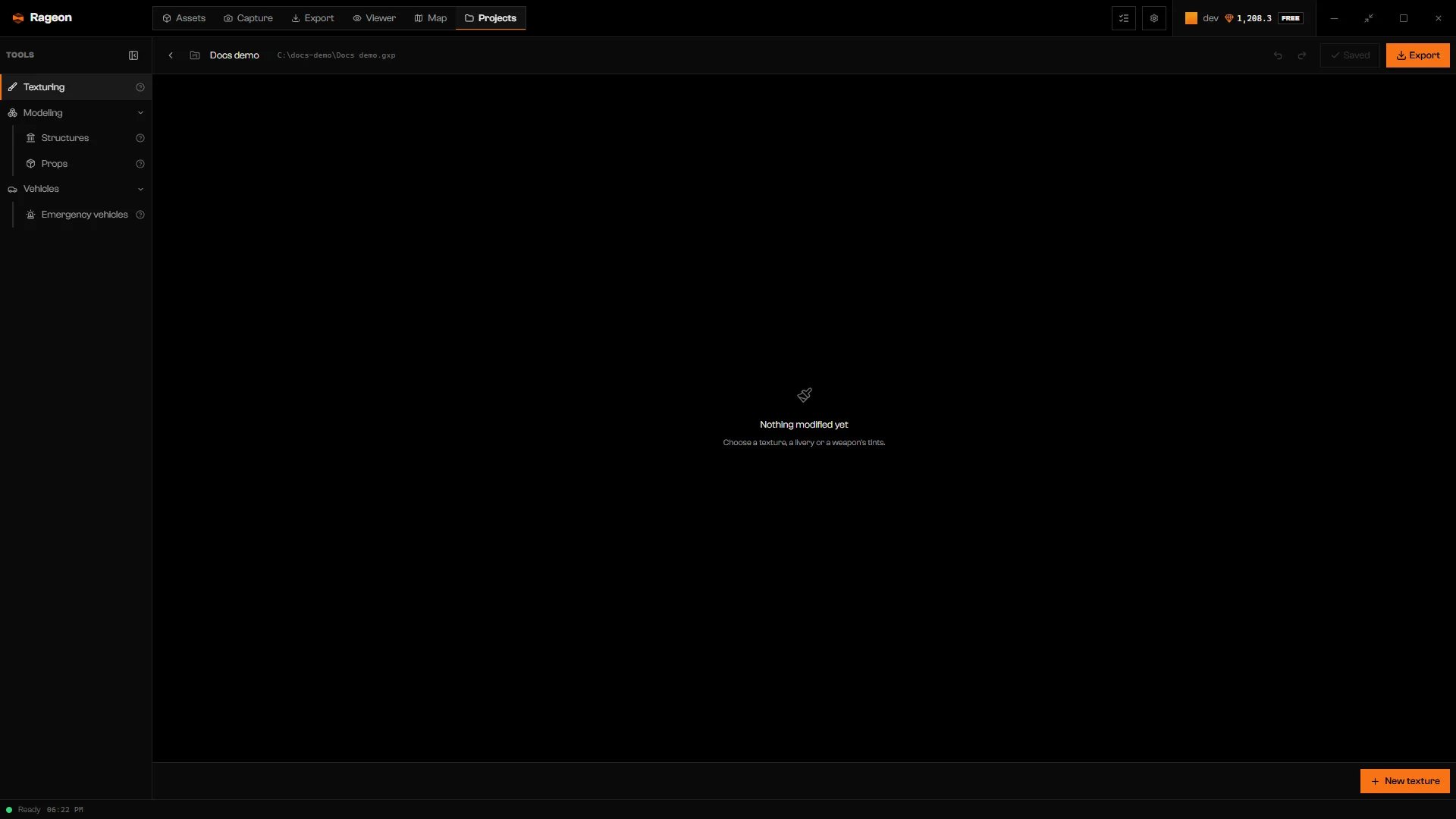
A new project with no edits yet.
Start an edit
Click New texture
Pick an Edit type
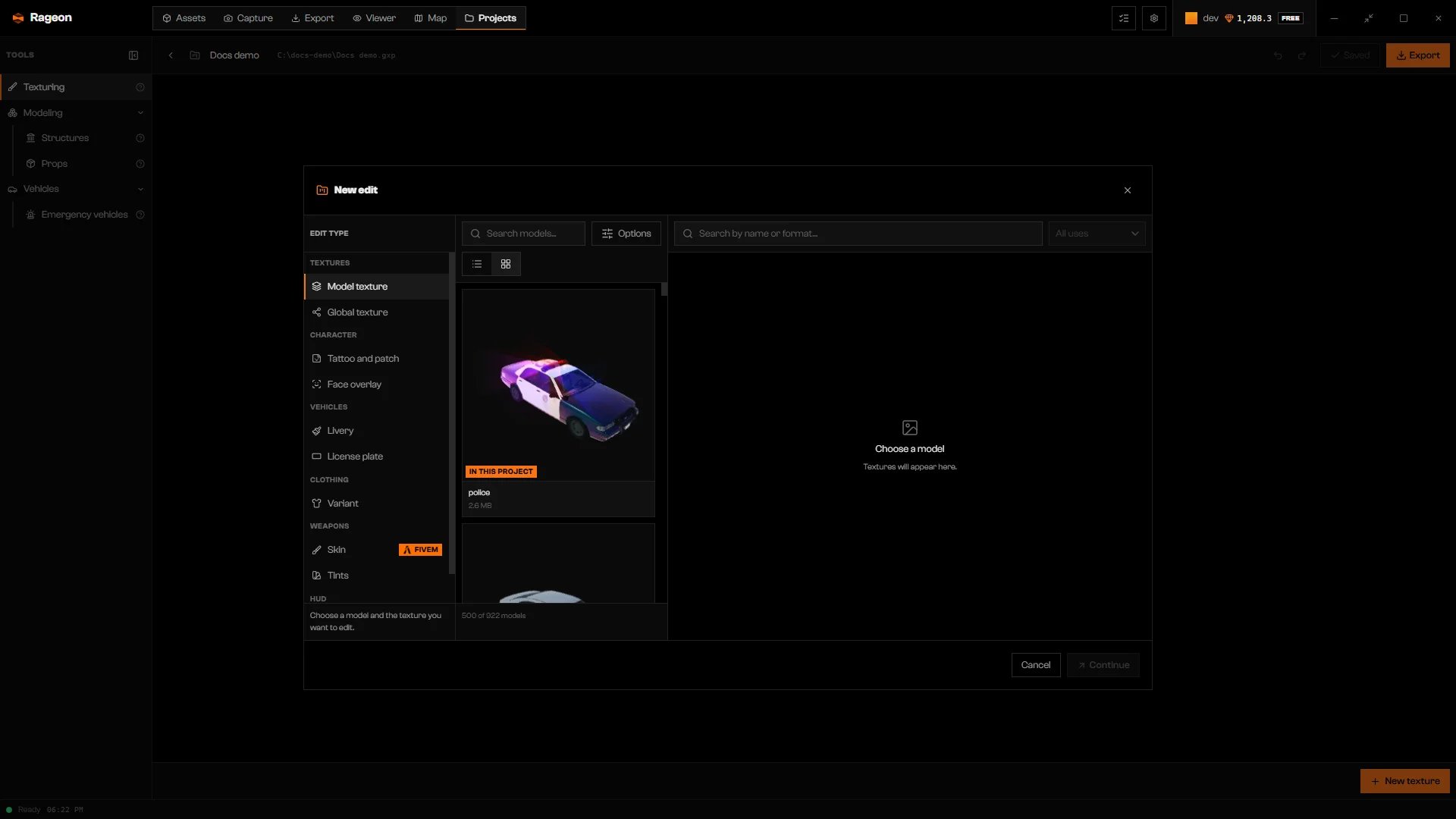
The edit types, grouped under Textures, Character, Vehicles, Clothing, Weapons, and HUD.
Choose what to edit and click Continue
Work on the stage
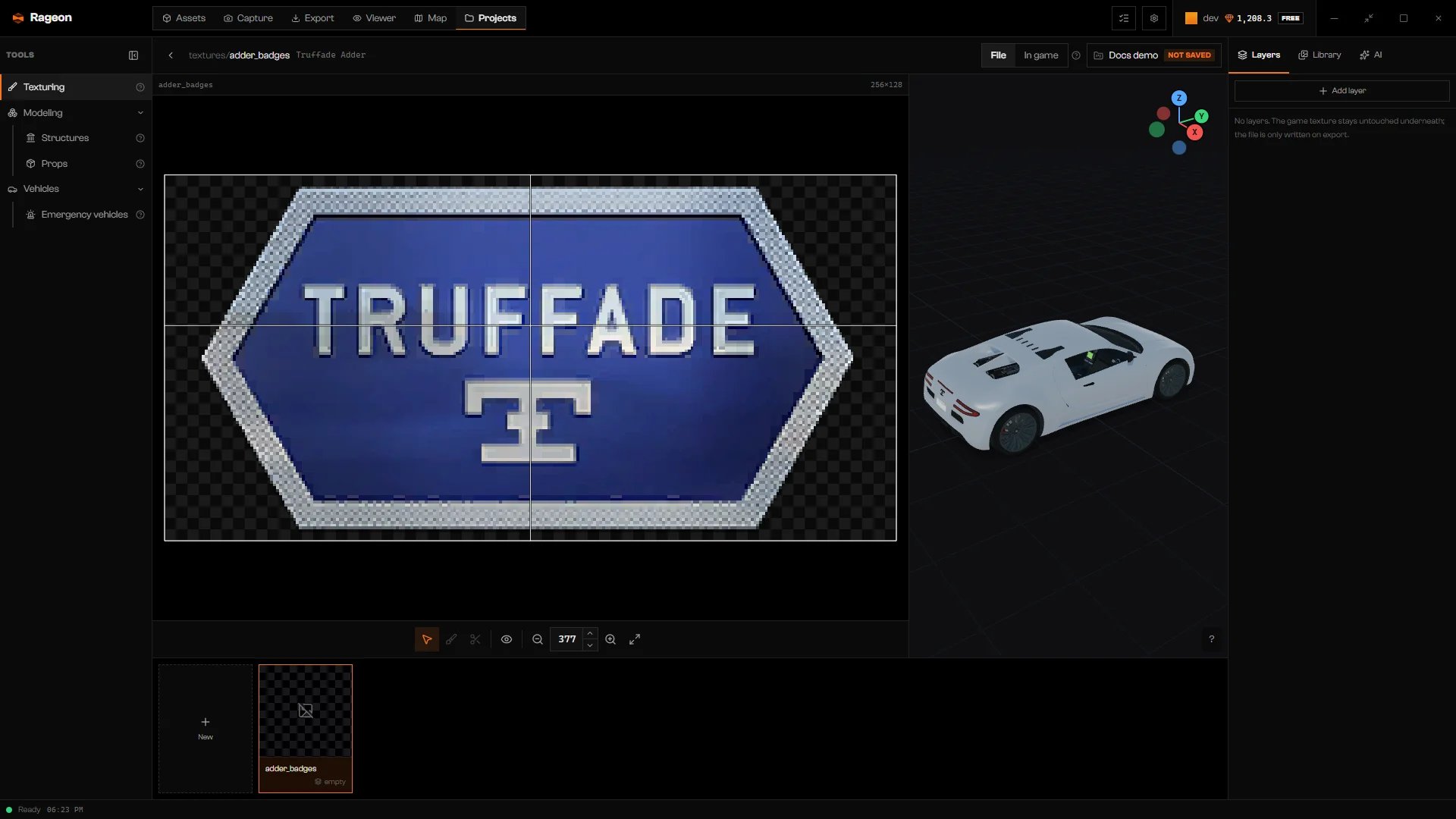
An edit open: 2D texture stage, 3D preview, and the Layers tab.
Edit types
The gallery
Every edit in the project is a card under Project textures. Click a card to open it. The thumbnail shows the model wearing your layers as the 3D preview last showed them; before that, it shows only your layers over a checker.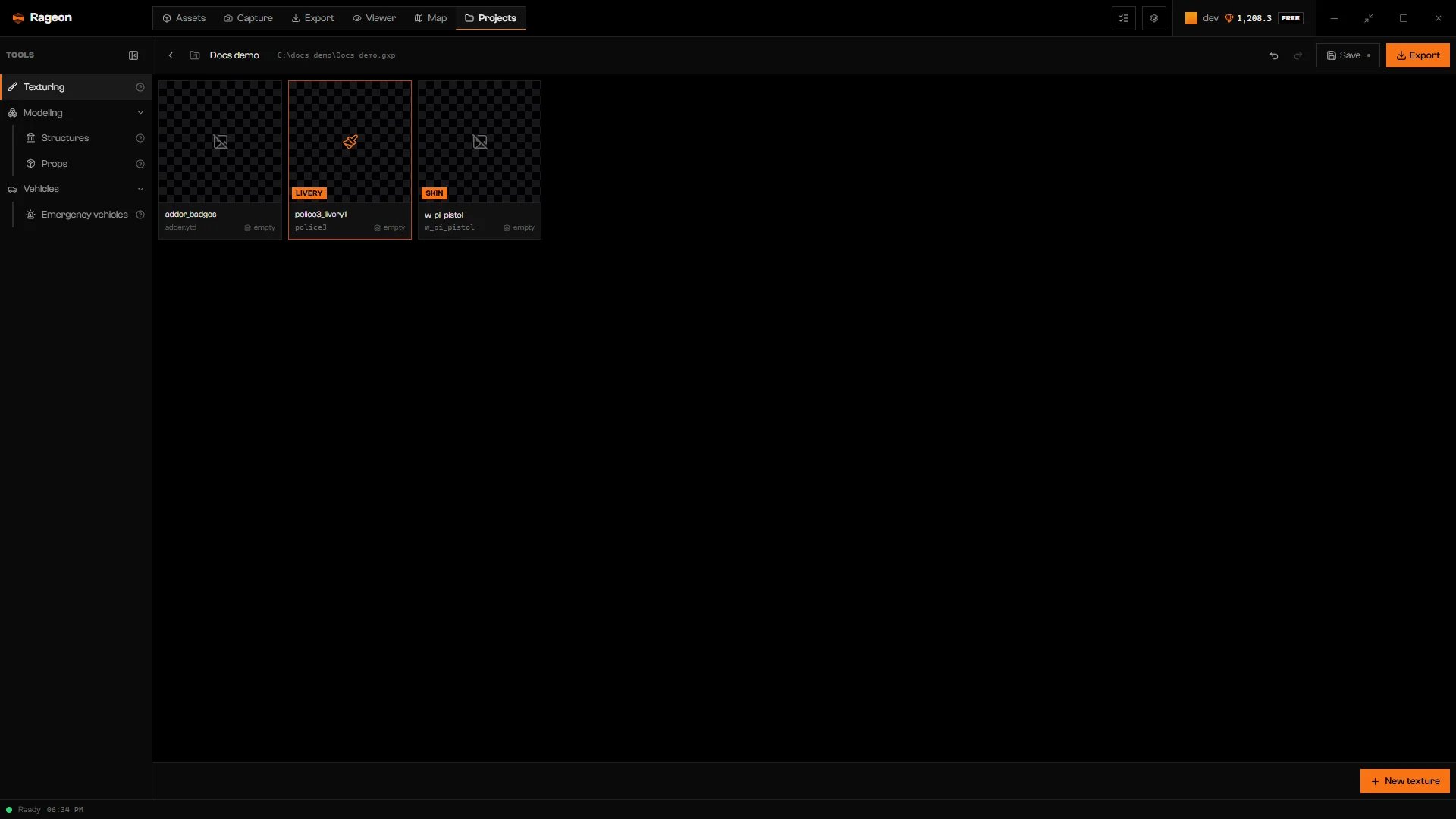
A model texture, a livery, and a weapon skin in one project.
Emergency vehicles from your project
Emergency vehicles you built in the project are pinned to the top of the vehicle list in New edit, under In this project, with the project’s own thumbnail. This applies to Livery and to Model texture on a vehicle.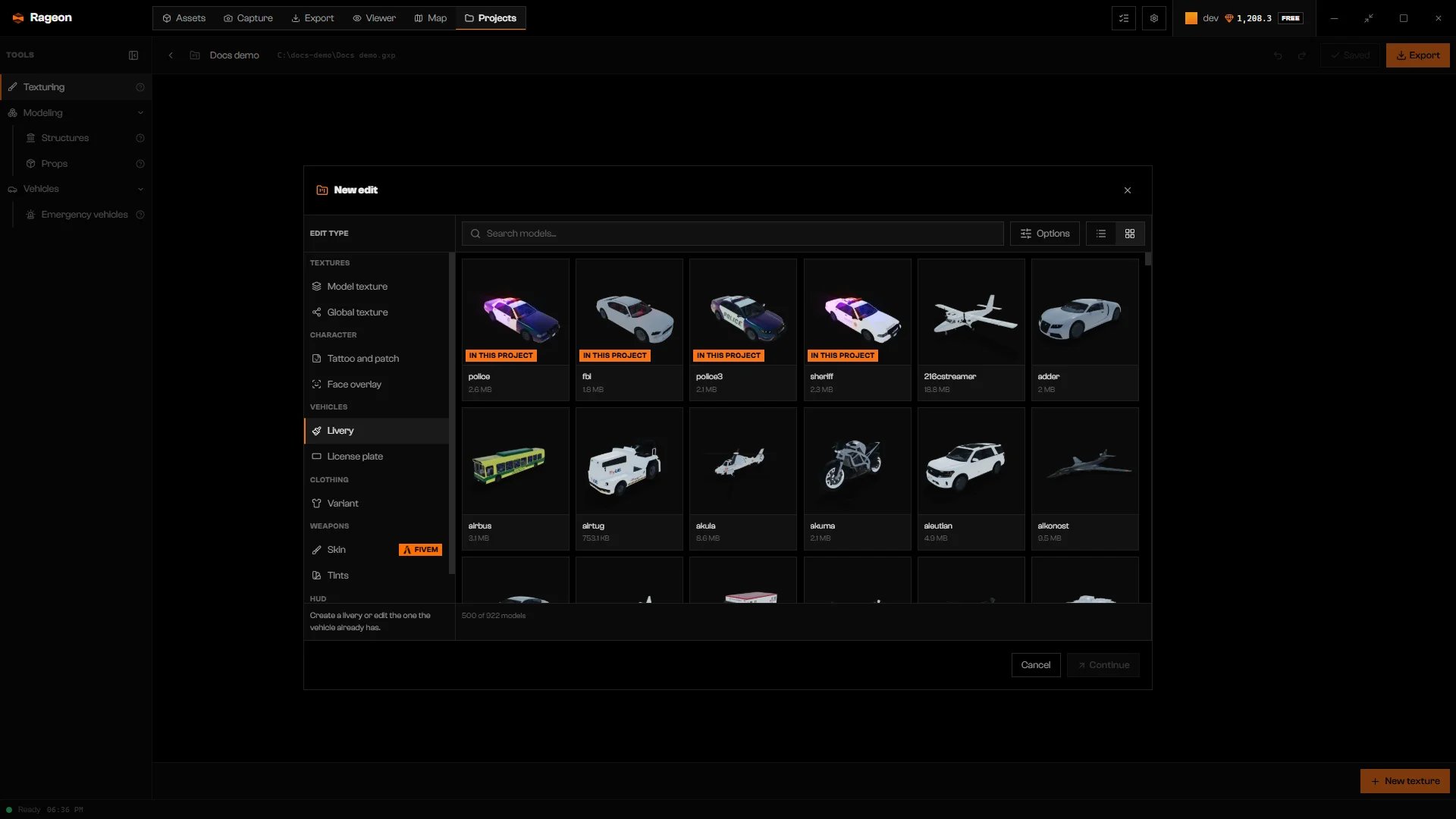
Project vehicles at the top of the Livery list.
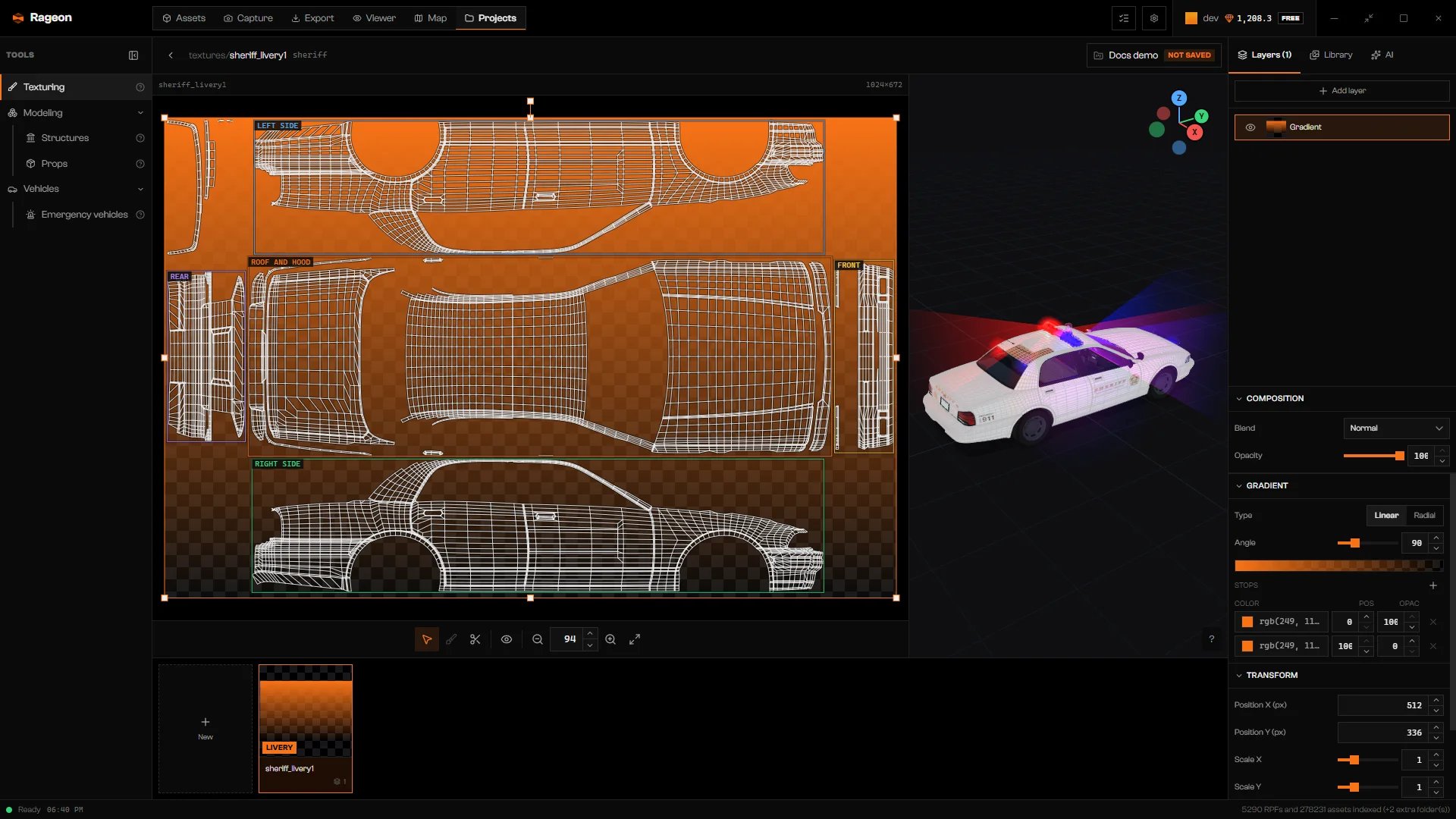
A project vehicle dressed on the stage while you paint its livery.
Export and test
From the gallery, click Export in the project bar. While editing, open the project menu in the header and choose Export, or press Ctrl+E to reuse the last destination. The steps are in Export a project. Replacement files keep their original names; new liveries, variants, decorations, skins, and swaps produce their own outputs. Skins and in-game swaps needrageon-bridge installed on the server and started before your resource. See Hot reload for changes on a running server.
Limits and plans
The number of textures a project can hold depends on your plan. Adding a new edit past the limit is refused, including a new tattoo or a skin. Changing an edit that already exists is not counted. See rageon.dev/pricing.Troubleshooting
Your plan allows up to … textures per project.
Your plan allows up to … textures per project.
Your session predates the plan limits. Sign in to your account again.
Your session predates the plan limits. Sign in to your account again.
The project has nothing to export: no texture with layers and no structure, prop or emergency vehicle with content.
The project has nothing to export: no texture with layers and no structure, prop or emergency vehicle with content.
No visible layer to export.
No visible layer to export.
The game texture changed since the edit: …
The game texture changed since the edit: …
Could not read the texture: …
Could not read the texture: …