Model a custom object once, then place it in any structure of the project or spawn it from a script.
A prop is one custom object saved in your project: a name, geometry, materials with textures, and collision. The name is the model name the game uses. You place the same prop as many times as you like in the project’s structures, or create it from a script. Every prop in the project ships with the project resource when you export.Props has no map around it. You model on an empty ground, and you place the result from Structures or by script.
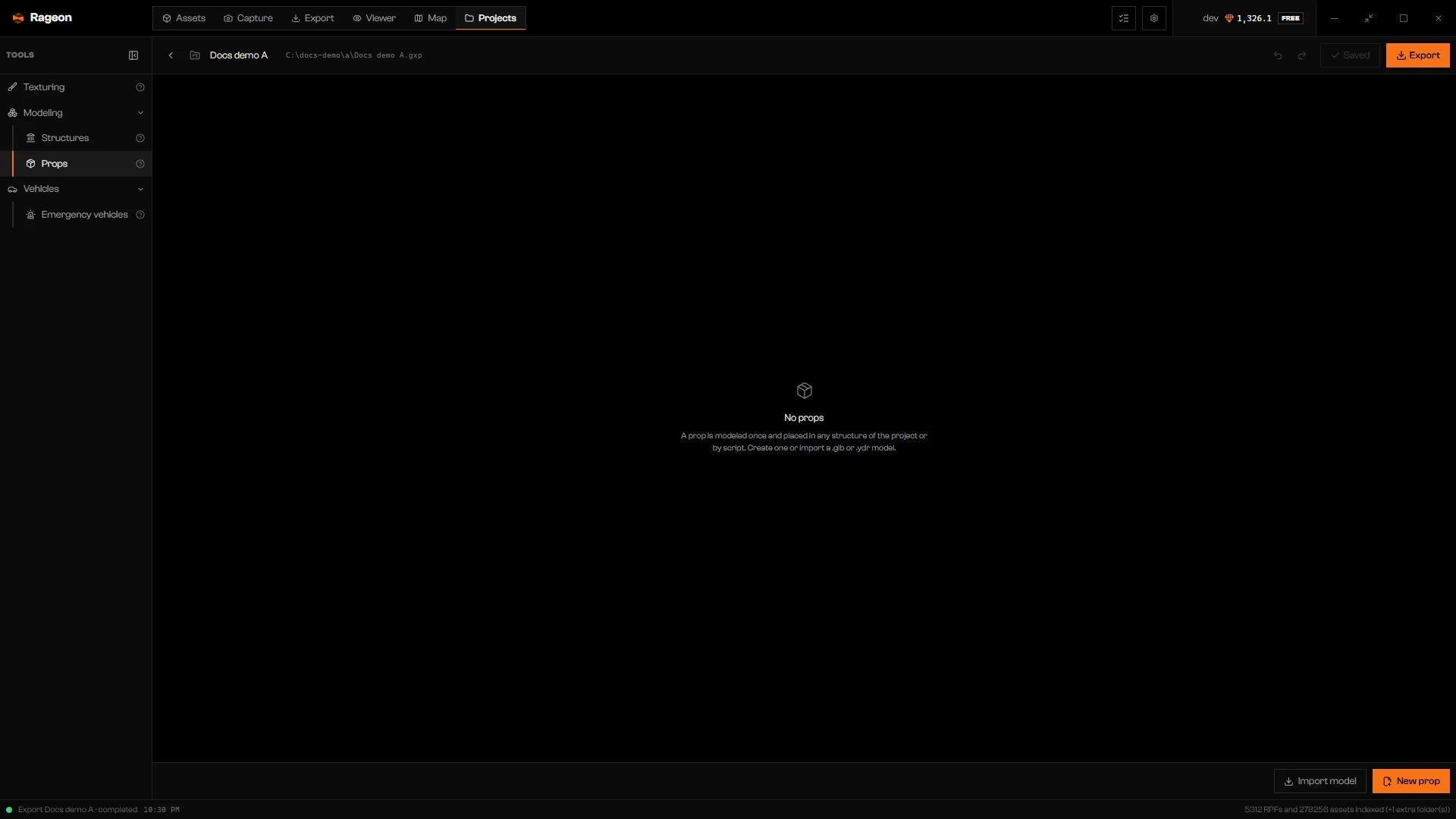
Open the Projects tab, open a project, and click Props under Modeling in the Tools rail. A project needs a folder before it can hold props, because they are saved in a props/ folder next to the .gxp file. Click Save in the project bar and pick a folder first.
The Props tool in a project with no props yet.
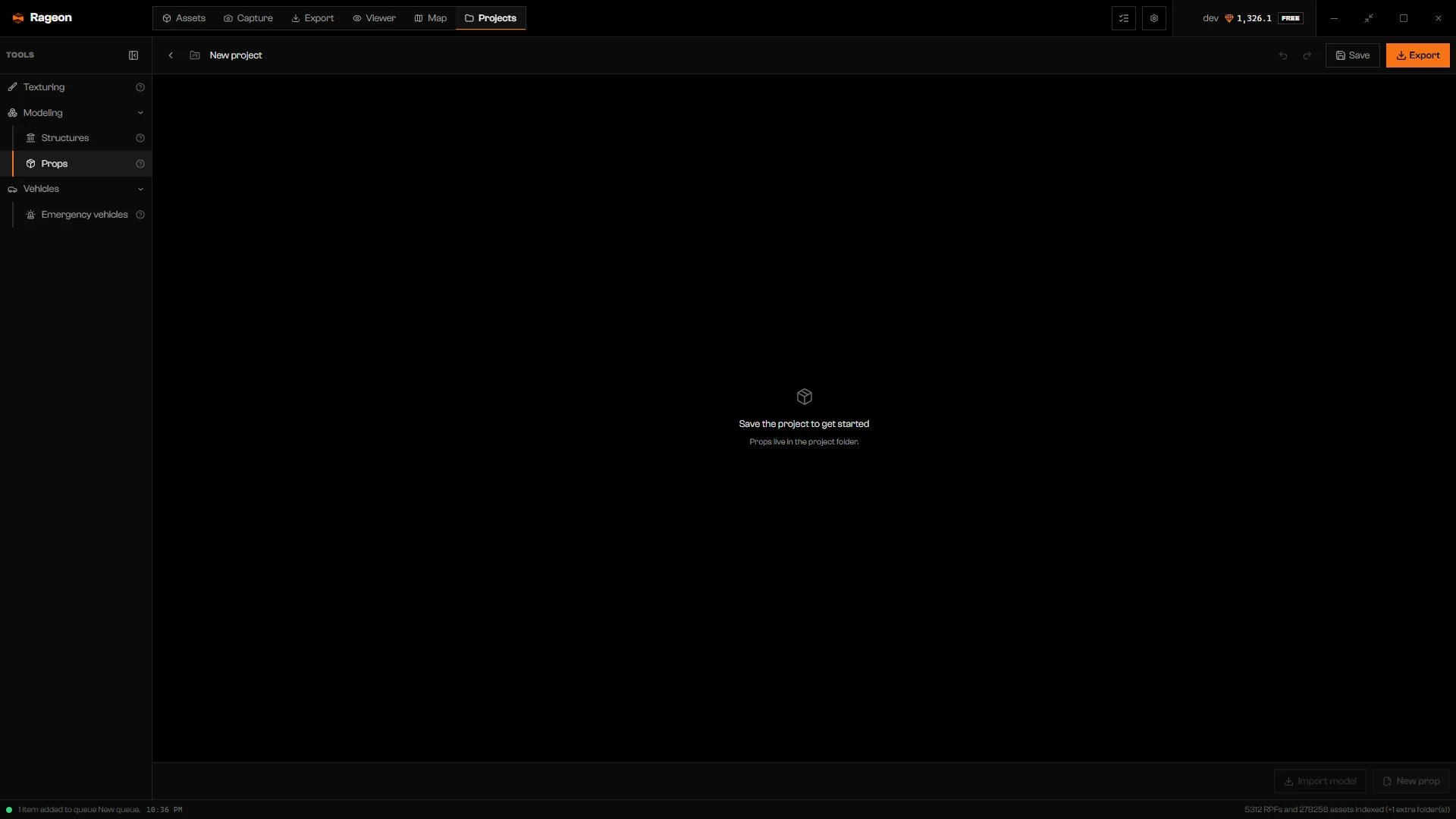
On a project that was never saved, the list reads Save the project to get started and both buttons stay disabled.
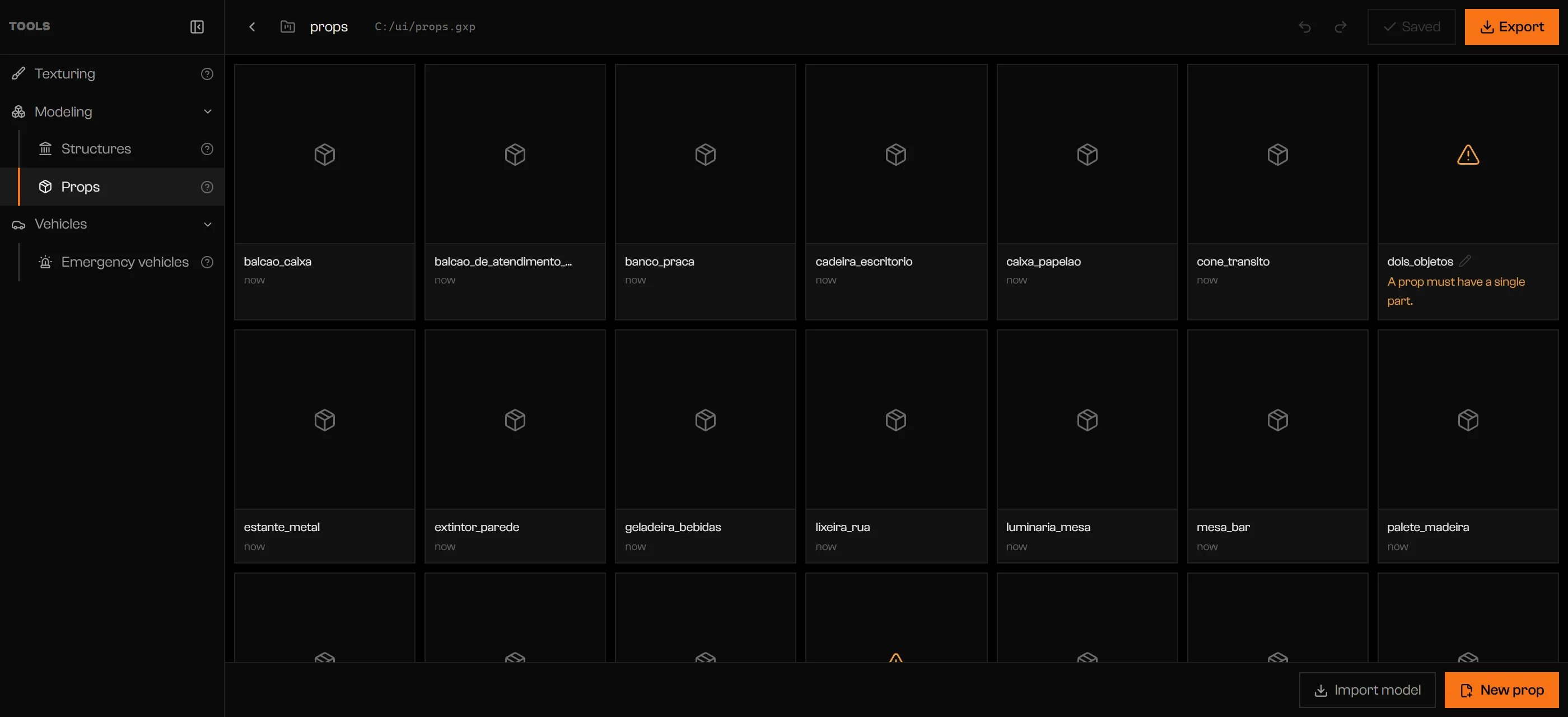
Each prop is a card with a preview, its name, and when it was last modified. The preview is saved with the prop, so a prop you never saved with geometry shows a box icon. Click a card to open the prop in the editor.
Twenty props, one very long name, and two cards that cannot open.
A card with a warning icon cannot open and shows the reason instead: A prop must have a single part. or Another prop already uses this id. A file that cannot be read shows the read error. These cards only offer the trash icon. A broken file in props/ also blocks the project export until you delete or repair it.
The New prop dialog opens. In a structure, Convert to prop on an object opens the same dialog.
2
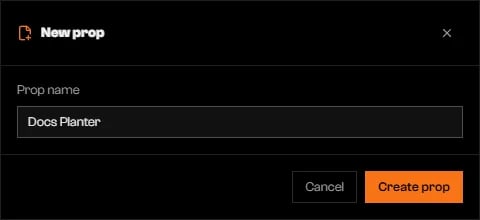
Type a Prop name
The name becomes the model name and the file name: lowercase, no accents, and anything other than a letter or digit becomes _. Vinewood Planter becomes vinewood_planter. Create prop stays disabled while the name has no letter or digit, or while another prop of the project already uses it.
Import model creates a prop from a .glb, .ydr, or .ydr.xml file and names it after the file. A name that is already taken gets _2, _3, and so on. Images embedded in a .glb are copied into the project with their materials, and a .ydr is converted automatically.To add a model to a prop you already have, click + in the Structure section and choose Import model…. The new objects join the open prop.
Imported models keep the position they have in the file. Check Box (m) in the Prop section and use Put the origin at the center of the base if the prop floats or sits underground when placed.
If the name matches a game prop, the Checker shows an error and the export is blocked. Rename the prop in the editor header or in the Name field of the Prop section. See The Checker.
Double-click a card name to rename it. The file and the model name change with it, and structures that use the prop follow the new name.
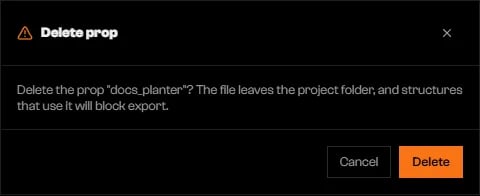
The trash icon on a card deletes the prop after a confirmation. This cannot be undone.
Deleting a prop asks for confirmation.
Deleting a prop that structures use leaves every instance pointing at nothing. Each instance reports that the prop no longer exists, and the project export stays blocked until you remove the instances or create the prop again.
Every plan can open the Props tool. The number of props a project can hold follows the same per-project limit as structures: past it, New prop and Import model fail with Your plan allows up to … structures per project. See pricing for what each plan includes.
{"docsConfig":{"theme":"mint","$schema":"https://mintlify.com/docs.json","name":"Rageon","colors":{"primary":"#f97316","light":"#fb923c","dark":"#c2410c"},"logo":{"light":"https://mintcdn.com/rageon/NnSHzDe1phDyv79M/logo/mark.png?fit=max\u0026auto=format\u0026n=NnSHzDe1phDyv79M\u0026q=85\u0026s=e0ae0889d31e1576f579125f3ef6685e","dark":"https://mintcdn.com/rageon/NnSHzDe1phDyv79M/logo/mark.png?fit=max\u0026auto=format\u0026n=NnSHzDe1phDyv79M\u0026q=85\u0026s=e0ae0889d31e1576f579125f3ef6685e","href":"https://rageon.dev"},"favicon":"https://mintcdn.com/rageon/tGC-5rfc07564TOG/favicon.png?fit=max\u0026auto=format\u0026n=tGC-5rfc07564TOG\u0026q=85\u0026s=7525da8dae81e50d0056d02037548e02","appearance":{"default":"dark"},"navbar":{"links":[{"href":"https://rageon.dev/pricing","label":"Pricing"}],"primary":{"type":"button","label":"Download","href":"https://rageon.dev/download"}},"footer":{"socials":{"website":"https://rageon.dev"}},"icons":{"library":"lucide"},"styling":{"latex":false},"navigation":{"languages":[{"language":"en","default":true,"href":"start/introduction"},{"language":"pt-BR","href":"pt-BR/start/introduction"},{"language":"es","href":"es/start/introduction"}]}},"deployment":{"deploymentMetadataValue":{"subdomain":"rageon","hasAudioNarration":false,"actualSubdomain":"rageon","customDomains":["docs.rageon.dev"],"gitSource":{"type":"github","owner":"rageoon","repo":"rageon-docs","deployBranch":"main","contentDirectory":"","isPrivate":true,"mountPath":"","label":"","_id":"6ada8d872e2812485d3d490a"},"chroma":{"latestBuiltDeploymentHistoryId":"6ada8d882e2812485d3d4910","collectionId":"d8abb39d-b557-4128-b440-bcb1bb1501eb","liveDeploymentHistoryId":"6ada8d882e2812485d3d4910","schemaVersion":"v3"},"entitlements":{"AI_CHAT":{"status":"ENABLED"},"WEB_MCP":{"status":"ENABLED"},"NARRATION":{"status":"ENABLED"}},"buildId":"6ada8d96fbb15298db52c70c","clientVersion":"0.0.3939","searchFilterCounts":[{"language":"en","tag":"Projects","count":43},{"language":"es","tag":"Proyectos","count":43},{"language":"pt-BR","tag":"Projetos","count":43},{"language":"en","tag":"Structures","count":16},{"language":"es","tag":"Estructuras","count":16},{"language":"pt-BR","tag":"Estruturas","count":16},{"language":"en","tag":"Map","count":15},{"language":"es","tag":"Mapa","count":15},{"language":"pt-BR","tag":"Mapa","count":15},{"language":"en","tag":"Getting started","count":14},{"language":"en","tag":"Viewer","count":14},{"language":"es","tag":"Primeros pasos","count":14},{"language":"es","tag":"Visor","count":14},{"language":"pt-BR","tag":"Primeiros passos","count":14},{"language":"pt-BR","tag":"Visualização","count":14},{"language":"en","tag":"Assets","count":12},{"language":"en","tag":"Capture","count":12},{"language":"es","tag":"Assets","count":12},{"language":"es","tag":"Captura","count":12},{"language":"pt-BR","tag":"Assets","count":12},{"language":"pt-BR","tag":"Captura","count":12},{"language":"en","tag":"Texturing","count":11},{"language":"es","tag":"Texturizado","count":11},{"language":"pt-BR","tag":"Texturização","count":11},{"language":"en","tag":"Export","count":8},{"language":"es","tag":"Exportar","count":8},{"language":"pt-BR","tag":"Exportar","count":8},{"language":"en","tag":"Help","count":6},{"language":"es","tag":"Ayuda","count":6},{"language":"pt-BR","tag":"Ajuda","count":6}],"searchSettings":{"isFiltersEnabled":true,"showContentSnippets":true}},"assistantConfig":{"enableAskAiButton":false,"enableStarterQuestions":false,"enableContextualStarterQuestions":false,"enableAskAiSearchBar":true},"hasChatPermissions":true,"hasWebMcpPermissions":true,"toggles":[{"name":"kill-isr","enabled":true,"variant":{"name":"disabled","enabled":false,"feature_enabled":true},"impressionData":false},{"name":"agent-mintlify-slack","enabled":true,"variant":{"name":"disabled","enabled":false,"feature_enabled":true},"impressionData":false},{"name":"editor-v7-file-tree","enabled":true,"variant":{"name":"disabled","enabled":false,"feature_enabled":true},"impressionData":false},{"name":"agent-integrations-settings","enabled":true,"variant":{"name":"disabled","enabled":false,"feature_enabled":true},"impressionData":false},{"name":"automations-pr-grouping","enabled":true,"variant":{"name":"disabled","enabled":false,"feature_enabled":true},"impressionData":false},{"name":"custom-prefix","enabled":true,"variant":{"name":"disabled","enabled":false,"feature_enabled":true},"impressionData":false},{"name":"analytics-v7","enabled":true,"variant":{"name":"disabled","enabled":false,"feature_enabled":true},"impressionData":false},{"name":"user-flows-analytics","enabled":true,"variant":{"name":"disabled","enabled":false,"feature_enabled":true},"impressionData":false},{"name":"no-publish-flow","enabled":true,"variant":{"name":"disabled","enabled":false,"feature_enabled":true},"impressionData":false},{"name":"workos-onboarding","enabled":true,"variant":{"name":"disabled","enabled":false,"feature_enabled":true},"impressionData":false},{"name":"llms-txt-v2","enabled":true,"variant":{"name":"disabled","enabled":false,"feature_enabled":true},"impressionData":false},{"name":"pause-universal-search-reconcile","enabled":true,"variant":{"name":"disabled","enabled":false,"feature_enabled":true},"impressionData":false},{"name":"snapshot-serving-live","enabled":true,"variant":{"name":"disabled","enabled":false,"feature_enabled":true},"impressionData":false},{"name":"stripTemperatureMiddleware","enabled":true,"variant":{"name":"disabled","enabled":false,"feature_enabled":true},"impressionData":false},{"name":"per-site-search-delta","enabled":true,"variant":{"name":"disabled","enabled":false,"feature_enabled":true},"impressionData":false},{"name":"support-platform-pylon-zendesk","enabled":true,"variant":{"name":"disabled","enabled":false,"feature_enabled":true},"impressionData":false},{"name":"snapshot-serving","enabled":true,"variant":{"name":"disabled","enabled":false,"feature_enabled":true},"impressionData":false},{"name":"instant-rollback","enabled":true,"variant":{"name":"disabled","enabled":false,"feature_enabled":true},"impressionData":false},{"name":"granular-notifications-server","enabled":true,"variant":{"name":"disabled","enabled":false,"feature_enabled":true},"impressionData":false},{"name":"granular-notifications","enabled":true,"variant":{"name":"disabled","enabled":false,"feature_enabled":true},"impressionData":false},{"name":"editor-private-page-search","enabled":true,"variant":{"name":"disabled","enabled":false,"feature_enabled":true},"impressionData":false},{"name":"automations-fable","enabled":true,"variant":{"name":"disabled","enabled":false,"feature_enabled":true},"impressionData":false},{"name":"fixed-ai-action-pricing","enabled":true,"variant":{"name":"disabled","enabled":false,"feature_enabled":true},"impressionData":false},{"name":"automation-resolve-merge-conflict","enabled":true,"variant":{"name":"disabled","enabled":false,"feature_enabled":true},"impressionData":false},{"name":"scoped-publishing","enabled":true,"variant":{"name":"disabled","enabled":false,"feature_enabled":true},"impressionData":false},{"name":"mintql","enabled":true,"variant":{"name":"disabled","enabled":false,"feature_enabled":true},"impressionData":false},{"name":"page-level-analytics","enabled":true,"variant":{"name":"disabled","enabled":false,"feature_enabled":true},"impressionData":false},{"name":"editor-version-history-v2","enabled":true,"variant":{"name":"disabled","enabled":false,"feature_enabled":true},"impressionData":false},{"name":"editor-nav-generations","enabled":true,"variant":{"name":"disabled","enabled":false,"feature_enabled":true},"impressionData":false},{"name":"billing-page-v2","enabled":true,"variant":{"name":"disabled","enabled":false,"feature_enabled":true},"impressionData":false},{"name":"workspace-projects","enabled":true,"variant":{"name":"disabled","enabled":false,"feature_enabled":true},"impressionData":false},{"name":"assistant-v5","enabled":true,"variant":{"name":"disabled","enabled":false,"feature_enabled":true},"impressionData":false},{"name":"byok-sep-25","enabled":true,"variant":{"name":"disabled","enabled":false,"feature_enabled":true},"impressionData":false},{"name":"fork-pr-previews","enabled":true,"variant":{"name":"disabled","enabled":false,"feature_enabled":true},"impressionData":false},{"name":"revalidation-jwt","enabled":true,"variant":{"name":"disabled","enabled":false,"feature_enabled":true},"impressionData":false},{"name":"vite-origin","enabled":true,"variant":{"name":"disabled","enabled":false,"feature_enabled":true},"impressionData":false},{"name":"editor-agent-model-picker","enabled":true,"variant":{"name":"disabled","enabled":false,"feature_enabled":true},"impressionData":false},{"name":"billing-updated-9-15","enabled":true,"variant":{"name":"disabled","enabled":false,"feature_enabled":true},"impressionData":false},{"name":"hobby-abuse-scan","enabled":true,"variant":{"name":"disabled","enabled":false,"feature_enabled":true},"impressionData":false},{"name":"dashboard-inbox","enabled":true,"variant":{"name":"disabled","enabled":false,"feature_enabled":true},"impressionData":false}],"isAtlas":false,"googleFontsInlined":false},"customCss":[],"page":{"pagePath":"projects/props/overview","slug":"/projects/props/overview","pageMetadata":{"title":"Props","icon":"box","description":"Model a custom object once, then place it in any structure of the project or spawn it from a script.","href":"/projects/props/overview"},"description":{"compiledSource":"\"use strict\";\nconst {jsx: _jsx} = arguments[0];\nconst {useMDXComponents: _provideComponents} = arguments[0];\nfunction _createMdxContent(props) {\n const _components = {\n p: \"p\",\n ..._provideComponents(),\n ...props.components\n };\n return _jsx(_components.p, {\n children: \"Model a custom object once, then place it in any structure of the project or spawn it from a script.\"\n });\n}\nfunction MDXContent(props = {}) {\n const {wrapper: MDXLayout} = {\n ..._provideComponents(),\n ...props.components\n };\n return MDXLayout ? _jsx(MDXLayout, {\n ...props,\n children: _jsx(_createMdxContent, {\n ...props\n })\n }) : _createMdxContent(props);\n}\nreturn {\n default: MDXContent\n};\n","frontmatter":{},"scope":{}},"pageType":"default","mdx":{"mdxSource":{"compiledSource":"\"use strict\";const{Fragment:_Fragment,jsx:_jsx,jsxs:_jsxs}=arguments[0];const{useMDXComponents:_provideComponents}=arguments[0];function _createMdxContent(props){const _components={a:`a`,code:`code`,p:`p`,strong:`strong`,..._provideComponents(),...props.components},{Accordion,AccordionGroup,Card,CardGroup,Frame,Heading,OptimizedImage,Step,Steps,Warning}=_components;if(!Accordion)_missingMdxReference(`Accordion`,true);if(!AccordionGroup)_missingMdxReference(`AccordionGroup`,true);if(!Card)_missingMdxReference(`Card`,true);if(!CardGroup)_missingMdxReference(`CardGroup`,true);if(!Frame)_missingMdxReference(`Frame`,true);if(!Heading)_missingMdxReference(`Heading`,true);if(!OptimizedImage)_missingMdxReference(`OptimizedImage`,true);if(!Step)_missingMdxReference(`Step`,true);if(!Steps)_missingMdxReference(`Steps`,true);if(!Warning)_missingMdxReference(`Warning`,true);return _jsxs(_Fragment,{children:[_jsxs(_components.p,{children:[`A prop is one custom object saved in your project: a name, geometry, materials with textures, and collision. The name is the model name the game uses. You place the same prop as many times as you like in the project’s structures, or create it from a script. Every prop in the project ships with the project resource when you `,_jsx(_components.a,{href:`/projects/props/export`,children:`export`}),`.`]}),`\n`,_jsxs(_components.p,{children:[`Props has no map around it. You model on an empty ground, and you place the result from `,_jsx(_components.a,{href:`/projects/structures/props-in-structures`,children:`Structures`}),` or by script.`]}),`\n`,_jsx(Heading,{level:`2`,id:`open-the-props-tool`,children:`Open the Props tool`}),`\n`,_jsxs(_components.p,{children:[`Open the `,_jsx(_components.strong,{children:`Projects`}),` tab, open a project, and click `,_jsx(_components.strong,{children:`Props`}),` under `,_jsx(_components.strong,{children:`Modeling`}),` in the `,_jsx(_components.strong,{children:`Tools`}),` rail. A project needs a folder before it can hold props, because they are saved in a `,_jsx(_components.code,{children:`props/`}),` folder next to the `,_jsx(_components.code,{children:`.gxp`}),` file. Click `,_jsx(_components.strong,{children:`Save`}),` in the project bar and pick a folder first.`]}),`\n`,_jsx(Frame,{caption:`The Props tool in a project with no props yet.`,children:_jsx(OptimizedImage,{src:`https://mintcdn.com/rageon/SL02705KjqddBRzg/images/props/props-tool-rail.webp?fit=max\u0026auto=format\u0026n=SL02705KjqddBRzg\u0026q=85\u0026s=9b8fc2f936d9a09dcec4661b640f81e7`,alt:`Tools rail with Modeling expanded and Props selected, and the empty list reading No props with Import model and New prop buttons`,\"data-og-width\":`1920`,width:`1920`,\"data-og-height\":`1080`,height:`1080`,\"data-path\":`images/props/props-tool-rail.webp`,\"data-optimize\":`true`,\"data-opv\":`3`,srcset:`https://mintcdn.com/rageon/SL02705KjqddBRzg/images/props/props-tool-rail.webp?w=280\u0026fit=max\u0026auto=format\u0026n=SL02705KjqddBRzg\u0026q=85\u0026s=913352cfc645dacfa1c4b9fb0ce9fd2b 280w, https://mintcdn.com/rageon/SL02705KjqddBRzg/images/props/props-tool-rail.webp?w=560\u0026fit=max\u0026auto=format\u0026n=SL02705KjqddBRzg\u0026q=85\u0026s=44276a9d5744206976f843f697dc82df 560w, https://mintcdn.com/rageon/SL02705KjqddBRzg/images/props/props-tool-rail.webp?w=840\u0026fit=max\u0026auto=format\u0026n=SL02705KjqddBRzg\u0026q=85\u0026s=236228e821161228687970444426e5c2 840w, https://mintcdn.com/rageon/SL02705KjqddBRzg/images/props/props-tool-rail.webp?w=1100\u0026fit=max\u0026auto=format\u0026n=SL02705KjqddBRzg\u0026q=85\u0026s=0e5c0a472537629195362540ff1267e1 1100w, https://mintcdn.com/rageon/SL02705KjqddBRzg/images/props/props-tool-rail.webp?w=1650\u0026fit=max\u0026auto=format\u0026n=SL02705KjqddBRzg\u0026q=85\u0026s=d48c895f7703b282ae1c560c2fba0eeb 1650w, https://mintcdn.com/rageon/SL02705KjqddBRzg/images/props/props-tool-rail.webp?w=2500\u0026fit=max\u0026auto=format\u0026n=SL02705KjqddBRzg\u0026q=85\u0026s=ba8393909ace08c31b30ec0557f1b764 2500w`})}),`\n`,_jsxs(_components.p,{children:[`On a project that was never saved, the list reads `,_jsx(_components.strong,{children:`Save the project to get started`}),` and both buttons stay disabled.`]}),`\n`,_jsx(Frame,{caption:`An unsaved project cannot hold props.`,children:_jsx(OptimizedImage,{src:`https://mintcdn.com/rageon/SL02705KjqddBRzg/images/props/props-list-no-folder.webp?fit=max\u0026auto=format\u0026n=SL02705KjqddBRzg\u0026q=85\u0026s=40e5e30d02f201443ec7625640e1e657`,alt:`Props list with the message Save the project to get started and disabled buttons`,\"data-og-width\":`1920`,width:`1920`,\"data-og-height\":`1080`,height:`1080`,\"data-path\":`images/props/props-list-no-folder.webp`,\"data-optimize\":`true`,\"data-opv\":`3`,srcset:`https://mintcdn.com/rageon/SL02705KjqddBRzg/images/props/props-list-no-folder.webp?w=280\u0026fit=max\u0026auto=format\u0026n=SL02705KjqddBRzg\u0026q=85\u0026s=b69a1e1a54faa55be7dd8f2a9030e8db 280w, https://mintcdn.com/rageon/SL02705KjqddBRzg/images/props/props-list-no-folder.webp?w=560\u0026fit=max\u0026auto=format\u0026n=SL02705KjqddBRzg\u0026q=85\u0026s=cfb8caab26c7fec2e718a466cffe926b 560w, https://mintcdn.com/rageon/SL02705KjqddBRzg/images/props/props-list-no-folder.webp?w=840\u0026fit=max\u0026auto=format\u0026n=SL02705KjqddBRzg\u0026q=85\u0026s=694e2b28b17e0ef467059751075637e2 840w, https://mintcdn.com/rageon/SL02705KjqddBRzg/images/props/props-list-no-folder.webp?w=1100\u0026fit=max\u0026auto=format\u0026n=SL02705KjqddBRzg\u0026q=85\u0026s=9f7615deaae94f0e0b57dc2d7df03b2c 1100w, https://mintcdn.com/rageon/SL02705KjqddBRzg/images/props/props-list-no-folder.webp?w=1650\u0026fit=max\u0026auto=format\u0026n=SL02705KjqddBRzg\u0026q=85\u0026s=f426389651040cc48af1125899ad3ff8 1650w, https://mintcdn.com/rageon/SL02705KjqddBRzg/images/props/props-list-no-folder.webp?w=2500\u0026fit=max\u0026auto=format\u0026n=SL02705KjqddBRzg\u0026q=85\u0026s=7926564edaa60494826e5a86ccbf6320 2500w`})}),`\n`,_jsx(Heading,{level:`2`,id:`the-prop-list`,children:`The prop list`}),`\n`,_jsxs(_components.p,{children:[`Each prop is a card with a preview, its name, and when it was last modified. The preview is saved with the prop, so a prop you never saved with geometry shows a box icon. Click a card to open the prop in the `,_jsx(_components.a,{href:`/projects/props/editor`,children:`editor`}),`.`]}),`\n`,_jsx(Frame,{caption:`Twenty props, one very long name, and two cards that cannot open.`,children:_jsx(OptimizedImage,{src:`https://mintcdn.com/rageon/SL02705KjqddBRzg/images/props/props-list-gallery.webp?fit=max\u0026auto=format\u0026n=SL02705KjqddBRzg\u0026q=85\u0026s=56b29b9ef4286eefe8145a02c7c48e5e`,alt:`Grid of prop cards, including a card with a warning icon and a card with a very long name`,\"data-og-width\":`2800`,width:`2800`,\"data-og-height\":`1280`,height:`1280`,\"data-path\":`images/props/props-list-gallery.webp`,\"data-optimize\":`true`,\"data-opv\":`3`,srcset:`https://mintcdn.com/rageon/SL02705KjqddBRzg/images/props/props-list-gallery.webp?w=280\u0026fit=max\u0026auto=format\u0026n=SL02705KjqddBRzg\u0026q=85\u0026s=3276d50b2a484e23e30213068151fd91 280w, https://mintcdn.com/rageon/SL02705KjqddBRzg/images/props/props-list-gallery.webp?w=560\u0026fit=max\u0026auto=format\u0026n=SL02705KjqddBRzg\u0026q=85\u0026s=8d95574ba37c95e5bbfffe318012efbc 560w, https://mintcdn.com/rageon/SL02705KjqddBRzg/images/props/props-list-gallery.webp?w=840\u0026fit=max\u0026auto=format\u0026n=SL02705KjqddBRzg\u0026q=85\u0026s=f8bb9633c4d535d7f0306abbe1c2b9e1 840w, https://mintcdn.com/rageon/SL02705KjqddBRzg/images/props/props-list-gallery.webp?w=1100\u0026fit=max\u0026auto=format\u0026n=SL02705KjqddBRzg\u0026q=85\u0026s=c1c27c3b6e461b70a6e29f0026c9795d 1100w, https://mintcdn.com/rageon/SL02705KjqddBRzg/images/props/props-list-gallery.webp?w=1650\u0026fit=max\u0026auto=format\u0026n=SL02705KjqddBRzg\u0026q=85\u0026s=fcb4cc6c3ca0ed832e8725eaf4eed39a 1650w, https://mintcdn.com/rageon/SL02705KjqddBRzg/images/props/props-list-gallery.webp?w=2500\u0026fit=max\u0026auto=format\u0026n=SL02705KjqddBRzg\u0026q=85\u0026s=a955129c2bda67950720956712bb7dfa 2500w`})}),`\n`,_jsxs(_components.p,{children:[`A card with a warning icon cannot open and shows the reason instead: `,_jsx(_components.strong,{children:`A prop must have a single part.`}),` or `,_jsx(_components.strong,{children:`Another prop already uses this id.`}),` A file that cannot be read shows the read error. These cards only offer the trash icon. A broken file in `,_jsx(_components.code,{children:`props/`}),` also blocks the project export until you delete or repair it.`]}),`\n`,_jsx(Heading,{level:`2`,id:`create-a-prop`,children:`Create a prop`}),`\n`,_jsxs(Steps,{children:[_jsx(Step,{title:`Click New prop`,children:_jsxs(_components.p,{children:[`The `,_jsx(_components.strong,{children:`New prop`}),` dialog opens. In a structure, `,_jsx(_components.strong,{children:`Convert to prop`}),` on an object opens the same dialog.`]})}),_jsxs(Step,{title:`Type a Prop name`,children:[_jsxs(_components.p,{children:[`The name becomes the model name and the file name: lowercase, no accents, and anything other than a letter or digit becomes `,_jsx(_components.code,{children:`_`}),`. `,_jsx(_components.strong,{children:`Vinewood Planter`}),` becomes `,_jsx(_components.code,{children:`vinewood_planter`}),`. `,_jsx(_components.strong,{children:`Create prop`}),` stays disabled while the name has no letter or digit, or while another prop of the project already uses it.`]}),_jsx(Frame,{caption:`Naming a new prop.`,children:_jsx(OptimizedImage,{src:`https://mintcdn.com/rageon/SL02705KjqddBRzg/images/props/props-new-prop-dialog.webp?fit=max\u0026auto=format\u0026n=SL02705KjqddBRzg\u0026q=85\u0026s=ab91b3ef485b6ae7d8c98d6bde7f06f8`,alt:`New prop dialog with Docs Planter typed in the Prop name field`,\"data-og-width\":`480`,width:`480`,\"data-og-height\":`220`,height:`220`,\"data-path\":`images/props/props-new-prop-dialog.webp`,\"data-optimize\":`true`,\"data-opv\":`3`,srcset:`https://mintcdn.com/rageon/SL02705KjqddBRzg/images/props/props-new-prop-dialog.webp?w=280\u0026fit=max\u0026auto=format\u0026n=SL02705KjqddBRzg\u0026q=85\u0026s=af0cb25f50c57ec8a161d1057c914018 280w, https://mintcdn.com/rageon/SL02705KjqddBRzg/images/props/props-new-prop-dialog.webp?w=560\u0026fit=max\u0026auto=format\u0026n=SL02705KjqddBRzg\u0026q=85\u0026s=24f3a1a41230b8f00e9e61bb9175251f 560w, https://mintcdn.com/rageon/SL02705KjqddBRzg/images/props/props-new-prop-dialog.webp?w=840\u0026fit=max\u0026auto=format\u0026n=SL02705KjqddBRzg\u0026q=85\u0026s=a2bbf49a998889ca0a3ebc5cdd5308ab 840w, https://mintcdn.com/rageon/SL02705KjqddBRzg/images/props/props-new-prop-dialog.webp?w=1100\u0026fit=max\u0026auto=format\u0026n=SL02705KjqddBRzg\u0026q=85\u0026s=ed408014151d0ad6cb0780662f0cfff3 1100w, https://mintcdn.com/rageon/SL02705KjqddBRzg/images/props/props-new-prop-dialog.webp?w=1650\u0026fit=max\u0026auto=format\u0026n=SL02705KjqddBRzg\u0026q=85\u0026s=b2db99e752d621a038e401df75479d30 1650w, https://mintcdn.com/rageon/SL02705KjqddBRzg/images/props/props-new-prop-dialog.webp?w=2500\u0026fit=max\u0026auto=format\u0026n=SL02705KjqddBRzg\u0026q=85\u0026s=2d291fad576a961adf3ef75dfa342c91 2500w`})})]}),_jsx(Step,{title:`Click Create prop`,children:_jsx(_components.p,{children:`The editor opens on an empty prop.`})})]}),`\n`,_jsx(Heading,{level:`2`,id:`import-a-model`,children:`Import a model`}),`\n`,_jsxs(_components.p,{children:[_jsx(_components.strong,{children:`Import model`}),` creates a prop from a `,_jsx(_components.code,{children:`.glb`}),`, `,_jsx(_components.code,{children:`.ydr`}),`, or `,_jsx(_components.code,{children:`.ydr.xml`}),` file and names it after the file. A name that is already taken gets `,_jsx(_components.code,{children:`_2`}),`, `,_jsx(_components.code,{children:`_3`}),`, and so on. Images embedded in a `,_jsx(_components.code,{children:`.glb`}),` are copied into the project with their materials, and a `,_jsx(_components.code,{children:`.ydr`}),` is converted automatically.`]}),`\n`,_jsxs(_components.p,{children:[`To add a model to a prop you already have, click `,_jsx(_components.strong,{children:`+`}),` in the `,_jsx(_components.strong,{children:`Structure`}),` section and choose `,_jsx(_components.strong,{children:`Import model…`}),`. The new objects join the open prop.`]}),`\n`,_jsx(Warning,{children:_jsxs(_components.p,{children:[`Imported models keep the position they have in the file. Check `,_jsx(_components.strong,{children:`Box (m)`}),` in the `,_jsx(_components.strong,{children:`Prop`}),` section and use `,_jsx(_components.strong,{children:`Put the origin at the center of the base`}),` if the prop floats or sits underground when placed.`]})}),`\n`,_jsxs(_components.p,{children:[`If the name matches a game prop, the Checker shows an error and the export is blocked. Rename the prop in the editor header or in the `,_jsx(_components.strong,{children:`Name`}),` field of the `,_jsx(_components.strong,{children:`Prop`}),` section. See `,_jsx(_components.a,{href:`/projects/props/editor#the-checker`,children:`The Checker`}),`.`]}),`\n`,_jsx(Heading,{level:`2`,id:`rename-and-delete`,children:`Rename and delete`}),`\n`,_jsx(_components.p,{children:`Double-click a card name to rename it. The file and the model name change with it, and structures that use the prop follow the new name.\nThe trash icon on a card deletes the prop after a confirmation. This cannot be undone.`}),`\n`,_jsx(Frame,{caption:`Deleting a prop asks for confirmation.`,children:_jsx(OptimizedImage,{src:`https://mintcdn.com/rageon/SL02705KjqddBRzg/images/props/props-delete-confirm.webp?fit=max\u0026auto=format\u0026n=SL02705KjqddBRzg\u0026q=85\u0026s=48100b0e12882ef9a1447c2817213730`,alt:`Delete prop dialog asking to delete the prop docs_planter`,\"data-og-width\":`480`,width:`480`,\"data-og-height\":`196`,height:`196`,\"data-path\":`images/props/props-delete-confirm.webp`,\"data-optimize\":`true`,\"data-opv\":`3`,srcset:`https://mintcdn.com/rageon/SL02705KjqddBRzg/images/props/props-delete-confirm.webp?w=280\u0026fit=max\u0026auto=format\u0026n=SL02705KjqddBRzg\u0026q=85\u0026s=9c1fe6c1ea1c3b82ad856bcfcc7bb005 280w, https://mintcdn.com/rageon/SL02705KjqddBRzg/images/props/props-delete-confirm.webp?w=560\u0026fit=max\u0026auto=format\u0026n=SL02705KjqddBRzg\u0026q=85\u0026s=02d63d21e5b1085fd98bd931eff1b4b9 560w, https://mintcdn.com/rageon/SL02705KjqddBRzg/images/props/props-delete-confirm.webp?w=840\u0026fit=max\u0026auto=format\u0026n=SL02705KjqddBRzg\u0026q=85\u0026s=ffae3b3685a08a68a3eb9a5926ec80dd 840w, https://mintcdn.com/rageon/SL02705KjqddBRzg/images/props/props-delete-confirm.webp?w=1100\u0026fit=max\u0026auto=format\u0026n=SL02705KjqddBRzg\u0026q=85\u0026s=93ba0c15fa3862275d32bfe5a487c491 1100w, https://mintcdn.com/rageon/SL02705KjqddBRzg/images/props/props-delete-confirm.webp?w=1650\u0026fit=max\u0026auto=format\u0026n=SL02705KjqddBRzg\u0026q=85\u0026s=6ab8074dc7a8dcd573f1d36e57578f68 1650w, https://mintcdn.com/rageon/SL02705KjqddBRzg/images/props/props-delete-confirm.webp?w=2500\u0026fit=max\u0026auto=format\u0026n=SL02705KjqddBRzg\u0026q=85\u0026s=f343c39fbf1145cabeec8898f1215289 2500w`})}),`\n`,_jsx(Warning,{children:_jsx(_components.p,{children:`Deleting a prop that structures use leaves every instance pointing at nothing. Each instance reports that the prop no longer exists, and the project export stays blocked until you remove the instances or create the prop again.`})}),`\n`,_jsx(Heading,{level:`2`,id:`limits-and-plans`,children:`Limits and plans`}),`\n`,_jsxs(_components.p,{children:[`Every plan can open the Props tool. The number of props a project can hold follows the same per-project limit as structures: past it, `,_jsx(_components.strong,{children:`New prop`}),` and `,_jsx(_components.strong,{children:`Import model`}),` fail with `,_jsx(_components.strong,{children:`Your plan allows up to … structures per project.`}),` See `,_jsx(_components.a,{href:`https://rageon.dev/pricing`,children:`pricing`}),` for what each plan includes.`]}),`\n`,_jsx(Heading,{level:`2`,id:`troubleshooting`,children:`Troubleshooting`}),`\n`,_jsxs(AccordionGroup,{children:[_jsx(Accordion,{title:`Save the project first — the prop lives in the .gxp folder`,id:`save-the-project-first-the-prop-lives-in-the-gxp-folder`,children:_jsxs(_components.p,{children:[`The project has no folder yet. Click `,_jsx(_components.strong,{children:`Save`}),` in the project bar, choose a folder, and try again.`]})}),_jsx(Accordion,{title:`A prop named \"…\" already exists in this project.`,id:`a-prop-named-already-exists-in-this-project`,children:_jsx(_components.p,{children:`Another prop already uses that file name. Pick a different name.`})}),_jsx(Accordion,{title:`Save the open prop before renaming it.`,id:`save-the-open-prop-before-renaming-it`,children:_jsxs(_components.p,{children:[`The prop has unsaved changes. Press `,_jsx(_components.strong,{children:`Ctrl+S`}),`, then rename it.`]})}),_jsx(Accordion,{title:`Could not import the model: … has no faces`,id:`could-not-import-the-model-has-no-faces`,children:_jsx(_components.p,{children:`The file has no mesh, only points or lines. Choose a file that carries a mesh.`})}),_jsx(Accordion,{title:`Your plan allows up to … structures per project.`,id:`your-plan-allows-up-to-structures-per-project`,children:_jsxs(_components.p,{children:[`The project already holds as many props as your plan allows structures. Delete a prop you no longer need, or check `,_jsx(_components.a,{href:`https://rageon.dev/pricing`,children:`pricing`}),`.`]})}),_jsx(Accordion,{title:`Could not load the props: …`,id:`could-not-load-the-props`,children:_jsxs(_components.p,{children:[`Rageon could not read the `,_jsx(_components.code,{children:`props/`}),` folder. Check that the folder exists and that you can read it, then reopen the project.`]})})]}),`\n`,_jsx(Heading,{level:`2`,id:`next-steps`,children:`Next steps`}),`\n`,_jsxs(CardGroup,{cols:2,children:[_jsx(Card,{title:`Your first prop`,icon:`rocket`,href:`/projects/props/first-prop`,children:_jsx(_components.p,{children:`Model, texture, export, and place a planter.`})}),_jsx(Card,{title:`Prop editor`,icon:`move-3d`,href:`/projects/props/editor`,children:_jsx(_components.p,{children:`Tools, views, material, collision, and origin.`})})]})]})}function MDXContent(props={}){const{wrapper:MDXLayout}={..._provideComponents(),...props.components};return MDXLayout?_jsx(MDXLayout,{...props,children:_jsx(_createMdxContent,{...props})}):_createMdxContent(props)}return{default:MDXContent};function _missingMdxReference(id,component){throw new Error(`Expected `+(component?`component`:`object`)+\" `\"+id+\"` to be defined: you likely forgot to import, pass, or provide it.\")}","frontmatter":{},"scope":{"config":{},"pageMetadata":{"title":"Props","icon":"box","description":"Model a custom object once, then place it in any structure of the project or spawn it from a script.","href":"/projects/props/overview"}}},"mdxSourceWithNoJs":null},"mdxExtracts":{"tableOfContents":[{"title":"Open the Props tool","slug":"open-the-props-tool","depth":2,"children":[]},{"title":"The prop list","slug":"the-prop-list","depth":2,"children":[]},{"title":"Create a prop","slug":"create-a-prop","depth":2,"children":[]},{"title":"Import a model","slug":"import-a-model","depth":2,"children":[]},{"title":"Rename and delete","slug":"rename-and-delete","depth":2,"children":[]},{"title":"Limits and plans","slug":"limits-and-plans","depth":2,"children":[]},{"title":"Troubleshooting","slug":"troubleshooting","depth":2,"children":[]},{"title":"Next steps","slug":"next-steps","depth":2,"children":[]}],"codeExamples":{}},"jsLinks":[],"subdomain":"rageon","siteName":"Rageon","title":"Props - Rageon","navMaps":{"firstHrefInVersion":{},"firstHrefInLanguage":{"en":{"href":"/projects/props/overview","matchLevel":0},"pt-BR":{"href":"/pt-BR/projects/props/overview","matchLevel":1},"es":{"href":"/es/projects/props/overview","matchLevel":1}}},"lastModified":"2026-10-22T22:26:50.610Z","originalFileLocation":"projects/props/overview.mdx","locale":"en"},"headHtml":"\u003cscript data-mint-head>(function(){var d=document.documentElement,p=null;if(!p){try{p=localStorage.getItem(\"isDarkMode\")}catch(e){}if(p==='true')p='dark';else if(p==='false')p='light';if(p!=='light'\u0026\u0026p!=='dark'\u0026\u0026p!=='system')p=\"dark\"}var r=p==='system'?(matchMedia(\"(prefers-color-scheme: dark)\").matches?'dark':'light'):p;d.classList.remove(r==='dark'?'light':'dark');d.classList.add(r);d.setAttribute(\"data-theme-preference\",p)})();\u003c/script>\u003cmeta data-mint-head name=\"description\" content=\"Model a custom object once, then place it in any structure of the project or spawn it from a script.\">\u003cmeta data-mint-head name=\"application-name\" content=\"Rageon\">\u003cmeta data-mint-head name=\"generator\" content=\"Mintlify\">\u003clink data-mint-head rel=\"icon\" type=\"image/png\" sizes=\"192x192\" href=\"/mintlify-assets/_mintlify/favicons/rageon/ZtuCQ-reSINKWczI/_generated/favicon/android-chrome-192x192.png\" media=\"(prefers-color-scheme: light)\">\u003clink data-mint-head rel=\"apple-touch-icon\" type=\"image/png\" sizes=\"180x180\" href=\"/mintlify-assets/_mintlify/favicons/rageon/ZtuCQ-reSINKWczI/_generated/favicon/apple-touch-icon.png\">\u003clink data-mint-head rel=\"icon\" type=\"image/png\" sizes=\"16x16\" href=\"/mintlify-assets/_mintlify/favicons/rageon/ZtuCQ-reSINKWczI/_generated/favicon/favicon-16x16.png\" media=\"(prefers-color-scheme: light)\">\u003clink data-mint-head rel=\"icon\" type=\"image/png\" sizes=\"32x32\" href=\"/mintlify-assets/_mintlify/favicons/rageon/ZtuCQ-reSINKWczI/_generated/favicon/favicon-32x32.png\" media=\"(prefers-color-scheme: light)\">\u003clink data-mint-head rel=\"shortcut icon\" type=\"image/x-icon\" href=\"/mintlify-assets/_mintlify/favicons/rageon/ZtuCQ-reSINKWczI/_generated/favicon/favicon.ico\" media=\"(prefers-color-scheme: light)\">\u003clink data-mint-head rel=\"icon\" type=\"image/png\" sizes=\"192x192\" href=\"/mintlify-assets/_mintlify/favicons/rageon/ZtuCQ-reSINKWczI/_generated/favicon-dark/android-chrome-192x192.png\" media=\"(prefers-color-scheme: dark)\">\u003clink data-mint-head rel=\"icon\" type=\"image/png\" sizes=\"16x16\" href=\"/mintlify-assets/_mintlify/favicons/rageon/ZtuCQ-reSINKWczI/_generated/favicon-dark/favicon-16x16.png\" media=\"(prefers-color-scheme: dark)\">\u003clink data-mint-head rel=\"icon\" type=\"image/png\" sizes=\"32x32\" href=\"/mintlify-assets/_mintlify/favicons/rageon/ZtuCQ-reSINKWczI/_generated/favicon-dark/favicon-32x32.png\" media=\"(prefers-color-scheme: dark)\">\u003clink data-mint-head rel=\"shortcut icon\" type=\"image/x-icon\" href=\"/mintlify-assets/_mintlify/favicons/rageon/ZtuCQ-reSINKWczI/_generated/favicon-dark/favicon.ico\" media=\"(prefers-color-scheme: dark)\">\u003cmeta data-mint-head property=\"og:title\" content=\"Props - Rageon\">\u003cmeta data-mint-head property=\"og:description\" content=\"Model a custom object once, then place it in any structure of the project or spawn it from a script.\">\u003cmeta data-mint-head property=\"og:site_name\" content=\"Rageon\">\u003cmeta data-mint-head property=\"og:url\" content=\"https://docs.rageon.dev/projects/props/overview\">\u003cmeta data-mint-head property=\"og:type\" content=\"website\">\u003cmeta data-mint-head property=\"og:image\" content=\"https://rageon.mintlify.app/_mintlify/api/og/v2?division=Props\u0026amp;title=Props\u0026amp;description=Model+a+custom+object+once%2C+then+place+it+in+any+structure+of+the+project+or+spawn+it+from+a+script.\u0026amp;theme=dc798bdc6d01b550c8b95f0f\u0026amp;signature=97c86c97357e3de8a50d8c82b0a6f316286770837f0c57723cfdc08677aca5bd\">\u003cmeta data-mint-head property=\"og:image:width\" content=\"1200\">\u003cmeta data-mint-head property=\"og:image:height\" content=\"630\">\u003cmeta data-mint-head name=\"twitter:card\" content=\"summary_large_image\">\u003cmeta data-mint-head name=\"twitter:title\" content=\"Props - Rageon\">\u003cmeta data-mint-head name=\"twitter:description\" content=\"Model a custom object once, then place it in any structure of the project or spawn it from a script.\">\u003cmeta data-mint-head name=\"twitter:image\" content=\"https://rageon.mintlify.app/_mintlify/api/og/v2?division=Props\u0026amp;title=Props\u0026amp;description=Model+a+custom+object+once%2C+then+place+it+in+any+structure+of+the+project+or+spawn+it+from+a+script.\u0026amp;theme=dc798bdc6d01b550c8b95f0f\u0026amp;signature=97c86c97357e3de8a50d8c82b0a6f316286770837f0c57723cfdc08677aca5bd\">\u003cmeta data-mint-head name=\"twitter:image:width\" content=\"1200\">\u003cmeta data-mint-head name=\"twitter:image:height\" content=\"630\">\u003cmeta data-mint-head name=\"msapplication-config\" content=\"/mintlify-assets/_mintlify/favicons/rageon/ZtuCQ-reSINKWczI/_generated/favicon/browserconfig.xml\">\u003cmeta data-mint-head name=\"apple-mobile-web-app-title\" content=\"Rageon\">\u003cmeta data-mint-head name=\"msapplication-TileColor\" content=\"#f97316\">\u003clink data-mint-head rel=\"canonical\" href=\"https://docs.rageon.dev/projects/props/overview\">\u003clink data-mint-head rel=\"alternate\" type=\"application/xml\" href=\"/sitemap.xml\">\u003clink data-mint-head rel=\"alternate\" type=\"text/markdown\" href=\"/projects/props/overview.md\">\u003clink data-mint-head rel=\"alternate\" hreflang=\"en\" href=\"https://docs.rageon.dev/projects/props/overview\">\u003clink data-mint-head rel=\"alternate\" hreflang=\"pt-BR\" href=\"https://docs.rageon.dev/pt-BR/projects/props/overview\">\u003clink data-mint-head rel=\"alternate\" hreflang=\"es\" href=\"https://docs.rageon.dev/es/projects/props/overview\">\u003clink data-mint-head rel=\"alternate\" hreflang=\"x-default\" href=\"https://docs.rageon.dev/projects/props/overview\">\u003cscript data-mint-head type=\"application/ld+json\">{\"@context\":\"https://schema.org\",\"@graph\":[{\"@type\":\"Organization\",\"@id\":\"https://docs.rageon.dev/#organization\",\"name\":\"Rageon\",\"url\":\"https://docs.rageon.dev\",\"logo\":{\"@type\":\"ImageObject\",\"url\":\"https://mintcdn.com/rageon/NnSHzDe1phDyv79M/logo/mark.png?fit=max\u0026auto=format\u0026n=NnSHzDe1phDyv79M\u0026q=85\u0026s=e0ae0889d31e1576f579125f3ef6685e\"}},{\"@type\":\"WebSite\",\"@id\":\"https://docs.rageon.dev#website\",\"name\":\"Rageon\",\"url\":\"https://docs.rageon.dev\",\"publisher\":{\"@id\":\"https://docs.rageon.dev/#organization\"}},{\"@type\":\"WebPage\",\"@id\":\"https://docs.rageon.dev/projects/props/overview#webpage\",\"url\":\"https://docs.rageon.dev/projects/props/overview\",\"name\":\"Props\",\"description\":\"Model a custom object once, then place it in any structure of the project or spawn it from a script.\",\"dateModified\":\"2026-10-22T22:26:50.610Z\",\"isPartOf\":{\"@id\":\"https://docs.rageon.dev#website\"},\"breadcrumb\":{\"@id\":\"https://docs.rageon.dev/projects/props/overview#breadcrumb\"}},{\"@type\":\"BreadcrumbList\",\"@id\":\"https://docs.rageon.dev/projects/props/overview#breadcrumb\",\"itemListElement\":[{\"@type\":\"ListItem\",\"position\":1,\"name\":\"Rageon\",\"item\":\"https://docs.rageon.dev\"},{\"@type\":\"ListItem\",\"position\":2,\"name\":\"Props\",\"item\":\"https://docs.rageon.dev/projects/props/overview\"}]},{\"@type\":[\"Article\",\"TechArticle\"],\"@id\":\"https://docs.rageon.dev/projects/props/overview#article\",\"headline\":\"Props\",\"name\":\"Props\",\"description\":\"Model a custom object once, then place it in any structure of the project or spawn it from a script.\",\"url\":\"https://docs.rageon.dev/projects/props/overview\",\"mainEntityOfPage\":{\"@id\":\"https://docs.rageon.dev/projects/props/overview#webpage\"},\"dateModified\":\"2026-10-22T22:26:50.610Z\",\"publisher\":{\"@id\":\"https://docs.rageon.dev/#organization\"},\"isPartOf\":{\"@id\":\"https://docs.rageon.dev#website\"}}]}\u003c/script>\u003cscript data-mint-head type=\"application/ld+json\">{\"@context\":\"https://schema.org\",\"@type\":\"WebSite\",\"name\":\"Rageon\",\"creator\":{\"@type\":\"Organization\",\"name\":\"Mintlify\",\"url\":\"https://mintlify.com\"}}\u003c/script>","siteName":"Rageon","nav":{"global":null,"languages":[{"language":"en","default":true,"tabs":[{"tab":"Getting started","icon":"rocket","pages":[{"title":"Getting started","href":"/start/introduction"}]},{"tab":"Assets","icon":"box","pages":[{"title":"Assets","href":"/assets/browse"}]},{"tab":"Viewer","icon":"eye","pages":[{"title":"Viewer","href":"/viewer/overview"}]},{"tab":"Capture","icon":"camera","pages":[{"title":"Capture","href":"/capture/overview"}]},{"tab":"Export","icon":"download","pages":[{"title":"Export","href":"/export/overview"}]},{"tab":"Map","icon":"map","pages":[{"title":"Map","href":"/map/library"}]},{"tab":"Projects","icon":"folder-kanban","groups":[{"group":"Projects","icon":"folder-kanban","pages":[{"title":"Projects","icon":"folder-kanban","href":"/projects/overview"},{"title":"Export as a resource","icon":"package","href":"/projects/export"},{"title":"Hot reload","icon":"zap","href":"/projects/hot-reload"}]},{"group":"Texturing","icon":"paintbrush","pages":[{"title":"Texturing","icon":"paintbrush","href":"/projects/texturing/overview"},{"title":"Layers and tools","icon":"layers","href":"/projects/texturing/layers-and-tools"},{"title":"Model and global textures","icon":"image","href":"/projects/texturing/model-textures"},{"title":"Liveries","icon":"car","href":"/projects/texturing/liveries"},{"title":"Clothing variants","icon":"shirt","href":"/projects/texturing/clothing-variants"},{"title":"Tattoos, patches, and face overlays","icon":"scan-face","href":"/projects/texturing/tattoos-and-overlays"},{"title":"Weapon skins","icon":"crosshair","href":"/projects/texturing/skins"},{"title":"Weapon tints","icon":"palette","href":"/projects/texturing/tints"},{"title":"License plates","icon":"rectangle-horizontal","href":"/projects/texturing/license-plates"},{"title":"AI generation","icon":"sparkles","href":"/projects/texturing/ai-generation"},{"title":"Minimap","icon":"map","href":"/projects/texturing/minimap"}]},{"group":"Structures","icon":"building-2","pages":[{"title":"Structures","icon":"building-2","href":"/projects/structures/overview"},{"title":"Your first interior","icon":"flag","href":"/projects/structures/first-interior"},{"title":"Create and import","icon":"folder-plus","href":"/projects/structures/create-and-import"},{"title":"Editor views","icon":"scan-eye","href":"/projects/structures/editor-views"},{"title":"Rooms","icon":"square-dashed","href":"/projects/structures/rooms"},{"title":"Portals and openings","icon":"door-open","href":"/projects/structures/portals-and-openings"},{"title":"Props in structures","icon":"armchair","href":"/projects/structures/props-in-structures"},{"title":"Geometry","icon":"box","href":"/projects/structures/geometry"},{"title":"Lights","icon":"lightbulb","href":"/projects/structures/lights"},{"title":"Water","icon":"waves","href":"/projects/structures/water"},{"title":"Textures","icon":"image","href":"/projects/structures/textures"},{"title":"Entity sets","icon":"toggle-right","href":"/projects/structures/entity-sets"},{"title":"Marks","icon":"ruler","href":"/projects/structures/marks"},{"title":"Flags","icon":"flag","href":"/projects/structures/flags"},{"title":"Checker","icon":"shield-check","href":"/projects/structures/checker"},{"title":"Export","icon":"package-open","description":"Export a structure as part of the project resource, put it on a server, and show your structures on the Map tab.","href":"/projects/structures/export"}]},{"group":"Props","icon":"box","pages":[{"title":"Props","icon":"box","href":"/projects/props/overview"},{"title":"Your first prop","icon":"rocket","description":"Model a planter, texture it, check it, export it, and place it in the world from a structure or a script.","href":"/projects/props/first-prop"},{"title":"Prop editor","icon":"move-3d","href":"/projects/props/editor"},{"title":"Export props","icon":"package","href":"/projects/props/export"}]},{"group":"Emergency vehicles","icon":"siren","pages":[{"title":"Emergency vehicles","icon":"siren","href":"/projects/emergency-vehicles/overview"},{"title":"Colors, parts and extras","icon":"palette","href":"/projects/emergency-vehicles/appearance"},{"title":"Lightbars","icon":"lightbulb","href":"/projects/emergency-vehicles/lightbars"},{"title":"Sirens","icon":"audio-lines","href":"/projects/emergency-vehicles/sirens"},{"title":"Handling","icon":"gauge","href":"/projects/emergency-vehicles/handling"},{"title":"Checker","icon":"shield-check","href":"/projects/emergency-vehicles/checker"}]}]},{"tab":"Account and settings","icon":"user-cog","pages":[{"title":"Account and settings","href":"/account/overview"}]},{"tab":"Help","icon":"life-buoy","pages":[{"title":"Help","href":"/help/troubleshooting"}]}]},{"language":"pt-BR","pages":[{"title":"pt-BR","href":"/pt-BR/projects/props/overview"}]},{"language":"es","pages":[{"title":"es","href":"/es/projects/props/overview"}]}]},"title":"Props - Rageon","buildId":"dpl_5UDDZ9hnigTkoV7QtvQ39eUp84nu","deploymentId":"dpl_5UDDZ9hnigTkoV7QtvQ39eUp84nu","dynamics":["07c022d89b","a74be98ba7"],"chunks":["Frame-CUTvSGqu.js","DynamicMarkdown-BGu84FgU.js","zoom-image-lightbox-ChyC7Hte.js","PlusIcon-DXkY3IBj.js","lightbox-handle-r17bVUz3.js"]}