
Generate a texture
Open the AI tab and describe the result
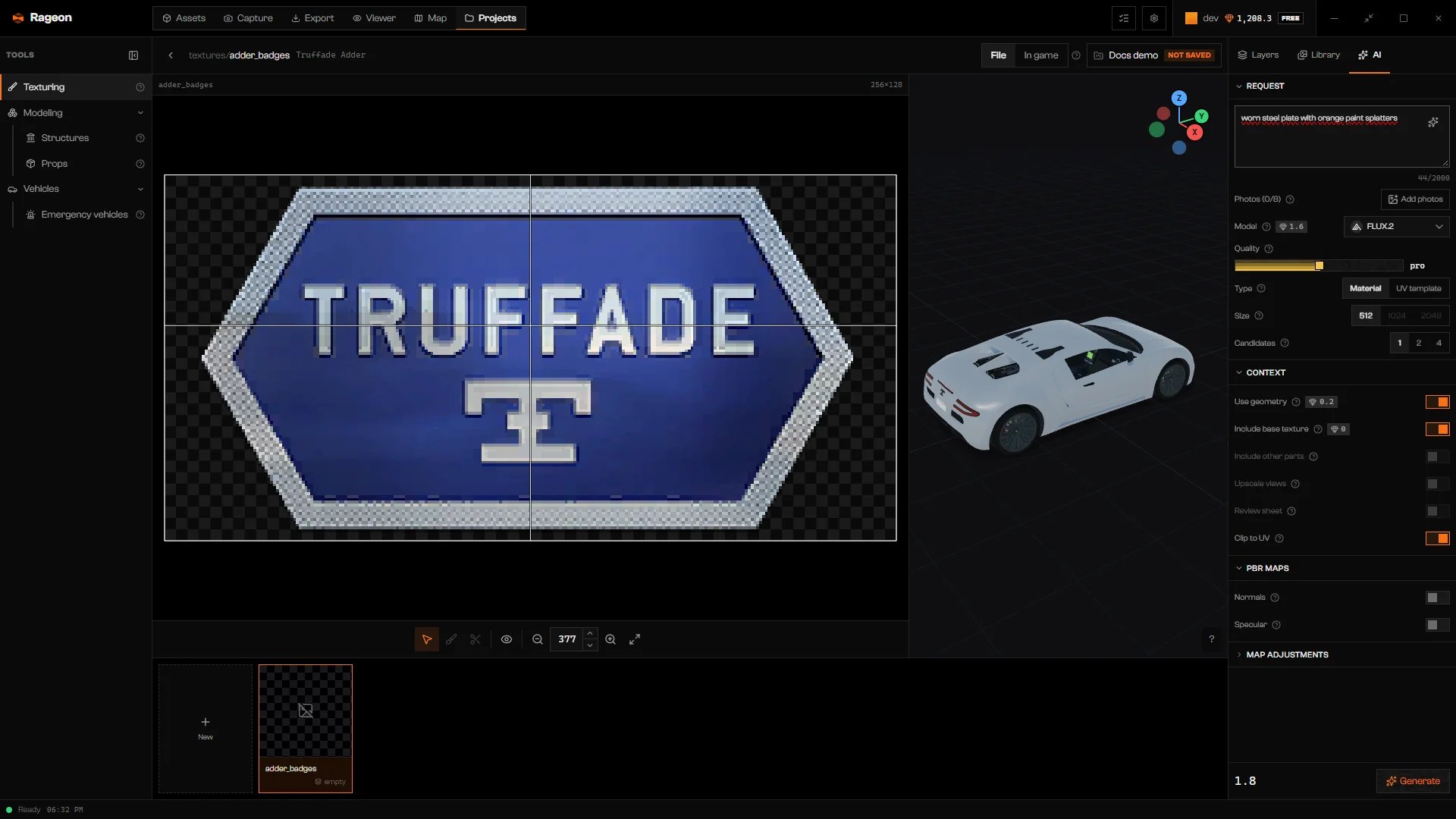
The AI tab with a request written.
Choose the type
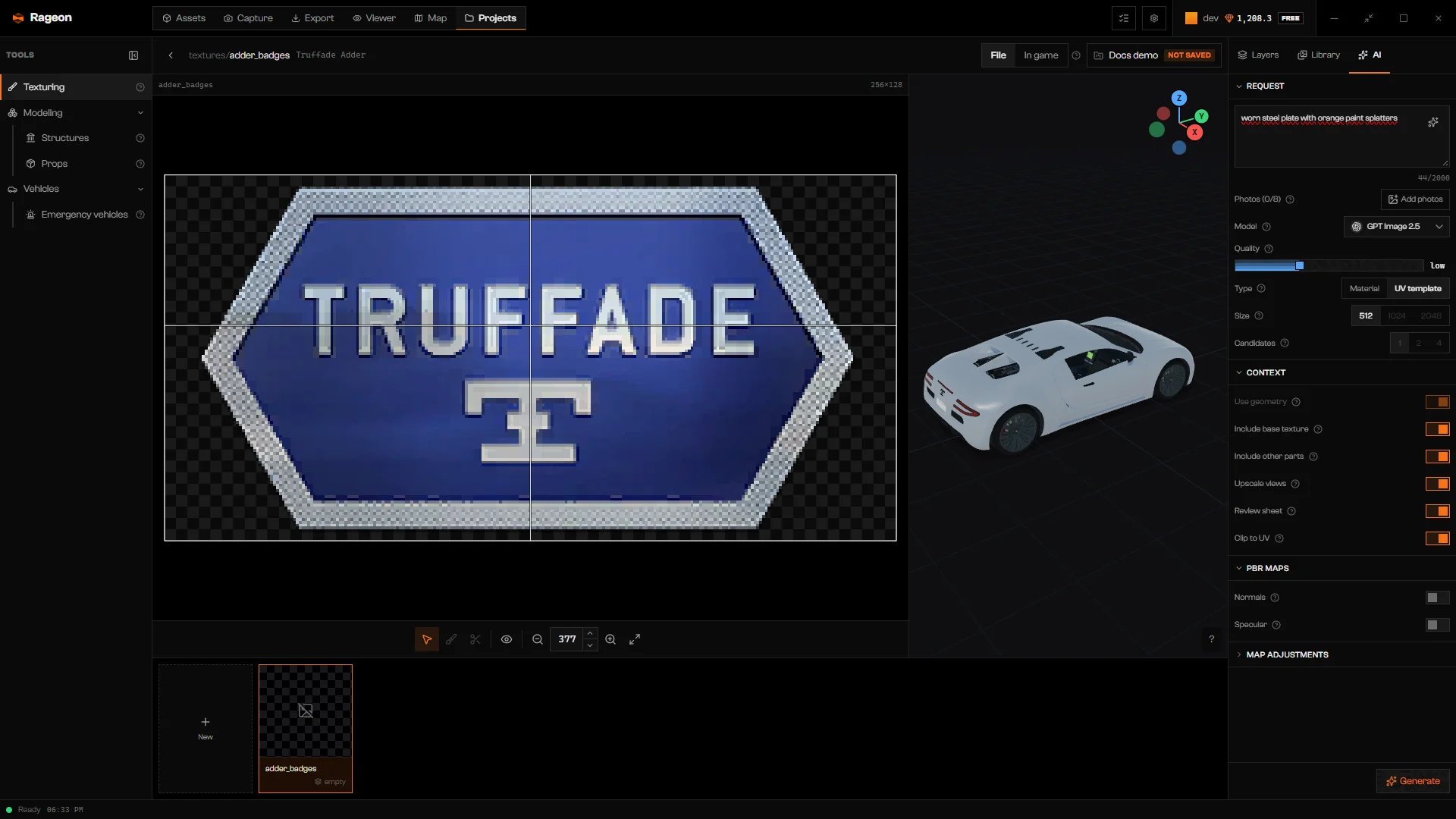
UV template with the context options.
Choose model, quality, size, and candidates
Check the cost and click Generate
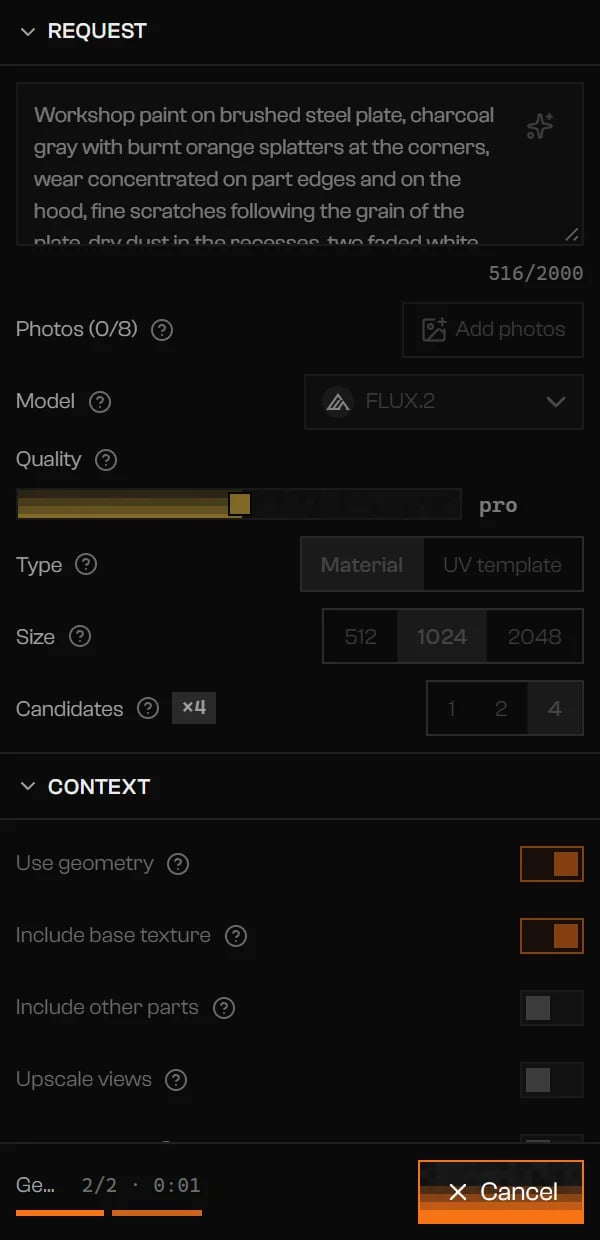
While a generation runs, the button becomes Cancel and the footer counts the steps and the time.
Use a result
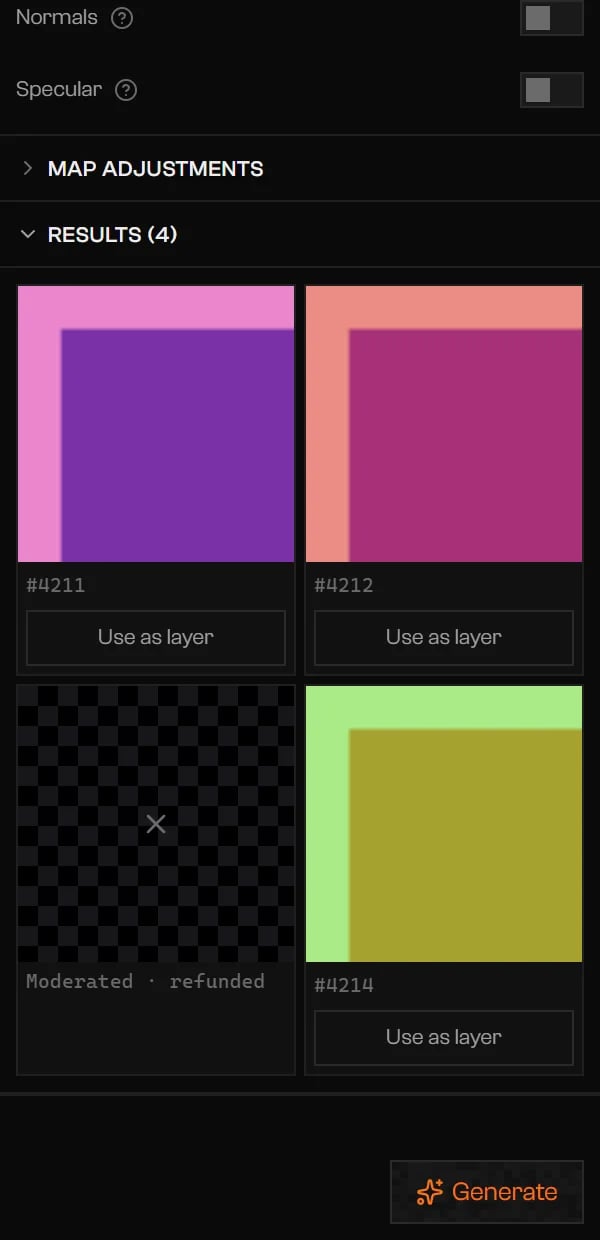
Four results: three candidates with Use as layer and one moderated and refunded.
Credits and refunds
Credits are charged when the request is sent. A candidate that fails shows Failed · refunded, and one blocked by the content filter shows Moderated · refunded; each gets its credit back. Reusing an image from Library › AI generated costs nothing, and neither do the normal and specular maps derived from a result. Cancel stops the tab from following the request. The request keeps running and its credits are already charged.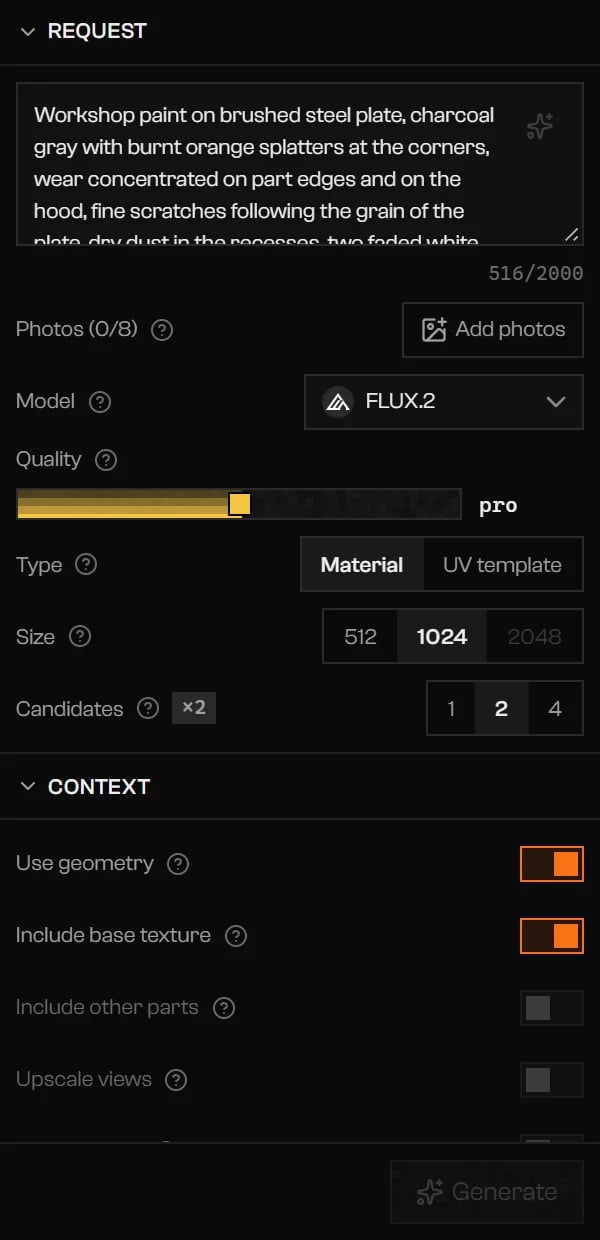
Generate is disabled when the credits do not cover the request.
Options
Troubleshooting
Sign in to your account to generate a texture.
Sign in to your account to generate a texture.
Your credits don't cover this generation, which costs ….
Your credits don't cover this generation, which costs ….
Write what the texture should show.
Write what the texture should show.
… × … exceeds this model's … MP ceiling.
… × … exceeds this model's … MP ceiling.
Larger than the texture (… × …): the extra pixels would be paid for and discarded.
Larger than the texture (… × …): the extra pixels would be paid for and discarded.
The price went above the amount shown, so nothing was charged. Check the new amount and generate again.
The price went above the amount shown, so nothing was charged. Check the new amount and generate again.
The service refused the request because of its content filter. Change the description and try again.
The service refused the request because of its content filter. Change the description and try again.
The image service did not respond. Try again in a moment.
The image service did not respond. Try again in a moment.
Too many requests in a row. Wait a moment and try again.
Too many requests in a row. Wait a moment and try again.
No connection to the generation server.
No connection to the generation server.
This computer isn't registered on your account. Reopen the app to register it.
This computer isn't registered on your account. Reopen the app to register it.
No candidate was ready. What failed was refunded.
No candidate was ready. What failed was refunded.
… of … views were left out of the sheet. …
… of … views were left out of the sheet. …
Charged … credits; the estimate was … (…).
Charged … credits; the estimate was … (…).