Export the props of a project as a FiveM resource and use them in structures or by script.
Props export with the whole project. Export writes every prop in the project, together with the textures, structures, and vehicles that exist, as one FiveM resource. You cannot export a single prop on its own. This page covers what is specific to props; the destination, server links, and the folder name are in Export as a resource.
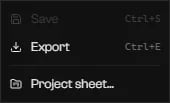
In the project bar, click Export and pick Choose folder… or a linked FiveM server. In the prop editor, open the project badge menu and click Export. With a prop open, Ctrl+E exports to the destination the project remembers, or asks for a folder when it has none or several.
The project badge menu.
2
Choose the destination
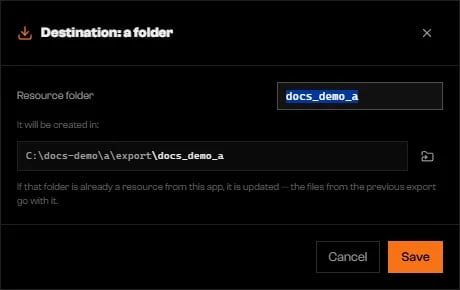
The first time, choose a folder. The Export to a folder dialog proposes a Resource folder name and shows where it will be created.
The resource folder name and its final path.
3
Read the result
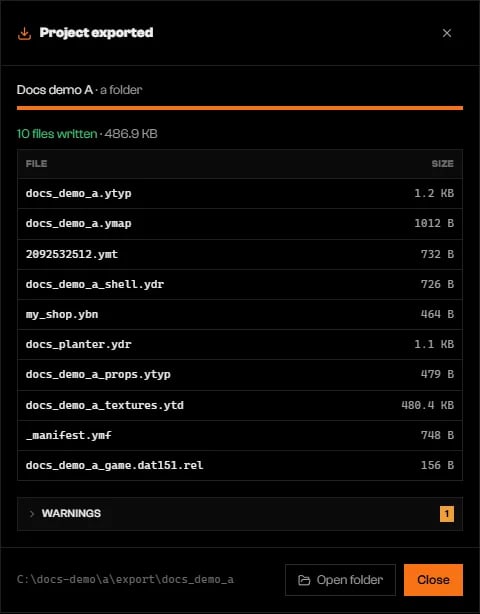
Project exported lists the files written, with their sizes. Open folder shows the result in your file manager.
Files written by a project with one prop and one structure.
Exporting to a folder that already holds a resource of yours updates it.
Each prop becomes a .ydr model named after the prop, with its collision embedded, and an entry in the resource’s <resource folder>_props.ytyp file.A prop with no triangles is skipped, and the Checker shows a warning. If every prop is empty and the project has nothing else, the export stops. The other Checker warnings of exported props do not stop it; they appear in the Warnings section of the result as Prop "…": ….
One broken file in the props/ folder blocks the whole export, even when the other props are fine. Open the list and delete or repair the card with the warning icon.
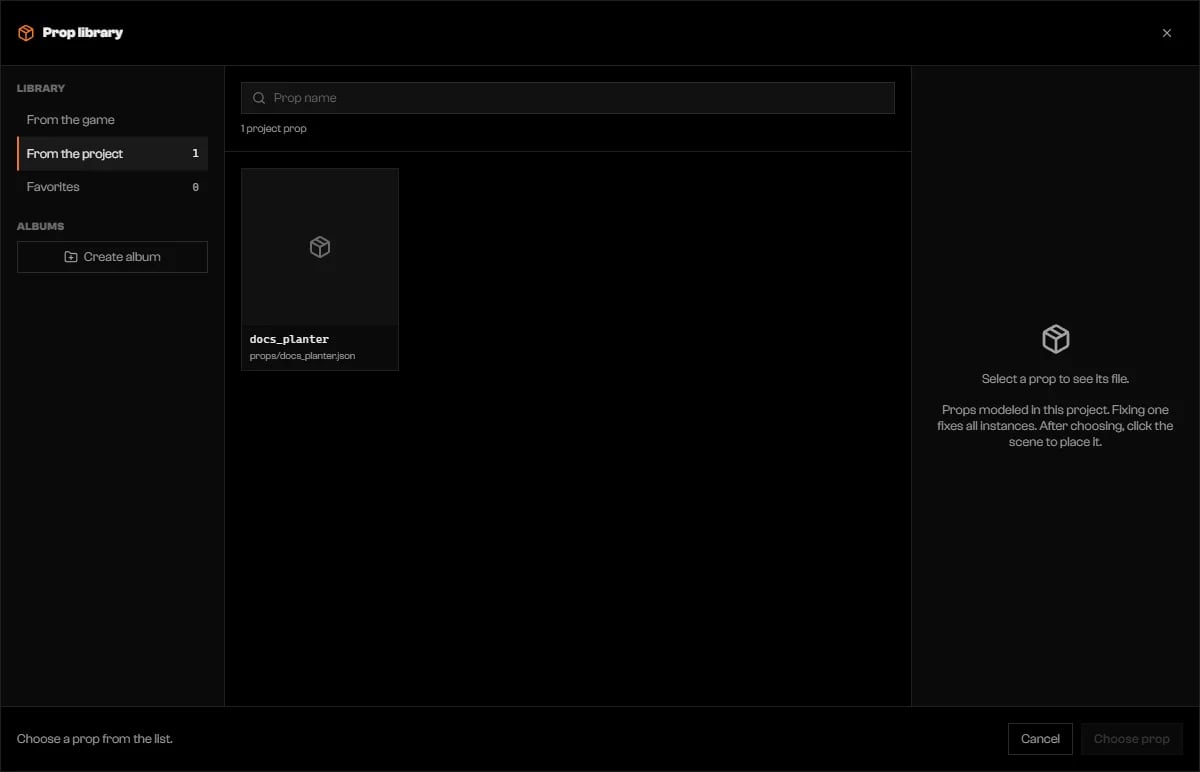
In Structures, press 5 to open the Prop library, click From the project, select the prop, and click Choose prop. Each click in the scene places one. The positions are saved in the resource.
The Prop library on From the project.
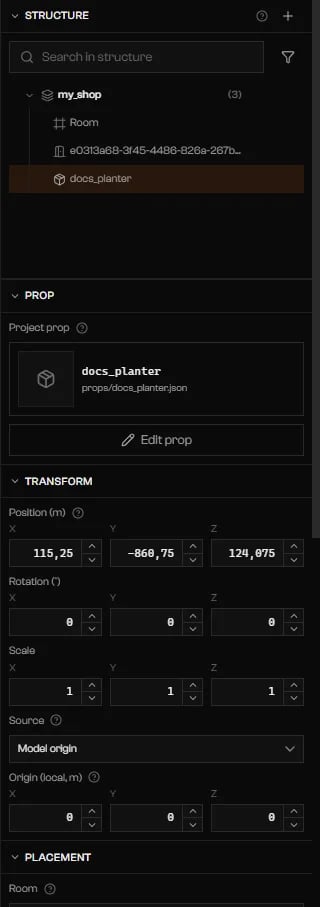
Select a placed instance to see its Prop section with the Project prop tile and Edit prop. Edit prop opens the prop in this tool; any change reaches every instance.
An instance in a structure, with the Edit prop button.
Spawn the prop with its model name, the name shown on its card:
CreateObject(joaat('vinewood_planter'), x, y, z, true, false, false)
Put the exported folder under the server’s resources/, add ensure <folder name> to server.cfg, and restart the server. Rageon does not add that line for you.
A blocking item is open in that prop’s Checker. Open the prop, fix each red row, and export again.
Export blocked: prop "…" has the same name as a part. Rename one of them.
A structure part is named like the prop. Rename the prop or the part.
Prop … does not open: …
A file in props/ is broken. Delete its card in the list, or repair the file, then export again.
Export blocked: "…" has … problem(s). Open the structure in Modeling to see what is blocking it.
A structure uses a prop that was deleted or has its own errors. Open the structure and fix its Checker.
The project has nothing to export: no texture with layers and no structure, prop or emergency vehicle with content.
Every prop is empty and nothing else in the project has content. Draw geometry in a prop and export again.
The destination folder exists and is not a resource. Choose another name.
The folder has no fxmanifest.lua, so Rageon will not write into it. Change Resource folder to a new name.
{"docsConfig":{"theme":"mint","$schema":"https://mintlify.com/docs.json","name":"Rageon","colors":{"primary":"#f97316","light":"#fb923c","dark":"#c2410c"},"logo":{"light":"https://mintcdn.com/rageon/NnSHzDe1phDyv79M/logo/mark.png?fit=max\u0026auto=format\u0026n=NnSHzDe1phDyv79M\u0026q=85\u0026s=e0ae0889d31e1576f579125f3ef6685e","dark":"https://mintcdn.com/rageon/NnSHzDe1phDyv79M/logo/mark.png?fit=max\u0026auto=format\u0026n=NnSHzDe1phDyv79M\u0026q=85\u0026s=e0ae0889d31e1576f579125f3ef6685e","href":"https://rageon.dev"},"favicon":"https://mintcdn.com/rageon/tGC-5rfc07564TOG/favicon.png?fit=max\u0026auto=format\u0026n=tGC-5rfc07564TOG\u0026q=85\u0026s=7525da8dae81e50d0056d02037548e02","appearance":{"default":"dark"},"navbar":{"links":[{"href":"https://rageon.dev/pricing","label":"Pricing"}],"primary":{"type":"button","label":"Download","href":"https://rageon.dev/download"}},"footer":{"socials":{"website":"https://rageon.dev"}},"icons":{"library":"lucide"},"styling":{"latex":false},"navigation":{"languages":[{"language":"en","default":true,"href":"start/introduction"},{"language":"pt-BR","href":"pt-BR/start/introduction"},{"language":"es","href":"es/start/introduction"}]}},"deployment":{"deploymentMetadataValue":{"subdomain":"rageon","hasAudioNarration":false,"actualSubdomain":"rageon","customDomains":["docs.rageon.dev"],"gitSource":{"type":"github","owner":"rageoon","repo":"rageon-docs","deployBranch":"main","contentDirectory":"","isPrivate":true,"mountPath":"","label":"","_id":"6ada8d872e2812485d3d490a"},"chroma":{"latestBuiltDeploymentHistoryId":"6ada8d882e2812485d3d4910","collectionId":"d8abb39d-b557-4128-b440-bcb1bb1501eb","liveDeploymentHistoryId":"6ada8d882e2812485d3d4910","schemaVersion":"v3"},"entitlements":{"AI_CHAT":{"status":"ENABLED"},"WEB_MCP":{"status":"ENABLED"},"NARRATION":{"status":"ENABLED"}},"buildId":"6ada8d96fbb15298db52c70c","clientVersion":"0.0.3939","searchFilterCounts":[{"language":"en","tag":"Projects","count":43},{"language":"es","tag":"Proyectos","count":43},{"language":"pt-BR","tag":"Projetos","count":43},{"language":"en","tag":"Structures","count":16},{"language":"es","tag":"Estructuras","count":16},{"language":"pt-BR","tag":"Estruturas","count":16},{"language":"en","tag":"Map","count":15},{"language":"es","tag":"Mapa","count":15},{"language":"pt-BR","tag":"Mapa","count":15},{"language":"en","tag":"Getting started","count":14},{"language":"en","tag":"Viewer","count":14},{"language":"es","tag":"Primeros pasos","count":14},{"language":"es","tag":"Visor","count":14},{"language":"pt-BR","tag":"Primeiros passos","count":14},{"language":"pt-BR","tag":"Visualização","count":14},{"language":"en","tag":"Assets","count":12},{"language":"en","tag":"Capture","count":12},{"language":"es","tag":"Assets","count":12},{"language":"es","tag":"Captura","count":12},{"language":"pt-BR","tag":"Assets","count":12},{"language":"pt-BR","tag":"Captura","count":12},{"language":"en","tag":"Texturing","count":11},{"language":"es","tag":"Texturizado","count":11},{"language":"pt-BR","tag":"Texturização","count":11},{"language":"en","tag":"Export","count":8},{"language":"es","tag":"Exportar","count":8},{"language":"pt-BR","tag":"Exportar","count":8},{"language":"en","tag":"Help","count":6},{"language":"es","tag":"Ayuda","count":6},{"language":"pt-BR","tag":"Ajuda","count":6}],"searchSettings":{"isFiltersEnabled":true,"showContentSnippets":true}},"assistantConfig":{"enableAskAiButton":false,"enableStarterQuestions":false,"enableContextualStarterQuestions":false,"enableAskAiSearchBar":true},"hasChatPermissions":true,"hasWebMcpPermissions":true,"toggles":[{"name":"kill-isr","enabled":true,"variant":{"name":"disabled","enabled":false,"feature_enabled":true},"impressionData":false},{"name":"agent-mintlify-slack","enabled":true,"variant":{"name":"disabled","enabled":false,"feature_enabled":true},"impressionData":false},{"name":"editor-v7-file-tree","enabled":true,"variant":{"name":"disabled","enabled":false,"feature_enabled":true},"impressionData":false},{"name":"agent-integrations-settings","enabled":true,"variant":{"name":"disabled","enabled":false,"feature_enabled":true},"impressionData":false},{"name":"automations-pr-grouping","enabled":true,"variant":{"name":"disabled","enabled":false,"feature_enabled":true},"impressionData":false},{"name":"custom-prefix","enabled":true,"variant":{"name":"disabled","enabled":false,"feature_enabled":true},"impressionData":false},{"name":"analytics-v7","enabled":true,"variant":{"name":"disabled","enabled":false,"feature_enabled":true},"impressionData":false},{"name":"user-flows-analytics","enabled":true,"variant":{"name":"disabled","enabled":false,"feature_enabled":true},"impressionData":false},{"name":"no-publish-flow","enabled":true,"variant":{"name":"disabled","enabled":false,"feature_enabled":true},"impressionData":false},{"name":"workos-onboarding","enabled":true,"variant":{"name":"disabled","enabled":false,"feature_enabled":true},"impressionData":false},{"name":"llms-txt-v2","enabled":true,"variant":{"name":"disabled","enabled":false,"feature_enabled":true},"impressionData":false},{"name":"pause-universal-search-reconcile","enabled":true,"variant":{"name":"disabled","enabled":false,"feature_enabled":true},"impressionData":false},{"name":"snapshot-serving-live","enabled":true,"variant":{"name":"disabled","enabled":false,"feature_enabled":true},"impressionData":false},{"name":"stripTemperatureMiddleware","enabled":true,"variant":{"name":"disabled","enabled":false,"feature_enabled":true},"impressionData":false},{"name":"per-site-search-delta","enabled":true,"variant":{"name":"disabled","enabled":false,"feature_enabled":true},"impressionData":false},{"name":"support-platform-pylon-zendesk","enabled":true,"variant":{"name":"disabled","enabled":false,"feature_enabled":true},"impressionData":false},{"name":"snapshot-serving","enabled":true,"variant":{"name":"disabled","enabled":false,"feature_enabled":true},"impressionData":false},{"name":"instant-rollback","enabled":true,"variant":{"name":"disabled","enabled":false,"feature_enabled":true},"impressionData":false},{"name":"granular-notifications-server","enabled":true,"variant":{"name":"disabled","enabled":false,"feature_enabled":true},"impressionData":false},{"name":"granular-notifications","enabled":true,"variant":{"name":"disabled","enabled":false,"feature_enabled":true},"impressionData":false},{"name":"editor-private-page-search","enabled":true,"variant":{"name":"disabled","enabled":false,"feature_enabled":true},"impressionData":false},{"name":"automations-fable","enabled":true,"variant":{"name":"disabled","enabled":false,"feature_enabled":true},"impressionData":false},{"name":"fixed-ai-action-pricing","enabled":true,"variant":{"name":"disabled","enabled":false,"feature_enabled":true},"impressionData":false},{"name":"automation-resolve-merge-conflict","enabled":true,"variant":{"name":"disabled","enabled":false,"feature_enabled":true},"impressionData":false},{"name":"scoped-publishing","enabled":true,"variant":{"name":"disabled","enabled":false,"feature_enabled":true},"impressionData":false},{"name":"mintql","enabled":true,"variant":{"name":"disabled","enabled":false,"feature_enabled":true},"impressionData":false},{"name":"page-level-analytics","enabled":true,"variant":{"name":"disabled","enabled":false,"feature_enabled":true},"impressionData":false},{"name":"editor-version-history-v2","enabled":true,"variant":{"name":"disabled","enabled":false,"feature_enabled":true},"impressionData":false},{"name":"editor-nav-generations","enabled":true,"variant":{"name":"disabled","enabled":false,"feature_enabled":true},"impressionData":false},{"name":"billing-page-v2","enabled":true,"variant":{"name":"disabled","enabled":false,"feature_enabled":true},"impressionData":false},{"name":"workspace-projects","enabled":true,"variant":{"name":"disabled","enabled":false,"feature_enabled":true},"impressionData":false},{"name":"assistant-v5","enabled":true,"variant":{"name":"disabled","enabled":false,"feature_enabled":true},"impressionData":false},{"name":"byok-sep-25","enabled":true,"variant":{"name":"disabled","enabled":false,"feature_enabled":true},"impressionData":false},{"name":"fork-pr-previews","enabled":true,"variant":{"name":"disabled","enabled":false,"feature_enabled":true},"impressionData":false},{"name":"revalidation-jwt","enabled":true,"variant":{"name":"disabled","enabled":false,"feature_enabled":true},"impressionData":false},{"name":"vite-origin","enabled":true,"variant":{"name":"disabled","enabled":false,"feature_enabled":true},"impressionData":false},{"name":"editor-agent-model-picker","enabled":true,"variant":{"name":"disabled","enabled":false,"feature_enabled":true},"impressionData":false},{"name":"billing-updated-9-15","enabled":true,"variant":{"name":"disabled","enabled":false,"feature_enabled":true},"impressionData":false},{"name":"hobby-abuse-scan","enabled":true,"variant":{"name":"disabled","enabled":false,"feature_enabled":true},"impressionData":false},{"name":"dashboard-inbox","enabled":true,"variant":{"name":"disabled","enabled":false,"feature_enabled":true},"impressionData":false}],"isAtlas":false,"googleFontsInlined":false},"customCss":[],"page":{"pagePath":"projects/props/export","slug":"/projects/props/export","pageMetadata":{"title":"Export props","icon":"package","description":"Export the props of a project as a FiveM resource and use them in structures or by script.","href":"/projects/props/export"},"description":{"compiledSource":"\"use strict\";\nconst {jsx: _jsx} = arguments[0];\nconst {useMDXComponents: _provideComponents} = arguments[0];\nfunction _createMdxContent(props) {\n const _components = {\n p: \"p\",\n ..._provideComponents(),\n ...props.components\n };\n return _jsx(_components.p, {\n children: \"Export the props of a project as a FiveM resource and use them in structures or by script.\"\n });\n}\nfunction MDXContent(props = {}) {\n const {wrapper: MDXLayout} = {\n ..._provideComponents(),\n ...props.components\n };\n return MDXLayout ? _jsx(MDXLayout, {\n ...props,\n children: _jsx(_createMdxContent, {\n ...props\n })\n }) : _createMdxContent(props);\n}\nreturn {\n default: MDXContent\n};\n","frontmatter":{},"scope":{}},"pageType":"default","mdx":{"mdxSource":{"compiledSource":"\"use strict\";const{Fragment:_Fragment,jsx:_jsx,jsxs:_jsxs}=arguments[0];const{useMDXComponents:_provideComponents}=arguments[0];function _createMdxContent(props){const _components={a:`a`,code:`code`,p:`p`,pre:`pre`,span:`span`,strong:`strong`,..._provideComponents(),...props.components},{Accordion,AccordionGroup,CodeBlock,Frame,Heading,OptimizedImage,Step,Steps,Warning}=_components;if(!Accordion)_missingMdxReference(`Accordion`,true);if(!AccordionGroup)_missingMdxReference(`AccordionGroup`,true);if(!CodeBlock)_missingMdxReference(`CodeBlock`,true);if(!Frame)_missingMdxReference(`Frame`,true);if(!Heading)_missingMdxReference(`Heading`,true);if(!OptimizedImage)_missingMdxReference(`OptimizedImage`,true);if(!Step)_missingMdxReference(`Step`,true);if(!Steps)_missingMdxReference(`Steps`,true);if(!Warning)_missingMdxReference(`Warning`,true);return _jsxs(_Fragment,{children:[_jsxs(_components.p,{children:[`Props export with the whole project. `,_jsx(_components.strong,{children:`Export`}),` writes every prop in the project, together with the textures, structures, and vehicles that exist, as one FiveM resource. You cannot export a single prop on its own. This page covers what is specific to props; the destination, server links, and the folder name are in `,_jsx(_components.a,{href:`/projects/export`,children:`Export as a resource`}),`.`]}),`\n`,_jsx(Heading,{level:`2`,id:`export`,children:`Export`}),`\n`,_jsxs(Steps,{children:[_jsxs(Step,{title:`Open the Export menu`,children:[_jsxs(_components.p,{children:[`In the project bar, click `,_jsx(_components.strong,{children:`Export`}),` and pick `,_jsx(_components.strong,{children:`Choose folder…`}),` or a linked FiveM server. In the prop editor, open the project badge menu and click `,_jsx(_components.strong,{children:`Export`}),`. With a prop open, `,_jsx(_components.strong,{children:`Ctrl+E`}),` exports to the destination the project remembers, or asks for a folder when it has none or several.`]}),_jsx(Frame,{caption:`The project badge menu.`,children:_jsx(OptimizedImage,{src:`https://mintcdn.com/rageon/SL02705KjqddBRzg/images/props/props-save-badge.webp?fit=max\u0026auto=format\u0026n=SL02705KjqddBRzg\u0026q=85\u0026s=258421bf517df144c364e168abe4ddbb`,alt:`Project badge menu with Save, Export, and Project sheet`,\"data-og-width\":`170`,width:`170`,\"data-og-height\":`103`,height:`103`,\"data-path\":`images/props/props-save-badge.webp`,\"data-optimize\":`true`,\"data-opv\":`3`,srcset:`https://mintcdn.com/rageon/SL02705KjqddBRzg/images/props/props-save-badge.webp?w=280\u0026fit=max\u0026auto=format\u0026n=SL02705KjqddBRzg\u0026q=85\u0026s=f11ba2fc45a5a770010e35a69c78380c 280w, https://mintcdn.com/rageon/SL02705KjqddBRzg/images/props/props-save-badge.webp?w=560\u0026fit=max\u0026auto=format\u0026n=SL02705KjqddBRzg\u0026q=85\u0026s=6e795eedf2545cf75c9e317779481d16 560w, https://mintcdn.com/rageon/SL02705KjqddBRzg/images/props/props-save-badge.webp?w=840\u0026fit=max\u0026auto=format\u0026n=SL02705KjqddBRzg\u0026q=85\u0026s=f4a8a65c0bc153f622b73ad37ded884a 840w, https://mintcdn.com/rageon/SL02705KjqddBRzg/images/props/props-save-badge.webp?w=1100\u0026fit=max\u0026auto=format\u0026n=SL02705KjqddBRzg\u0026q=85\u0026s=f92e8bf2e68680619925d6e91a4ac6ac 1100w, https://mintcdn.com/rageon/SL02705KjqddBRzg/images/props/props-save-badge.webp?w=1650\u0026fit=max\u0026auto=format\u0026n=SL02705KjqddBRzg\u0026q=85\u0026s=f99c2376958f4fb50818faa45a7e971f 1650w, https://mintcdn.com/rageon/SL02705KjqddBRzg/images/props/props-save-badge.webp?w=2500\u0026fit=max\u0026auto=format\u0026n=SL02705KjqddBRzg\u0026q=85\u0026s=7ce3aa1dcf312866fb93527e9c92dc17 2500w`})})]}),_jsxs(Step,{title:`Choose the destination`,children:[_jsxs(_components.p,{children:[`The first time, choose a folder. The `,_jsx(_components.strong,{children:`Export to a folder`}),` dialog proposes a `,_jsx(_components.strong,{children:`Resource folder`}),` name and shows where it will be created.`]}),_jsx(Frame,{caption:`The resource folder name and its final path.`,children:_jsx(OptimizedImage,{src:`https://mintcdn.com/rageon/SL02705KjqddBRzg/images/props/props-export-folder.webp?fit=max\u0026auto=format\u0026n=SL02705KjqddBRzg\u0026q=85\u0026s=fa14fb7a448c2ed117339d78284edcfd`,alt:`Export to a folder dialog with the Resource folder field`,\"data-og-width\":`460`,width:`460`,\"data-og-height\":`290`,height:`290`,\"data-path\":`images/props/props-export-folder.webp`,\"data-optimize\":`true`,\"data-opv\":`3`,srcset:`https://mintcdn.com/rageon/SL02705KjqddBRzg/images/props/props-export-folder.webp?w=280\u0026fit=max\u0026auto=format\u0026n=SL02705KjqddBRzg\u0026q=85\u0026s=1302b9b42b47c93e50be9b853c372593 280w, https://mintcdn.com/rageon/SL02705KjqddBRzg/images/props/props-export-folder.webp?w=560\u0026fit=max\u0026auto=format\u0026n=SL02705KjqddBRzg\u0026q=85\u0026s=a7e8ae0d79460b4e58b95a31ecdfad81 560w, https://mintcdn.com/rageon/SL02705KjqddBRzg/images/props/props-export-folder.webp?w=840\u0026fit=max\u0026auto=format\u0026n=SL02705KjqddBRzg\u0026q=85\u0026s=0c795bdf08fe02564a2642e9b9d44fea 840w, https://mintcdn.com/rageon/SL02705KjqddBRzg/images/props/props-export-folder.webp?w=1100\u0026fit=max\u0026auto=format\u0026n=SL02705KjqddBRzg\u0026q=85\u0026s=21a8e3fccc8b01e3e2ceeeb94a0367ac 1100w, https://mintcdn.com/rageon/SL02705KjqddBRzg/images/props/props-export-folder.webp?w=1650\u0026fit=max\u0026auto=format\u0026n=SL02705KjqddBRzg\u0026q=85\u0026s=ca4ee7ce031fa2df1b4d48b56869708b 1650w, https://mintcdn.com/rageon/SL02705KjqddBRzg/images/props/props-export-folder.webp?w=2500\u0026fit=max\u0026auto=format\u0026n=SL02705KjqddBRzg\u0026q=85\u0026s=f41a5146f354319475d4dca327a627b2 2500w`})})]}),_jsxs(Step,{title:`Read the result`,children:[_jsxs(_components.p,{children:[_jsx(_components.strong,{children:`Project exported`}),` lists the files written, with their sizes. `,_jsx(_components.strong,{children:`Open folder`}),` shows the result in your file manager.`]}),_jsx(Frame,{caption:`Files written by a project with one prop and one structure.`,children:_jsx(OptimizedImage,{src:`https://mintcdn.com/rageon/SL02705KjqddBRzg/images/props/props-export-done.webp?fit=max\u0026auto=format\u0026n=SL02705KjqddBRzg\u0026q=85\u0026s=21dafb9d0dde3faed9379939e0eafe95`,alt:`Project exported dialog listing game files including docs_planter.ydr and docs_demo_a_props.ytyp`,\"data-og-width\":`480`,width:`480`,\"data-og-height\":`614`,height:`614`,\"data-path\":`images/props/props-export-done.webp`,\"data-optimize\":`true`,\"data-opv\":`3`,srcset:`https://mintcdn.com/rageon/SL02705KjqddBRzg/images/props/props-export-done.webp?w=280\u0026fit=max\u0026auto=format\u0026n=SL02705KjqddBRzg\u0026q=85\u0026s=f6380365c226983bab19eb40997f7c61 280w, https://mintcdn.com/rageon/SL02705KjqddBRzg/images/props/props-export-done.webp?w=560\u0026fit=max\u0026auto=format\u0026n=SL02705KjqddBRzg\u0026q=85\u0026s=e2586a47999c8b0264eec3134877443d 560w, https://mintcdn.com/rageon/SL02705KjqddBRzg/images/props/props-export-done.webp?w=840\u0026fit=max\u0026auto=format\u0026n=SL02705KjqddBRzg\u0026q=85\u0026s=c24df36762670cd074c4770ca2ba2964 840w, https://mintcdn.com/rageon/SL02705KjqddBRzg/images/props/props-export-done.webp?w=1100\u0026fit=max\u0026auto=format\u0026n=SL02705KjqddBRzg\u0026q=85\u0026s=5b2d2020ad465ea2955d4a2436c3b011 1100w, https://mintcdn.com/rageon/SL02705KjqddBRzg/images/props/props-export-done.webp?w=1650\u0026fit=max\u0026auto=format\u0026n=SL02705KjqddBRzg\u0026q=85\u0026s=7b0f00454a3d9e9f7b03e142df64221d 1650w, https://mintcdn.com/rageon/SL02705KjqddBRzg/images/props/props-export-done.webp?w=2500\u0026fit=max\u0026auto=format\u0026n=SL02705KjqddBRzg\u0026q=85\u0026s=2c81e1cbc7c801971d41f4ac9f81ef97 2500w`})})]})]}),`\n`,_jsx(_components.p,{children:`Exporting to a folder that already holds a resource of yours updates it.`}),`\n`,_jsx(Heading,{level:`2`,id:`what-a-prop-produces`,children:`What a prop produces`}),`\n`,_jsxs(_components.p,{children:[`Each prop becomes a `,_jsx(_components.code,{children:`.ydr`}),` model named after the prop, with its collision embedded, and an entry in the resource’s `,_jsx(_components.code,{children:`\u003cresource folder>_props.ytyp`}),` file.`]}),`\n`,_jsxs(_components.p,{children:[`A prop with no triangles is skipped, and the `,_jsx(_components.strong,{children:`Checker`}),` shows a warning. If every prop is empty and the project has nothing else, the export stops. The other Checker warnings of exported props do not stop it; they appear in the `,_jsx(_components.strong,{children:`Warnings`}),` section of the result as `,_jsx(_components.code,{children:`Prop \"…\": …`}),`.`]}),`\n`,_jsx(Warning,{children:_jsxs(_components.p,{children:[`One broken file in the `,_jsx(_components.code,{children:`props/`}),` folder blocks the whole export, even when the other props are fine. Open the list and delete or repair the card with the warning icon.`]})}),`\n`,_jsx(Heading,{level:`2`,id:`use-it-in-a-structure`,children:`Use it in a structure`}),`\n`,_jsxs(_components.p,{children:[`In `,_jsx(_components.strong,{children:`Structures`}),`, press `,_jsx(_components.strong,{children:`5`}),` to open the `,_jsx(_components.strong,{children:`Prop library`}),`, click `,_jsx(_components.strong,{children:`From the project`}),`, select the prop, and click `,_jsx(_components.strong,{children:`Choose prop`}),`. Each click in the scene places one. The positions are saved in the resource.`]}),`\n`,_jsx(Frame,{caption:`The Prop library on From the project.`,children:_jsx(OptimizedImage,{src:`https://mintcdn.com/rageon/SL02705KjqddBRzg/images/props/props-library-from-project.webp?fit=max\u0026auto=format\u0026n=SL02705KjqddBRzg\u0026q=85\u0026s=5e4fa19e3f5c80f4a966e3e10f428ebd`,alt:`Prop library with From the project selected and the docs_planter tile`,\"data-og-width\":`1200`,width:`1200`,\"data-og-height\":`772`,height:`772`,\"data-path\":`images/props/props-library-from-project.webp`,\"data-optimize\":`true`,\"data-opv\":`3`,srcset:`https://mintcdn.com/rageon/SL02705KjqddBRzg/images/props/props-library-from-project.webp?w=280\u0026fit=max\u0026auto=format\u0026n=SL02705KjqddBRzg\u0026q=85\u0026s=ec3e4a9a12352e4194cd5282738a3f83 280w, https://mintcdn.com/rageon/SL02705KjqddBRzg/images/props/props-library-from-project.webp?w=560\u0026fit=max\u0026auto=format\u0026n=SL02705KjqddBRzg\u0026q=85\u0026s=6ee63a5f0f6940ec5d1bd42714c6575c 560w, https://mintcdn.com/rageon/SL02705KjqddBRzg/images/props/props-library-from-project.webp?w=840\u0026fit=max\u0026auto=format\u0026n=SL02705KjqddBRzg\u0026q=85\u0026s=6399497e0622b0fcad56589e1e06f477 840w, https://mintcdn.com/rageon/SL02705KjqddBRzg/images/props/props-library-from-project.webp?w=1100\u0026fit=max\u0026auto=format\u0026n=SL02705KjqddBRzg\u0026q=85\u0026s=33710ec3b8e883f9bbf53534a44b6d19 1100w, https://mintcdn.com/rageon/SL02705KjqddBRzg/images/props/props-library-from-project.webp?w=1650\u0026fit=max\u0026auto=format\u0026n=SL02705KjqddBRzg\u0026q=85\u0026s=691c0e3815bdd01e0924a807abc74a49 1650w, https://mintcdn.com/rageon/SL02705KjqddBRzg/images/props/props-library-from-project.webp?w=2500\u0026fit=max\u0026auto=format\u0026n=SL02705KjqddBRzg\u0026q=85\u0026s=4b7898dfcd5d785f7666e109df60af27 2500w`})}),`\n`,_jsxs(_components.p,{children:[`Select a placed instance to see its `,_jsx(_components.strong,{children:`Prop`}),` section with the `,_jsx(_components.strong,{children:`Project prop`}),` tile and `,_jsx(_components.strong,{children:`Edit prop`}),`. `,_jsx(_components.strong,{children:`Edit prop`}),` opens the prop in this tool; any change reaches every instance.`]}),`\n`,_jsx(Frame,{caption:`An instance in a structure, with the Edit prop button.`,children:_jsx(OptimizedImage,{src:`https://mintcdn.com/rageon/SL02705KjqddBRzg/images/props/props-structure-edit-prop.webp?fit=max\u0026auto=format\u0026n=SL02705KjqddBRzg\u0026q=85\u0026s=6aa70963881fd18c9ea4fbadee24322f`,alt:`Structure tree and prop sheet with the Project prop tile and Edit prop button`,\"data-og-width\":`320`,width:`320`,\"data-og-height\":`907`,height:`907`,\"data-path\":`images/props/props-structure-edit-prop.webp`,\"data-optimize\":`true`,\"data-opv\":`3`,srcset:`https://mintcdn.com/rageon/SL02705KjqddBRzg/images/props/props-structure-edit-prop.webp?w=280\u0026fit=max\u0026auto=format\u0026n=SL02705KjqddBRzg\u0026q=85\u0026s=b87a232076324c60eea75efc7b81e8d0 280w, https://mintcdn.com/rageon/SL02705KjqddBRzg/images/props/props-structure-edit-prop.webp?w=560\u0026fit=max\u0026auto=format\u0026n=SL02705KjqddBRzg\u0026q=85\u0026s=b51961176f57660129468c95bfe2a31c 560w, https://mintcdn.com/rageon/SL02705KjqddBRzg/images/props/props-structure-edit-prop.webp?w=840\u0026fit=max\u0026auto=format\u0026n=SL02705KjqddBRzg\u0026q=85\u0026s=da5be594d1d57048b1d059fcb7d6ea86 840w, https://mintcdn.com/rageon/SL02705KjqddBRzg/images/props/props-structure-edit-prop.webp?w=1100\u0026fit=max\u0026auto=format\u0026n=SL02705KjqddBRzg\u0026q=85\u0026s=19dc65eb51e273e02d93b6dee045139b 1100w, https://mintcdn.com/rageon/SL02705KjqddBRzg/images/props/props-structure-edit-prop.webp?w=1650\u0026fit=max\u0026auto=format\u0026n=SL02705KjqddBRzg\u0026q=85\u0026s=bf671b4f565f3aa17c9b89a162142d68 1650w, https://mintcdn.com/rageon/SL02705KjqddBRzg/images/props/props-structure-edit-prop.webp?w=2500\u0026fit=max\u0026auto=format\u0026n=SL02705KjqddBRzg\u0026q=85\u0026s=a3f62f369535025a9e41f6f9e348535f 2500w`})}),`\n`,_jsxs(_components.p,{children:[`See `,_jsx(_components.a,{href:`/projects/structures/props-in-structures`,children:`Props in structures`}),` for placing, moving, and replacing instances.`]}),`\n`,_jsx(Heading,{level:`2`,id:`use-it-by-script`,children:`Use it by script`}),`\n`,_jsx(_components.p,{children:`Spawn the prop with its model name, the name shown on its card:`}),`\n`,_jsx(CodeBlock,{filename:``,numberOfLines:`1`,language:`lua`,children:_jsx(_components.pre,{className:`shiki shiki-themes github-light-default dark-plus`,style:{backgroundColor:`#ffffff`,\"--shiki-dark-bg\":`#0B0C0E`,color:`#1f2328`,\"--shiki-dark\":`#D4D4D4`},language:`lua`,children:_jsxs(_components.code,{language:`lua`,numberOfLines:`1`,children:[_jsxs(_components.span,{className:`line`,children:[_jsx(_components.span,{style:{color:`#0550AE`,\"--shiki-dark\":`#DCDCAA`},children:`CreateObject`}),_jsx(_components.span,{style:{color:`#1F2328`,\"--shiki-dark\":`#D4D4D4`},children:`(`}),_jsx(_components.span,{style:{color:`#0550AE`,\"--shiki-dark\":`#DCDCAA`},children:`joaat`}),_jsx(_components.span,{style:{color:`#1F2328`,\"--shiki-dark\":`#D4D4D4`},children:`(`}),_jsx(_components.span,{style:{color:`#0A3069`,\"--shiki-dark\":`#CE9178`},children:`'vinewood_planter'`}),_jsx(_components.span,{style:{color:`#1F2328`,\"--shiki-dark\":`#D4D4D4`},children:`), `}),_jsx(_components.span,{style:{color:`#1F2328`,\"--shiki-dark\":`#9CDCFE`},children:`x`}),_jsx(_components.span,{style:{color:`#1F2328`,\"--shiki-dark\":`#D4D4D4`},children:`, `}),_jsx(_components.span,{style:{color:`#1F2328`,\"--shiki-dark\":`#9CDCFE`},children:`y`}),_jsx(_components.span,{style:{color:`#1F2328`,\"--shiki-dark\":`#D4D4D4`},children:`, `}),_jsx(_components.span,{style:{color:`#1F2328`,\"--shiki-dark\":`#9CDCFE`},children:`z`}),_jsx(_components.span,{style:{color:`#1F2328`,\"--shiki-dark\":`#D4D4D4`},children:`, `}),_jsx(_components.span,{style:{color:`#0550AE`,\"--shiki-dark\":`#569CD6`},children:`true`}),_jsx(_components.span,{style:{color:`#1F2328`,\"--shiki-dark\":`#D4D4D4`},children:`, `}),_jsx(_components.span,{style:{color:`#0550AE`,\"--shiki-dark\":`#569CD6`},children:`false`}),_jsx(_components.span,{style:{color:`#1F2328`,\"--shiki-dark\":`#D4D4D4`},children:`, `}),_jsx(_components.span,{style:{color:`#0550AE`,\"--shiki-dark\":`#569CD6`},children:`false`}),_jsx(_components.span,{style:{color:`#1F2328`,\"--shiki-dark\":`#D4D4D4`},children:`)`})]}),`\n`]})})}),`\n`,_jsxs(_components.p,{children:[`Put the exported folder under the server’s `,_jsx(_components.code,{children:`resources/`}),`, add `,_jsx(_components.code,{children:`ensure \u003cfolder name>`}),` to `,_jsx(_components.code,{children:`server.cfg`}),`, and restart the server. Rageon does not add that line for you.`]}),`\n`,_jsx(Heading,{level:`2`,id:`troubleshooting`,children:`Troubleshooting`}),`\n`,_jsxs(AccordionGroup,{children:[_jsx(Accordion,{title:`Export blocked: prop \"…\" has problems. …`,id:`export-blocked-prop-has-problems`,children:_jsxs(_components.p,{children:[`A blocking item is open in that prop’s `,_jsx(_components.strong,{children:`Checker`}),`. Open the prop, fix each red row, and export again.`]})}),_jsx(Accordion,{title:`Export blocked: prop \"…\" has the same name as a part. Rename one of them.`,id:`export-blocked-prop-has-the-same-name-as-a-part-rename-one-of-them`,children:_jsx(_components.p,{children:`A structure part is named like the prop. Rename the prop or the part.`})}),_jsx(Accordion,{title:`Prop … does not open: …`,id:`prop-does-not-open`,children:_jsxs(_components.p,{children:[`A file in `,_jsx(_components.code,{children:`props/`}),` is broken. Delete its card in the list, or repair the file, then export again.`]})}),_jsx(Accordion,{title:`Export blocked: \"…\" has … problem(s). Open the structure in Modeling to see what is blocking it.`,id:`export-blocked-has-problems-open-the-structure-in-modeling-to-see-what-is-blocking-it`,children:_jsxs(_components.p,{children:[`A structure uses a prop that was deleted or has its own errors. Open the structure and fix its `,_jsx(_components.strong,{children:`Checker`}),`.`]})}),_jsx(Accordion,{title:`The project has nothing to export: no texture with layers and no structure, prop or emergency vehicle with content.`,id:`the-project-has-nothing-to-export-no-texture-with-layers-and-no-structure-prop-or-emergency-vehicle-with-content`,children:_jsx(_components.p,{children:`Every prop is empty and nothing else in the project has content. Draw geometry in a prop and export again.`})}),_jsx(Accordion,{title:`The destination folder exists and is not a resource. Choose another name.`,id:`the-destination-folder-exists-and-is-not-a-resource-choose-another-name`,children:_jsxs(_components.p,{children:[`The folder has no `,_jsx(_components.code,{children:`fxmanifest.lua`}),`, so Rageon will not write into it. Change `,_jsx(_components.strong,{children:`Resource folder`}),` to a new name.`]})})]})]})}function MDXContent(props={}){const{wrapper:MDXLayout}={..._provideComponents(),...props.components};return MDXLayout?_jsx(MDXLayout,{...props,children:_jsx(_createMdxContent,{...props})}):_createMdxContent(props)}return{default:MDXContent};function _missingMdxReference(id,component){throw new Error(`Expected `+(component?`component`:`object`)+\" `\"+id+\"` to be defined: you likely forgot to import, pass, or provide it.\")}","frontmatter":{},"scope":{"config":{},"pageMetadata":{"title":"Export props","icon":"package","description":"Export the props of a project as a FiveM resource and use them in structures or by script.","href":"/projects/props/export"}}},"mdxSourceWithNoJs":null},"mdxExtracts":{"tableOfContents":[{"title":"Export","slug":"export","depth":2,"children":[]},{"title":"What a prop produces","slug":"what-a-prop-produces","depth":2,"children":[]},{"title":"Use it in a structure","slug":"use-it-in-a-structure","depth":2,"children":[]},{"title":"Use it by script","slug":"use-it-by-script","depth":2,"children":[]},{"title":"Troubleshooting","slug":"troubleshooting","depth":2,"children":[]}],"codeExamples":{}},"jsLinks":[],"subdomain":"rageon","siteName":"Rageon","title":"Export props - Rageon","navMaps":{"firstHrefInVersion":{},"firstHrefInLanguage":{"en":{"href":"/projects/props/export","matchLevel":0},"pt-BR":{"href":"/pt-BR/projects/props/export","matchLevel":1},"es":{"href":"/es/projects/props/export","matchLevel":1}}},"lastModified":"2026-10-22T22:26:50.626Z","originalFileLocation":"projects/props/export.mdx","locale":"en"},"headHtml":"\u003cscript data-mint-head>(function(){var d=document.documentElement,p=null;if(!p){try{p=localStorage.getItem(\"isDarkMode\")}catch(e){}if(p==='true')p='dark';else if(p==='false')p='light';if(p!=='light'\u0026\u0026p!=='dark'\u0026\u0026p!=='system')p=\"dark\"}var r=p==='system'?(matchMedia(\"(prefers-color-scheme: dark)\").matches?'dark':'light'):p;d.classList.remove(r==='dark'?'light':'dark');d.classList.add(r);d.setAttribute(\"data-theme-preference\",p)})();\u003c/script>\u003cmeta data-mint-head name=\"description\" content=\"Export the props of a project as a FiveM resource and use them in structures or by script.\">\u003cmeta data-mint-head name=\"application-name\" content=\"Rageon\">\u003cmeta data-mint-head name=\"generator\" content=\"Mintlify\">\u003clink data-mint-head rel=\"icon\" type=\"image/png\" sizes=\"192x192\" href=\"/mintlify-assets/_mintlify/favicons/rageon/ZtuCQ-reSINKWczI/_generated/favicon/android-chrome-192x192.png\" media=\"(prefers-color-scheme: light)\">\u003clink data-mint-head rel=\"apple-touch-icon\" type=\"image/png\" sizes=\"180x180\" href=\"/mintlify-assets/_mintlify/favicons/rageon/ZtuCQ-reSINKWczI/_generated/favicon/apple-touch-icon.png\">\u003clink data-mint-head rel=\"icon\" type=\"image/png\" sizes=\"16x16\" href=\"/mintlify-assets/_mintlify/favicons/rageon/ZtuCQ-reSINKWczI/_generated/favicon/favicon-16x16.png\" media=\"(prefers-color-scheme: light)\">\u003clink data-mint-head rel=\"icon\" type=\"image/png\" sizes=\"32x32\" href=\"/mintlify-assets/_mintlify/favicons/rageon/ZtuCQ-reSINKWczI/_generated/favicon/favicon-32x32.png\" media=\"(prefers-color-scheme: light)\">\u003clink data-mint-head rel=\"shortcut icon\" type=\"image/x-icon\" href=\"/mintlify-assets/_mintlify/favicons/rageon/ZtuCQ-reSINKWczI/_generated/favicon/favicon.ico\" media=\"(prefers-color-scheme: light)\">\u003clink data-mint-head rel=\"icon\" type=\"image/png\" sizes=\"192x192\" href=\"/mintlify-assets/_mintlify/favicons/rageon/ZtuCQ-reSINKWczI/_generated/favicon-dark/android-chrome-192x192.png\" media=\"(prefers-color-scheme: dark)\">\u003clink data-mint-head rel=\"icon\" type=\"image/png\" sizes=\"16x16\" href=\"/mintlify-assets/_mintlify/favicons/rageon/ZtuCQ-reSINKWczI/_generated/favicon-dark/favicon-16x16.png\" media=\"(prefers-color-scheme: dark)\">\u003clink data-mint-head rel=\"icon\" type=\"image/png\" sizes=\"32x32\" href=\"/mintlify-assets/_mintlify/favicons/rageon/ZtuCQ-reSINKWczI/_generated/favicon-dark/favicon-32x32.png\" media=\"(prefers-color-scheme: dark)\">\u003clink data-mint-head rel=\"shortcut icon\" type=\"image/x-icon\" href=\"/mintlify-assets/_mintlify/favicons/rageon/ZtuCQ-reSINKWczI/_generated/favicon-dark/favicon.ico\" media=\"(prefers-color-scheme: dark)\">\u003cmeta data-mint-head property=\"og:title\" content=\"Export props - Rageon\">\u003cmeta data-mint-head property=\"og:description\" content=\"Export the props of a project as a FiveM resource and use them in structures or by script.\">\u003cmeta data-mint-head property=\"og:site_name\" content=\"Rageon\">\u003cmeta data-mint-head property=\"og:url\" content=\"https://docs.rageon.dev/projects/props/export\">\u003cmeta data-mint-head property=\"og:type\" content=\"website\">\u003cmeta data-mint-head property=\"og:image\" content=\"https://rageon.mintlify.app/_mintlify/api/og/v2?division=Props\u0026amp;title=Export+props\u0026amp;description=Export+the+props+of+a+project+as+a+FiveM+resource+and+use+them+in+structures+or+by+script.\u0026amp;theme=dc798bdc6d01b550c8b95f0f\u0026amp;signature=c9cb04a8b81a0ce1bc2a008ed36bea435032e97d3f0006ec88dd35d8a60c384c\">\u003cmeta data-mint-head property=\"og:image:width\" content=\"1200\">\u003cmeta data-mint-head property=\"og:image:height\" content=\"630\">\u003cmeta data-mint-head name=\"twitter:card\" content=\"summary_large_image\">\u003cmeta data-mint-head name=\"twitter:title\" content=\"Export props - Rageon\">\u003cmeta data-mint-head name=\"twitter:description\" content=\"Export the props of a project as a FiveM resource and use them in structures or by script.\">\u003cmeta data-mint-head name=\"twitter:image\" content=\"https://rageon.mintlify.app/_mintlify/api/og/v2?division=Props\u0026amp;title=Export+props\u0026amp;description=Export+the+props+of+a+project+as+a+FiveM+resource+and+use+them+in+structures+or+by+script.\u0026amp;theme=dc798bdc6d01b550c8b95f0f\u0026amp;signature=c9cb04a8b81a0ce1bc2a008ed36bea435032e97d3f0006ec88dd35d8a60c384c\">\u003cmeta data-mint-head name=\"twitter:image:width\" content=\"1200\">\u003cmeta data-mint-head name=\"twitter:image:height\" content=\"630\">\u003cmeta data-mint-head name=\"msapplication-config\" content=\"/mintlify-assets/_mintlify/favicons/rageon/ZtuCQ-reSINKWczI/_generated/favicon/browserconfig.xml\">\u003cmeta data-mint-head name=\"apple-mobile-web-app-title\" content=\"Rageon\">\u003cmeta data-mint-head name=\"msapplication-TileColor\" content=\"#f97316\">\u003clink data-mint-head rel=\"canonical\" href=\"https://docs.rageon.dev/projects/props/export\">\u003clink data-mint-head rel=\"alternate\" type=\"application/xml\" href=\"/sitemap.xml\">\u003clink data-mint-head rel=\"alternate\" type=\"text/markdown\" href=\"/projects/props/export.md\">\u003clink data-mint-head rel=\"alternate\" hreflang=\"en\" href=\"https://docs.rageon.dev/projects/props/export\">\u003clink data-mint-head rel=\"alternate\" hreflang=\"pt-BR\" href=\"https://docs.rageon.dev/pt-BR/projects/props/export\">\u003clink data-mint-head rel=\"alternate\" hreflang=\"es\" href=\"https://docs.rageon.dev/es/projects/props/export\">\u003clink data-mint-head rel=\"alternate\" hreflang=\"x-default\" href=\"https://docs.rageon.dev/projects/props/export\">\u003cscript data-mint-head type=\"application/ld+json\">{\"@context\":\"https://schema.org\",\"@graph\":[{\"@type\":\"Organization\",\"@id\":\"https://docs.rageon.dev/#organization\",\"name\":\"Rageon\",\"url\":\"https://docs.rageon.dev\",\"logo\":{\"@type\":\"ImageObject\",\"url\":\"https://mintcdn.com/rageon/NnSHzDe1phDyv79M/logo/mark.png?fit=max\u0026auto=format\u0026n=NnSHzDe1phDyv79M\u0026q=85\u0026s=e0ae0889d31e1576f579125f3ef6685e\"}},{\"@type\":\"WebSite\",\"@id\":\"https://docs.rageon.dev#website\",\"name\":\"Rageon\",\"url\":\"https://docs.rageon.dev\",\"publisher\":{\"@id\":\"https://docs.rageon.dev/#organization\"}},{\"@type\":\"WebPage\",\"@id\":\"https://docs.rageon.dev/projects/props/export#webpage\",\"url\":\"https://docs.rageon.dev/projects/props/export\",\"name\":\"Export props\",\"description\":\"Export the props of a project as a FiveM resource and use them in structures or by script.\",\"dateModified\":\"2026-10-22T22:26:50.626Z\",\"isPartOf\":{\"@id\":\"https://docs.rageon.dev#website\"},\"breadcrumb\":{\"@id\":\"https://docs.rageon.dev/projects/props/export#breadcrumb\"}},{\"@type\":\"BreadcrumbList\",\"@id\":\"https://docs.rageon.dev/projects/props/export#breadcrumb\",\"itemListElement\":[{\"@type\":\"ListItem\",\"position\":1,\"name\":\"Props\",\"item\":\"https://docs.rageon.dev/projects/props/overview\"},{\"@type\":\"ListItem\",\"position\":2,\"name\":\"Export props\",\"item\":\"https://docs.rageon.dev/projects/props/export\"}]},{\"@type\":[\"Article\",\"TechArticle\"],\"@id\":\"https://docs.rageon.dev/projects/props/export#article\",\"headline\":\"Export props\",\"name\":\"Export props\",\"description\":\"Export the props of a project as a FiveM resource and use them in structures or by script.\",\"url\":\"https://docs.rageon.dev/projects/props/export\",\"mainEntityOfPage\":{\"@id\":\"https://docs.rageon.dev/projects/props/export#webpage\"},\"dateModified\":\"2026-10-22T22:26:50.626Z\",\"publisher\":{\"@id\":\"https://docs.rageon.dev/#organization\"},\"isPartOf\":{\"@id\":\"https://docs.rageon.dev#website\"}}]}\u003c/script>\u003cscript data-mint-head type=\"application/ld+json\">{\"@context\":\"https://schema.org\",\"@type\":\"WebSite\",\"name\":\"Rageon\",\"creator\":{\"@type\":\"Organization\",\"name\":\"Mintlify\",\"url\":\"https://mintlify.com\"}}\u003c/script>","siteName":"Rageon","nav":{"global":null,"languages":[{"language":"en","default":true,"tabs":[{"tab":"Getting started","icon":"rocket","pages":[{"title":"Getting started","href":"/start/introduction"}]},{"tab":"Assets","icon":"box","pages":[{"title":"Assets","href":"/assets/browse"}]},{"tab":"Viewer","icon":"eye","pages":[{"title":"Viewer","href":"/viewer/overview"}]},{"tab":"Capture","icon":"camera","pages":[{"title":"Capture","href":"/capture/overview"}]},{"tab":"Export","icon":"download","pages":[{"title":"Export","href":"/export/overview"}]},{"tab":"Map","icon":"map","pages":[{"title":"Map","href":"/map/library"}]},{"tab":"Projects","icon":"folder-kanban","groups":[{"group":"Projects","icon":"folder-kanban","pages":[{"title":"Projects","icon":"folder-kanban","href":"/projects/overview"},{"title":"Export as a resource","icon":"package","href":"/projects/export"},{"title":"Hot reload","icon":"zap","href":"/projects/hot-reload"}]},{"group":"Texturing","icon":"paintbrush","pages":[{"title":"Texturing","icon":"paintbrush","href":"/projects/texturing/overview"},{"title":"Layers and tools","icon":"layers","href":"/projects/texturing/layers-and-tools"},{"title":"Model and global textures","icon":"image","href":"/projects/texturing/model-textures"},{"title":"Liveries","icon":"car","href":"/projects/texturing/liveries"},{"title":"Clothing variants","icon":"shirt","href":"/projects/texturing/clothing-variants"},{"title":"Tattoos, patches, and face overlays","icon":"scan-face","href":"/projects/texturing/tattoos-and-overlays"},{"title":"Weapon skins","icon":"crosshair","href":"/projects/texturing/skins"},{"title":"Weapon tints","icon":"palette","href":"/projects/texturing/tints"},{"title":"License plates","icon":"rectangle-horizontal","href":"/projects/texturing/license-plates"},{"title":"AI generation","icon":"sparkles","href":"/projects/texturing/ai-generation"},{"title":"Minimap","icon":"map","href":"/projects/texturing/minimap"}]},{"group":"Structures","icon":"building-2","pages":[{"title":"Structures","icon":"building-2","href":"/projects/structures/overview"},{"title":"Your first interior","icon":"flag","href":"/projects/structures/first-interior"},{"title":"Create and import","icon":"folder-plus","href":"/projects/structures/create-and-import"},{"title":"Editor views","icon":"scan-eye","href":"/projects/structures/editor-views"},{"title":"Rooms","icon":"square-dashed","href":"/projects/structures/rooms"},{"title":"Portals and openings","icon":"door-open","href":"/projects/structures/portals-and-openings"},{"title":"Props in structures","icon":"armchair","href":"/projects/structures/props-in-structures"},{"title":"Geometry","icon":"box","href":"/projects/structures/geometry"},{"title":"Lights","icon":"lightbulb","href":"/projects/structures/lights"},{"title":"Water","icon":"waves","href":"/projects/structures/water"},{"title":"Textures","icon":"image","href":"/projects/structures/textures"},{"title":"Entity sets","icon":"toggle-right","href":"/projects/structures/entity-sets"},{"title":"Marks","icon":"ruler","href":"/projects/structures/marks"},{"title":"Flags","icon":"flag","href":"/projects/structures/flags"},{"title":"Checker","icon":"shield-check","href":"/projects/structures/checker"},{"title":"Export","icon":"package-open","href":"/projects/structures/export"}]},{"group":"Props","icon":"box","pages":[{"title":"Props","icon":"box","href":"/projects/props/overview"},{"title":"Your first prop","icon":"rocket","href":"/projects/props/first-prop"},{"title":"Prop editor","icon":"move-3d","description":"Tools, views, geometry, material, collision, origin, and the prop sheet of the Props editor.","href":"/projects/props/editor"},{"title":"Export props","icon":"package","href":"/projects/props/export"}]},{"group":"Emergency vehicles","icon":"siren","pages":[{"title":"Emergency vehicles","icon":"siren","description":"Create an emergency vehicle from a game car: colors, parts, lightbars, sirens, and handling that ship in your project resource.","href":"/projects/emergency-vehicles/overview"},{"title":"Colors, parts and extras","icon":"palette","href":"/projects/emergency-vehicles/appearance"},{"title":"Lightbars","icon":"lightbulb","href":"/projects/emergency-vehicles/lightbars"},{"title":"Sirens","icon":"audio-lines","href":"/projects/emergency-vehicles/sirens"},{"title":"Handling","icon":"gauge","href":"/projects/emergency-vehicles/handling"},{"title":"Checker","icon":"shield-check","href":"/projects/emergency-vehicles/checker"}]}]},{"tab":"Account and settings","icon":"user-cog","pages":[{"title":"Account and settings","href":"/account/overview"}]},{"tab":"Help","icon":"life-buoy","pages":[{"title":"Help","href":"/help/troubleshooting"}]}]},{"language":"pt-BR","pages":[{"title":"pt-BR","href":"/pt-BR/projects/props/export"}]},{"language":"es","pages":[{"title":"es","href":"/es/projects/props/export"}]}]},"title":"Export props - Rageon","buildId":"dpl_5UDDZ9hnigTkoV7QtvQ39eUp84nu","deploymentId":"dpl_5UDDZ9hnigTkoV7QtvQ39eUp84nu","dynamics":["07c022d89b","a74be98ba7"],"chunks":["Frame-CUTvSGqu.js","DynamicMarkdown-BGu84FgU.js","zoom-image-lightbox-ChyC7Hte.js","PlusIcon-DXkY3IBj.js","lightbox-handle-r17bVUz3.js"]}