
Layout
Top to bottom, the editor has the toolbar, the transform bar, the stage, and the details column on the right. It always opens in Perspective.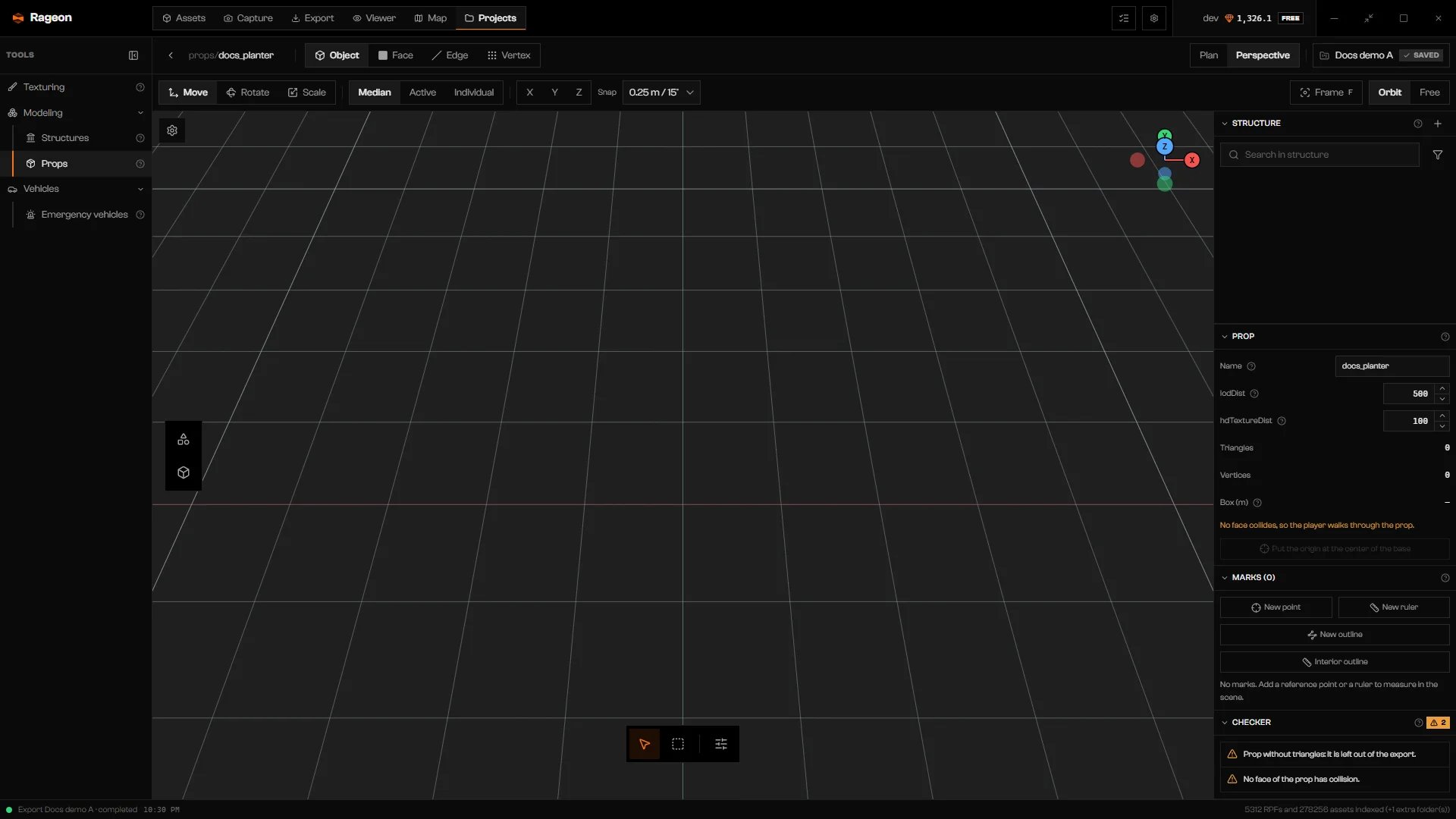
An empty prop with its toolbar, transform bar, tools, and right column.
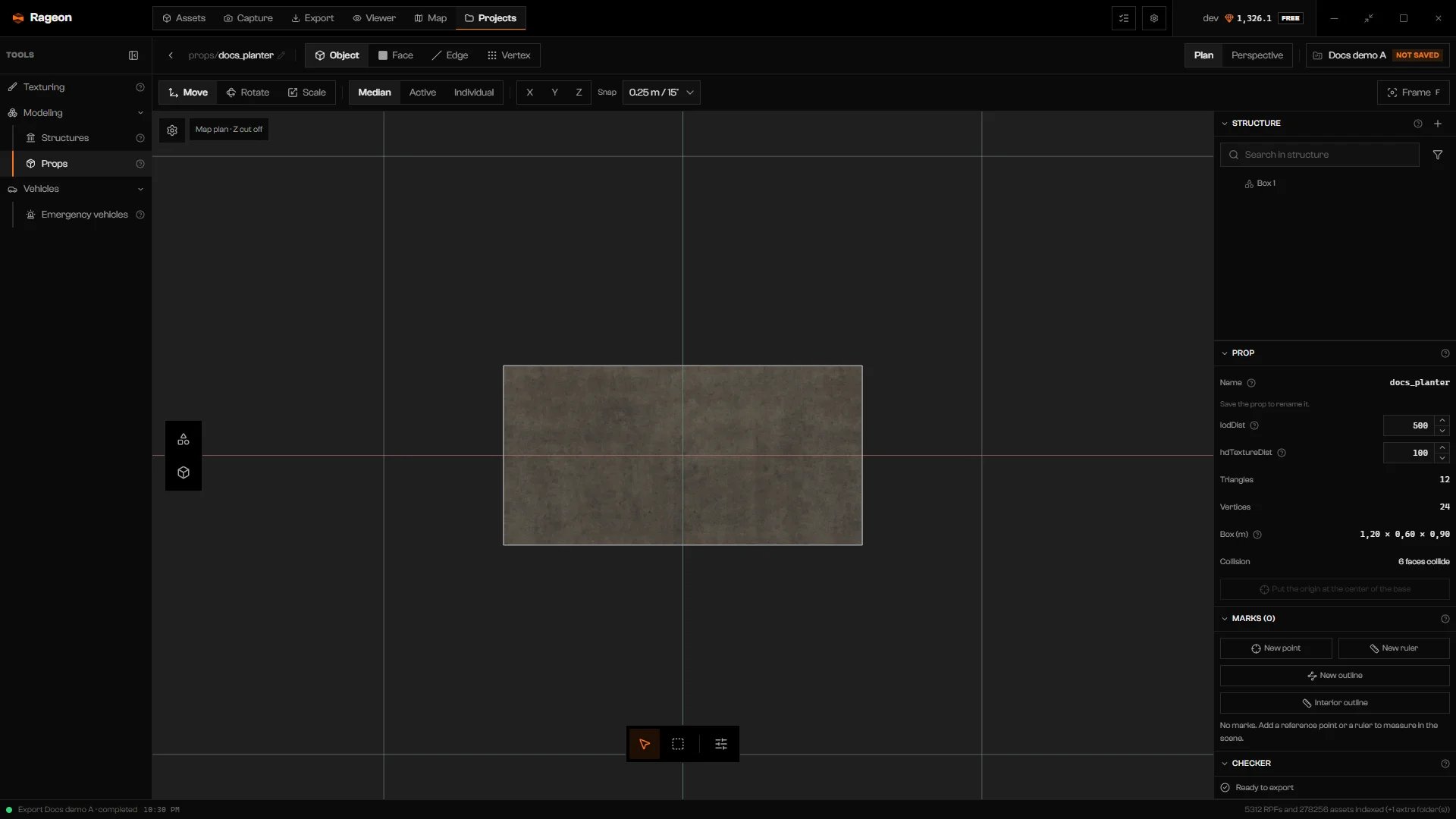
Plan view of the planter.
Tools
A prop has two tools, because rooms, portals, and lights do not exist here.
Below them, Select (V), Box selection (B), and View (N) are always available.
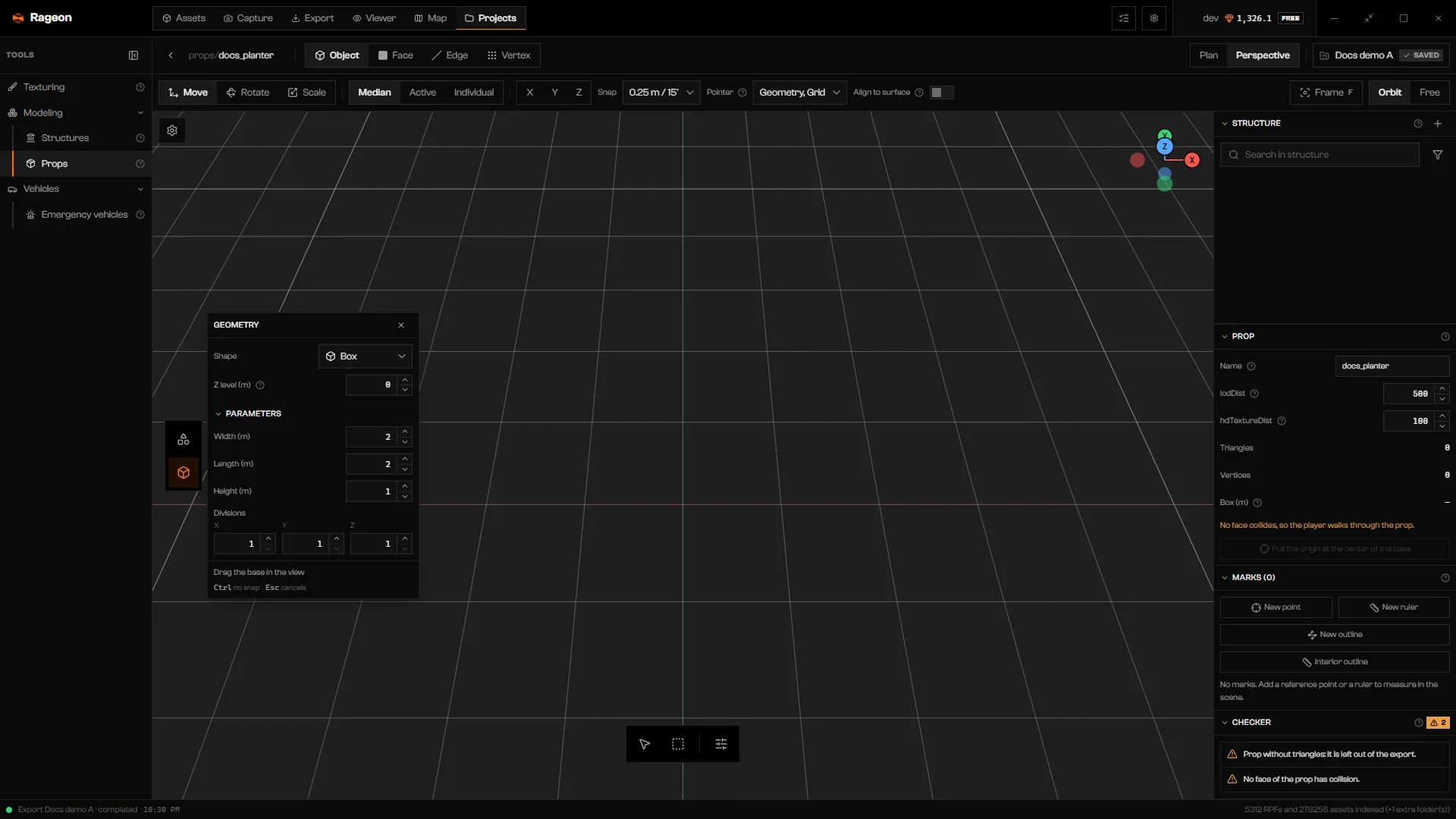
The Geometry node, pinned beside the tools.
Geometry
Edit geometry swaps the tools for the modeling tools, with Back to prop as the first button. The tools are the same as in Structures: Extrude, Inset, Bevel, Loop cut, Bisect, Knife, and Slide, plus the Close and connect, Clean up and triangulate, and Separate and remove groups. See Geometry for how each one behaves.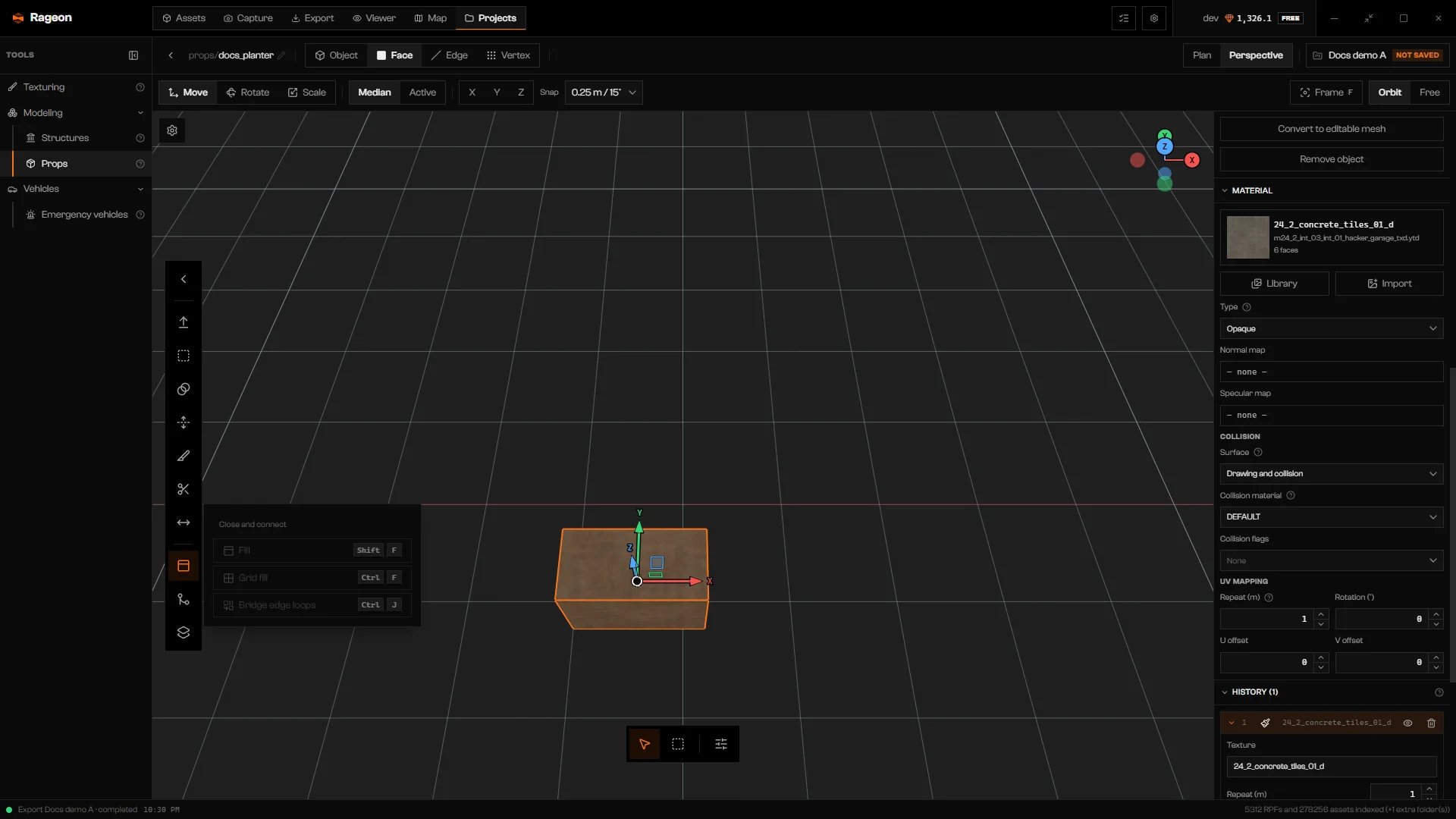
Modeling tools with the Close and connect actions open.
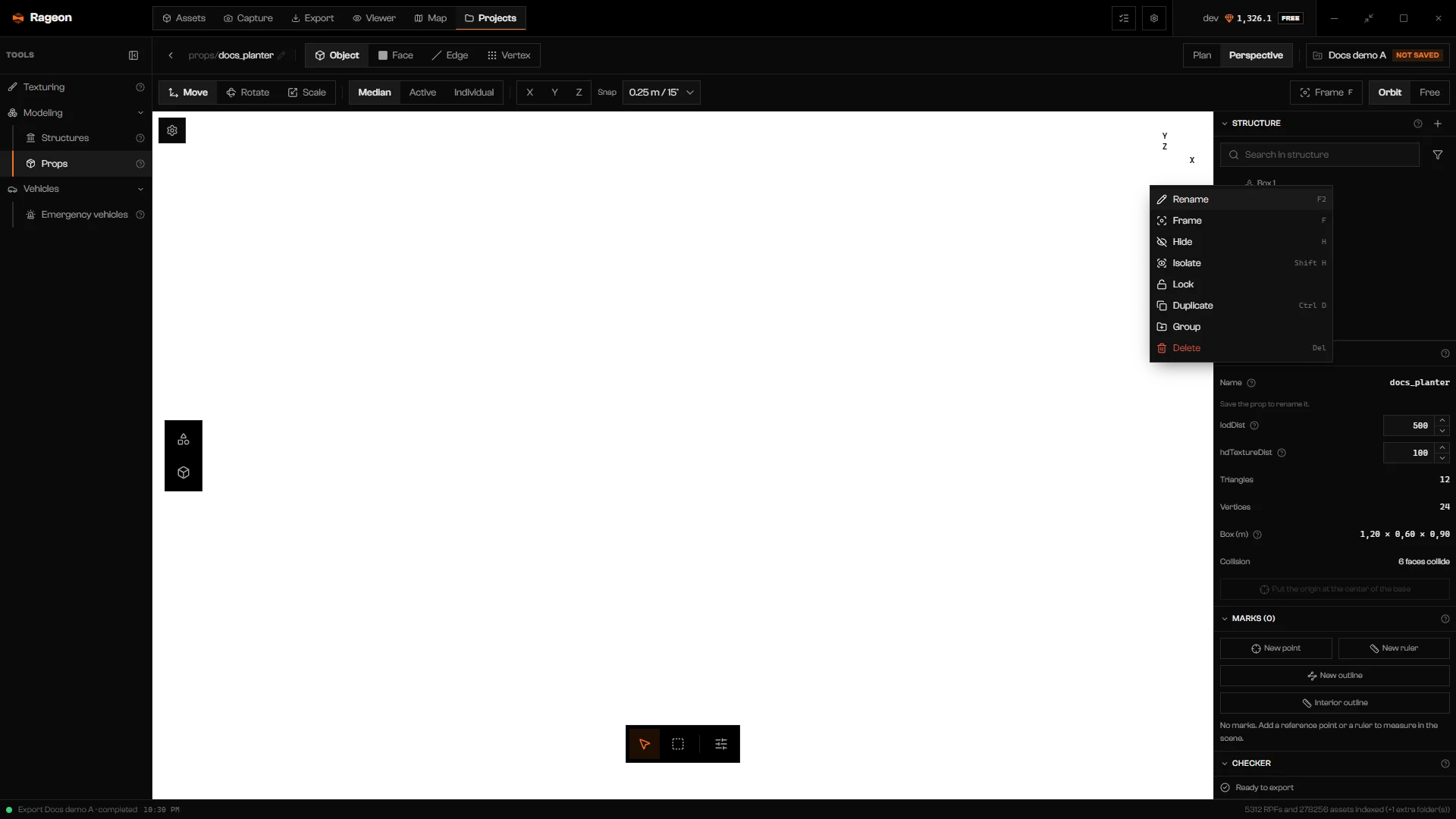
The row menu of an object in the tree.
Material and textures
Select faces in Edit geometry, or pick an object in the tree, and use Material. Library opens the Texture library; Import copies an image into the project and applies it. Both work as in Textures. A prop can only export a texture that comes from a game dictionary or an imported image. A texture marked as a map piece works as a preview only, and the Checker blocks the export until you choose another one.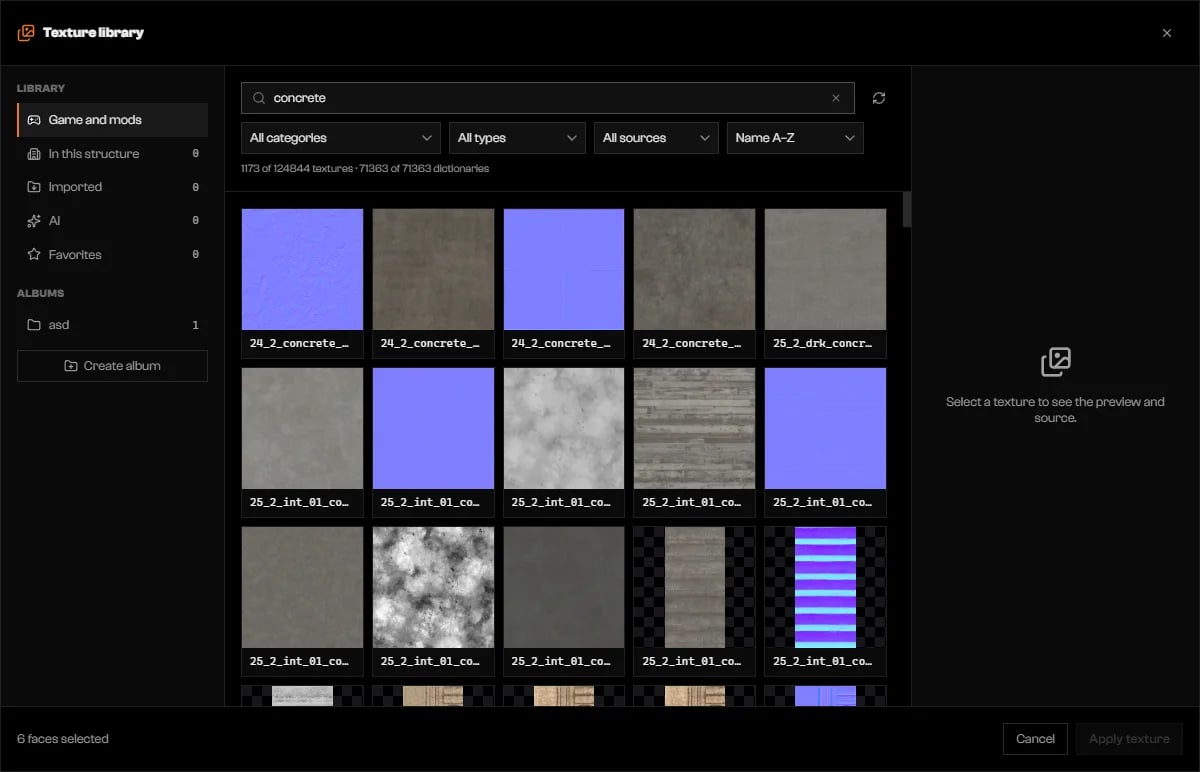
The Texture library with a search.
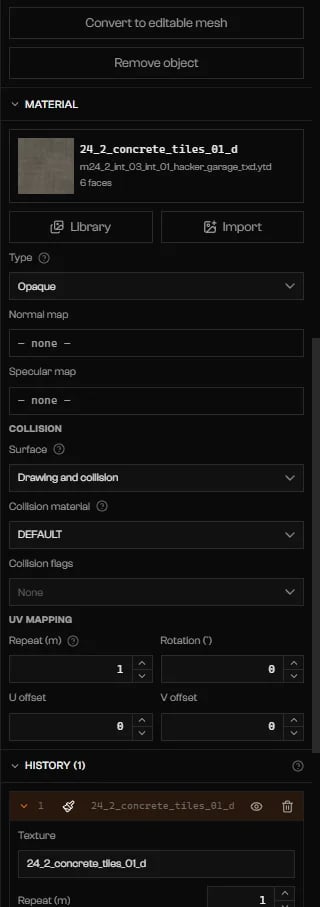
Material and collision of the selected faces.
Collision
The Collision block of Material decides where each face exists in game.
Collision material sets footstep sound, bullet marks, and particles. Collision flags are the same as in Flags.
The Collision line of the Prop section counts the faces that collide. At zero, the line is replaced by an orange No face collides, so the player walks through the prop.
The prop sheet
Click Select with nothing picked and the Prop section appears in the right column.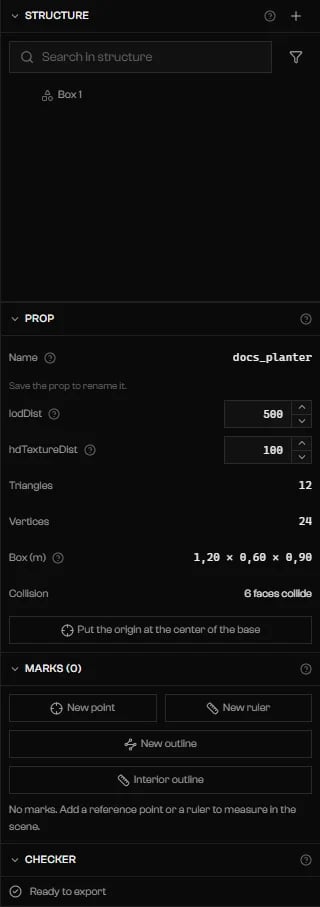
The Prop section: name, draw distances, counts, collision, and the origin button.
Origin
The origin is the point that lands where you place the prop. Click Put the origin at the center of the base to move the whole model so the center of its base sits on it. It is one undo step. The button is disabled when the origin is already there.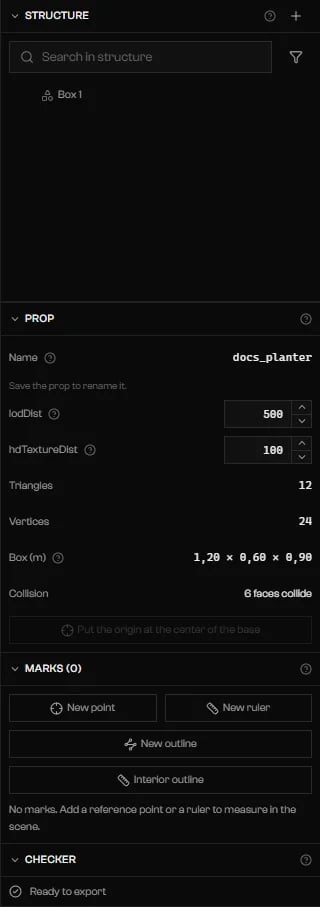
After moving the origin to the base.
The View panel
View (N) opens a column at the right edge of the stage with Camera, Orientation grid, and Labels. Camera takes exact position, heading, and pitch, and is disabled in Plan. The grid is also the plane Create geometry draws on. A prop has no render box and no map settings.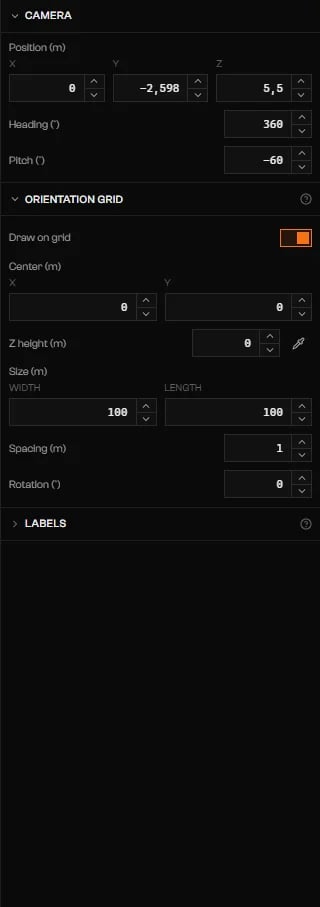
The View panel of a prop.
Save
Ctrl+S saves the prop and refreshes the preview on its card. The badge menu also exports the project.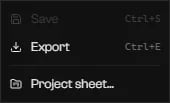
The project badge menu.
The Checker
The Checker section lists what blocks the export (red, errors) and what does not (orange, warnings). Ready to export means it is clean. Click a row to select the faces or the object it names.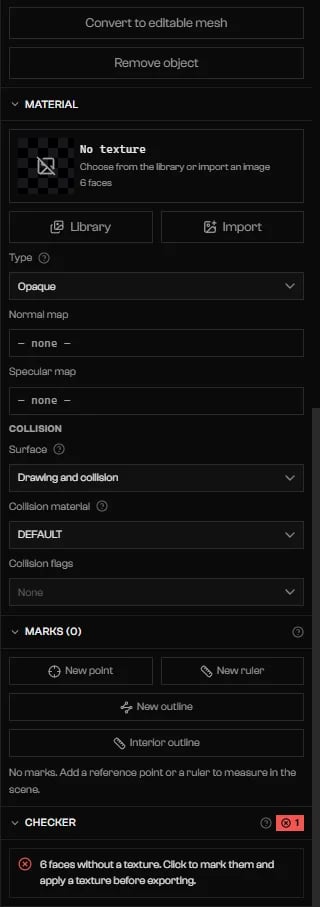
The Checker with an error.
Troubleshooting
Preparing the view…
Preparing the view…
The 3D view is starting. If it fails, click Try again.
Save the prop to rename it.
Save the prop to rename it.
The Name field is read-only while the prop has unsaved changes. Press Ctrl+S, then rename it.
The model conflicts with an existing edit. Review the proposal.
The model conflicts with an existing edit. Review the proposal.
You imported a model while a mesh action was pending. Resolve the notice in the right column and import again.
Could not check whether the prop name already exists in the game. Open a workspace to check.
Could not check whether the prop name already exists in the game. Open a workspace to check.
The GTA V folder is not indexed yet. Configure it in Settings and wait for the index to finish.