
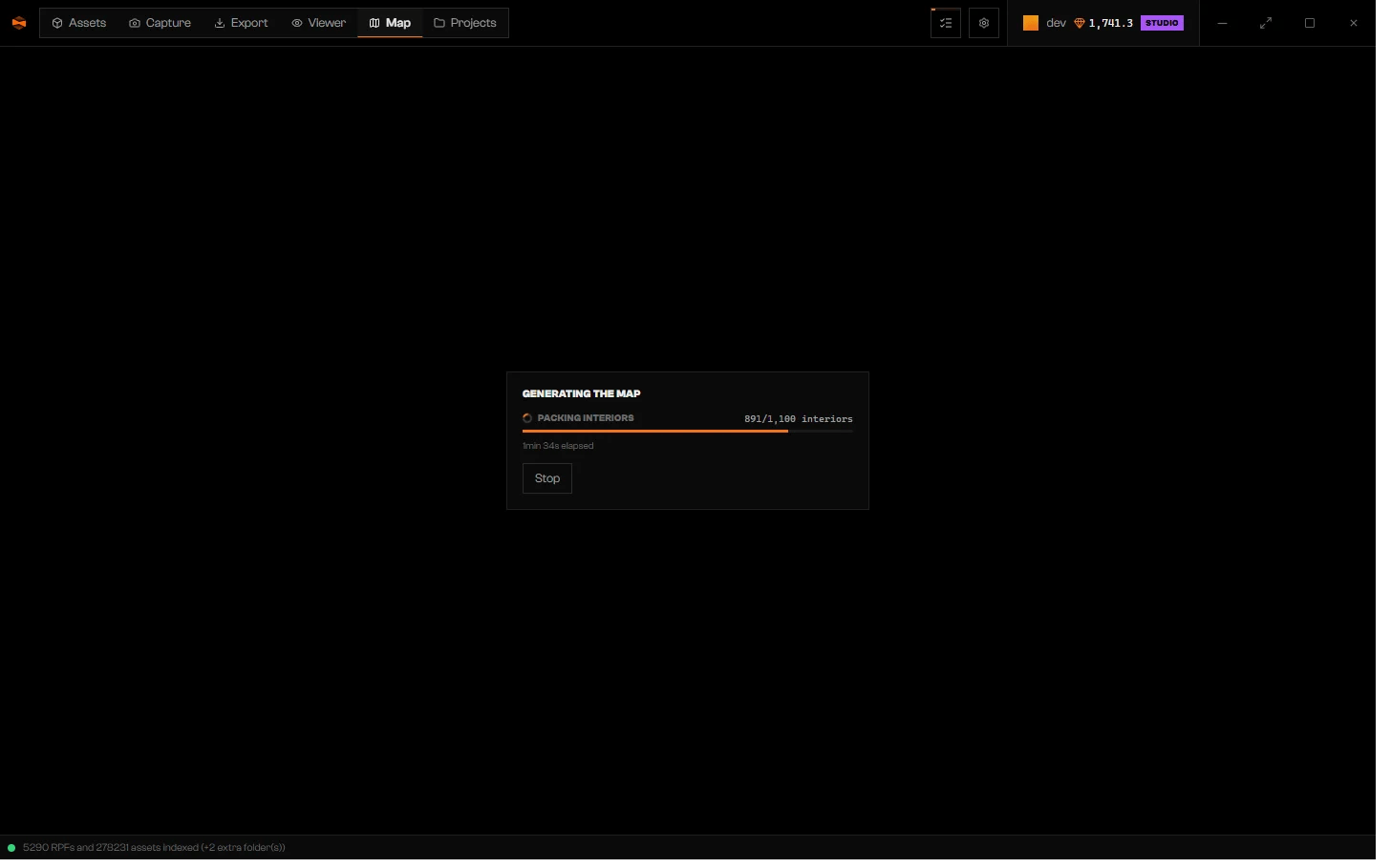
Generating the map: Packing interiors, with elapsed time and Stop.
Prepare the map on this computer
1
Set the GTA V folder
Open Settings (gear in the title bar) → App. Under GTA V folder, click Choose. Extra folders go under Directories → Add. Map starts preparing once the scan ends. Without a folder, Map shows Set the GTA V directory in the data sources to generate the map.
2
Open Map
Preparation normally starts by itself once the scan finishes. If it is idle, click Generate map.
3
Follow the stages
Generating the map lists the current stage, from Opening GTA V files to Building cells and Packing interiors. Cells and interiors show their own counts. During Building cells, an estimate (~… remaining) appears after the first few cells.
4
Wait for the world
When preparation ends, Loading library… appears and the world opens. There is no button to click.
Download a ready-made map
On some computers, generating the map can take hours. When a download is available, Map offers it with its size and DLC level:- Click Download ready-made map to skip local generation.
- Click Generate on this computer to prepare it yourself instead.
- If generation is already running and slow, Download instead of generating switches over.
Stop and resume
Stop interrupts generation or a download. What was already done is kept.Limits and plans
How many extra folders go into the map depends on your plan. A plan that includes only the base game leaves extra folders out. See plans.Troubleshooting
Set the GTA V directory in the data sources to generate the map.
Set the GTA V directory in the data sources to generate the map.
Rageon has no GTA V folder to read. Set it under Settings → App → GTA V folder and let the scan finish.
The map is incomplete and must be generated for the tab to open.
The map is incomplete and must be generated for the tab to open.
A previous run did not finish. Click Continue.
Generation interrupted. What was already built stayed on disk and continuing resumes from here.
Generation interrupted. What was already built stayed on disk and continuing resumes from here.
Click Continue.
Download interrupted. What already arrived stayed on disk and continuing resumes from here.
Download interrupted. What already arrived stayed on disk and continuing resumes from here.
Click Continue download.
Generate the Map again to check the extra folders against your plan.
Generate the Map again to check the extra folders against your plan.
Your map was prepared before the current plan could be checked against it. Prepare the map again.
Sign in to your account to continue.
Sign in to your account to continue.
Your session is missing or no longer valid. Sign in again. The message Your session predates the plan limits. Sign in to your account again. has the same fix.
The generation could not continue.
The generation could not continue.
Preparation failed. Read the error shown with it and fix that cause before you retry.
Error: …
Error: …
Any other error appears in a red box under the card. Use the button the card shows to try again.