Read your plan, devices, and credits in the app, and know what happens when you go offline.
Rageon needs a signed-in account for everything, including the FREE plan. The account is the one you use on the website. Plans, credit purchases, devices, name, and photo are managed there; the app shows the result. To sign in, see Sign in.
The chip sits at the right end of the title bar, next to the window controls. It shows your photo (or your initial), your name, your credit balance, and your plan in capitals: FREE, STARTER, PRO, STUDIO, or STUDIO+.
The chip with four different names. Each shows the balance after a +500 credit purchase.
When the balance changes, the number counts to the new value and a short notice appears above it: green with + for credits you received, white with − for credits you spent. In a narrow window the balance goes first, then the name and plan, until only your photo is left.
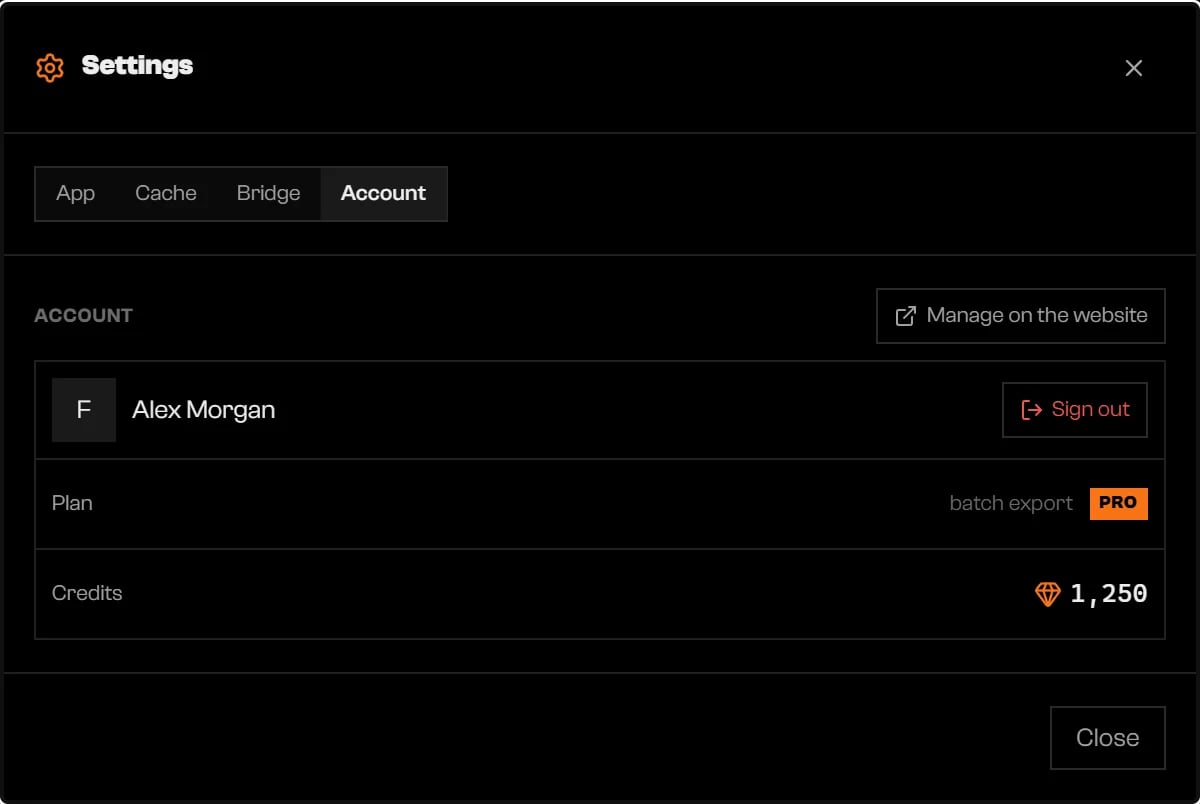
Settings opens on the Account tab. The tab only exists once your profile has loaded.
The Account tab of Settings.
2
Read Plan and Credits
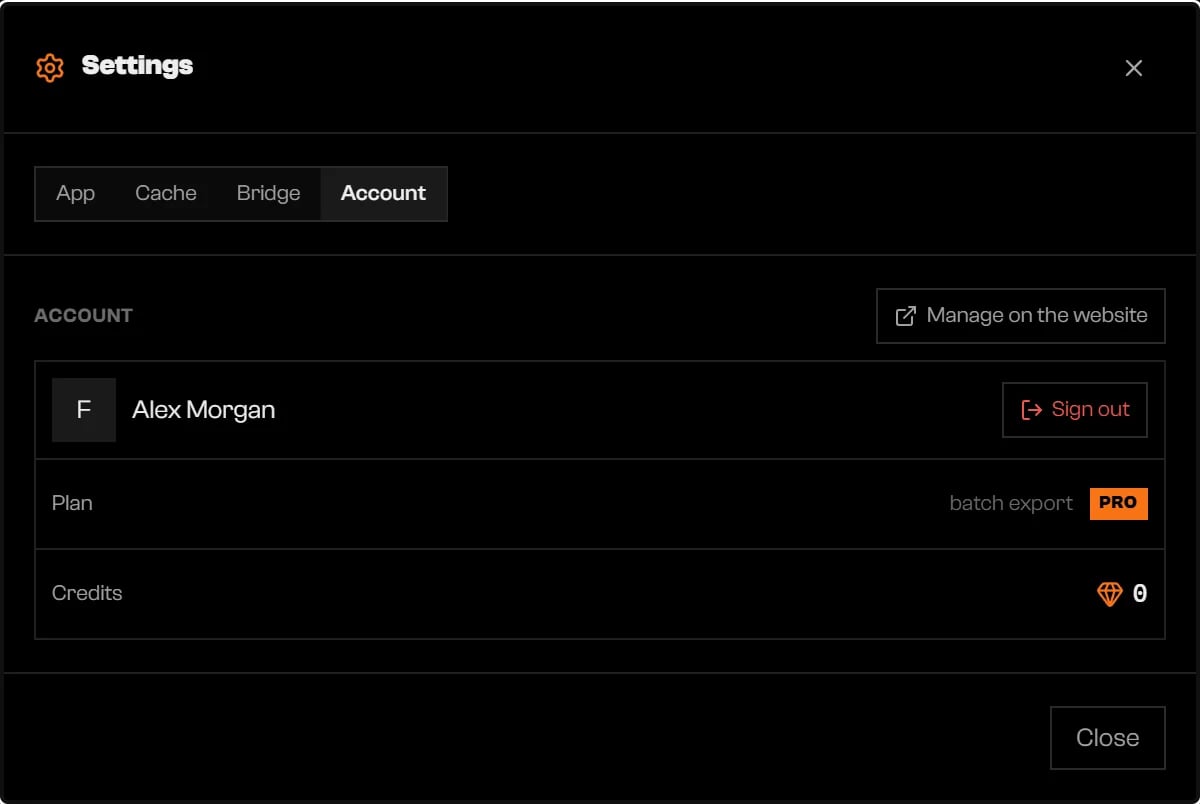
Plan lists what your plan adds, such as batch export and cloud projects, or No extra features. Credits shows your balance. A dash (—) means the balance has not been read yet, not that it is zero. A balance of zero looks like this:
Credits at zero.
Your name, photo, and balance refresh when you open the app and each time the window regains focus. For what credits pay for, see Credits.
Click Manage on the website to open rageon.dev/account. Change your plan, buy credits, edit your name and photo, and free devices there. Purchases appear in the app’s balance when you return to the window.Sign out ends your session on this computer at once, without asking, and returns to the sign-in screen. Your settings and caches stay on the computer; the balance shows — until you sign in again.
Your plan limits how many computers can sign in. If all places are taken, Device limit lists the computers that use them, each with its name, system, and last use.
Losing the network changes nothing right away. After the session expires without a connection, the app keeps opening for up to 7 days from the last online check. During that time the status bar shows Offline; session valid for … more day(s), and Offline; session valid for less than a day in the last 24 hours. The notice sits beside the normal status and does not hide task progress.Things that ask the server need a connection even during this period: weekly export and capture quotas, AI generation, and an up-to-date credit balance. After the 7 days the app returns to the sign-in screen. Connect, open the app, and sign in again to renew.
If the Windows clock is set earlier than the app’s last record, the app also asks you to sign in again, without a message. Fix the clock and sign in.
Weekly … quota used up: … of … used. It renews on ….
You used the week’s export or capture quota. Wait for the renewal or check rageon.dev/pricing. This check needs a connection.
Too many requests in a row. Wait a moment and try again.
Wait a few seconds and repeat the action.
This computer isn't registered on your account. Reopen the app to register it.
Open the app again with a connection so the computer registers.
{"docsConfig":{"theme":"mint","$schema":"https://mintlify.com/docs.json","name":"Rageon","colors":{"primary":"#f97316","light":"#fb923c","dark":"#c2410c"},"logo":{"light":"https://mintcdn.com/rageon/NnSHzDe1phDyv79M/logo/mark.png?fit=max\u0026auto=format\u0026n=NnSHzDe1phDyv79M\u0026q=85\u0026s=e0ae0889d31e1576f579125f3ef6685e","dark":"https://mintcdn.com/rageon/NnSHzDe1phDyv79M/logo/mark.png?fit=max\u0026auto=format\u0026n=NnSHzDe1phDyv79M\u0026q=85\u0026s=e0ae0889d31e1576f579125f3ef6685e","href":"https://rageon.dev"},"favicon":"https://mintcdn.com/rageon/tGC-5rfc07564TOG/favicon.png?fit=max\u0026auto=format\u0026n=tGC-5rfc07564TOG\u0026q=85\u0026s=7525da8dae81e50d0056d02037548e02","appearance":{"default":"dark"},"navbar":{"links":[{"href":"https://rageon.dev/pricing","label":"Pricing"}],"primary":{"type":"button","label":"Download","href":"https://rageon.dev/download"}},"footer":{"socials":{"website":"https://rageon.dev"}},"icons":{"library":"lucide"},"styling":{"latex":false},"navigation":{"languages":[{"language":"en","default":true,"href":"start/introduction"},{"language":"pt-BR","href":"pt-BR/start/introduction"},{"language":"es","href":"es/start/introduction"}]}},"deployment":{"deploymentMetadataValue":{"subdomain":"rageon","hasAudioNarration":false,"actualSubdomain":"rageon","customDomains":["docs.rageon.dev"],"gitSource":{"type":"github","owner":"rageoon","repo":"rageon-docs","deployBranch":"main","contentDirectory":"","isPrivate":true,"mountPath":"","label":"","_id":"6ada8d872e2812485d3d490a"},"chroma":{"latestBuiltDeploymentHistoryId":"6ada8d882e2812485d3d4910","collectionId":"d8abb39d-b557-4128-b440-bcb1bb1501eb","liveDeploymentHistoryId":"6ada8d882e2812485d3d4910","schemaVersion":"v3"},"entitlements":{"AI_CHAT":{"status":"ENABLED"},"WEB_MCP":{"status":"ENABLED"},"NARRATION":{"status":"ENABLED"}},"buildId":"6ada8d96fbb15298db52c70c","clientVersion":"0.0.3939","searchFilterCounts":[{"language":"en","tag":"Projects","count":43},{"language":"es","tag":"Proyectos","count":43},{"language":"pt-BR","tag":"Projetos","count":43},{"language":"en","tag":"Structures","count":16},{"language":"es","tag":"Estructuras","count":16},{"language":"pt-BR","tag":"Estruturas","count":16},{"language":"en","tag":"Map","count":15},{"language":"es","tag":"Mapa","count":15},{"language":"pt-BR","tag":"Mapa","count":15},{"language":"en","tag":"Getting started","count":14},{"language":"en","tag":"Viewer","count":14},{"language":"es","tag":"Primeros pasos","count":14},{"language":"es","tag":"Visor","count":14},{"language":"pt-BR","tag":"Primeiros passos","count":14},{"language":"pt-BR","tag":"Visualização","count":14},{"language":"en","tag":"Assets","count":12},{"language":"en","tag":"Capture","count":12},{"language":"es","tag":"Assets","count":12},{"language":"es","tag":"Captura","count":12},{"language":"pt-BR","tag":"Assets","count":12},{"language":"pt-BR","tag":"Captura","count":12},{"language":"en","tag":"Texturing","count":11},{"language":"es","tag":"Texturizado","count":11},{"language":"pt-BR","tag":"Texturização","count":11},{"language":"en","tag":"Export","count":8},{"language":"es","tag":"Exportar","count":8},{"language":"pt-BR","tag":"Exportar","count":8},{"language":"en","tag":"Help","count":6},{"language":"es","tag":"Ayuda","count":6},{"language":"pt-BR","tag":"Ajuda","count":6}],"searchSettings":{"isFiltersEnabled":true,"showContentSnippets":true}},"assistantConfig":{"enableAskAiButton":false,"enableStarterQuestions":false,"enableContextualStarterQuestions":false,"enableAskAiSearchBar":true},"hasChatPermissions":true,"hasWebMcpPermissions":true,"toggles":[{"name":"kill-isr","enabled":true,"variant":{"name":"disabled","enabled":false,"feature_enabled":true},"impressionData":false},{"name":"agent-mintlify-slack","enabled":true,"variant":{"name":"disabled","enabled":false,"feature_enabled":true},"impressionData":false},{"name":"editor-v7-file-tree","enabled":true,"variant":{"name":"disabled","enabled":false,"feature_enabled":true},"impressionData":false},{"name":"agent-integrations-settings","enabled":true,"variant":{"name":"disabled","enabled":false,"feature_enabled":true},"impressionData":false},{"name":"automations-pr-grouping","enabled":true,"variant":{"name":"disabled","enabled":false,"feature_enabled":true},"impressionData":false},{"name":"custom-prefix","enabled":true,"variant":{"name":"disabled","enabled":false,"feature_enabled":true},"impressionData":false},{"name":"analytics-v7","enabled":true,"variant":{"name":"disabled","enabled":false,"feature_enabled":true},"impressionData":false},{"name":"user-flows-analytics","enabled":true,"variant":{"name":"disabled","enabled":false,"feature_enabled":true},"impressionData":false},{"name":"no-publish-flow","enabled":true,"variant":{"name":"disabled","enabled":false,"feature_enabled":true},"impressionData":false},{"name":"workos-onboarding","enabled":true,"variant":{"name":"disabled","enabled":false,"feature_enabled":true},"impressionData":false},{"name":"llms-txt-v2","enabled":true,"variant":{"name":"disabled","enabled":false,"feature_enabled":true},"impressionData":false},{"name":"pause-universal-search-reconcile","enabled":true,"variant":{"name":"disabled","enabled":false,"feature_enabled":true},"impressionData":false},{"name":"snapshot-serving-live","enabled":true,"variant":{"name":"disabled","enabled":false,"feature_enabled":true},"impressionData":false},{"name":"stripTemperatureMiddleware","enabled":true,"variant":{"name":"disabled","enabled":false,"feature_enabled":true},"impressionData":false},{"name":"per-site-search-delta","enabled":true,"variant":{"name":"disabled","enabled":false,"feature_enabled":true},"impressionData":false},{"name":"support-platform-pylon-zendesk","enabled":true,"variant":{"name":"disabled","enabled":false,"feature_enabled":true},"impressionData":false},{"name":"snapshot-serving","enabled":true,"variant":{"name":"disabled","enabled":false,"feature_enabled":true},"impressionData":false},{"name":"instant-rollback","enabled":true,"variant":{"name":"disabled","enabled":false,"feature_enabled":true},"impressionData":false},{"name":"granular-notifications-server","enabled":true,"variant":{"name":"disabled","enabled":false,"feature_enabled":true},"impressionData":false},{"name":"granular-notifications","enabled":true,"variant":{"name":"disabled","enabled":false,"feature_enabled":true},"impressionData":false},{"name":"editor-private-page-search","enabled":true,"variant":{"name":"disabled","enabled":false,"feature_enabled":true},"impressionData":false},{"name":"automations-fable","enabled":true,"variant":{"name":"disabled","enabled":false,"feature_enabled":true},"impressionData":false},{"name":"fixed-ai-action-pricing","enabled":true,"variant":{"name":"disabled","enabled":false,"feature_enabled":true},"impressionData":false},{"name":"automation-resolve-merge-conflict","enabled":true,"variant":{"name":"disabled","enabled":false,"feature_enabled":true},"impressionData":false},{"name":"scoped-publishing","enabled":true,"variant":{"name":"disabled","enabled":false,"feature_enabled":true},"impressionData":false},{"name":"mintql","enabled":true,"variant":{"name":"disabled","enabled":false,"feature_enabled":true},"impressionData":false},{"name":"page-level-analytics","enabled":true,"variant":{"name":"disabled","enabled":false,"feature_enabled":true},"impressionData":false},{"name":"editor-version-history-v2","enabled":true,"variant":{"name":"disabled","enabled":false,"feature_enabled":true},"impressionData":false},{"name":"editor-nav-generations","enabled":true,"variant":{"name":"disabled","enabled":false,"feature_enabled":true},"impressionData":false},{"name":"billing-page-v2","enabled":true,"variant":{"name":"disabled","enabled":false,"feature_enabled":true},"impressionData":false},{"name":"workspace-projects","enabled":true,"variant":{"name":"disabled","enabled":false,"feature_enabled":true},"impressionData":false},{"name":"assistant-v5","enabled":true,"variant":{"name":"disabled","enabled":false,"feature_enabled":true},"impressionData":false},{"name":"byok-sep-25","enabled":true,"variant":{"name":"disabled","enabled":false,"feature_enabled":true},"impressionData":false},{"name":"fork-pr-previews","enabled":true,"variant":{"name":"disabled","enabled":false,"feature_enabled":true},"impressionData":false},{"name":"revalidation-jwt","enabled":true,"variant":{"name":"disabled","enabled":false,"feature_enabled":true},"impressionData":false},{"name":"vite-origin","enabled":true,"variant":{"name":"disabled","enabled":false,"feature_enabled":true},"impressionData":false},{"name":"editor-agent-model-picker","enabled":true,"variant":{"name":"disabled","enabled":false,"feature_enabled":true},"impressionData":false},{"name":"billing-updated-9-15","enabled":true,"variant":{"name":"disabled","enabled":false,"feature_enabled":true},"impressionData":false},{"name":"hobby-abuse-scan","enabled":true,"variant":{"name":"disabled","enabled":false,"feature_enabled":true},"impressionData":false},{"name":"dashboard-inbox","enabled":true,"variant":{"name":"disabled","enabled":false,"feature_enabled":true},"impressionData":false}],"isAtlas":false,"googleFontsInlined":false},"customCss":[],"page":{"pagePath":"account/overview","slug":"/account/overview","pageMetadata":{"title":"Your account","icon":"user-round","description":"Read your plan, devices, and credits in the app, and know what happens when you go offline.","href":"/account/overview"},"description":{"compiledSource":"\"use strict\";\nconst {jsx: _jsx} = arguments[0];\nconst {useMDXComponents: _provideComponents} = arguments[0];\nfunction _createMdxContent(props) {\n const _components = {\n p: \"p\",\n ..._provideComponents(),\n ...props.components\n };\n return _jsx(_components.p, {\n children: \"Read your plan, devices, and credits in the app, and know what happens when you go offline.\"\n });\n}\nfunction MDXContent(props = {}) {\n const {wrapper: MDXLayout} = {\n ..._provideComponents(),\n ...props.components\n };\n return MDXLayout ? _jsx(MDXLayout, {\n ...props,\n children: _jsx(_createMdxContent, {\n ...props\n })\n }) : _createMdxContent(props);\n}\nreturn {\n default: MDXContent\n};\n","frontmatter":{},"scope":{}},"pageType":"default","mdx":{"mdxSource":{"compiledSource":"\"use strict\";const{Fragment:_Fragment,jsx:_jsx,jsxs:_jsxs}=arguments[0];const{useMDXComponents:_provideComponents}=arguments[0];function _createMdxContent(props){const _components={a:`a`,code:`code`,li:`li`,p:`p`,strong:`strong`,ul:`ul`,..._provideComponents(),...props.components},{Accordion,AccordionGroup,Frame,Heading,Note,OptimizedImage,Step,Steps}=_components;if(!Accordion)_missingMdxReference(`Accordion`,true);if(!AccordionGroup)_missingMdxReference(`AccordionGroup`,true);if(!Frame)_missingMdxReference(`Frame`,true);if(!Heading)_missingMdxReference(`Heading`,true);if(!Note)_missingMdxReference(`Note`,true);if(!OptimizedImage)_missingMdxReference(`OptimizedImage`,true);if(!Step)_missingMdxReference(`Step`,true);if(!Steps)_missingMdxReference(`Steps`,true);return _jsxs(_Fragment,{children:[_jsxs(_components.p,{children:[`Rageon needs a signed-in account for everything, including the `,_jsx(_components.strong,{children:`FREE`}),` plan. The account is the one you use on the website. Plans, credit purchases, devices, name, and photo are managed there; the app shows the result. To sign in, see `,_jsx(_components.a,{href:`/start/sign-in`,children:`Sign in`}),`.`]}),`\n`,_jsx(Heading,{level:`2`,id:`the-account-chip`,children:`The account chip`}),`\n`,_jsxs(_components.p,{children:[`The chip sits at the right end of the title bar, next to the window controls. It shows your photo (or your initial), your name, your credit balance, and your plan in capitals: `,_jsx(_components.strong,{children:`FREE`}),`, `,_jsx(_components.strong,{children:`STARTER`}),`, `,_jsx(_components.strong,{children:`PRO`}),`, `,_jsx(_components.strong,{children:`STUDIO`}),`, or `,_jsx(_components.strong,{children:`STUDIO+`}),`.`]}),`\n`,_jsx(Frame,{caption:`The chip with four different names. Each shows the balance after a +500 credit purchase.`,children:_jsx(OptimizedImage,{src:`https://mintcdn.com/rageon/tGC-5rfc07564TOG/images/account/account-chip-credit-change.webp?fit=max\u0026auto=format\u0026n=tGC-5rfc07564TOG\u0026q=85\u0026s=b89a8acc7ade5413109587e48e4ef949`,alt:`Four account chips with name, credit balance, a green +500 notice, and a plan badge`,\"data-og-width\":`2736`,width:`2736`,\"data-og-height\":`96`,height:`96`,\"data-path\":`images/account/account-chip-credit-change.webp`,\"data-optimize\":`true`,\"data-opv\":`3`,srcset:`https://mintcdn.com/rageon/tGC-5rfc07564TOG/images/account/account-chip-credit-change.webp?w=280\u0026fit=max\u0026auto=format\u0026n=tGC-5rfc07564TOG\u0026q=85\u0026s=a9a1fb89847dd46c8ecf05d38add8ccb 280w, https://mintcdn.com/rageon/tGC-5rfc07564TOG/images/account/account-chip-credit-change.webp?w=560\u0026fit=max\u0026auto=format\u0026n=tGC-5rfc07564TOG\u0026q=85\u0026s=b04cbe8a90c557d7a2f68961789cda47 560w, https://mintcdn.com/rageon/tGC-5rfc07564TOG/images/account/account-chip-credit-change.webp?w=840\u0026fit=max\u0026auto=format\u0026n=tGC-5rfc07564TOG\u0026q=85\u0026s=15a7f9ab8c39ce4a3bdeb68bca2cd426 840w, https://mintcdn.com/rageon/tGC-5rfc07564TOG/images/account/account-chip-credit-change.webp?w=1100\u0026fit=max\u0026auto=format\u0026n=tGC-5rfc07564TOG\u0026q=85\u0026s=f804d6160b848434587fcffbd4fec4ef 1100w, https://mintcdn.com/rageon/tGC-5rfc07564TOG/images/account/account-chip-credit-change.webp?w=1650\u0026fit=max\u0026auto=format\u0026n=tGC-5rfc07564TOG\u0026q=85\u0026s=1e6c7a91bcdfa7f3c03a287291ff977f 1650w, https://mintcdn.com/rageon/tGC-5rfc07564TOG/images/account/account-chip-credit-change.webp?w=2500\u0026fit=max\u0026auto=format\u0026n=tGC-5rfc07564TOG\u0026q=85\u0026s=109257c1c66f512b5fb916372375650f 2500w`})}),`\n`,_jsxs(_components.p,{children:[`When the balance changes, the number counts to the new value and a short notice appears above it: green with `,_jsx(_components.strong,{children:`+`}),` for credits you received, white with `,_jsx(_components.strong,{children:`−`}),` for credits you spent. In a narrow window the balance goes first, then the name and plan, until only your photo is left.`]}),`\n`,_jsx(Heading,{level:`2`,id:`check-your-plan-and-credits`,children:`Check your plan and credits`}),`\n`,_jsxs(Steps,{children:[_jsxs(Step,{title:`Click the account chip`,children:[_jsxs(_components.p,{children:[_jsx(_components.strong,{children:`Settings`}),` opens on the `,_jsx(_components.strong,{children:`Account`}),` tab. The tab only exists once your profile has loaded.`]}),_jsx(Frame,{caption:`The Account tab of Settings.`,children:_jsx(OptimizedImage,{src:`https://mintcdn.com/rageon/tGC-5rfc07564TOG/images/account/account-panel.webp?fit=max\u0026auto=format\u0026n=tGC-5rfc07564TOG\u0026q=85\u0026s=a3dec5e078ffb031f82ffa664e062167`,alt:`Settings Account tab with the user name, a PRO plan with batch export, and a credit balance`,\"data-og-width\":`1200`,width:`1200`,\"data-og-height\":`804`,height:`804`,\"data-path\":`images/account/account-panel.webp`,\"data-optimize\":`true`,\"data-opv\":`3`,srcset:`https://mintcdn.com/rageon/tGC-5rfc07564TOG/images/account/account-panel.webp?w=280\u0026fit=max\u0026auto=format\u0026n=tGC-5rfc07564TOG\u0026q=85\u0026s=7adcff8b628a2e0577415807c9217ffc 280w, https://mintcdn.com/rageon/tGC-5rfc07564TOG/images/account/account-panel.webp?w=560\u0026fit=max\u0026auto=format\u0026n=tGC-5rfc07564TOG\u0026q=85\u0026s=76fae4aa8e4041372cccfbedd1a73993 560w, https://mintcdn.com/rageon/tGC-5rfc07564TOG/images/account/account-panel.webp?w=840\u0026fit=max\u0026auto=format\u0026n=tGC-5rfc07564TOG\u0026q=85\u0026s=a1370f89c35b4b574d0cab5d3175dd2c 840w, https://mintcdn.com/rageon/tGC-5rfc07564TOG/images/account/account-panel.webp?w=1100\u0026fit=max\u0026auto=format\u0026n=tGC-5rfc07564TOG\u0026q=85\u0026s=348e605334287a0a8ff06868c366b738 1100w, https://mintcdn.com/rageon/tGC-5rfc07564TOG/images/account/account-panel.webp?w=1650\u0026fit=max\u0026auto=format\u0026n=tGC-5rfc07564TOG\u0026q=85\u0026s=978b1d913f8daeb56d01eaaf0143832e 1650w, https://mintcdn.com/rageon/tGC-5rfc07564TOG/images/account/account-panel.webp?w=2500\u0026fit=max\u0026auto=format\u0026n=tGC-5rfc07564TOG\u0026q=85\u0026s=a6a0dbfa8610642aa36ebe497ac2d62a 2500w`})})]}),_jsxs(Step,{title:`Read Plan and Credits`,children:[_jsxs(_components.p,{children:[_jsx(_components.strong,{children:`Plan`}),` lists what your plan adds, such as `,_jsx(_components.strong,{children:`batch export`}),` and `,_jsx(_components.strong,{children:`cloud projects`}),`, or `,_jsx(_components.strong,{children:`No extra features`}),`. `,_jsx(_components.strong,{children:`Credits`}),` shows your balance. A dash (`,_jsx(_components.strong,{children:`—`}),`) means the balance has not been read yet, not that it is zero. A balance of zero looks like this:`]}),_jsx(Frame,{caption:`Credits at zero.`,children:_jsx(OptimizedImage,{src:`https://mintcdn.com/rageon/tGC-5rfc07564TOG/images/account/account-panel-zero.webp?fit=max\u0026auto=format\u0026n=tGC-5rfc07564TOG\u0026q=85\u0026s=c26d9ab5ba9725a47d2a440971a2eb45`,alt:`Settings Account tab with a credit balance of 0`,\"data-og-width\":`1200`,width:`1200`,\"data-og-height\":`804`,height:`804`,\"data-path\":`images/account/account-panel-zero.webp`,\"data-optimize\":`true`,\"data-opv\":`3`,srcset:`https://mintcdn.com/rageon/tGC-5rfc07564TOG/images/account/account-panel-zero.webp?w=280\u0026fit=max\u0026auto=format\u0026n=tGC-5rfc07564TOG\u0026q=85\u0026s=919307c08dff63193e673006bca647ab 280w, https://mintcdn.com/rageon/tGC-5rfc07564TOG/images/account/account-panel-zero.webp?w=560\u0026fit=max\u0026auto=format\u0026n=tGC-5rfc07564TOG\u0026q=85\u0026s=b6dd26bded17383d12de78ad7a95ba49 560w, https://mintcdn.com/rageon/tGC-5rfc07564TOG/images/account/account-panel-zero.webp?w=840\u0026fit=max\u0026auto=format\u0026n=tGC-5rfc07564TOG\u0026q=85\u0026s=d35095dea334c3bf8a356ad35ea8dac3 840w, https://mintcdn.com/rageon/tGC-5rfc07564TOG/images/account/account-panel-zero.webp?w=1100\u0026fit=max\u0026auto=format\u0026n=tGC-5rfc07564TOG\u0026q=85\u0026s=78cfa2f1bfe765b930c3246741596b1b 1100w, https://mintcdn.com/rageon/tGC-5rfc07564TOG/images/account/account-panel-zero.webp?w=1650\u0026fit=max\u0026auto=format\u0026n=tGC-5rfc07564TOG\u0026q=85\u0026s=60ed8e4082b020616bb468e37ef23034 1650w, https://mintcdn.com/rageon/tGC-5rfc07564TOG/images/account/account-panel-zero.webp?w=2500\u0026fit=max\u0026auto=format\u0026n=tGC-5rfc07564TOG\u0026q=85\u0026s=b61b3aa3e4d7909f11096556d9da3e16 2500w`})})]})]}),`\n`,_jsxs(_components.p,{children:[`Your name, photo, and balance refresh when you open the app and each time the window regains focus. For what credits pay for, see `,_jsx(_components.a,{href:`/account/credits`,children:`Credits`}),`.`]}),`\n`,_jsx(Heading,{level:`2`,id:`manage-billing-and-devices-on-the-website`,children:`Manage billing and devices on the website`}),`\n`,_jsxs(_components.p,{children:[`Click `,_jsx(_components.strong,{children:`Manage on the website`}),` to open `,_jsx(_components.code,{children:`rageon.dev/account`}),`. Change your plan, buy credits, edit your name and photo, and free devices there. Purchases appear in the app’s balance when you return to the window.`]}),`\n`,_jsxs(_components.p,{children:[_jsx(_components.strong,{children:`Sign out`}),` ends your session on this computer at once, without asking, and returns to the sign-in screen. Your settings and caches stay on the computer; the balance shows `,_jsx(_components.strong,{children:`—`}),` until you sign in again.`]}),`\n`,_jsx(Heading,{level:`2`,id:`devices`,children:`Devices`}),`\n`,_jsxs(_components.p,{children:[`Your plan limits how many computers can sign in. If all places are taken, `,_jsx(_components.strong,{children:`Device limit`}),` lists the computers that use them, each with its name, system, and last use.`]}),`\n`,_jsxs(Steps,{children:[_jsx(Step,{title:`Click Manage on the website`,children:_jsx(_components.p,{children:`Free one of the listed computers on the website.`})}),_jsx(Step,{title:`Click Try again`,children:_jsx(_components.p,{children:`The app checks again and opens.`})})]}),`\n`,_jsx(_components.p,{children:`The app cannot free a device for you.`}),`\n`,_jsx(Heading,{level:`2`,id:`working-offline`,children:`Working offline`}),`\n`,_jsxs(_components.p,{children:[`Losing the network changes nothing right away. After the session expires without a connection, the app keeps opening for up to 7 days from the last online check. During that time the status bar shows `,_jsx(_components.strong,{children:`Offline; session valid for … more day(s)`}),`, and `,_jsx(_components.strong,{children:`Offline; session valid for less than a day`}),` in the last 24 hours. The notice sits beside the normal status and does not hide task progress.`]}),`\n`,_jsx(_components.p,{children:`Things that ask the server need a connection even during this period: weekly export and capture quotas, AI generation, and an up-to-date credit balance. After the 7 days the app returns to the sign-in screen. Connect, open the app, and sign in again to renew.`}),`\n`,_jsx(Note,{children:_jsx(_components.p,{children:`If the Windows clock is set earlier than the app’s last record, the app also asks you to sign in again, without a message. Fix the clock and sign in.`})}),`\n`,_jsx(Heading,{level:`2`,id:`limits-and-plans`,children:`Limits and plans`}),`\n`,_jsxs(_components.ul,{children:[`\n`,_jsxs(_components.li,{children:[`Devices, FiveM servers in `,_jsx(_components.a,{href:`/settings/bridge`,children:`Bridge`}),`, and the extras listed under `,_jsx(_components.strong,{children:`Plan`}),` depend on your plan. See `,_jsx(_components.a,{href:`https://rageon.dev/pricing`,children:`rageon.dev/pricing`}),`.`]}),`\n`,_jsx(_components.li,{children:`Credits are separate from the plan. They come from purchases on the website.`}),`\n`]}),`\n`,_jsx(Heading,{level:`2`,id:`troubleshooting`,children:`Troubleshooting`}),`\n`,_jsxs(AccordionGroup,{children:[_jsx(Accordion,{title:`Your plan already uses all its devices. Free one on the website to sign in on this one.`,id:`your-plan-already-uses-all-its-devices-free-one-on-the-website-to-sign-in-on-this-one`,children:_jsxs(_components.p,{children:[`Follow the steps under `,_jsx(_components.a,{href:`#devices`,children:`Devices`}),`.`]})}),_jsx(Accordion,{title:`Sign in to your account to continue.`,id:`sign-in-to-your-account-to-continue`,children:_jsxs(_components.p,{children:[`Your session is missing or has expired. Click `,_jsx(_components.strong,{children:`Sign out`}),` in `,_jsx(_components.strong,{children:`Settings`}),` › `,_jsx(_components.strong,{children:`Account`}),`, then sign in again, or reopen the app.`]})}),_jsx(Accordion,{title:`Your session predates the plan limits. Sign in to your account again.`,id:`your-session-predates-the-plan-limits-sign-in-to-your-account-again`,children:_jsxs(_components.p,{children:[`The session is from an older version. Click `,_jsx(_components.strong,{children:`Sign out`}),`, then sign in again.`]})}),_jsx(Accordion,{title:`Your plan does not include …`,id:`your-plan-does-not-include`,children:_jsxs(_components.p,{children:[`The feature is not part of your plan. Check `,_jsx(_components.a,{href:`https://rageon.dev/pricing`,children:`rageon.dev/pricing`}),`.`]})}),_jsx(Accordion,{title:`Weekly … quota used up: … of … used. It renews on ….`,id:`weekly-quota-used-up-of-used-it-renews-on`,children:_jsxs(_components.p,{children:[`You used the week’s export or capture quota. Wait for the renewal or check `,_jsx(_components.a,{href:`https://rageon.dev/pricing`,children:`rageon.dev/pricing`}),`. This check needs a connection.`]})}),_jsx(Accordion,{title:`Too many requests in a row. Wait a moment and try again.`,id:`too-many-requests-in-a-row-wait-a-moment-and-try-again`,children:_jsx(_components.p,{children:`Wait a few seconds and repeat the action.`})}),_jsx(Accordion,{title:`This computer isn't registered on your account. Reopen the app to register it.`,id:`this-computer-isnt-registered-on-your-account-reopen-the-app-to-register-it`,children:_jsx(_components.p,{children:`Open the app again with a connection so the computer registers.`})})]})]})}function MDXContent(props={}){const{wrapper:MDXLayout}={..._provideComponents(),...props.components};return MDXLayout?_jsx(MDXLayout,{...props,children:_jsx(_createMdxContent,{...props})}):_createMdxContent(props)}return{default:MDXContent};function _missingMdxReference(id,component){throw new Error(`Expected `+(component?`component`:`object`)+\" `\"+id+\"` to be defined: you likely forgot to import, pass, or provide it.\")}","frontmatter":{},"scope":{"config":{},"pageMetadata":{"title":"Your account","icon":"user-round","description":"Read your plan, devices, and credits in the app, and know what happens when you go offline.","href":"/account/overview"}}},"mdxSourceWithNoJs":null},"mdxExtracts":{"tableOfContents":[{"title":"The account chip","slug":"the-account-chip","depth":2,"children":[]},{"title":"Check your plan and credits","slug":"check-your-plan-and-credits","depth":2,"children":[]},{"title":"Manage billing and devices on the website","slug":"manage-billing-and-devices-on-the-website","depth":2,"children":[]},{"title":"Devices","slug":"devices","depth":2,"children":[]},{"title":"Working offline","slug":"working-offline","depth":2,"children":[]},{"title":"Limits and plans","slug":"limits-and-plans","depth":2,"children":[]},{"title":"Troubleshooting","slug":"troubleshooting","depth":2,"children":[]}],"codeExamples":{}},"jsLinks":[],"subdomain":"rageon","siteName":"Rageon","title":"Your account - Rageon","navMaps":{"firstHrefInVersion":{},"firstHrefInLanguage":{"en":{"href":"/account/overview","matchLevel":0},"pt-BR":{"href":"/pt-BR/account/overview","matchLevel":1},"es":{"href":"/es/account/overview","matchLevel":1}}},"lastModified":"2026-10-22T22:26:55.048Z","originalFileLocation":"account/overview.mdx","locale":"en"},"headHtml":"\u003cscript data-mint-head>(function(){var d=document.documentElement,p=null;if(!p){try{p=localStorage.getItem(\"isDarkMode\")}catch(e){}if(p==='true')p='dark';else if(p==='false')p='light';if(p!=='light'\u0026\u0026p!=='dark'\u0026\u0026p!=='system')p=\"dark\"}var r=p==='system'?(matchMedia(\"(prefers-color-scheme: dark)\").matches?'dark':'light'):p;d.classList.remove(r==='dark'?'light':'dark');d.classList.add(r);d.setAttribute(\"data-theme-preference\",p)})();\u003c/script>\u003cmeta data-mint-head name=\"description\" content=\"Read your plan, devices, and credits in the app, and know what happens when you go offline.\">\u003cmeta data-mint-head name=\"application-name\" content=\"Rageon\">\u003cmeta data-mint-head name=\"generator\" content=\"Mintlify\">\u003clink data-mint-head rel=\"icon\" type=\"image/png\" sizes=\"192x192\" href=\"/mintlify-assets/_mintlify/favicons/rageon/ZtuCQ-reSINKWczI/_generated/favicon/android-chrome-192x192.png\" media=\"(prefers-color-scheme: light)\">\u003clink data-mint-head rel=\"apple-touch-icon\" type=\"image/png\" sizes=\"180x180\" href=\"/mintlify-assets/_mintlify/favicons/rageon/ZtuCQ-reSINKWczI/_generated/favicon/apple-touch-icon.png\">\u003clink data-mint-head rel=\"icon\" type=\"image/png\" sizes=\"16x16\" href=\"/mintlify-assets/_mintlify/favicons/rageon/ZtuCQ-reSINKWczI/_generated/favicon/favicon-16x16.png\" media=\"(prefers-color-scheme: light)\">\u003clink data-mint-head rel=\"icon\" type=\"image/png\" sizes=\"32x32\" href=\"/mintlify-assets/_mintlify/favicons/rageon/ZtuCQ-reSINKWczI/_generated/favicon/favicon-32x32.png\" media=\"(prefers-color-scheme: light)\">\u003clink data-mint-head rel=\"shortcut icon\" type=\"image/x-icon\" href=\"/mintlify-assets/_mintlify/favicons/rageon/ZtuCQ-reSINKWczI/_generated/favicon/favicon.ico\" media=\"(prefers-color-scheme: light)\">\u003clink data-mint-head rel=\"icon\" type=\"image/png\" sizes=\"192x192\" href=\"/mintlify-assets/_mintlify/favicons/rageon/ZtuCQ-reSINKWczI/_generated/favicon-dark/android-chrome-192x192.png\" media=\"(prefers-color-scheme: dark)\">\u003clink data-mint-head rel=\"icon\" type=\"image/png\" sizes=\"16x16\" href=\"/mintlify-assets/_mintlify/favicons/rageon/ZtuCQ-reSINKWczI/_generated/favicon-dark/favicon-16x16.png\" media=\"(prefers-color-scheme: dark)\">\u003clink data-mint-head rel=\"icon\" type=\"image/png\" sizes=\"32x32\" href=\"/mintlify-assets/_mintlify/favicons/rageon/ZtuCQ-reSINKWczI/_generated/favicon-dark/favicon-32x32.png\" media=\"(prefers-color-scheme: dark)\">\u003clink data-mint-head rel=\"shortcut icon\" type=\"image/x-icon\" href=\"/mintlify-assets/_mintlify/favicons/rageon/ZtuCQ-reSINKWczI/_generated/favicon-dark/favicon.ico\" media=\"(prefers-color-scheme: dark)\">\u003cmeta data-mint-head property=\"og:title\" content=\"Your account - Rageon\">\u003cmeta data-mint-head property=\"og:description\" content=\"Read your plan, devices, and credits in the app, and know what happens when you go offline.\">\u003cmeta data-mint-head property=\"og:site_name\" content=\"Rageon\">\u003cmeta data-mint-head property=\"og:url\" content=\"https://docs.rageon.dev/account/overview\">\u003cmeta data-mint-head property=\"og:type\" content=\"website\">\u003cmeta data-mint-head property=\"og:image\" content=\"https://rageon.mintlify.app/_mintlify/api/og/v2?division=Account\u0026amp;title=Your+account\u0026amp;description=Read+your+plan%2C+devices%2C+and+credits+in+the+app%2C+and+know+what+happens+when+you+go+offline.\u0026amp;theme=dc798bdc6d01b550c8b95f0f\u0026amp;signature=0f59b9f4e85c31829dc993c2d6cbebccdb0f2c4202cd81637d27b20972daa113\">\u003cmeta data-mint-head property=\"og:image:width\" content=\"1200\">\u003cmeta data-mint-head property=\"og:image:height\" content=\"630\">\u003cmeta data-mint-head name=\"twitter:card\" content=\"summary_large_image\">\u003cmeta data-mint-head name=\"twitter:title\" content=\"Your account - Rageon\">\u003cmeta data-mint-head name=\"twitter:description\" content=\"Read your plan, devices, and credits in the app, and know what happens when you go offline.\">\u003cmeta data-mint-head name=\"twitter:image\" content=\"https://rageon.mintlify.app/_mintlify/api/og/v2?division=Account\u0026amp;title=Your+account\u0026amp;description=Read+your+plan%2C+devices%2C+and+credits+in+the+app%2C+and+know+what+happens+when+you+go+offline.\u0026amp;theme=dc798bdc6d01b550c8b95f0f\u0026amp;signature=0f59b9f4e85c31829dc993c2d6cbebccdb0f2c4202cd81637d27b20972daa113\">\u003cmeta data-mint-head name=\"twitter:image:width\" content=\"1200\">\u003cmeta data-mint-head name=\"twitter:image:height\" content=\"630\">\u003cmeta data-mint-head name=\"msapplication-config\" content=\"/mintlify-assets/_mintlify/favicons/rageon/ZtuCQ-reSINKWczI/_generated/favicon/browserconfig.xml\">\u003cmeta data-mint-head name=\"apple-mobile-web-app-title\" content=\"Rageon\">\u003cmeta data-mint-head name=\"msapplication-TileColor\" content=\"#f97316\">\u003clink data-mint-head rel=\"canonical\" href=\"https://docs.rageon.dev/account/overview\">\u003clink data-mint-head rel=\"alternate\" type=\"application/xml\" href=\"/sitemap.xml\">\u003clink data-mint-head rel=\"alternate\" type=\"text/markdown\" href=\"/account/overview.md\">\u003clink data-mint-head rel=\"alternate\" hreflang=\"en\" href=\"https://docs.rageon.dev/account/overview\">\u003clink data-mint-head rel=\"alternate\" hreflang=\"pt-BR\" href=\"https://docs.rageon.dev/pt-BR/account/overview\">\u003clink data-mint-head rel=\"alternate\" hreflang=\"es\" href=\"https://docs.rageon.dev/es/account/overview\">\u003clink data-mint-head rel=\"alternate\" hreflang=\"x-default\" href=\"https://docs.rageon.dev/account/overview\">\u003cscript data-mint-head type=\"application/ld+json\">{\"@context\":\"https://schema.org\",\"@graph\":[{\"@type\":\"Organization\",\"@id\":\"https://docs.rageon.dev/#organization\",\"name\":\"Rageon\",\"url\":\"https://docs.rageon.dev\",\"logo\":{\"@type\":\"ImageObject\",\"url\":\"https://mintcdn.com/rageon/NnSHzDe1phDyv79M/logo/mark.png?fit=max\u0026auto=format\u0026n=NnSHzDe1phDyv79M\u0026q=85\u0026s=e0ae0889d31e1576f579125f3ef6685e\"}},{\"@type\":\"WebSite\",\"@id\":\"https://docs.rageon.dev#website\",\"name\":\"Rageon\",\"url\":\"https://docs.rageon.dev\",\"publisher\":{\"@id\":\"https://docs.rageon.dev/#organization\"}},{\"@type\":\"WebPage\",\"@id\":\"https://docs.rageon.dev/account/overview#webpage\",\"url\":\"https://docs.rageon.dev/account/overview\",\"name\":\"Your account\",\"description\":\"Read your plan, devices, and credits in the app, and know what happens when you go offline.\",\"dateModified\":\"2026-10-22T22:26:55.048Z\",\"isPartOf\":{\"@id\":\"https://docs.rageon.dev#website\"},\"breadcrumb\":{\"@id\":\"https://docs.rageon.dev/account/overview#breadcrumb\"}},{\"@type\":\"BreadcrumbList\",\"@id\":\"https://docs.rageon.dev/account/overview#breadcrumb\",\"itemListElement\":[{\"@type\":\"ListItem\",\"position\":1,\"name\":\"Rageon\",\"item\":\"https://docs.rageon.dev\"},{\"@type\":\"ListItem\",\"position\":2,\"name\":\"Your account\",\"item\":\"https://docs.rageon.dev/account/overview\"}]},{\"@type\":[\"Article\",\"TechArticle\"],\"@id\":\"https://docs.rageon.dev/account/overview#article\",\"headline\":\"Your account\",\"name\":\"Your account\",\"description\":\"Read your plan, devices, and credits in the app, and know what happens when you go offline.\",\"url\":\"https://docs.rageon.dev/account/overview\",\"mainEntityOfPage\":{\"@id\":\"https://docs.rageon.dev/account/overview#webpage\"},\"dateModified\":\"2026-10-22T22:26:55.048Z\",\"publisher\":{\"@id\":\"https://docs.rageon.dev/#organization\"},\"isPartOf\":{\"@id\":\"https://docs.rageon.dev#website\"}}]}\u003c/script>\u003cscript data-mint-head type=\"application/ld+json\">{\"@context\":\"https://schema.org\",\"@type\":\"WebSite\",\"name\":\"Rageon\",\"creator\":{\"@type\":\"Organization\",\"name\":\"Mintlify\",\"url\":\"https://mintlify.com\"}}\u003c/script>","siteName":"Rageon","nav":{"global":null,"languages":[{"language":"en","default":true,"tabs":[{"tab":"Getting started","icon":"rocket","pages":[{"title":"Getting started","href":"/start/introduction"}]},{"tab":"Assets","icon":"box","pages":[{"title":"Assets","href":"/assets/browse"}]},{"tab":"Viewer","icon":"eye","pages":[{"title":"Viewer","href":"/viewer/overview"}]},{"tab":"Capture","icon":"camera","pages":[{"title":"Capture","href":"/capture/overview"}]},{"tab":"Export","icon":"download","pages":[{"title":"Export","href":"/export/overview"}]},{"tab":"Map","icon":"map","pages":[{"title":"Map","href":"/map/library"}]},{"tab":"Projects","icon":"folder-kanban","pages":[{"title":"Projects","href":"/projects/overview"}]},{"tab":"Account and settings","icon":"user-cog","groups":[{"group":"Account","icon":"user-round","pages":[{"title":"Your account","icon":"user-round","href":"/account/overview"},{"title":"Credits","icon":"gem","description":"See your balance, what spends credits, and when they come back.","href":"/account/credits"}]},{"group":"Settings","icon":"settings","pages":[{"title":"Settings: App","icon":"settings","href":"/settings/app"},{"title":"Settings: Cache","icon":"hard-drive","href":"/settings/cache"},{"title":"Settings: Bridge","icon":"server","href":"/settings/bridge"}]}]},{"tab":"Help","icon":"life-buoy","pages":[{"title":"Help","href":"/help/troubleshooting"}]}]},{"language":"pt-BR","pages":[{"title":"pt-BR","href":"/pt-BR/account/overview"}]},{"language":"es","pages":[{"title":"es","href":"/es/account/overview"}]}]},"title":"Your account - Rageon","buildId":"dpl_5UDDZ9hnigTkoV7QtvQ39eUp84nu","deploymentId":"dpl_5UDDZ9hnigTkoV7QtvQ39eUp84nu","dynamics":["07c022d89b","a74be98ba7"],"chunks":["Frame-CUTvSGqu.js","DynamicMarkdown-BGu84FgU.js","zoom-image-lightbox-ChyC7Hte.js","PlusIcon-DXkY3IBj.js","lightbox-handle-r17bVUz3.js"]}