
Edit the minimap
Choose Minimap
Paint or generate
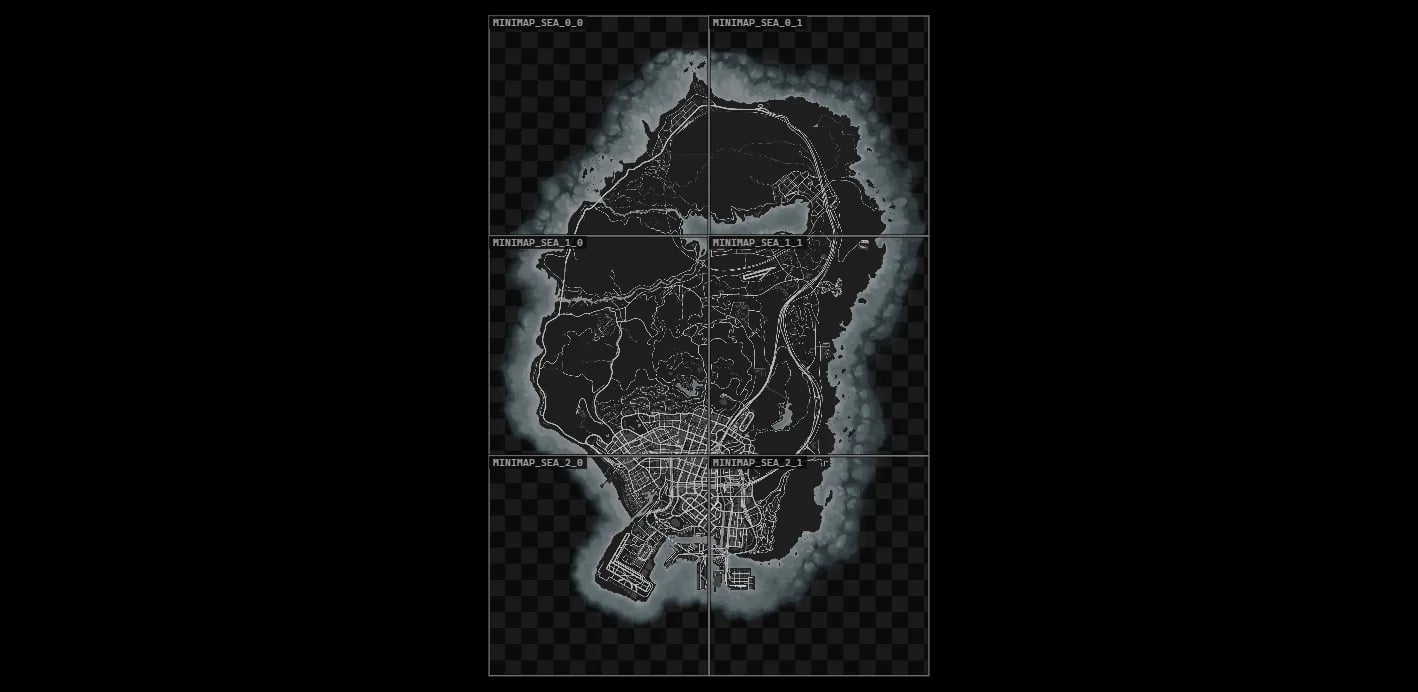
The minimap sheet with the seams between its parts.
Generate from the Map
Generate from the Map draws the minimap from the Map seen from above, in the style you choose, and puts the result on a new layer on top. It uses the map you generated or downloaded on this computer (Library).Choose a Style
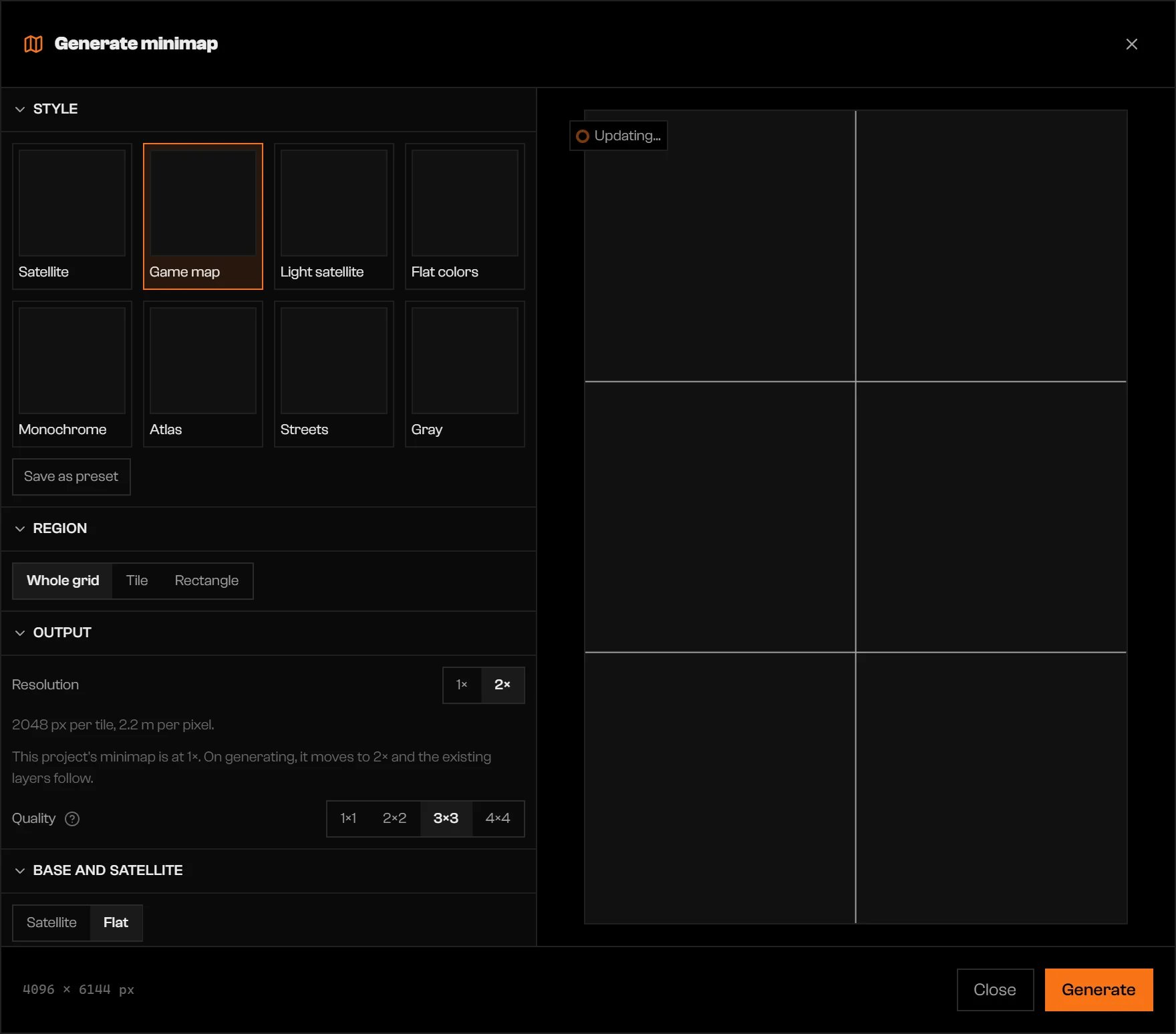
Generate minimap with a style, a region, and the preview.
Choose the Region
Set Resolution and Quality
1× or 2×, 2× by default. Quality is samples per pixel, from 1×1 to 4×4; 3×3 is the default. Each step takes longer: 4×4 costs sixteen times 1×1. The preview always uses 2×2.If the minimap is at a different resolution, the dialog warns that generating moves it to the new one and the existing layers follow.Tune the recipe (optional)
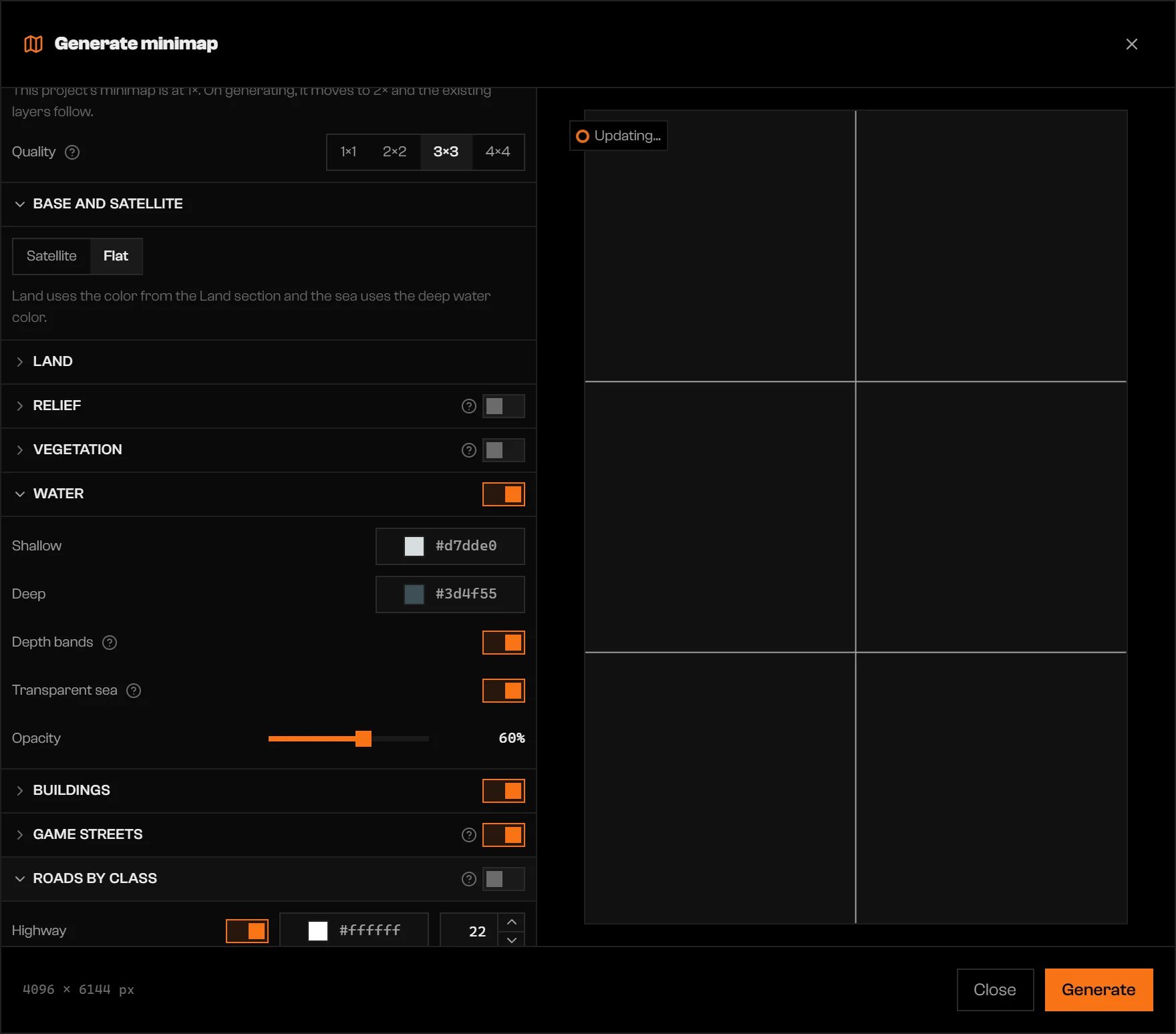
The Water and Roads by class sections open.
Click Generate
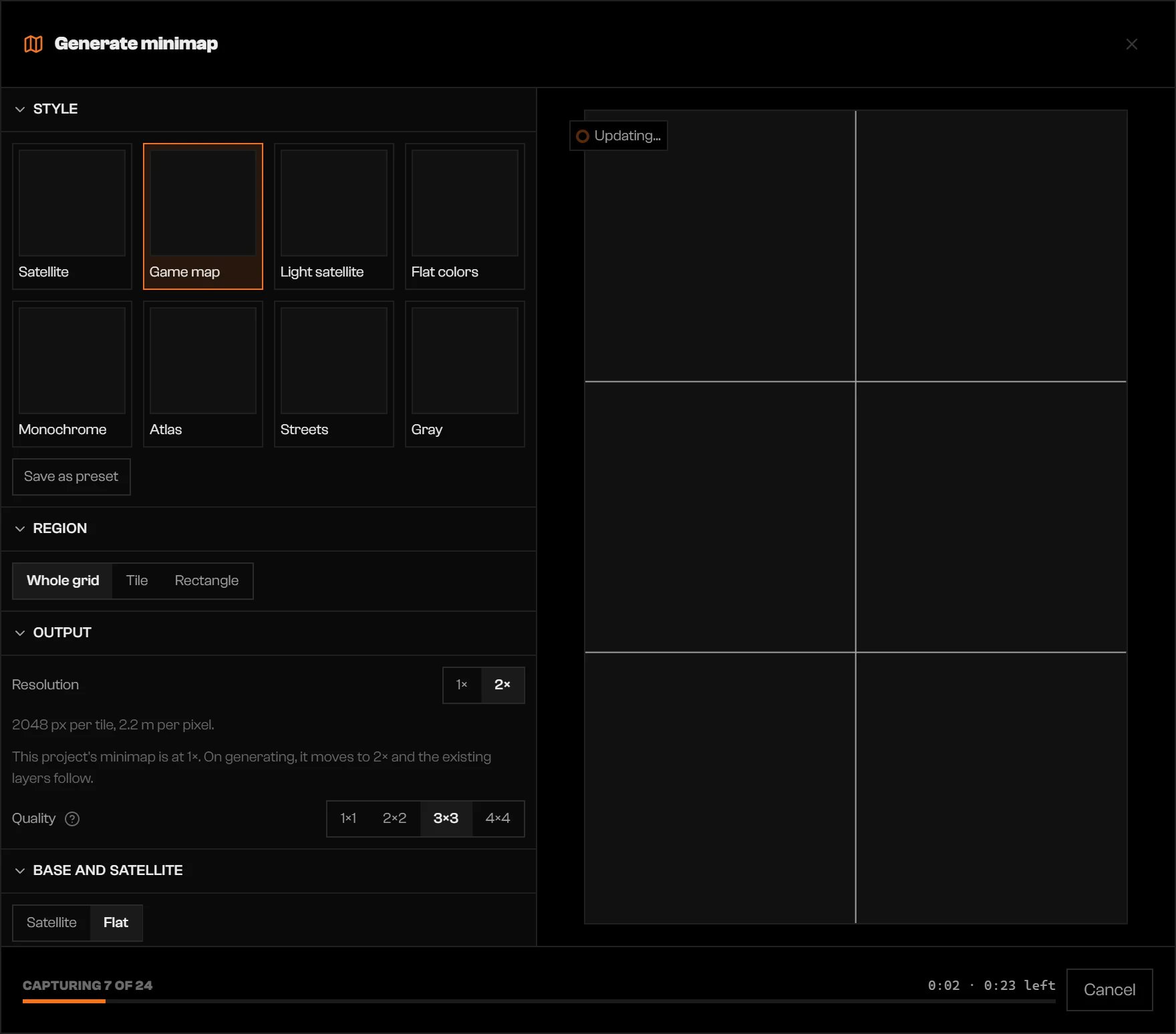
A capture in progress.
Use it in game
Export writes pause menu textures (minimap_sea_*.ytd), radar textures (minimap_*.ytd), and radar replacements (minimap_*.ydd) under stream/. It also adds client.lua, which reapplies radar zoom every ten seconds. Install the resource as described in Export a project.
Limits and plans
Generation reads the Map library on your computer, so the Map must be prepared or downloaded first. The extra map folders it can include follow your plan. If a message says the Map on your plan loads only the base game, or only some extra folders, the layers of the rest are not drawn. See rageon.dev/pricing.Troubleshooting
The map on this computer is not ready. Generate or download the map in the Map tab and try again.
The map on this computer is not ready. Generate or download the map in the Map tab and try again.
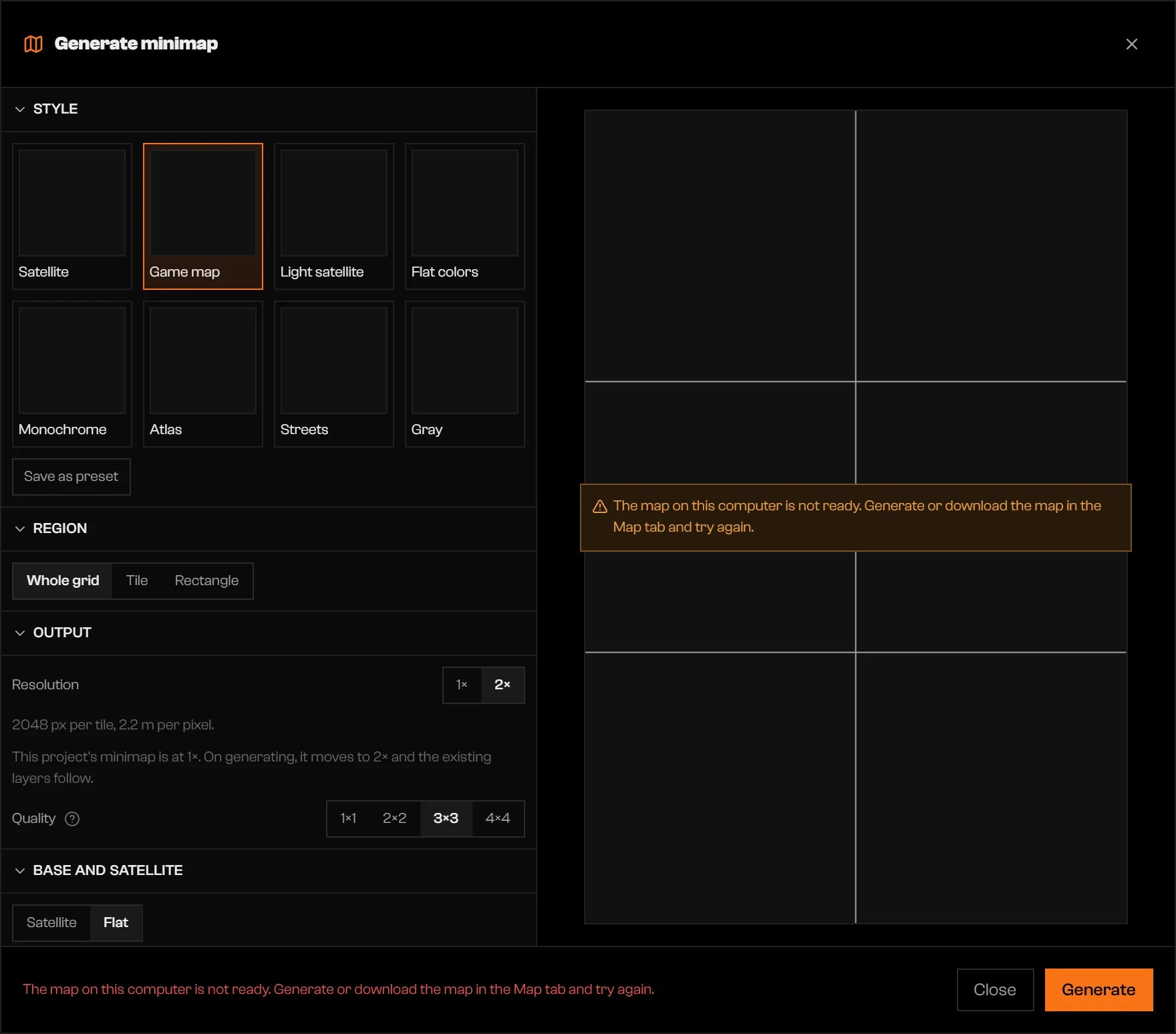
The not-ready message in the dialog.
The map on this computer is still being generated or downloaded in the Map tab. Wait for it to finish and try again.
The map on this computer is still being generated or downloaded in the Map tab. Wait for it to finish and try again.
The map on this computer is switching DLC level. Wait for it to finish and try again.
The map on this computer is switching DLC level. Wait for it to finish and try again.
The Map is still closing. Wait a few seconds and try again.
The Map is still closing. Wait a few seconds and try again.
The minimap is already being generated. Wait for it to finish and try again.
The minimap is already being generated. Wait for it to finish and try again.
Could not read the game map's water, streets and names. … This style depends on them; Satellite without layers is still available.
Could not read the game map's water, streets and names. … This style depends on them; Satellite without layers is still available.
Choose a style.
Choose a style.
Could not generate the minimap. …
Could not generate the minimap. …