
fxmanifest.lua, and a README.txt with install notes. The project needs content to export: a texture with a visible layer, a structure, a prop, or an emergency vehicle set to New model or with at least one customization.
Export for the first time
Open the Export menu
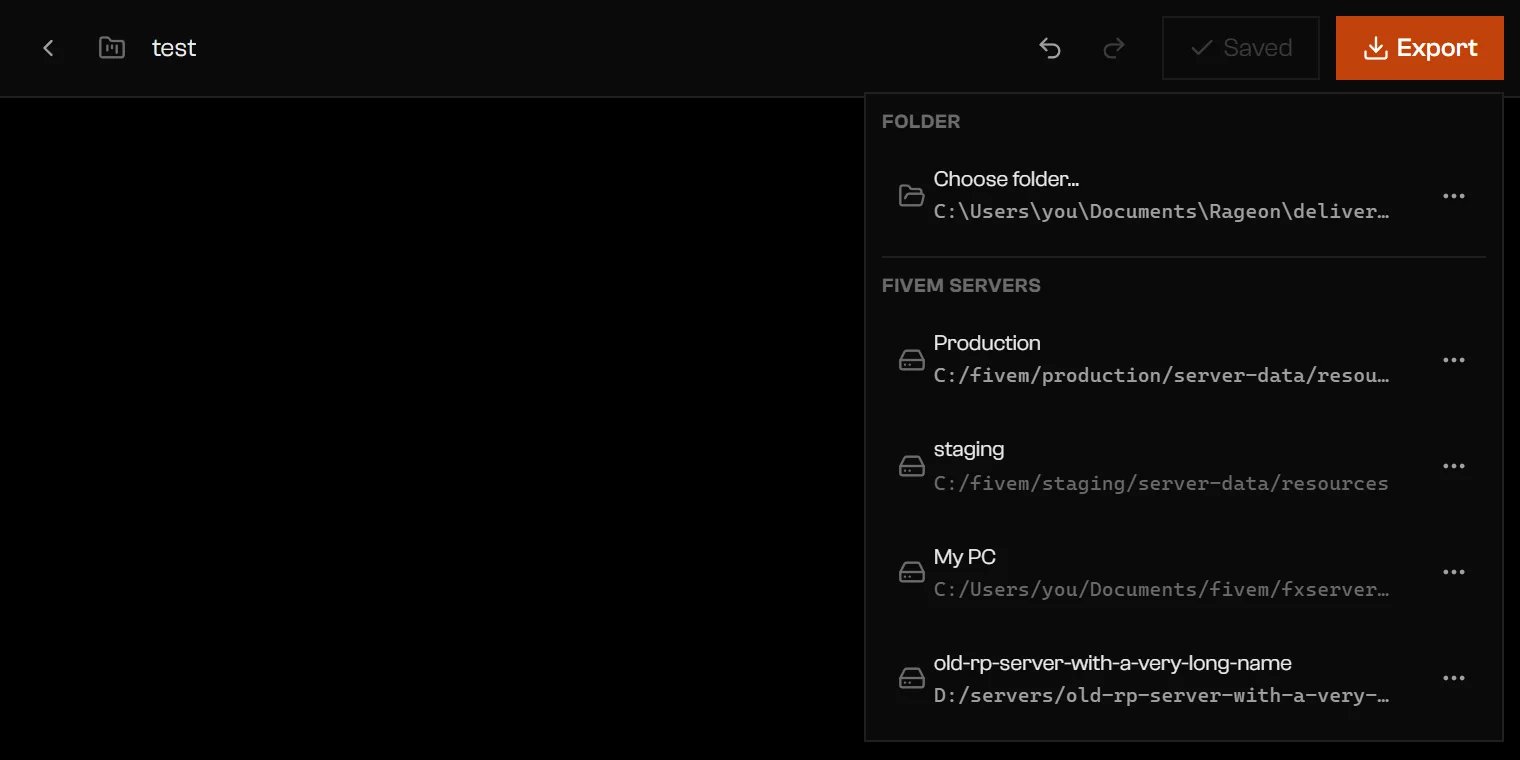
Export destinations: a folder and four linked servers.
Choose the destination
resources/ folder, or a category folder inside it: FiveM does not load a resource from anywhere else.Check the resource folder
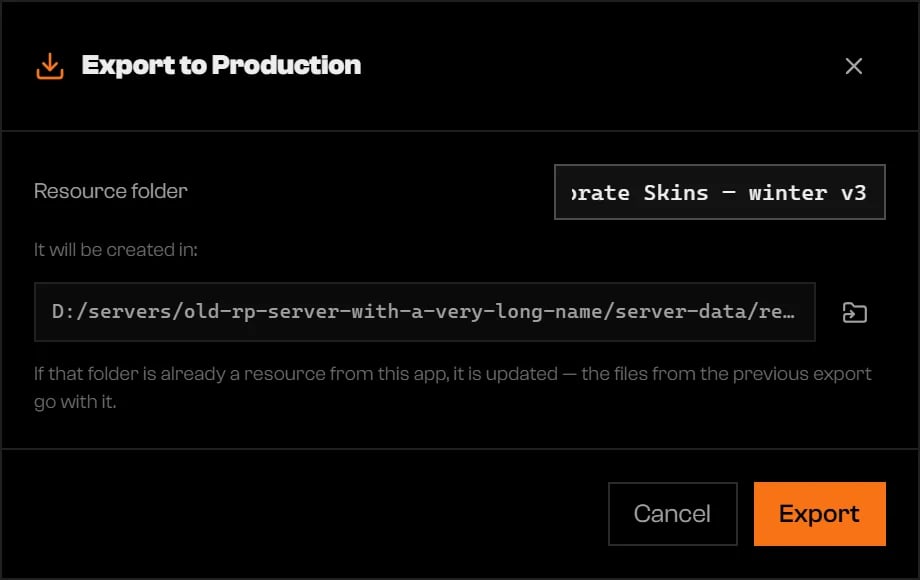
The resource folder name and where it will be created.
Follow the progress
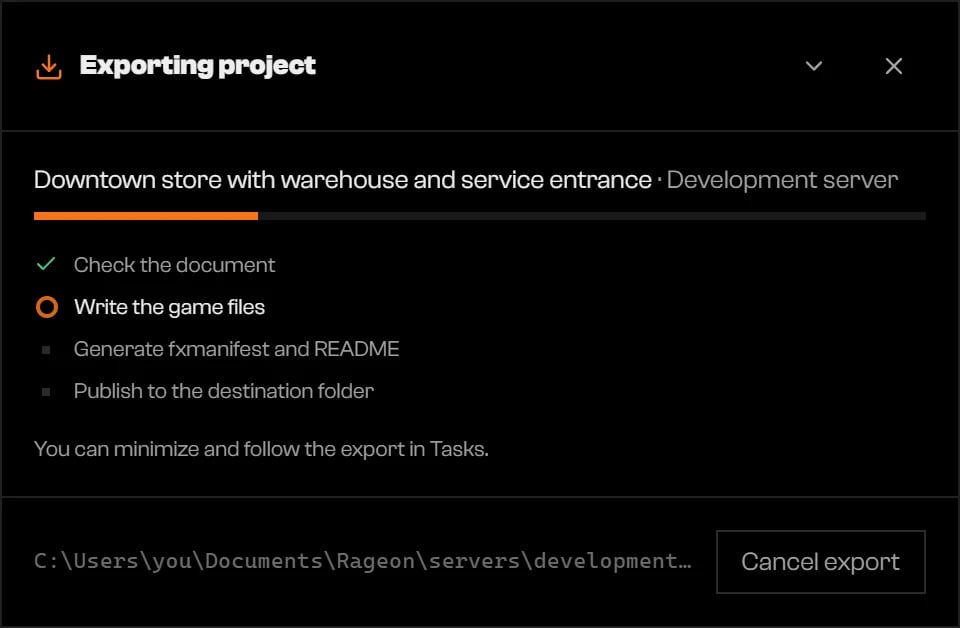
An export in its second phase.
Read the result
fxmanifest.lua and README.txt, which are not listed in that table. Open folder shows the result in your file manager.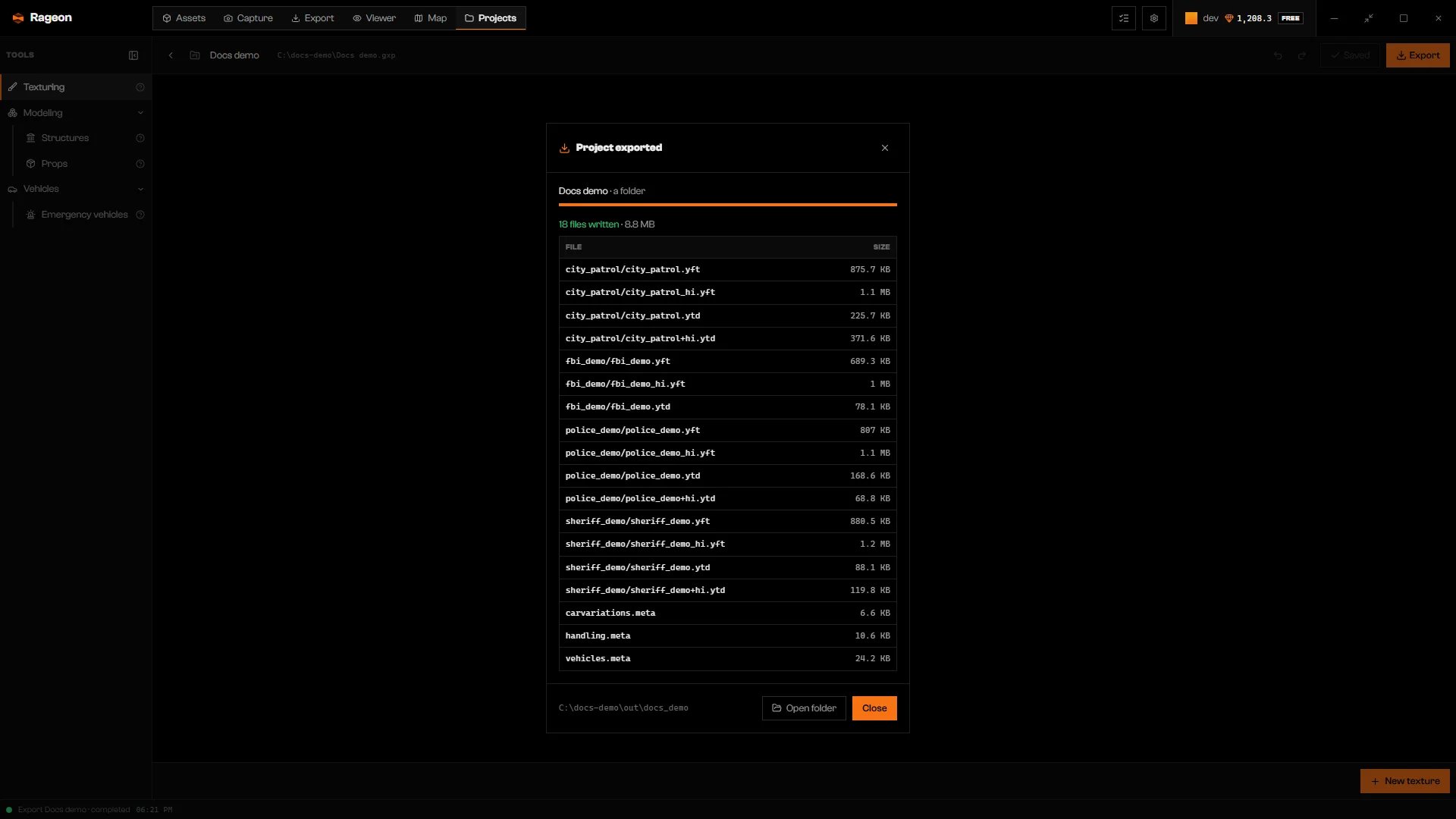
Game files written by the project export.
resources/. Add ensure <resource> to server.cfg, replacing <resource> with the exported folder name, then restart the server. Rageon does not add this line for you.
The folder name
The app cleans the name to lowercase letters, digits,_, and -, with no accents. It trims this cleaned name to 60 characters before adding r_ if it starts with a digit. An empty Resource folder field uses the project name; a name with no usable characters becomes rageon_mod. The path under the field shows the result; the field itself stays as you typed it.
Update an export
A destination you already used exports at once when you click it, with no dialogs. The new export replaces the previous resource completely: a file the project no longer produces disappears from the folder.- To change the folder or the name without exporting, use Resource folder and name… on the destination, adjust, and click Save.
- Inside a texture edit, structure, prop, or vehicle, the project menu has Export (Ctrl+E). It repeats the one destination the project remembers. With none or several remembered, it uses Choose folder…. A remembered folder destination updates directly; otherwise, Rageon asks for a folder and resource name.
- If the remembered folder no longer exists, Rageon asks for a folder again.
Minimize or cancel
Minimize export hides the dialog and the export keeps running. Follow it, and reopen it, from the Tasks list. Cancel export works until the last phase starts. A canceled export publishes nothing, and the previous resource stays as it was.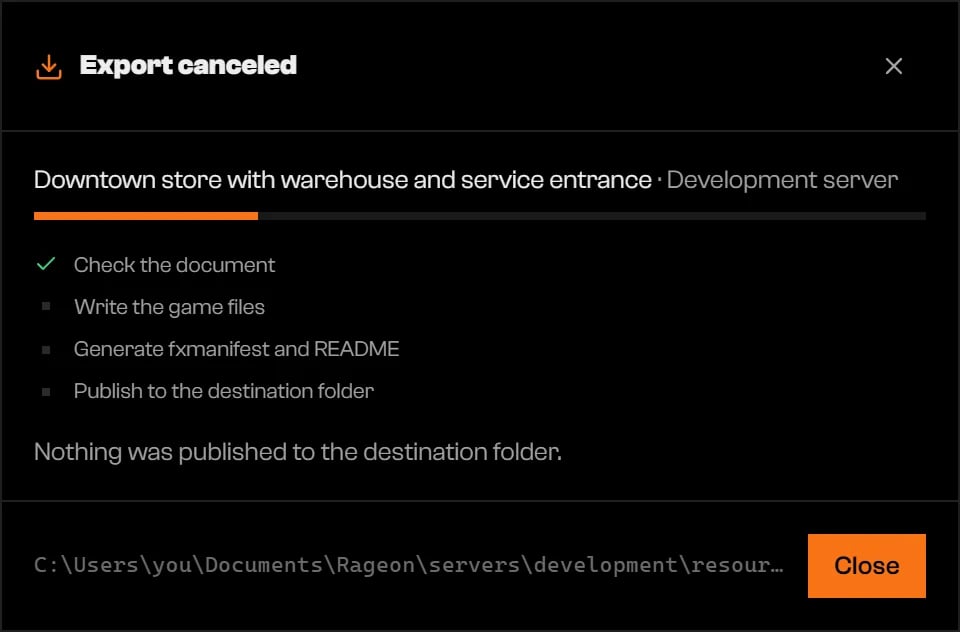
A canceled export leaves the destination untouched.
Warnings
Read Warnings before installing the resource. Some warnings mean part of a vehicle’s requested changes was left out; a successful export does not guarantee every change was written.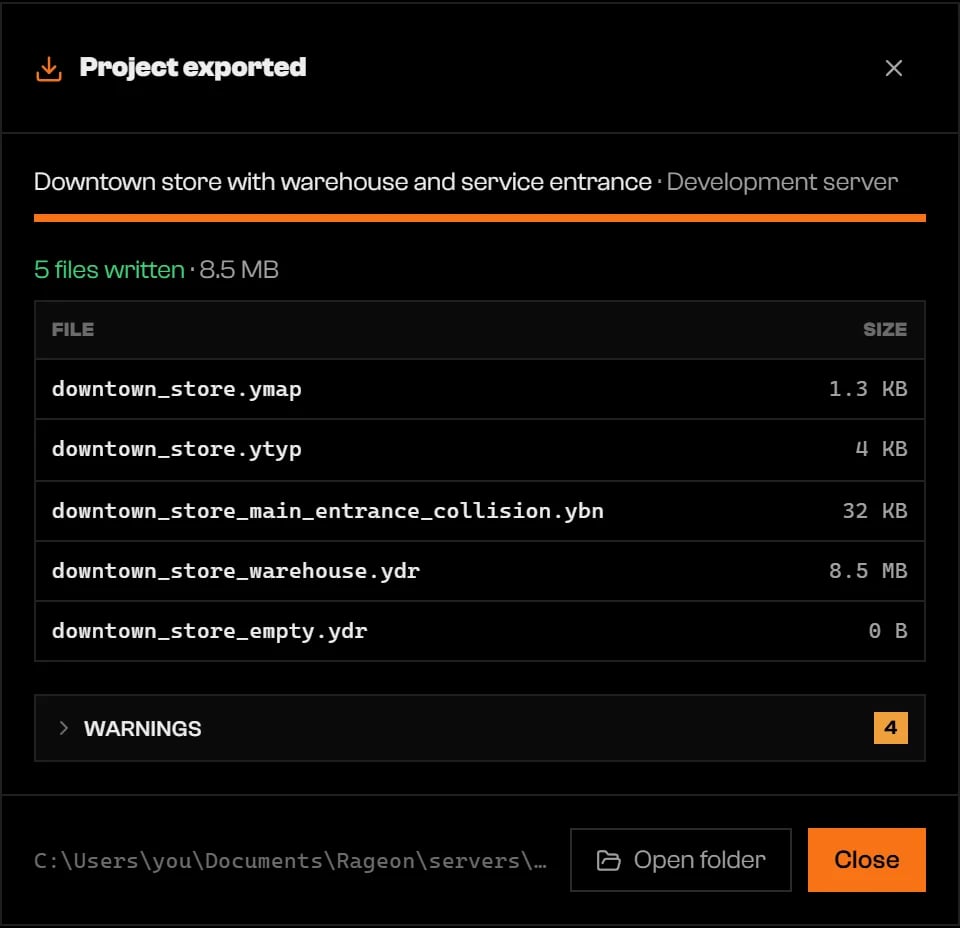
A finished export with four warnings.
What each tool writes
Texture edits, structures, props, and emergency vehicles all go into the one resource. An emergency vehicle with a new model exports to its own folder understream/. Colors, sirens, and handling go into the vehicle’s meta files, and parts, wheels, and extras need the Lua snippet in the export’s README.txt, run by your server script after each vehicle is created. See Emergency vehicles.
For emergency vehicles, carvariations.meta holds color overrides, carcols.meta holds edited sirens, and handling.meta holds handling changes at the resource root. A New model also adds vehicles.meta, viaturas.lua for the in-game name, and model files under stream/<spawn name>/. Vehicles with lightbars also write .yft model files under stream/<model>/. Files are included as needed.
For in-game texture swaps, install and start rageon-bridge before starting the exported resource. If export warns that the server’s bridge is missing or outdated, update it in Settings › Bridge and restart the server. Export can still finish with this warning.
Limits and plans
Export checks textures per project, structures per project, and interiors per structure against your current plan. Servers beyond your plan’s limit stay in your list but do not appear as destinations. Details are on the pricing page.Troubleshooting
The project has nothing to export: no texture with layers and no structure, prop or emergency vehicle with content.
The project has nothing to export: no texture with layers and no structure, prop or emergency vehicle with content.
No visible layer to export.
No visible layer to export.
No content could be exported.
No content could be exported.
The folder must be inside the server's resources/ — outside it FiveM does not load the resource.
The folder must be inside the server's resources/ — outside it FiveM does not load the resource.
resources/ folder.The destination folder exists and is not a resource. Choose another name.
The destination folder exists and is not a resource. Choose another name.
fxmanifest.lua. Choose another Resource folder name.The destination folder is in the app sources, and its ….yft is already the previous export. Remove the folder from the app sources or export to another folder.
The destination folder is in the app sources, and its ….yft is already the previous export. Remove the folder from the app sources or export to another folder.
Export blocked: …
Export blocked: …
Two liveries use different entries of model "…".
Two liveries use different entries of model "…".
The new model "…" also receives a Texturing livery.
The new model "…" also receives a Texturing livery.
Emergency vehicle "…" (…) is missing …; the resource was not published.
Emergency vehicle "…" (…) is missing …; the resource was not published.
An export is already in progress
An export is already in progress
Your session predates the plan limits. Sign in to your account again.
Your session predates the plan limits. Sign in to your account again.
Export failed: …
Export failed: …