
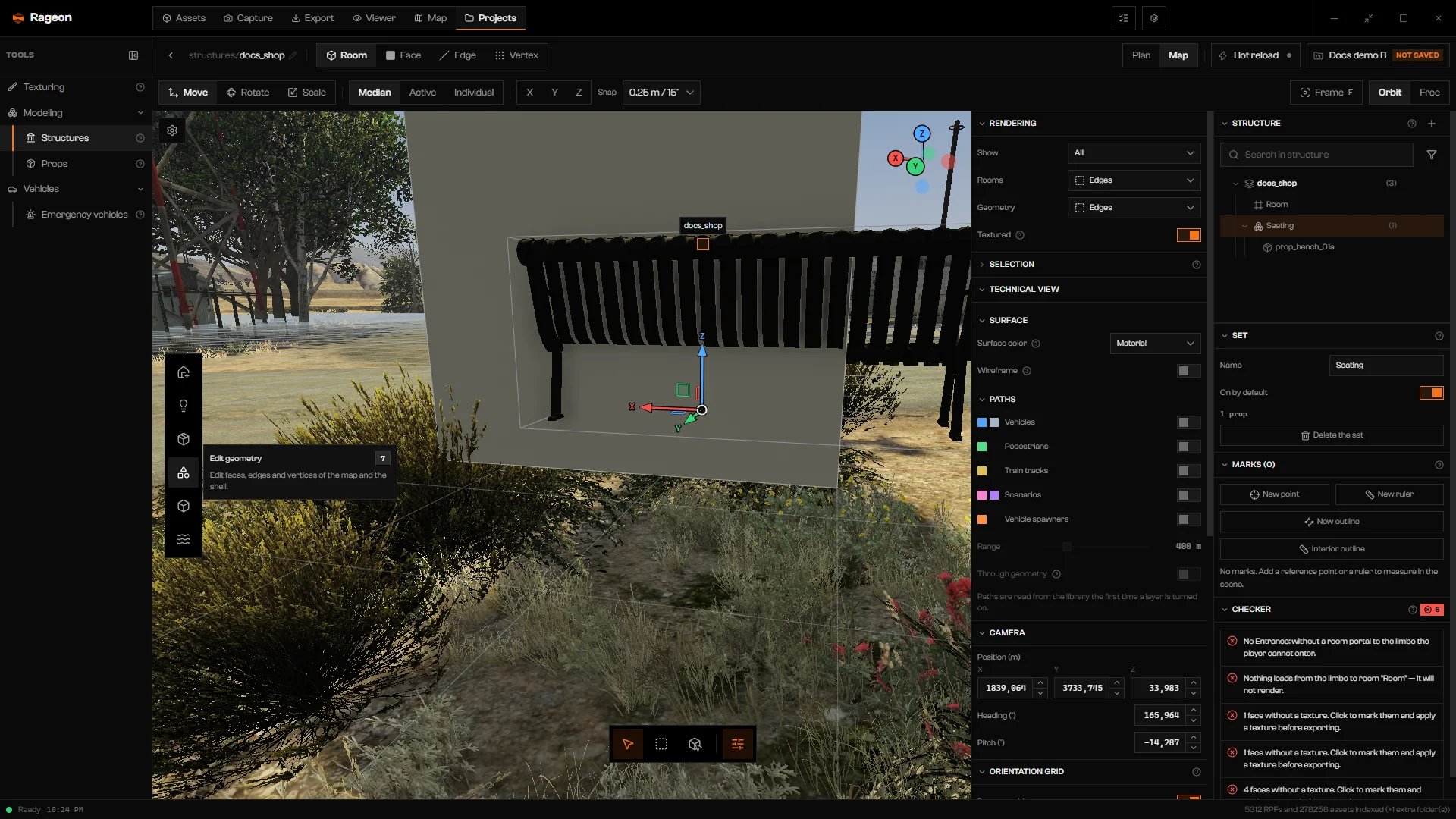
The left dock. Props is the third button; Edit geometry shows its tooltip.
Place a prop
Open the prop library
5. The Prop library opens on From the game, and the dock switches to the prop level (Prop tools).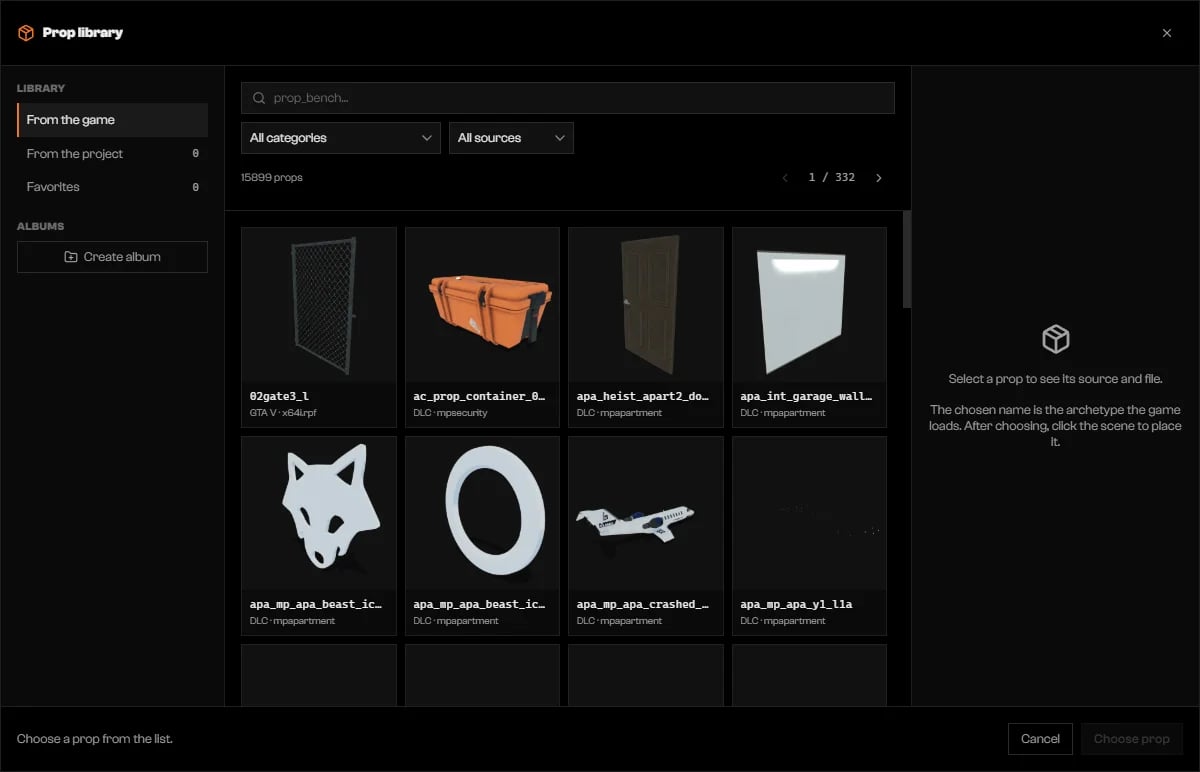
Prop library on From the game.
Find the prop
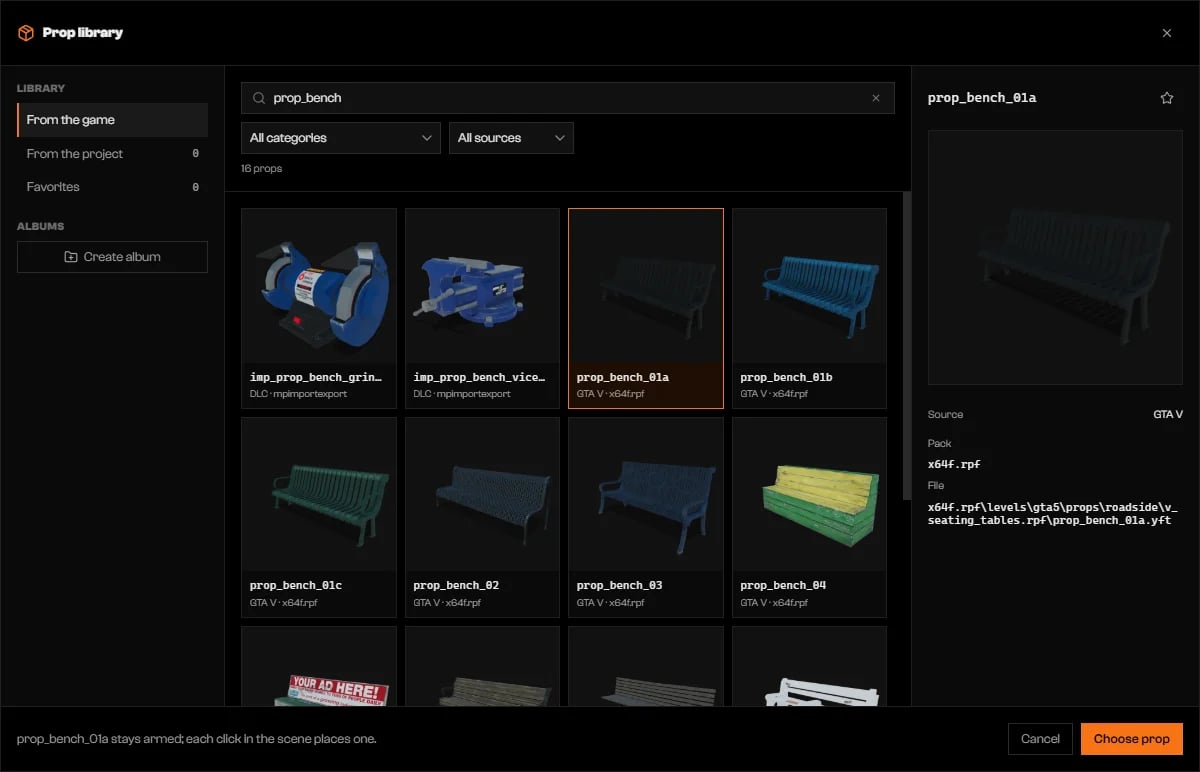
Searching prop_bench with one tile selected.
Click Choose prop
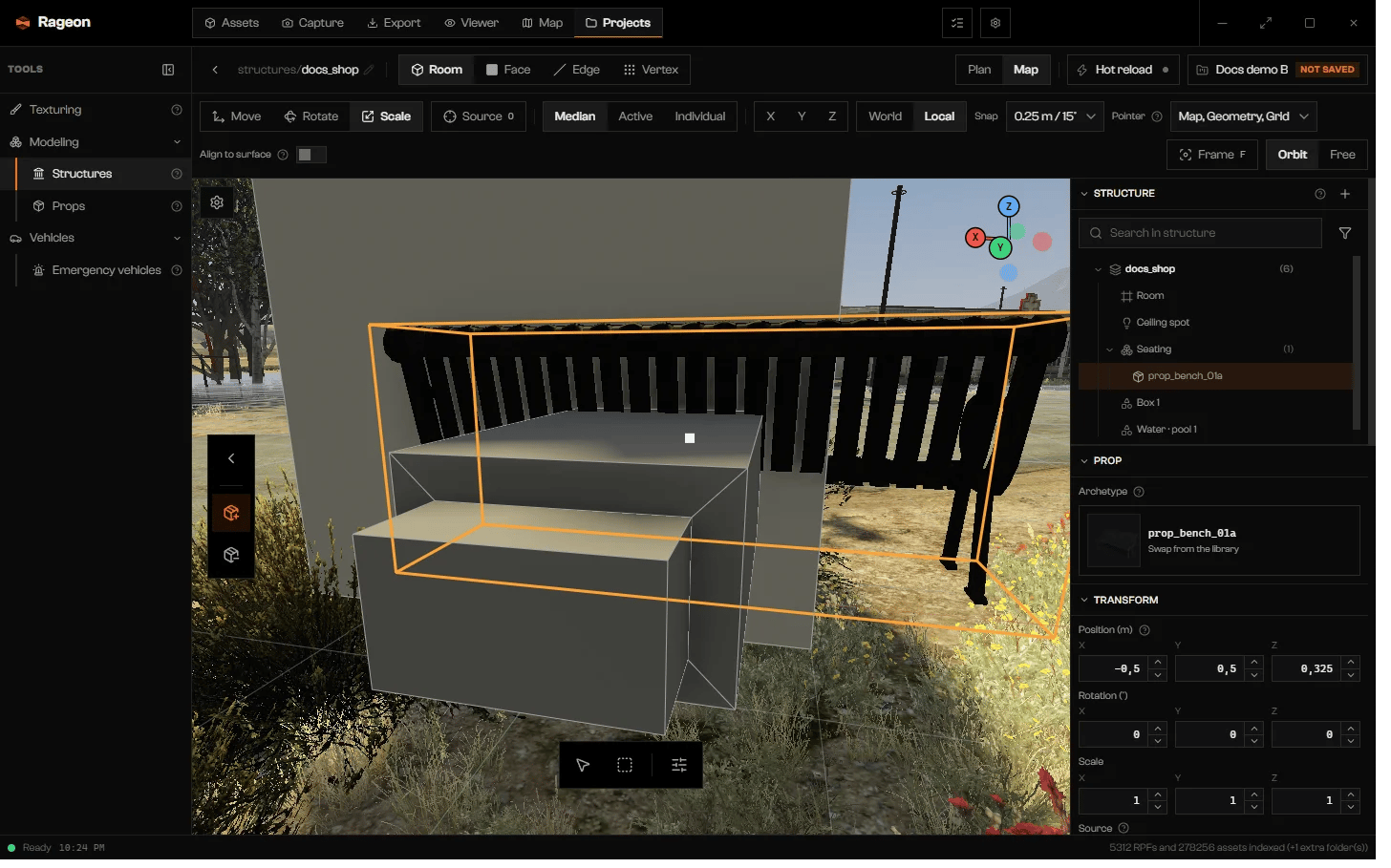
Armed prop: the prop dock on the left, Pointer and Align to surface in the bar above.
Click the scene
5 and choose again.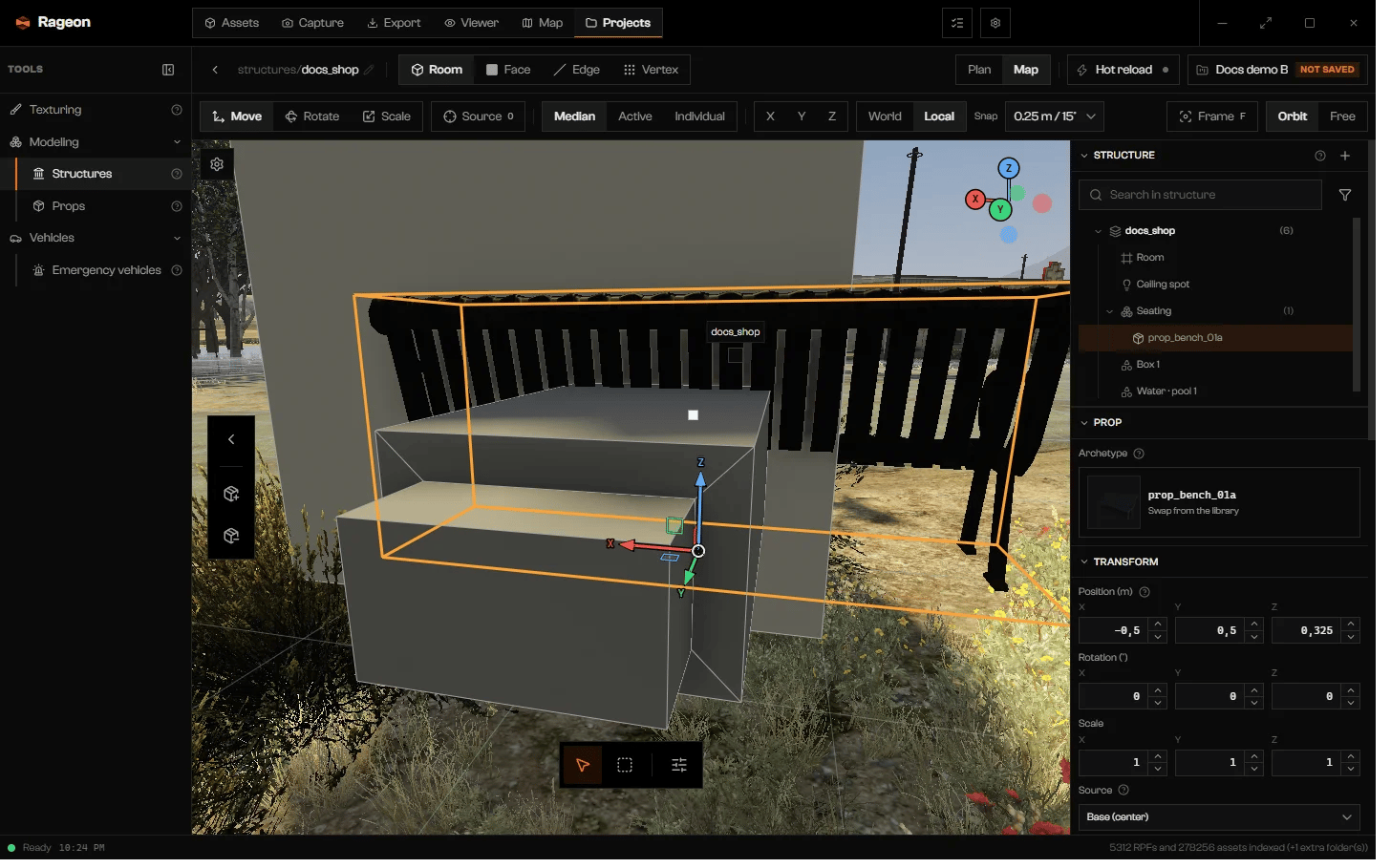
A placed bench, selected, with its Prop and Transform sections.
Favorites and albums
Click the star on a game prop to add it to Favorites. Create album makes your own list (1 to 64 characters, unique name); use Add to an album on a prop to file it. Double-click an album name to rename it. Deleting an album keeps its props.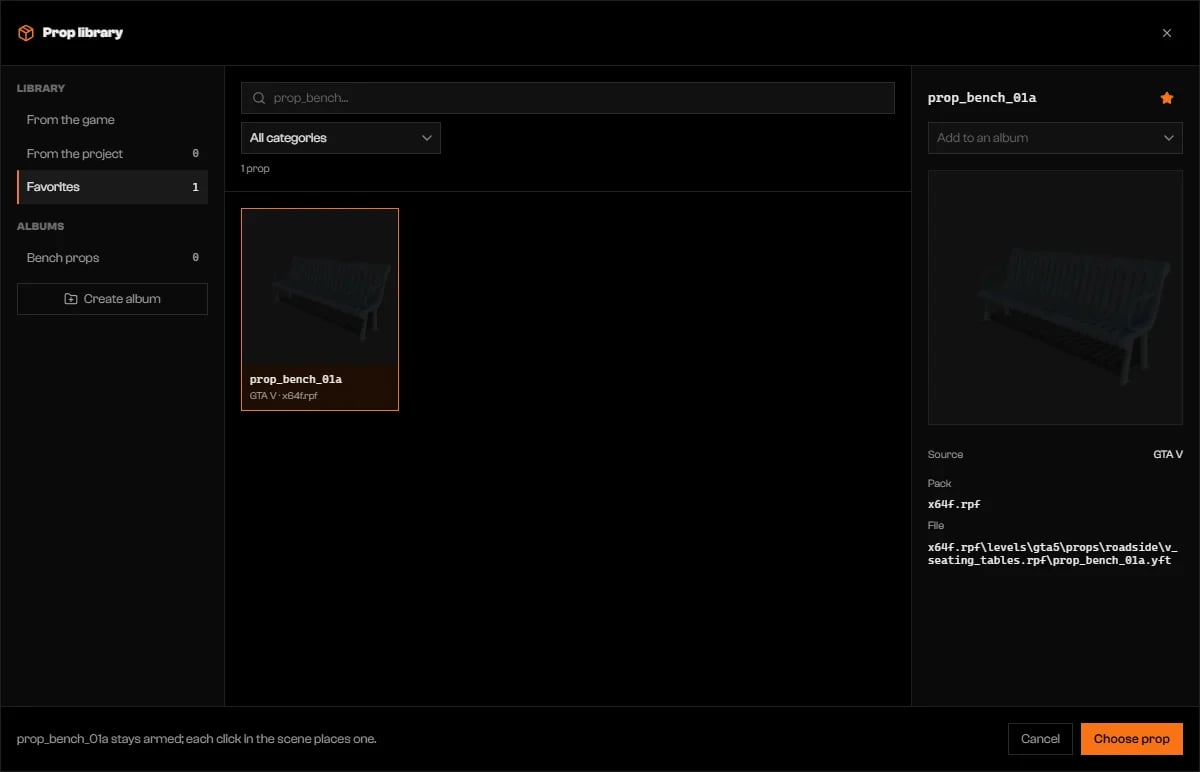
A starred prop under Favorites and a new album.
Props from your project
From the project lists the props you made in the Props tool. Placing one creates an instance that follows later edits of the prop. In the Prop section, Project prop shows the file, and Edit prop opens it in the Props tool.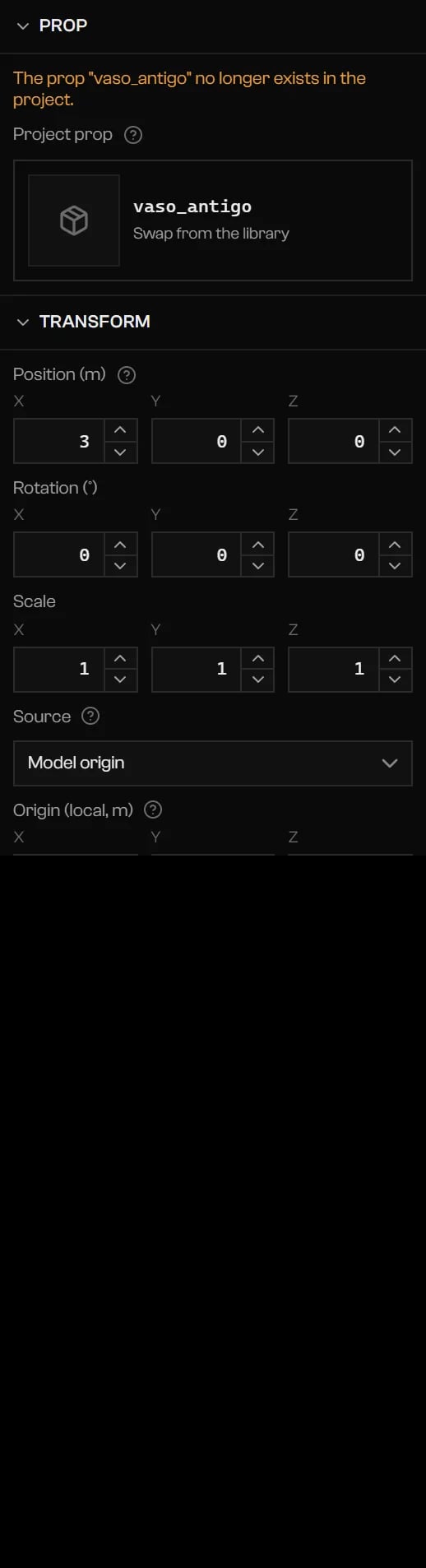
A project prop whose file was deleted: the Prop section warns and offers the library.
Move, rotate, and scale
Select a prop in the scene or the tree, then pressG, R, or S to move, rotate, or scale with the gizmo. X, Y, and Z lock an axis, and Snap sets the step. For exact values use Transform: Position (m), Rotation (°), and Scale.
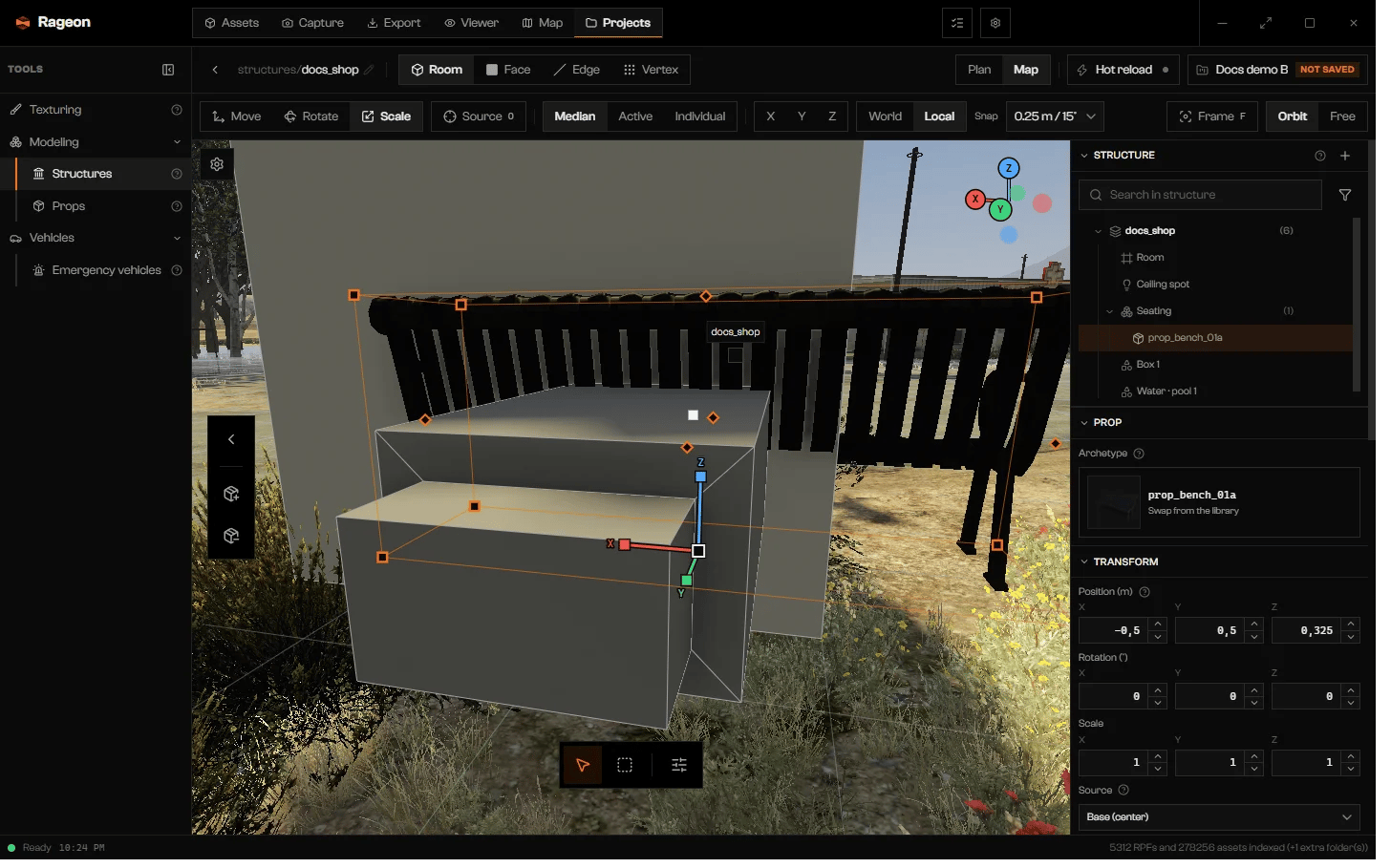
The Transform section with Scale active.
Change the pivot
Rotation and scale pivot around the prop’s transform origin, and Position (m) reads that point, not the model origin. PressO (button Source) and click an origin handle on the prop’s box, or pick a point in the Source list: Model origin, Base (center), Top (center), Box center, faces, corners, edges, or Custom. Origin (local, m) shows the same point as numbers.
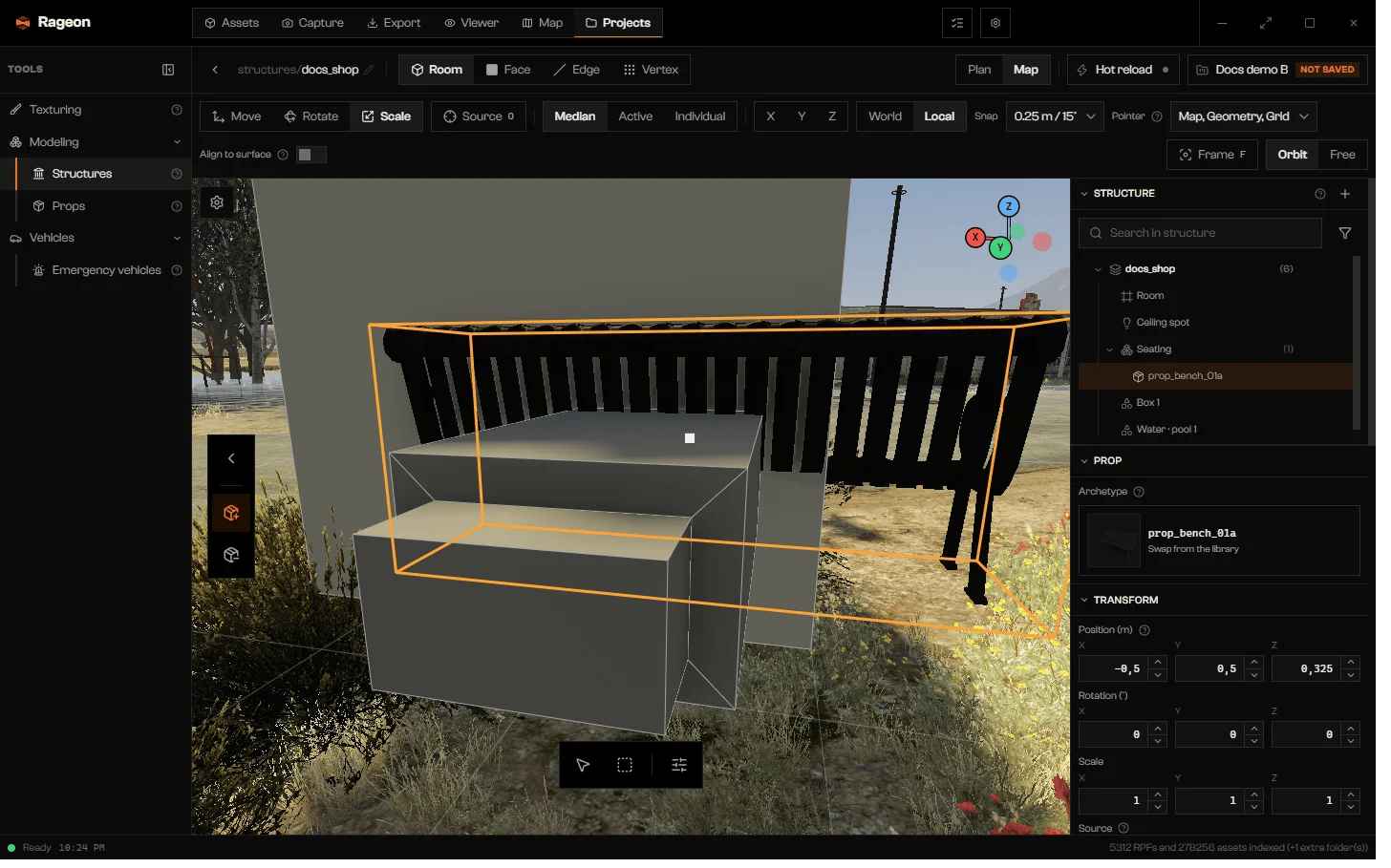
Handles on the prop's box.
Placement
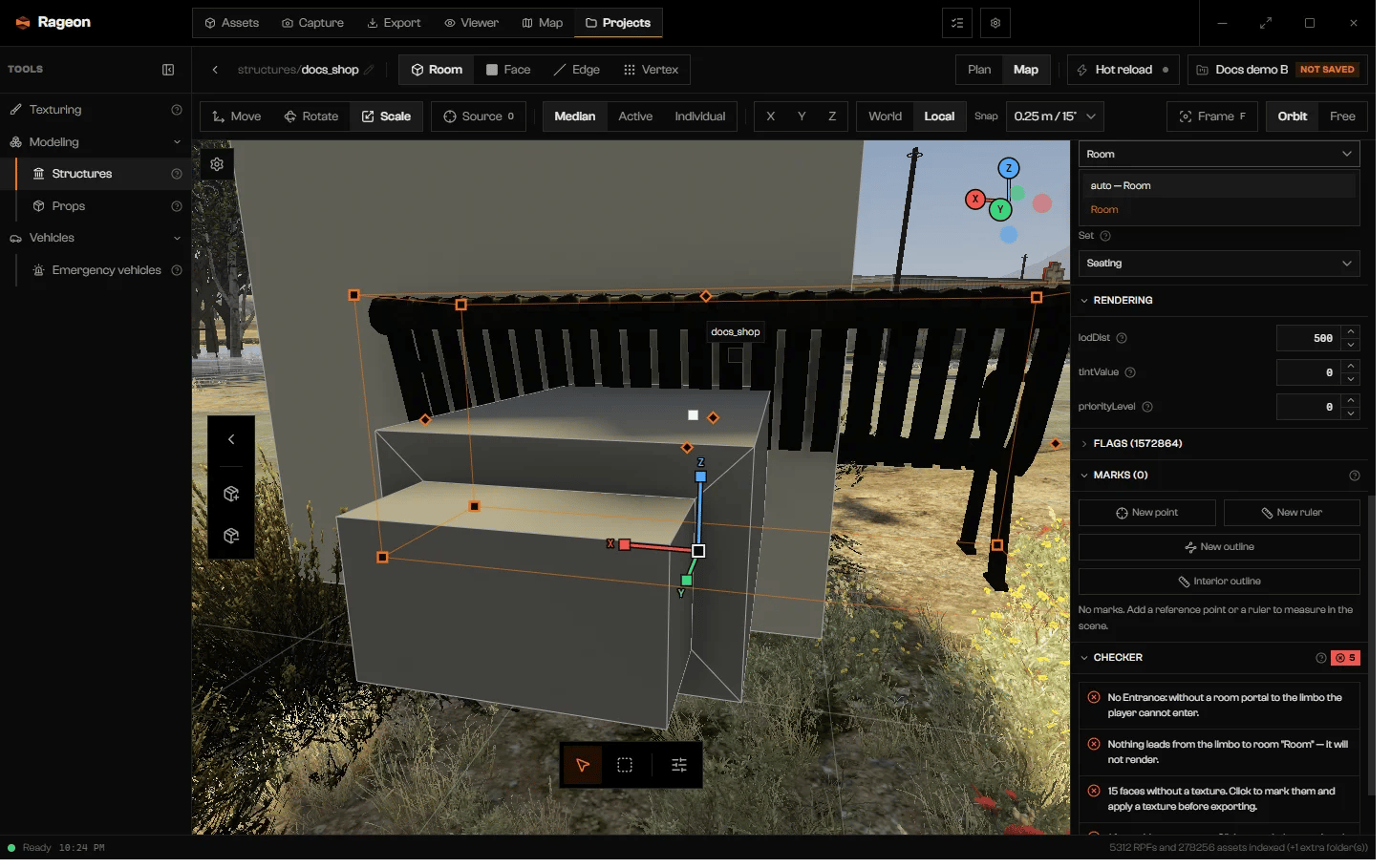
The Room list open, showing auto and the room name. Portal and Set sit below it.
Rendering and flags
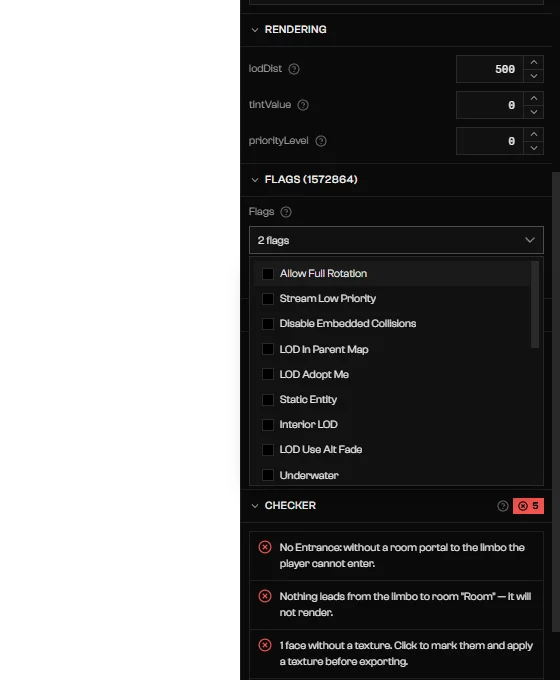
The Flags list open on a prop.
Remove a prop
Select it and pressDel, or choose Remove prop in Prop tools (Shift 5) and click each prop in the scene. Ctrl Z undoes.
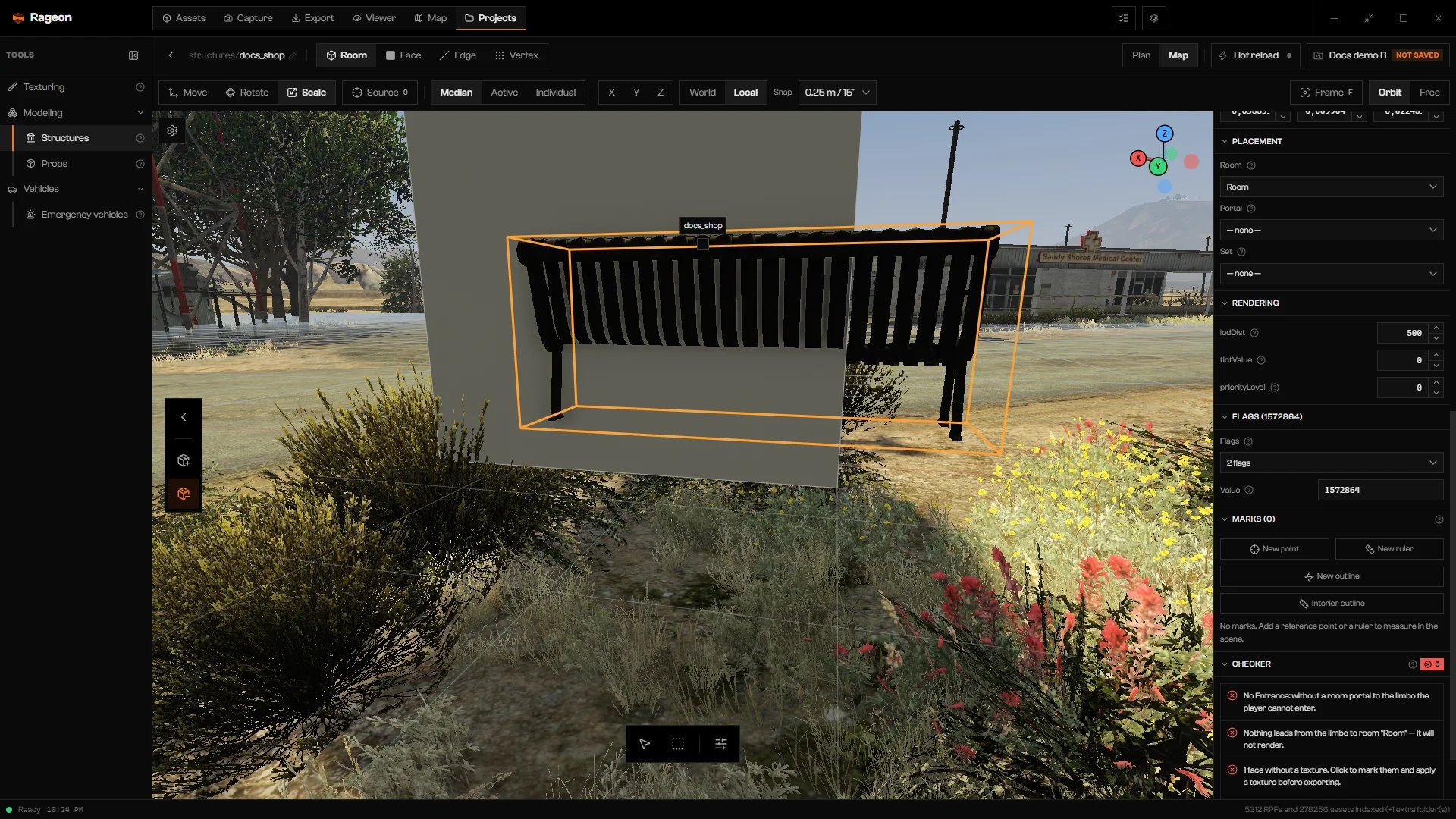
Remove prop armed in the prop dock.
Swap the model
Click the Archetype card (or Project prop) in the Prop section. The library opens in swap mode; pick a tile and click Swap prop. Position, rotation, room, portal, and set stay.Troubleshooting
No props found. Try another name, source or category.
No props found. Try another name, source or category.
Could not search props
Could not search props
No props in this project. Create one in Modeling › Props.
No props in this project. Create one in Modeling › Props.
The prop "…" no longer exists in the project.
The prop "…" no longer exists in the project.
"…" is outside any room and will fall into the limbo.
"…" is outside any room and will fall into the limbo.
"…" is attached to a portal and in a set: release it from one of the two.
"…" is attached to a portal and in a set: release it from one of the two.
An archetype "…" already exists in the game: this structure will overwrite the original.
An archetype "…" already exists in the game: this structure will overwrite the original.
Doors ignore scale in game: "…" will show at its own size. Pick a door model that fits the opening.
Doors ignore scale in game: "…" will show at its own size. Pick a door model that fits the opening.
An album with that name already exists.
An album with that name already exists.