
Capture weapons
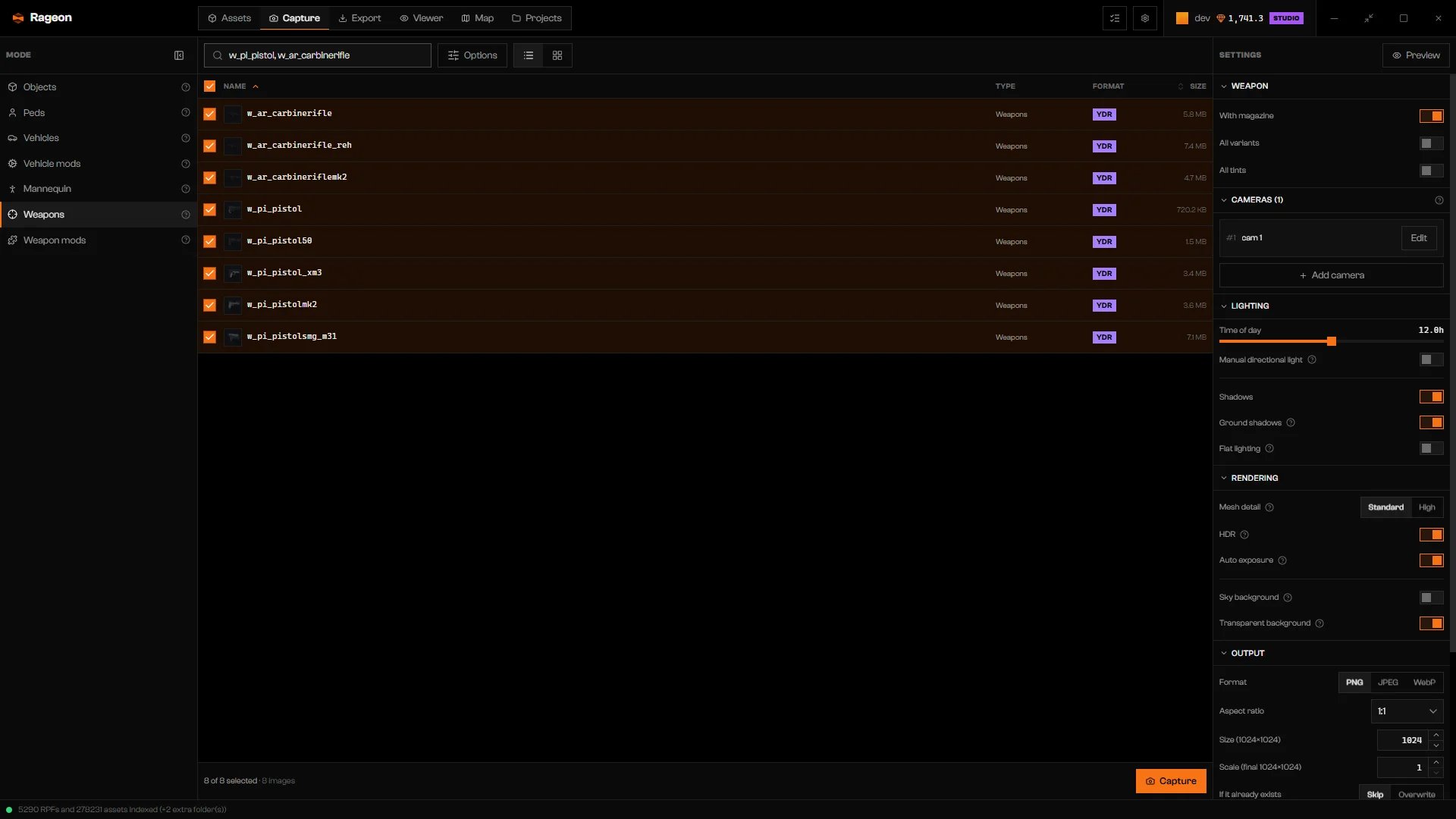
Weapons mode with magazine, variant, and tint options.
Open Weapons
w_: w_pi_pistol is the pistol and w_ar_carbinerifle the carbine rifle. Do not search by the command name.Choose what each weapon includes
Name the extra images
Preview and capture
Capture weapon mods
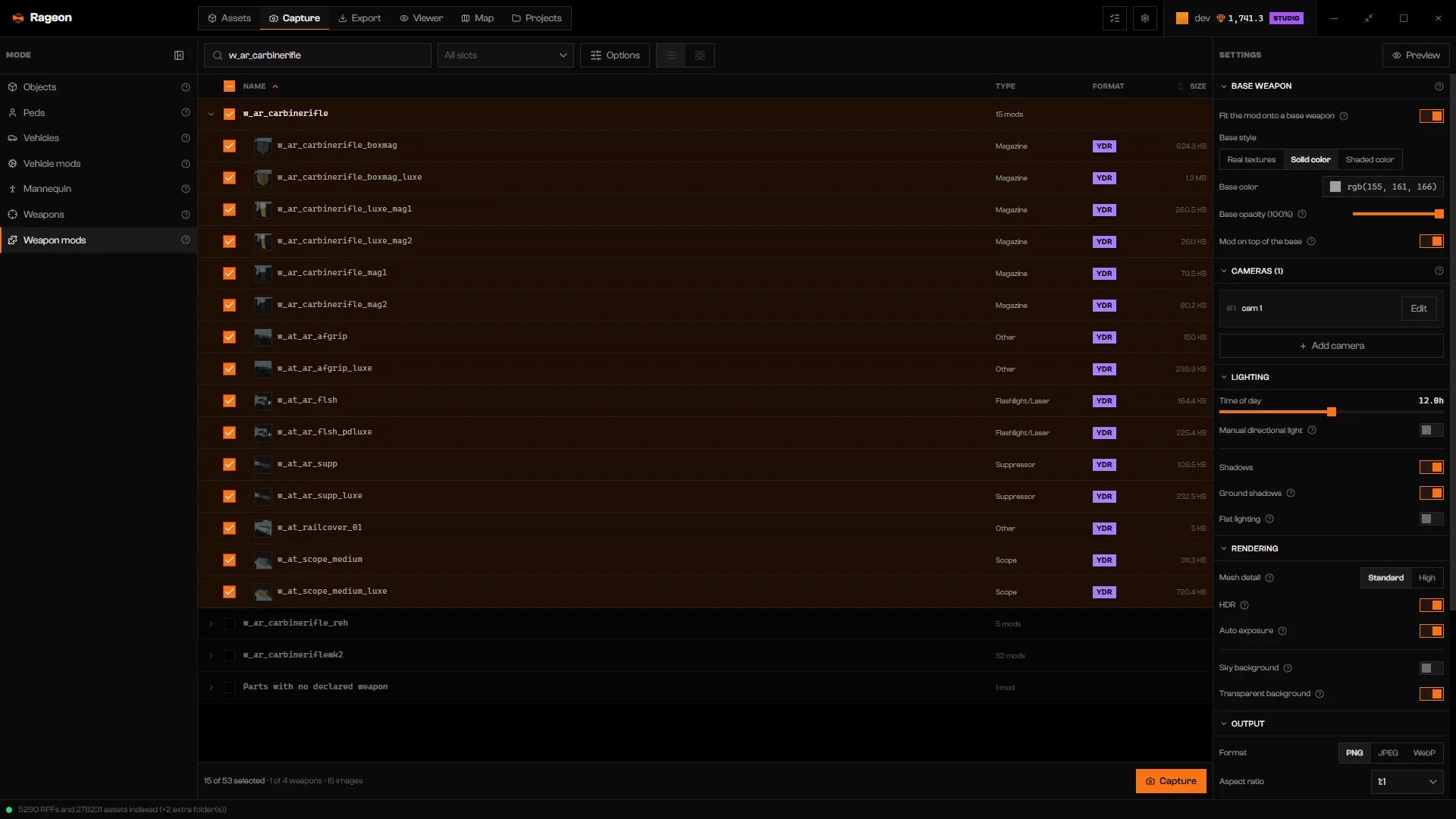
Weapon mods mode with a weapon's attachments expanded.
Open Weapon mods
Choose parts
Set how the weapon looks under the part
Base weapon options
File names
Besides the general variables, weapon modes add these.- All variants needs
{{weapon_variant}}. - All tints needs
{{weapon_tint}}or{{weapon_tint_name}}. - Parts from several weapons need
{{weapon_base}}or{{weapon_base_name}}.
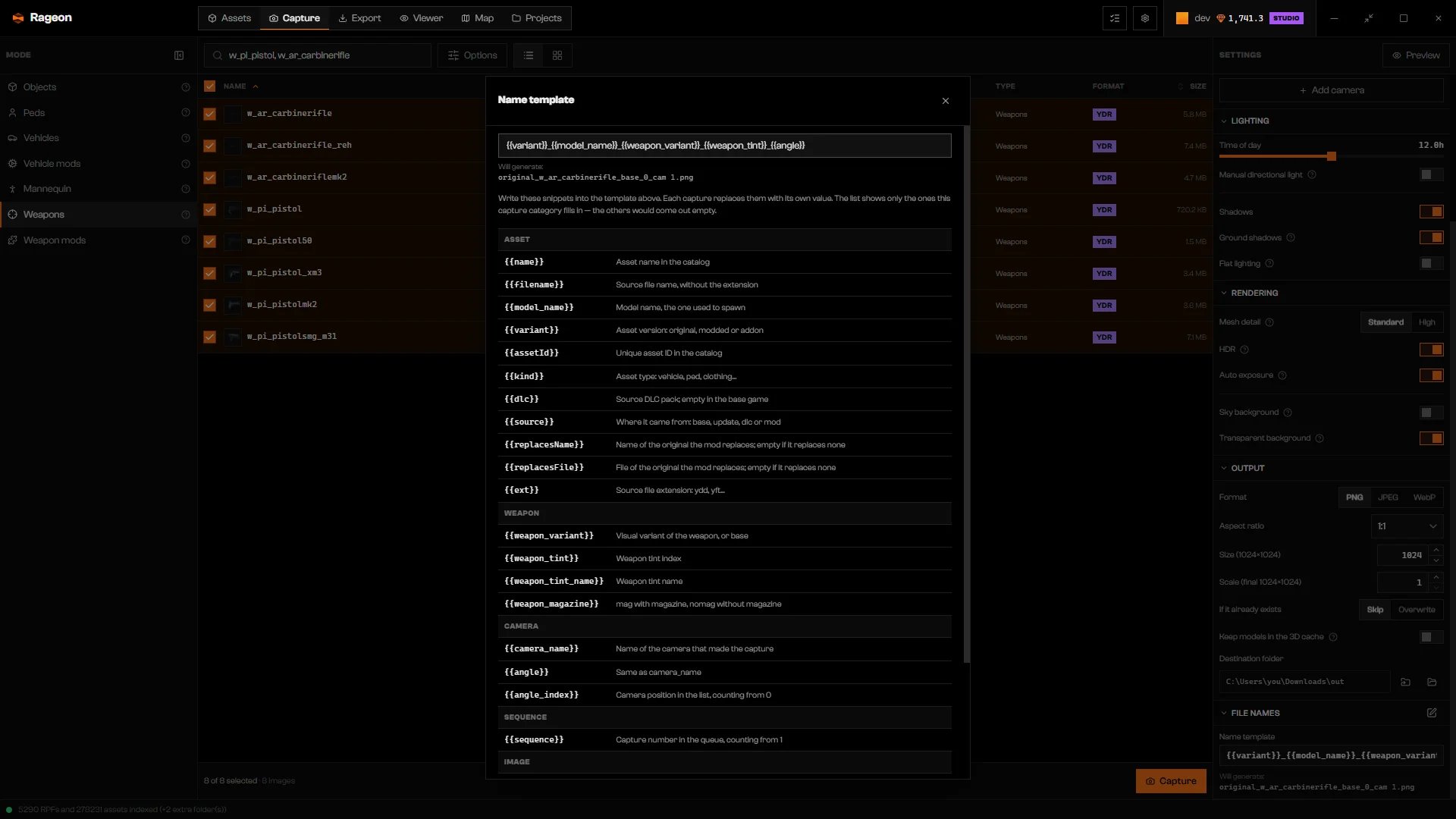
A name template that covers variants and tints.
{{variant}}_{{model_name}}_{{weapon_variant}}_{{weapon_tint}}_{{angle}} covers everything.
Troubleshooting
No weapons with mods here. Change the slot or clear the search.
No weapons with mods here. Change the slot or clear the search.
Edit the name template and add {{weapon_variant}} for the variants.
Edit the name template and add {{weapon_variant}} for the variants.
{{weapon_variant}} to the Name template under File names.Edit the name template and add {{weapon_tint}} or {{weapon_tint_name}} for the tints.
Edit the name template and add {{weapon_tint}} or {{weapon_tint_name}} for the tints.
{{weapon_tint}} or {{weapon_tint_name}} to the Name template.Edit the name template and add {{weapon_variant}} for the variants and {{weapon_tint}} or {{weapon_tint_name}} for the tints.
Edit the name template and add {{weapon_variant}} for the variants and {{weapon_tint}} or {{weapon_tint_name}} for the tints.
Edit the name template and add {{weapon_base}} — with more than one base weapon, captures of the same piece overwrite each other.
Edit the name template and add {{weapon_base}} — with more than one base weapon, captures of the same piece overwrite each other.
{{weapon_base}} or {{weapon_base_name}} to the Name template.