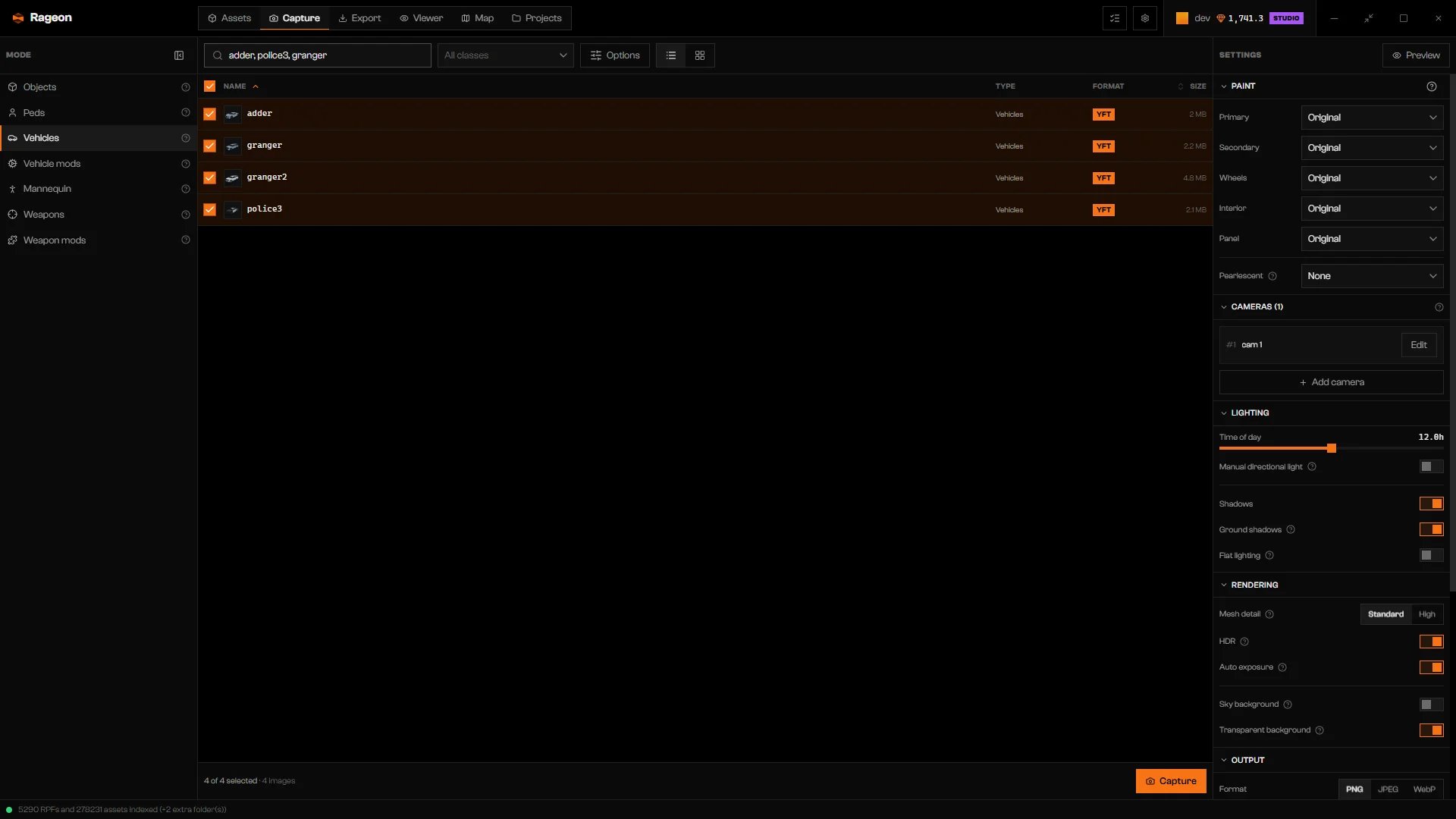
Capture whole vehicles with an optional respray, or mod-shop parts on the car they belong to.
Vehicles renders whole cars. Vehicle mods renders mod-shop parts such as bumpers, spoilers, and hoods. To paint and save one car by hand, use the Viewer (Vehicles and Image capture).
Click Capture, then Vehicles. Search by model name, such as adder, police3, granger. All classes limits the list to GTA vehicle classes.
2
Respray (optional)
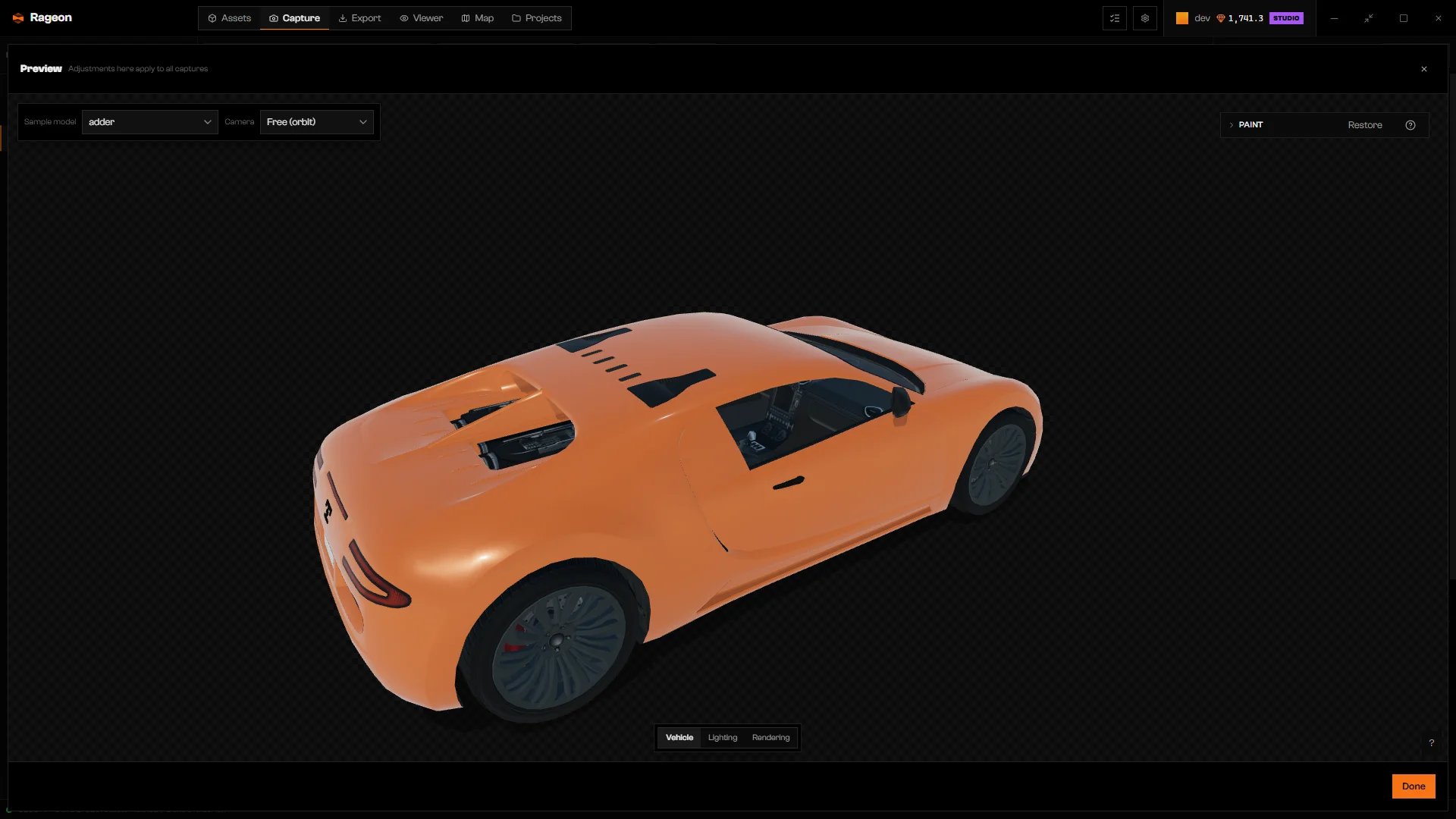
Paint applies one respray to every captured vehicle. Leave a layer on Original to keep the factory look. A vehicle without a given layer keeps its own look there.
Preview of the Adder after the respray.
3
Check it in Preview
Click Preview, pick a car in Sample model, then open the Vehicle tab. Change framing with Camera and Edit camera (Cameras).
4
Click Capture
Set Output first. Every selected vehicle gets one image per camera.
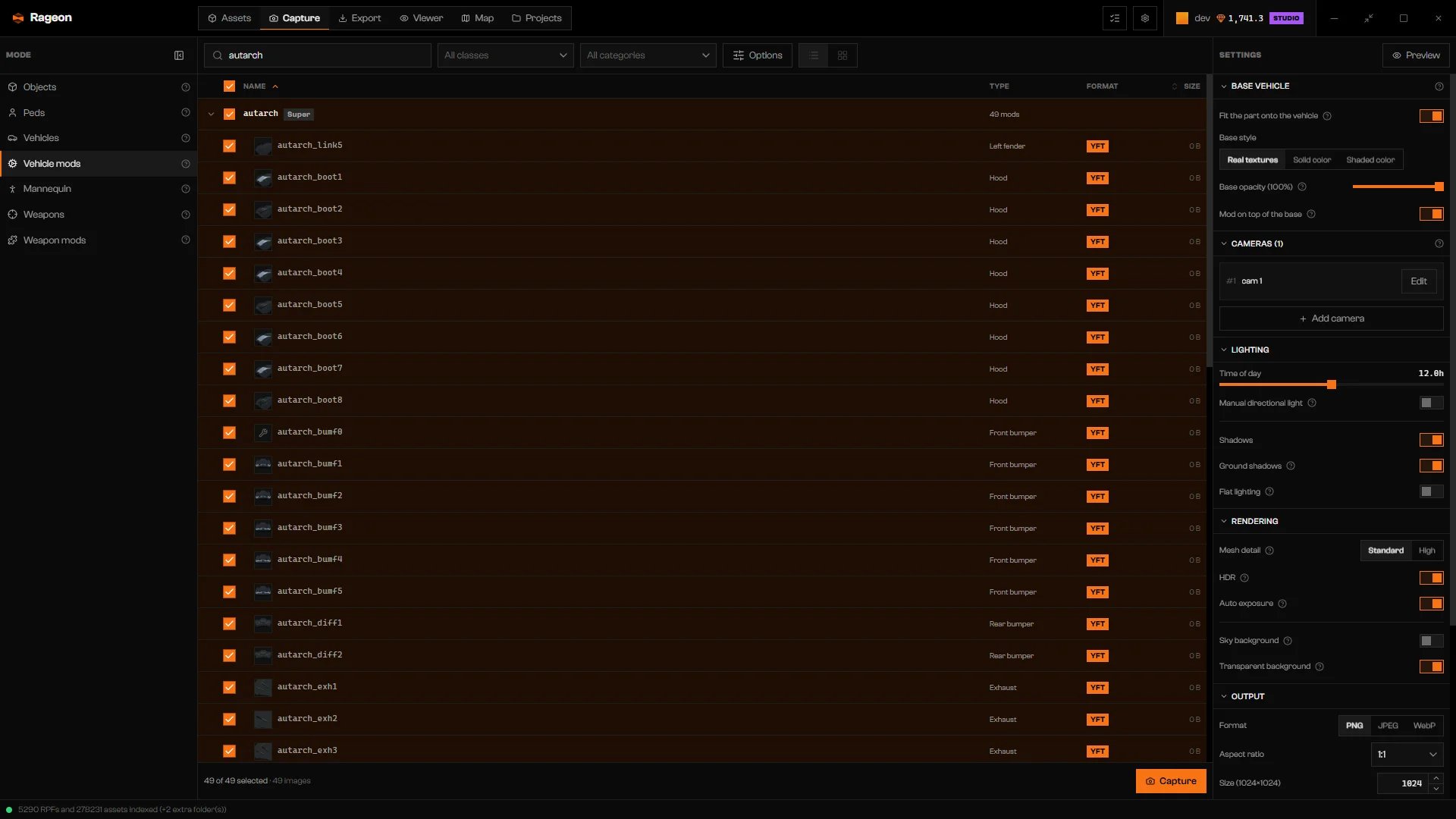
Vehicle mods mode with a vehicle's parts expanded and Base vehicle settings.
1
Open Vehicle mods
Click Vehicle mods and search in Search vehicles…. The search matches vehicle names and brings in their parts, which appear grouped under each vehicle.
2
Choose parts
Use All categories to pick mod-shop slots and All classes for vehicle classes. Check a whole vehicle group, or click Show mods to pick single parts. The header checkbox (Select all) acts on groups.
3
Set how the car looks under the part
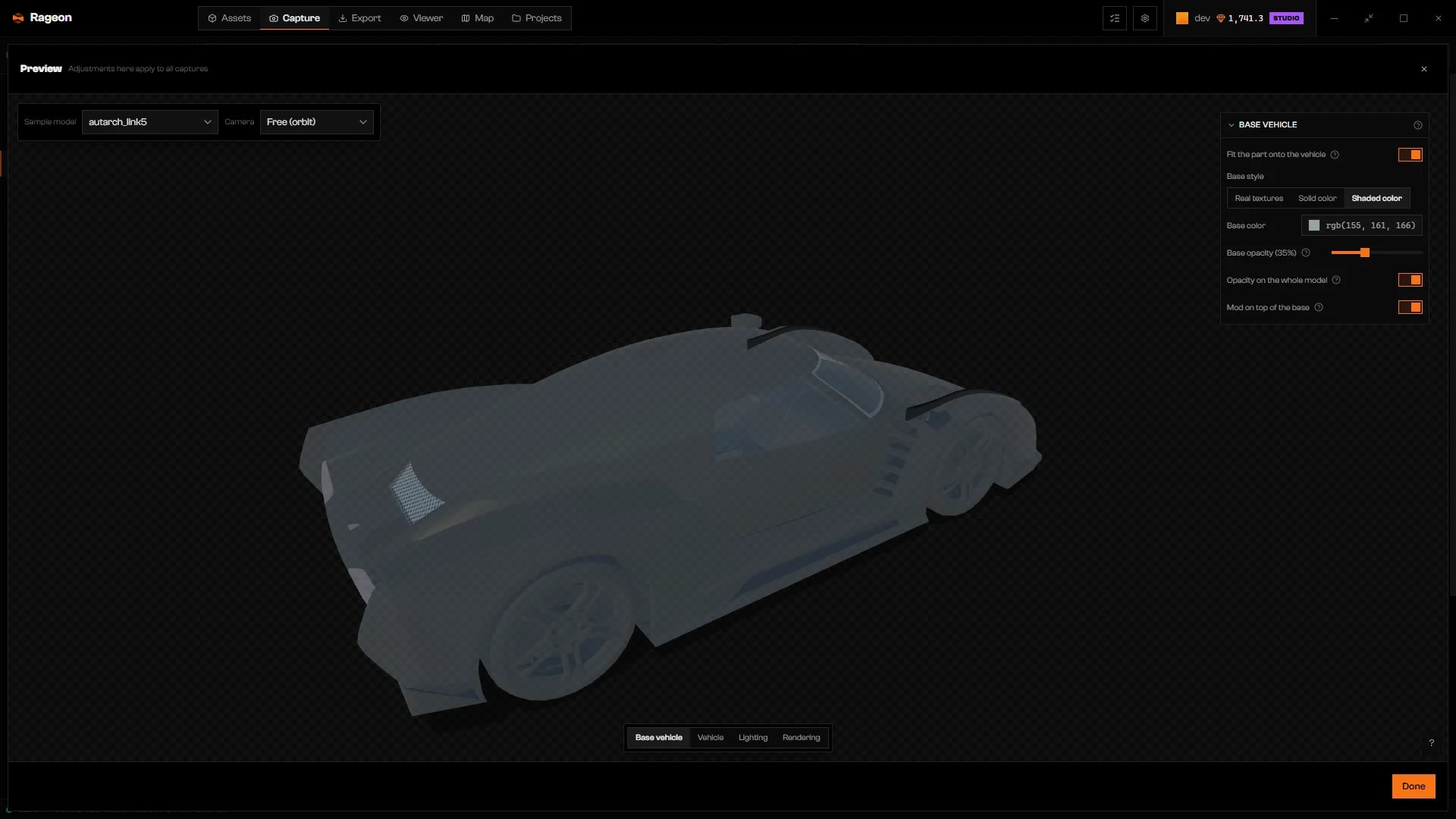
Each part is mounted on the vehicle it belongs to. There is no separate car picker. Turn Fit the part onto the vehicle off to skip the base options below: the part stays on its vehicle, which keeps its normal look.
4
Preview and frame
Click Preview, then Base vehicle to inspect the base. Vehicle has the paint controls; there is no Paint section in the Settings column for this mode. Paint set in Preview › Vehicle is applied to the car under every part. For a close-up of the part, edit the camera and turn on Frame only the part (needs Auto frame).
Model name and catalog name of the vehicle the part belongs to
When parts from more than one vehicle are selected, include {{vehicle_base}} or {{vehicle_base_name}}. Parts with the same name on different cars would overwrite each other. Capture stays disabled until the template has one of them.
No vehicles with mod parts here. Change the class or the mod category, or clear the search.
No vehicle with parts matches. Set All classes and All categories back to all, or clear the search.
Edit the name template and add {{vehicle_base}} — with more than one vehicle, captures of identically named pieces overwrite each other.
Add {{vehicle_base}} or {{vehicle_base_name}} to the Name template under File names.
{"docsConfig":{"theme":"mint","$schema":"https://mintlify.com/docs.json","name":"Rageon","colors":{"primary":"#f97316","light":"#fb923c","dark":"#c2410c"},"logo":{"light":"https://mintcdn.com/rageon/NnSHzDe1phDyv79M/logo/mark.png?fit=max\u0026auto=format\u0026n=NnSHzDe1phDyv79M\u0026q=85\u0026s=e0ae0889d31e1576f579125f3ef6685e","dark":"https://mintcdn.com/rageon/NnSHzDe1phDyv79M/logo/mark.png?fit=max\u0026auto=format\u0026n=NnSHzDe1phDyv79M\u0026q=85\u0026s=e0ae0889d31e1576f579125f3ef6685e","href":"https://rageon.dev"},"favicon":"https://mintcdn.com/rageon/tGC-5rfc07564TOG/favicon.png?fit=max\u0026auto=format\u0026n=tGC-5rfc07564TOG\u0026q=85\u0026s=7525da8dae81e50d0056d02037548e02","appearance":{"default":"dark"},"navbar":{"links":[{"href":"https://rageon.dev/pricing","label":"Pricing"}],"primary":{"type":"button","label":"Download","href":"https://rageon.dev/download"}},"footer":{"socials":{"website":"https://rageon.dev"}},"icons":{"library":"lucide"},"styling":{"latex":false},"navigation":{"languages":[{"language":"en","default":true,"href":"start/introduction"},{"language":"pt-BR","href":"pt-BR/start/introduction"},{"language":"es","href":"es/start/introduction"}]}},"deployment":{"deploymentMetadataValue":{"subdomain":"rageon","hasAudioNarration":false,"actualSubdomain":"rageon","customDomains":["docs.rageon.dev"],"gitSource":{"type":"github","owner":"rageoon","repo":"rageon-docs","deployBranch":"main","contentDirectory":"","isPrivate":true,"mountPath":"","label":"","_id":"6ada8d872e2812485d3d490a"},"chroma":{"latestBuiltDeploymentHistoryId":"6ada8d882e2812485d3d4910","collectionId":"d8abb39d-b557-4128-b440-bcb1bb1501eb","liveDeploymentHistoryId":"6ada8d882e2812485d3d4910","schemaVersion":"v3"},"entitlements":{"AI_CHAT":{"status":"ENABLED"},"WEB_MCP":{"status":"ENABLED"},"NARRATION":{"status":"ENABLED"}},"buildId":"6ada8d96fbb15298db52c70c","clientVersion":"0.0.3939","searchFilterCounts":[{"language":"en","tag":"Projects","count":43},{"language":"es","tag":"Proyectos","count":43},{"language":"pt-BR","tag":"Projetos","count":43},{"language":"en","tag":"Structures","count":16},{"language":"es","tag":"Estructuras","count":16},{"language":"pt-BR","tag":"Estruturas","count":16},{"language":"en","tag":"Map","count":15},{"language":"es","tag":"Mapa","count":15},{"language":"pt-BR","tag":"Mapa","count":15},{"language":"en","tag":"Getting started","count":14},{"language":"en","tag":"Viewer","count":14},{"language":"es","tag":"Primeros pasos","count":14},{"language":"es","tag":"Visor","count":14},{"language":"pt-BR","tag":"Primeiros passos","count":14},{"language":"pt-BR","tag":"Visualização","count":14},{"language":"en","tag":"Assets","count":12},{"language":"en","tag":"Capture","count":12},{"language":"es","tag":"Assets","count":12},{"language":"es","tag":"Captura","count":12},{"language":"pt-BR","tag":"Assets","count":12},{"language":"pt-BR","tag":"Captura","count":12},{"language":"en","tag":"Texturing","count":11},{"language":"es","tag":"Texturizado","count":11},{"language":"pt-BR","tag":"Texturização","count":11},{"language":"en","tag":"Export","count":8},{"language":"es","tag":"Exportar","count":8},{"language":"pt-BR","tag":"Exportar","count":8},{"language":"en","tag":"Help","count":6},{"language":"es","tag":"Ayuda","count":6},{"language":"pt-BR","tag":"Ajuda","count":6}],"searchSettings":{"isFiltersEnabled":true,"showContentSnippets":true}},"assistantConfig":{"enableAskAiButton":false,"enableStarterQuestions":false,"enableContextualStarterQuestions":false,"enableAskAiSearchBar":true},"hasChatPermissions":true,"hasWebMcpPermissions":true,"toggles":[{"name":"kill-isr","enabled":true,"variant":{"name":"disabled","enabled":false,"feature_enabled":true},"impressionData":false},{"name":"agent-mintlify-slack","enabled":true,"variant":{"name":"disabled","enabled":false,"feature_enabled":true},"impressionData":false},{"name":"editor-v7-file-tree","enabled":true,"variant":{"name":"disabled","enabled":false,"feature_enabled":true},"impressionData":false},{"name":"agent-integrations-settings","enabled":true,"variant":{"name":"disabled","enabled":false,"feature_enabled":true},"impressionData":false},{"name":"automations-pr-grouping","enabled":true,"variant":{"name":"disabled","enabled":false,"feature_enabled":true},"impressionData":false},{"name":"custom-prefix","enabled":true,"variant":{"name":"disabled","enabled":false,"feature_enabled":true},"impressionData":false},{"name":"analytics-v7","enabled":true,"variant":{"name":"disabled","enabled":false,"feature_enabled":true},"impressionData":false},{"name":"user-flows-analytics","enabled":true,"variant":{"name":"disabled","enabled":false,"feature_enabled":true},"impressionData":false},{"name":"no-publish-flow","enabled":true,"variant":{"name":"disabled","enabled":false,"feature_enabled":true},"impressionData":false},{"name":"workos-onboarding","enabled":true,"variant":{"name":"disabled","enabled":false,"feature_enabled":true},"impressionData":false},{"name":"llms-txt-v2","enabled":true,"variant":{"name":"disabled","enabled":false,"feature_enabled":true},"impressionData":false},{"name":"pause-universal-search-reconcile","enabled":true,"variant":{"name":"disabled","enabled":false,"feature_enabled":true},"impressionData":false},{"name":"snapshot-serving-live","enabled":true,"variant":{"name":"disabled","enabled":false,"feature_enabled":true},"impressionData":false},{"name":"stripTemperatureMiddleware","enabled":true,"variant":{"name":"disabled","enabled":false,"feature_enabled":true},"impressionData":false},{"name":"per-site-search-delta","enabled":true,"variant":{"name":"disabled","enabled":false,"feature_enabled":true},"impressionData":false},{"name":"support-platform-pylon-zendesk","enabled":true,"variant":{"name":"disabled","enabled":false,"feature_enabled":true},"impressionData":false},{"name":"snapshot-serving","enabled":true,"variant":{"name":"disabled","enabled":false,"feature_enabled":true},"impressionData":false},{"name":"instant-rollback","enabled":true,"variant":{"name":"disabled","enabled":false,"feature_enabled":true},"impressionData":false},{"name":"granular-notifications-server","enabled":true,"variant":{"name":"disabled","enabled":false,"feature_enabled":true},"impressionData":false},{"name":"granular-notifications","enabled":true,"variant":{"name":"disabled","enabled":false,"feature_enabled":true},"impressionData":false},{"name":"editor-private-page-search","enabled":true,"variant":{"name":"disabled","enabled":false,"feature_enabled":true},"impressionData":false},{"name":"automations-fable","enabled":true,"variant":{"name":"disabled","enabled":false,"feature_enabled":true},"impressionData":false},{"name":"fixed-ai-action-pricing","enabled":true,"variant":{"name":"disabled","enabled":false,"feature_enabled":true},"impressionData":false},{"name":"automation-resolve-merge-conflict","enabled":true,"variant":{"name":"disabled","enabled":false,"feature_enabled":true},"impressionData":false},{"name":"scoped-publishing","enabled":true,"variant":{"name":"disabled","enabled":false,"feature_enabled":true},"impressionData":false},{"name":"mintql","enabled":true,"variant":{"name":"disabled","enabled":false,"feature_enabled":true},"impressionData":false},{"name":"page-level-analytics","enabled":true,"variant":{"name":"disabled","enabled":false,"feature_enabled":true},"impressionData":false},{"name":"editor-version-history-v2","enabled":true,"variant":{"name":"disabled","enabled":false,"feature_enabled":true},"impressionData":false},{"name":"editor-nav-generations","enabled":true,"variant":{"name":"disabled","enabled":false,"feature_enabled":true},"impressionData":false},{"name":"billing-page-v2","enabled":true,"variant":{"name":"disabled","enabled":false,"feature_enabled":true},"impressionData":false},{"name":"workspace-projects","enabled":true,"variant":{"name":"disabled","enabled":false,"feature_enabled":true},"impressionData":false},{"name":"assistant-v5","enabled":true,"variant":{"name":"disabled","enabled":false,"feature_enabled":true},"impressionData":false},{"name":"byok-sep-25","enabled":true,"variant":{"name":"disabled","enabled":false,"feature_enabled":true},"impressionData":false},{"name":"fork-pr-previews","enabled":true,"variant":{"name":"disabled","enabled":false,"feature_enabled":true},"impressionData":false},{"name":"revalidation-jwt","enabled":true,"variant":{"name":"disabled","enabled":false,"feature_enabled":true},"impressionData":false},{"name":"vite-origin","enabled":true,"variant":{"name":"disabled","enabled":false,"feature_enabled":true},"impressionData":false},{"name":"editor-agent-model-picker","enabled":true,"variant":{"name":"disabled","enabled":false,"feature_enabled":true},"impressionData":false},{"name":"billing-updated-9-15","enabled":true,"variant":{"name":"disabled","enabled":false,"feature_enabled":true},"impressionData":false},{"name":"hobby-abuse-scan","enabled":true,"variant":{"name":"disabled","enabled":false,"feature_enabled":true},"impressionData":false},{"name":"dashboard-inbox","enabled":true,"variant":{"name":"disabled","enabled":false,"feature_enabled":true},"impressionData":false}],"isAtlas":false,"googleFontsInlined":false},"customCss":[],"page":{"pagePath":"capture/vehicles","slug":"/capture/vehicles","pageMetadata":{"title":"Vehicles and vehicle mods","icon":"car","description":"Capture whole vehicles with an optional respray, or mod-shop parts on the car they belong to.","href":"/capture/vehicles"},"description":{"compiledSource":"\"use strict\";\nconst {jsx: _jsx} = arguments[0];\nconst {useMDXComponents: _provideComponents} = arguments[0];\nfunction _createMdxContent(props) {\n const _components = {\n p: \"p\",\n ..._provideComponents(),\n ...props.components\n };\n return _jsx(_components.p, {\n children: \"Capture whole vehicles with an optional respray, or mod-shop parts on the car they belong to.\"\n });\n}\nfunction MDXContent(props = {}) {\n const {wrapper: MDXLayout} = {\n ..._provideComponents(),\n ...props.components\n };\n return MDXLayout ? _jsx(MDXLayout, {\n ...props,\n children: _jsx(_createMdxContent, {\n ...props\n })\n }) : _createMdxContent(props);\n}\nreturn {\n default: MDXContent\n};\n","frontmatter":{},"scope":{}},"pageType":"default","mdx":{"mdxSource":{"compiledSource":"\"use strict\";const{Fragment:_Fragment,jsx:_jsx,jsxs:_jsxs}=arguments[0];const{useMDXComponents:_provideComponents}=arguments[0];function _createMdxContent(props){const _components={a:`a`,code:`code`,p:`p`,strong:`strong`,tbody:`tbody`,td:`td`,th:`th`,thead:`thead`,tr:`tr`,..._provideComponents(),...props.components},{Accordion,AccordionGroup,Frame,Heading,OptimizedImage,Step,Steps,Table}=_components;if(!Accordion)_missingMdxReference(`Accordion`,true);if(!AccordionGroup)_missingMdxReference(`AccordionGroup`,true);if(!Frame)_missingMdxReference(`Frame`,true);if(!Heading)_missingMdxReference(`Heading`,true);if(!OptimizedImage)_missingMdxReference(`OptimizedImage`,true);if(!Step)_missingMdxReference(`Step`,true);if(!Steps)_missingMdxReference(`Steps`,true);if(!Table)_missingMdxReference(`Table`,true);return _jsxs(_Fragment,{children:[_jsxs(_components.p,{children:[_jsx(_components.strong,{children:`Vehicles`}),` renders whole cars. `,_jsx(_components.strong,{children:`Vehicle mods`}),` renders mod-shop parts such as bumpers, spoilers, and hoods. To paint and save one car by hand, use the Viewer (`,_jsx(_components.a,{href:`/viewer/vehicles`,children:`Vehicles`}),` and `,_jsx(_components.a,{href:`/viewer/image-capture`,children:`Image capture`}),`).`]}),`\n`,_jsx(Heading,{level:`2`,id:`capture-whole-vehicles`,children:`Capture whole vehicles`}),`\n`,_jsx(Frame,{caption:`Vehicles mode with the Paint section in Settings.`,children:_jsx(OptimizedImage,{src:`https://mintcdn.com/rageon/tGC-5rfc07564TOG/images/capture/capture-vehicles.webp?fit=max\u0026auto=format\u0026n=tGC-5rfc07564TOG\u0026q=85\u0026s=c84344fa2f9e118890e26c3a6ca276f8`,alt:`Vehicles mode with a vehicle list and a Paint section`,\"data-og-width\":`1920`,width:`1920`,\"data-og-height\":`1080`,height:`1080`,\"data-path\":`images/capture/capture-vehicles.webp`,\"data-optimize\":`true`,\"data-opv\":`3`,srcset:`https://mintcdn.com/rageon/tGC-5rfc07564TOG/images/capture/capture-vehicles.webp?w=280\u0026fit=max\u0026auto=format\u0026n=tGC-5rfc07564TOG\u0026q=85\u0026s=9cca2e95e84d2e12e7053a51130e4c37 280w, https://mintcdn.com/rageon/tGC-5rfc07564TOG/images/capture/capture-vehicles.webp?w=560\u0026fit=max\u0026auto=format\u0026n=tGC-5rfc07564TOG\u0026q=85\u0026s=d319fa8eb9c9b310b1d0370f2b3121f6 560w, https://mintcdn.com/rageon/tGC-5rfc07564TOG/images/capture/capture-vehicles.webp?w=840\u0026fit=max\u0026auto=format\u0026n=tGC-5rfc07564TOG\u0026q=85\u0026s=56ecb0b97704d850c500e527117a1f29 840w, https://mintcdn.com/rageon/tGC-5rfc07564TOG/images/capture/capture-vehicles.webp?w=1100\u0026fit=max\u0026auto=format\u0026n=tGC-5rfc07564TOG\u0026q=85\u0026s=9d6b8db9d83850a03715556a80180cec 1100w, https://mintcdn.com/rageon/tGC-5rfc07564TOG/images/capture/capture-vehicles.webp?w=1650\u0026fit=max\u0026auto=format\u0026n=tGC-5rfc07564TOG\u0026q=85\u0026s=14bfc18cfb1ffba302c066adf3a0b6b6 1650w, https://mintcdn.com/rageon/tGC-5rfc07564TOG/images/capture/capture-vehicles.webp?w=2500\u0026fit=max\u0026auto=format\u0026n=tGC-5rfc07564TOG\u0026q=85\u0026s=032ba20ea6d1dd34f82c06a63f3c1bf9 2500w`})}),`\n`,_jsxs(Steps,{children:[_jsx(Step,{title:`Open Vehicles`,children:_jsxs(_components.p,{children:[`Click `,_jsx(_components.strong,{children:`Capture`}),`, then `,_jsx(_components.strong,{children:`Vehicles`}),`. Search by model name, such as `,_jsx(_components.code,{children:`adder, police3, granger`}),`. `,_jsx(_components.strong,{children:`All classes`}),` limits the list to GTA vehicle classes.`]})}),_jsxs(Step,{title:`Respray (optional)`,children:[_jsxs(_components.p,{children:[_jsx(_components.strong,{children:`Paint`}),` applies one respray to every captured vehicle. Leave a layer on `,_jsx(_components.strong,{children:`Original`}),` to keep the factory look. A vehicle without a given layer keeps its own look there.`]}),_jsx(Frame,{caption:`Preview of the Adder after the respray.`,children:_jsx(OptimizedImage,{src:`https://mintcdn.com/rageon/tGC-5rfc07564TOG/images/capture/capture-vehicle-paint.webp?fit=max\u0026auto=format\u0026n=tGC-5rfc07564TOG\u0026q=85\u0026s=681f5150f4ac25f9fdb4243b76c8742b`,alt:`Preview of the Adder with the Vehicle panel after a respray`,\"data-og-width\":`1920`,width:`1920`,\"data-og-height\":`1080`,height:`1080`,\"data-path\":`images/capture/capture-vehicle-paint.webp`,\"data-optimize\":`true`,\"data-opv\":`3`,srcset:`https://mintcdn.com/rageon/tGC-5rfc07564TOG/images/capture/capture-vehicle-paint.webp?w=280\u0026fit=max\u0026auto=format\u0026n=tGC-5rfc07564TOG\u0026q=85\u0026s=47b1575bbde154a54db1a66bc7a743ac 280w, https://mintcdn.com/rageon/tGC-5rfc07564TOG/images/capture/capture-vehicle-paint.webp?w=560\u0026fit=max\u0026auto=format\u0026n=tGC-5rfc07564TOG\u0026q=85\u0026s=4cb1485d8e9b2f3ee3a67df63da12911 560w, https://mintcdn.com/rageon/tGC-5rfc07564TOG/images/capture/capture-vehicle-paint.webp?w=840\u0026fit=max\u0026auto=format\u0026n=tGC-5rfc07564TOG\u0026q=85\u0026s=6e24563a30300493b642a975860f0770 840w, https://mintcdn.com/rageon/tGC-5rfc07564TOG/images/capture/capture-vehicle-paint.webp?w=1100\u0026fit=max\u0026auto=format\u0026n=tGC-5rfc07564TOG\u0026q=85\u0026s=1761975c04cc0152f9178e5bfa12c681 1100w, https://mintcdn.com/rageon/tGC-5rfc07564TOG/images/capture/capture-vehicle-paint.webp?w=1650\u0026fit=max\u0026auto=format\u0026n=tGC-5rfc07564TOG\u0026q=85\u0026s=bc4af2cfde1530ea1dde9717ff800124 1650w, https://mintcdn.com/rageon/tGC-5rfc07564TOG/images/capture/capture-vehicle-paint.webp?w=2500\u0026fit=max\u0026auto=format\u0026n=tGC-5rfc07564TOG\u0026q=85\u0026s=d88e19cfec982ea79287615b2f99540c 2500w`})})]}),_jsx(Step,{title:`Check it in Preview`,children:_jsxs(_components.p,{children:[`Click `,_jsx(_components.strong,{children:`Preview`}),`, pick a car in `,_jsx(_components.strong,{children:`Sample model`}),`, then open the `,_jsx(_components.strong,{children:`Vehicle`}),` tab. Change framing with `,_jsx(_components.strong,{children:`Camera`}),` and `,_jsx(_components.strong,{children:`Edit camera`}),` (`,_jsx(_components.a,{href:`/capture/cameras`,children:`Cameras`}),`).`]})}),_jsx(Step,{title:`Click Capture`,children:_jsxs(_components.p,{children:[`Set `,_jsx(_components.a,{href:`/capture/output`,children:`Output`}),` first. Every selected vehicle gets one image per camera.`]})})]}),`\n`,_jsx(Heading,{level:`3`,id:`paint`,children:`Paint`}),`\n`,_jsxs(Table,{children:[_jsx(_components.thead,{children:_jsxs(_components.tr,{children:[_jsx(_components.th,{children:`Option`}),_jsx(_components.th,{children:`What it does`}),_jsx(_components.th,{children:`Default`})]})}),_jsxs(_components.tbody,{children:[_jsxs(_components.tr,{children:[_jsxs(_components.td,{children:[_jsx(_components.strong,{children:`Primary`}),`, `,_jsx(_components.strong,{children:`Secondary`}),`, `,_jsx(_components.strong,{children:`Wheels`}),`, `,_jsx(_components.strong,{children:`Interior`}),`, `,_jsx(_components.strong,{children:`Panel`})]}),_jsx(_components.td,{children:`Recolors that layer. Choose a family, then a color from its palette.`}),_jsx(_components.td,{children:_jsx(_components.strong,{children:`Original`})})]}),_jsxs(_components.tr,{children:[_jsxs(_components.td,{children:[`Families: `,_jsx(_components.strong,{children:`Classic`}),`, `,_jsx(_components.strong,{children:`Metallic`}),`, `,_jsx(_components.strong,{children:`Matte`}),`, `,_jsx(_components.strong,{children:`Metals`}),`, `,_jsx(_components.strong,{children:`Chrome`}),`, `,_jsx(_components.strong,{children:`Util`}),`, `,_jsx(_components.strong,{children:`Worn`}),`, `,_jsx(_components.strong,{children:`Crew`}),`, `,_jsx(_components.strong,{children:`Custom RGB`})]}),_jsxs(_components.td,{children:[`Finish and palette. `,_jsx(_components.strong,{children:`Crew`}),` and `,_jsx(_components.strong,{children:`Custom RGB`}),` take any color.`]}),_jsx(_components.td,{children:_jsx(_components.strong,{children:`Original`})})]}),_jsxs(_components.tr,{children:[_jsx(_components.td,{children:_jsx(_components.strong,{children:`Pearlescent`})}),_jsx(_components.td,{children:`Adds a colored highlight over the primary paint without replacing the body color. Disabled when the primary paint has no shine.`}),_jsx(_components.td,{children:`None`})]}),_jsxs(_components.tr,{children:[_jsx(_components.td,{children:_jsx(_components.strong,{children:`Back to original color`})}),_jsx(_components.td,{children:`Restores one layer.`}),_jsx(_components.td,{children:`—`})]}),_jsxs(_components.tr,{children:[_jsx(_components.td,{children:_jsx(_components.strong,{children:`Restore`})}),_jsx(_components.td,{children:`Clears every respray choice.`}),_jsx(_components.td,{children:`—`})]})]})]}),`\n`,_jsx(_components.p,{children:`The palettes load once a vehicle is selected.`}),`\n`,_jsx(Heading,{level:`2`,id:`capture-vehicle-mods`,children:`Capture vehicle mods`}),`\n`,_jsx(Frame,{caption:`Vehicle mods mode with a vehicle's parts expanded and Base vehicle settings.`,children:_jsx(OptimizedImage,{src:`https://mintcdn.com/rageon/tGC-5rfc07564TOG/images/capture/capture-vehicle-mods.webp?fit=max\u0026auto=format\u0026n=tGC-5rfc07564TOG\u0026q=85\u0026s=928be97f8ce855dba6cff756a32a2806`,alt:`Vehicle mods list with an owner vehicle expanded into its parts, and the Base vehicle section`,\"data-og-width\":`1920`,width:`1920`,\"data-og-height\":`1080`,height:`1080`,\"data-path\":`images/capture/capture-vehicle-mods.webp`,\"data-optimize\":`true`,\"data-opv\":`3`,srcset:`https://mintcdn.com/rageon/tGC-5rfc07564TOG/images/capture/capture-vehicle-mods.webp?w=280\u0026fit=max\u0026auto=format\u0026n=tGC-5rfc07564TOG\u0026q=85\u0026s=26e6eefadfe12ef262b22bf01032ddaf 280w, https://mintcdn.com/rageon/tGC-5rfc07564TOG/images/capture/capture-vehicle-mods.webp?w=560\u0026fit=max\u0026auto=format\u0026n=tGC-5rfc07564TOG\u0026q=85\u0026s=4fec388bd08ce1a2bc09c4e4a1884432 560w, https://mintcdn.com/rageon/tGC-5rfc07564TOG/images/capture/capture-vehicle-mods.webp?w=840\u0026fit=max\u0026auto=format\u0026n=tGC-5rfc07564TOG\u0026q=85\u0026s=f33fddbb8f4949da0e3804d3968b7f31 840w, https://mintcdn.com/rageon/tGC-5rfc07564TOG/images/capture/capture-vehicle-mods.webp?w=1100\u0026fit=max\u0026auto=format\u0026n=tGC-5rfc07564TOG\u0026q=85\u0026s=61a3e8b2e662e26e6e9b5af443b94c34 1100w, https://mintcdn.com/rageon/tGC-5rfc07564TOG/images/capture/capture-vehicle-mods.webp?w=1650\u0026fit=max\u0026auto=format\u0026n=tGC-5rfc07564TOG\u0026q=85\u0026s=1866a5a50e033df553a0f938f2b8ed32 1650w, https://mintcdn.com/rageon/tGC-5rfc07564TOG/images/capture/capture-vehicle-mods.webp?w=2500\u0026fit=max\u0026auto=format\u0026n=tGC-5rfc07564TOG\u0026q=85\u0026s=00882b9d2ea29805c930849bf7f5d9e1 2500w`})}),`\n`,_jsxs(Steps,{children:[_jsx(Step,{title:`Open Vehicle mods`,children:_jsxs(_components.p,{children:[`Click `,_jsx(_components.strong,{children:`Vehicle mods`}),` and search in `,_jsx(_components.strong,{children:`Search vehicles…`}),`. The search matches vehicle names and brings in their parts, which appear grouped under each vehicle.`]})}),_jsx(Step,{title:`Choose parts`,children:_jsxs(_components.p,{children:[`Use `,_jsx(_components.strong,{children:`All categories`}),` to pick mod-shop slots and `,_jsx(_components.strong,{children:`All classes`}),` for vehicle classes. Check a whole vehicle group, or click `,_jsx(_components.strong,{children:`Show mods`}),` to pick single parts. The header checkbox (`,_jsx(_components.strong,{children:`Select all`}),`) acts on groups.`]})}),_jsx(Step,{title:`Set how the car looks under the part`,children:_jsxs(_components.p,{children:[`Each part is mounted on the vehicle it belongs to. There is no separate car picker. Turn `,_jsx(_components.strong,{children:`Fit the part onto the vehicle`}),` off to skip the base options below: the part stays on its vehicle, which keeps its normal look.`]})}),_jsxs(Step,{title:`Preview and frame`,children:[_jsxs(_components.p,{children:[`Click `,_jsx(_components.strong,{children:`Preview`}),`, then `,_jsx(_components.strong,{children:`Base vehicle`}),` to inspect the base. `,_jsx(_components.strong,{children:`Vehicle`}),` has the paint controls; there is no `,_jsx(_components.strong,{children:`Paint`}),` section in the Settings column for this mode. Paint set in `,_jsx(_components.strong,{children:`Preview`}),` › `,_jsx(_components.strong,{children:`Vehicle`}),` is applied to the car under every part. For a close-up of the part, edit the camera and turn on `,_jsx(_components.strong,{children:`Frame only the part`}),` (needs `,_jsx(_components.strong,{children:`Auto frame`}),`).`]}),_jsx(Frame,{caption:`A part over a faded car, Base opacity at 35%.`,children:_jsx(OptimizedImage,{src:`https://mintcdn.com/rageon/tGC-5rfc07564TOG/images/capture/capture-vehicle-mod-base.webp?fit=max\u0026auto=format\u0026n=tGC-5rfc07564TOG\u0026q=85\u0026s=33289b458b91c2ded5cfe51c1a37cf80`,alt:`Preview of a part over a translucent car with Base style and Base opacity`,\"data-og-width\":`1920`,width:`1920`,\"data-og-height\":`1080`,height:`1080`,\"data-path\":`images/capture/capture-vehicle-mod-base.webp`,\"data-optimize\":`true`,\"data-opv\":`3`,srcset:`https://mintcdn.com/rageon/tGC-5rfc07564TOG/images/capture/capture-vehicle-mod-base.webp?w=280\u0026fit=max\u0026auto=format\u0026n=tGC-5rfc07564TOG\u0026q=85\u0026s=e5da8e5322f9bbf5e72dc6ef63738fe1 280w, https://mintcdn.com/rageon/tGC-5rfc07564TOG/images/capture/capture-vehicle-mod-base.webp?w=560\u0026fit=max\u0026auto=format\u0026n=tGC-5rfc07564TOG\u0026q=85\u0026s=73c5877ee90ca7609a8617ec9ab4dd0c 560w, https://mintcdn.com/rageon/tGC-5rfc07564TOG/images/capture/capture-vehicle-mod-base.webp?w=840\u0026fit=max\u0026auto=format\u0026n=tGC-5rfc07564TOG\u0026q=85\u0026s=a4462f51a0dfe3d375b2bcece0f05ad1 840w, https://mintcdn.com/rageon/tGC-5rfc07564TOG/images/capture/capture-vehicle-mod-base.webp?w=1100\u0026fit=max\u0026auto=format\u0026n=tGC-5rfc07564TOG\u0026q=85\u0026s=3244515498e7a29ff2d0b59b373ea5e8 1100w, https://mintcdn.com/rageon/tGC-5rfc07564TOG/images/capture/capture-vehicle-mod-base.webp?w=1650\u0026fit=max\u0026auto=format\u0026n=tGC-5rfc07564TOG\u0026q=85\u0026s=617ade9b7742486297c1df31d2d42175 1650w, https://mintcdn.com/rageon/tGC-5rfc07564TOG/images/capture/capture-vehicle-mod-base.webp?w=2500\u0026fit=max\u0026auto=format\u0026n=tGC-5rfc07564TOG\u0026q=85\u0026s=a12893fbb59c779a6fe6a757dd0e53d9 2500w`})})]}),_jsx(Step,{title:`Click Capture`,children:_jsx(_components.p,{children:`Each part is captured on its car.`})})]}),`\n`,_jsx(Heading,{level:`3`,id:`base-vehicle-options`,children:`Base vehicle options`}),`\n`,_jsxs(Table,{children:[_jsx(_components.thead,{children:_jsxs(_components.tr,{children:[_jsx(_components.th,{children:`Option`}),_jsx(_components.th,{children:`What it does`}),_jsx(_components.th,{children:`Default`})]})}),_jsxs(_components.tbody,{children:[_jsxs(_components.tr,{children:[_jsx(_components.td,{children:_jsx(_components.strong,{children:`Fit the part onto the vehicle`})}),_jsx(_components.td,{children:`Applies the options below to the car under the part. Off leaves the car as it ships (the part is still mounted on it).`}),_jsx(_components.td,{children:`On`})]}),_jsxs(_components.tr,{children:[_jsx(_components.td,{children:_jsx(_components.strong,{children:`Base style`})}),_jsxs(_components.td,{children:[_jsx(_components.strong,{children:`Real textures`}),`, `,_jsx(_components.strong,{children:`Solid color`}),`, or `,_jsx(_components.strong,{children:`Shaded color`}),` for the car under the part.`]}),_jsx(_components.td,{children:_jsx(_components.strong,{children:`Real textures`})})]}),_jsxs(_components.tr,{children:[_jsx(_components.td,{children:_jsx(_components.strong,{children:`Base color`})}),_jsxs(_components.td,{children:[`Color of the base. Only with `,_jsx(_components.strong,{children:`Solid color`}),` or `,_jsx(_components.strong,{children:`Shaded color`}),`.`]}),_jsx(_components.td,{children:`Neutral gray`})]}),_jsxs(_components.tr,{children:[_jsx(_components.td,{children:_jsx(_components.strong,{children:`Base opacity (100%)`})}),_jsx(_components.td,{children:`Fades the car so the part stands out. The part stays opaque.`}),_jsx(_components.td,{\"data-numeric\":`true`,children:`100%`})]}),_jsxs(_components.tr,{children:[_jsx(_components.td,{children:_jsx(_components.strong,{children:`Opacity on the whole model`})}),_jsx(_components.td,{children:`Fades the car as one object. Off also shows its overlapping inner parts. Only below 100%.`}),_jsx(_components.td,{children:`On`})]}),_jsxs(_components.tr,{children:[_jsx(_components.td,{children:_jsx(_components.strong,{children:`Mod on top of the base`})}),_jsx(_components.td,{children:`Keeps the car from hiding the part.`}),_jsx(_components.td,{children:`On`})]})]})]}),`\n`,_jsx(_components.p,{children:`Recoloring or fading the base never changes the part. A faded base stays translucent in a transparent PNG.`}),`\n`,_jsx(Heading,{level:`2`,id:`file-names`,children:`File names`}),`\n`,_jsxs(_components.p,{children:[`Besides the `,_jsx(_components.a,{href:`/capture/output#file-names`,children:`general variables`}),`, vehicle modes add these.`]}),`\n`,_jsxs(Table,{children:[_jsx(_components.thead,{children:_jsxs(_components.tr,{children:[_jsx(_components.th,{children:`Variable`}),_jsx(_components.th,{children:`Result`})]})}),_jsxs(_components.tbody,{children:[_jsxs(_components.tr,{children:[_jsx(_components.td,{children:_jsx(_components.code,{children:`{{vehicle_mod}}`})}),_jsx(_components.td,{children:`Part model name`})]}),_jsxs(_components.tr,{children:[_jsx(_components.td,{children:_jsx(_components.code,{children:`{{vehicle_mod_type}}`})}),_jsxs(_components.td,{children:[`Mod-shop slot, such as `,_jsx(_components.code,{children:`spoiler`}),` or `,_jsx(_components.code,{children:`bumper_f`})]})]}),_jsxs(_components.tr,{children:[_jsxs(_components.td,{children:[_jsx(_components.code,{children:`{{vehicle_base}}`}),`, `,_jsx(_components.code,{children:`{{vehicle_base_name}}`})]}),_jsx(_components.td,{children:`Model name and catalog name of the vehicle the part belongs to`})]})]})]}),`\n`,_jsxs(_components.p,{children:[`When parts from more than one vehicle are selected, include `,_jsx(_components.code,{children:`{{vehicle_base}}`}),` or `,_jsx(_components.code,{children:`{{vehicle_base_name}}`}),`. Parts with the same name on different cars would overwrite each other. `,_jsx(_components.strong,{children:`Capture`}),` stays disabled until the template has one of them.`]}),`\n`,_jsx(Heading,{level:`2`,id:`troubleshooting`,children:`Troubleshooting`}),`\n`,_jsxs(AccordionGroup,{children:[_jsx(Accordion,{title:`No vehicles with mod parts here. Change the class or the mod category, or clear the search.`,id:`no-vehicles-with-mod-parts-here-change-the-class-or-the-mod-category-or-clear-the-search`,children:_jsxs(_components.p,{children:[`No vehicle with parts matches. Set `,_jsx(_components.strong,{children:`All classes`}),` and `,_jsx(_components.strong,{children:`All categories`}),` back to all, or clear the search.`]})}),_jsx(Accordion,{title:`Edit the name template and add {{vehicle_base}} — with more than one vehicle, captures of identically named pieces overwrite each other.`,id:`edit-the-name-template-and-add-vehicle-base-with-more-than-one-vehicle-captures-of-identically-named-pieces-overwrite-each-other`,children:_jsxs(_components.p,{children:[`Add `,_jsx(_components.code,{children:`{{vehicle_base}}`}),` or `,_jsx(_components.code,{children:`{{vehicle_base_name}}`}),` to the `,_jsx(_components.strong,{children:`Name template`}),` under `,_jsx(_components.strong,{children:`File names`}),`.`]})})]})]})}function MDXContent(props={}){const{wrapper:MDXLayout}={..._provideComponents(),...props.components};return MDXLayout?_jsx(MDXLayout,{...props,children:_jsx(_createMdxContent,{...props})}):_createMdxContent(props)}return{default:MDXContent};function _missingMdxReference(id,component){throw new Error(`Expected `+(component?`component`:`object`)+\" `\"+id+\"` to be defined: you likely forgot to import, pass, or provide it.\")}","frontmatter":{},"scope":{"config":{},"pageMetadata":{"title":"Vehicles and vehicle mods","icon":"car","description":"Capture whole vehicles with an optional respray, or mod-shop parts on the car they belong to.","href":"/capture/vehicles"}}},"mdxSourceWithNoJs":null},"mdxExtracts":{"tableOfContents":[{"title":"Capture whole vehicles","slug":"capture-whole-vehicles","depth":2,"children":[{"title":"Paint","slug":"paint","depth":3,"children":[]}]},{"title":"Capture vehicle mods","slug":"capture-vehicle-mods","depth":2,"children":[{"title":"Base vehicle options","slug":"base-vehicle-options","depth":3,"children":[]}]},{"title":"File names","slug":"file-names","depth":2,"children":[]},{"title":"Troubleshooting","slug":"troubleshooting","depth":2,"children":[]}],"codeExamples":{}},"jsLinks":[],"subdomain":"rageon","siteName":"Rageon","title":"Vehicles and vehicle mods - Rageon","navMaps":{"firstHrefInVersion":{},"firstHrefInLanguage":{"en":{"href":"/capture/vehicles","matchLevel":0},"pt-BR":{"href":"/pt-BR/capture/vehicles","matchLevel":1},"es":{"href":"/es/capture/vehicles","matchLevel":1}}},"lastModified":"2026-10-22T22:26:55.047Z","originalFileLocation":"capture/vehicles.mdx","locale":"en"},"headHtml":"\u003cscript data-mint-head>(function(){var d=document.documentElement,p=null;if(!p){try{p=localStorage.getItem(\"isDarkMode\")}catch(e){}if(p==='true')p='dark';else if(p==='false')p='light';if(p!=='light'\u0026\u0026p!=='dark'\u0026\u0026p!=='system')p=\"dark\"}var r=p==='system'?(matchMedia(\"(prefers-color-scheme: dark)\").matches?'dark':'light'):p;d.classList.remove(r==='dark'?'light':'dark');d.classList.add(r);d.setAttribute(\"data-theme-preference\",p)})();\u003c/script>\u003cmeta data-mint-head name=\"description\" content=\"Capture whole vehicles with an optional respray, or mod-shop parts on the car they belong to.\">\u003cmeta data-mint-head name=\"application-name\" content=\"Rageon\">\u003cmeta data-mint-head name=\"generator\" content=\"Mintlify\">\u003clink data-mint-head rel=\"icon\" type=\"image/png\" sizes=\"192x192\" href=\"/mintlify-assets/_mintlify/favicons/rageon/ZtuCQ-reSINKWczI/_generated/favicon/android-chrome-192x192.png\" media=\"(prefers-color-scheme: light)\">\u003clink data-mint-head rel=\"apple-touch-icon\" type=\"image/png\" sizes=\"180x180\" href=\"/mintlify-assets/_mintlify/favicons/rageon/ZtuCQ-reSINKWczI/_generated/favicon/apple-touch-icon.png\">\u003clink data-mint-head rel=\"icon\" type=\"image/png\" sizes=\"16x16\" href=\"/mintlify-assets/_mintlify/favicons/rageon/ZtuCQ-reSINKWczI/_generated/favicon/favicon-16x16.png\" media=\"(prefers-color-scheme: light)\">\u003clink data-mint-head rel=\"icon\" type=\"image/png\" sizes=\"32x32\" href=\"/mintlify-assets/_mintlify/favicons/rageon/ZtuCQ-reSINKWczI/_generated/favicon/favicon-32x32.png\" media=\"(prefers-color-scheme: light)\">\u003clink data-mint-head rel=\"shortcut icon\" type=\"image/x-icon\" href=\"/mintlify-assets/_mintlify/favicons/rageon/ZtuCQ-reSINKWczI/_generated/favicon/favicon.ico\" media=\"(prefers-color-scheme: light)\">\u003clink data-mint-head rel=\"icon\" type=\"image/png\" sizes=\"192x192\" href=\"/mintlify-assets/_mintlify/favicons/rageon/ZtuCQ-reSINKWczI/_generated/favicon-dark/android-chrome-192x192.png\" media=\"(prefers-color-scheme: dark)\">\u003clink data-mint-head rel=\"icon\" type=\"image/png\" sizes=\"16x16\" href=\"/mintlify-assets/_mintlify/favicons/rageon/ZtuCQ-reSINKWczI/_generated/favicon-dark/favicon-16x16.png\" media=\"(prefers-color-scheme: dark)\">\u003clink data-mint-head rel=\"icon\" type=\"image/png\" sizes=\"32x32\" href=\"/mintlify-assets/_mintlify/favicons/rageon/ZtuCQ-reSINKWczI/_generated/favicon-dark/favicon-32x32.png\" media=\"(prefers-color-scheme: dark)\">\u003clink data-mint-head rel=\"shortcut icon\" type=\"image/x-icon\" href=\"/mintlify-assets/_mintlify/favicons/rageon/ZtuCQ-reSINKWczI/_generated/favicon-dark/favicon.ico\" media=\"(prefers-color-scheme: dark)\">\u003cmeta data-mint-head property=\"og:title\" content=\"Vehicles and vehicle mods - Rageon\">\u003cmeta data-mint-head property=\"og:description\" content=\"Capture whole vehicles with an optional respray, or mod-shop parts on the car they belong to.\">\u003cmeta data-mint-head property=\"og:site_name\" content=\"Rageon\">\u003cmeta data-mint-head property=\"og:url\" content=\"https://docs.rageon.dev/capture/vehicles\">\u003cmeta data-mint-head property=\"og:type\" content=\"website\">\u003cmeta data-mint-head property=\"og:image\" content=\"https://rageon.mintlify.app/_mintlify/api/og/v2?division=Capture+modes\u0026amp;title=Vehicles+and+vehicle+mods\u0026amp;description=Capture+whole+vehicles+with+an+optional+respray%2C+or+mod-shop+parts+on+the+car+they+belong+to.\u0026amp;theme=dc798bdc6d01b550c8b95f0f\u0026amp;signature=9fc28b7a6d5cb29c899080d0d164cdaf0ff22d63d4ee22f350de04093117581a\">\u003cmeta data-mint-head property=\"og:image:width\" content=\"1200\">\u003cmeta data-mint-head property=\"og:image:height\" content=\"630\">\u003cmeta data-mint-head name=\"twitter:card\" content=\"summary_large_image\">\u003cmeta data-mint-head name=\"twitter:title\" content=\"Vehicles and vehicle mods - Rageon\">\u003cmeta data-mint-head name=\"twitter:description\" content=\"Capture whole vehicles with an optional respray, or mod-shop parts on the car they belong to.\">\u003cmeta data-mint-head name=\"twitter:image\" content=\"https://rageon.mintlify.app/_mintlify/api/og/v2?division=Capture+modes\u0026amp;title=Vehicles+and+vehicle+mods\u0026amp;description=Capture+whole+vehicles+with+an+optional+respray%2C+or+mod-shop+parts+on+the+car+they+belong+to.\u0026amp;theme=dc798bdc6d01b550c8b95f0f\u0026amp;signature=9fc28b7a6d5cb29c899080d0d164cdaf0ff22d63d4ee22f350de04093117581a\">\u003cmeta data-mint-head name=\"twitter:image:width\" content=\"1200\">\u003cmeta data-mint-head name=\"twitter:image:height\" content=\"630\">\u003cmeta data-mint-head name=\"msapplication-config\" content=\"/mintlify-assets/_mintlify/favicons/rageon/ZtuCQ-reSINKWczI/_generated/favicon/browserconfig.xml\">\u003cmeta data-mint-head name=\"apple-mobile-web-app-title\" content=\"Rageon\">\u003cmeta data-mint-head name=\"msapplication-TileColor\" content=\"#f97316\">\u003clink data-mint-head rel=\"canonical\" href=\"https://docs.rageon.dev/capture/vehicles\">\u003clink data-mint-head rel=\"alternate\" type=\"application/xml\" href=\"/sitemap.xml\">\u003clink data-mint-head rel=\"alternate\" type=\"text/markdown\" href=\"/capture/vehicles.md\">\u003clink data-mint-head rel=\"alternate\" hreflang=\"en\" href=\"https://docs.rageon.dev/capture/vehicles\">\u003clink data-mint-head rel=\"alternate\" hreflang=\"pt-BR\" href=\"https://docs.rageon.dev/pt-BR/capture/vehicles\">\u003clink data-mint-head rel=\"alternate\" hreflang=\"es\" href=\"https://docs.rageon.dev/es/capture/vehicles\">\u003clink data-mint-head rel=\"alternate\" hreflang=\"x-default\" href=\"https://docs.rageon.dev/capture/vehicles\">\u003cscript data-mint-head type=\"application/ld+json\">{\"@context\":\"https://schema.org\",\"@graph\":[{\"@type\":\"Organization\",\"@id\":\"https://docs.rageon.dev/#organization\",\"name\":\"Rageon\",\"url\":\"https://docs.rageon.dev\",\"logo\":{\"@type\":\"ImageObject\",\"url\":\"https://mintcdn.com/rageon/NnSHzDe1phDyv79M/logo/mark.png?fit=max\u0026auto=format\u0026n=NnSHzDe1phDyv79M\u0026q=85\u0026s=e0ae0889d31e1576f579125f3ef6685e\"}},{\"@type\":\"WebSite\",\"@id\":\"https://docs.rageon.dev#website\",\"name\":\"Rageon\",\"url\":\"https://docs.rageon.dev\",\"publisher\":{\"@id\":\"https://docs.rageon.dev/#organization\"}},{\"@type\":\"WebPage\",\"@id\":\"https://docs.rageon.dev/capture/vehicles#webpage\",\"url\":\"https://docs.rageon.dev/capture/vehicles\",\"name\":\"Vehicles and vehicle mods\",\"description\":\"Capture whole vehicles with an optional respray, or mod-shop parts on the car they belong to.\",\"dateModified\":\"2026-10-22T22:26:55.047Z\",\"isPartOf\":{\"@id\":\"https://docs.rageon.dev#website\"},\"breadcrumb\":{\"@id\":\"https://docs.rageon.dev/capture/vehicles#breadcrumb\"}},{\"@type\":\"BreadcrumbList\",\"@id\":\"https://docs.rageon.dev/capture/vehicles#breadcrumb\",\"itemListElement\":[{\"@type\":\"ListItem\",\"position\":1,\"name\":\"Capture modes\",\"item\":\"https://docs.rageon.dev/capture/peds\"},{\"@type\":\"ListItem\",\"position\":2,\"name\":\"Vehicles and vehicle mods\",\"item\":\"https://docs.rageon.dev/capture/vehicles\"}]},{\"@type\":[\"Article\",\"TechArticle\"],\"@id\":\"https://docs.rageon.dev/capture/vehicles#article\",\"headline\":\"Vehicles and vehicle mods\",\"name\":\"Vehicles and vehicle mods\",\"description\":\"Capture whole vehicles with an optional respray, or mod-shop parts on the car they belong to.\",\"url\":\"https://docs.rageon.dev/capture/vehicles\",\"mainEntityOfPage\":{\"@id\":\"https://docs.rageon.dev/capture/vehicles#webpage\"},\"dateModified\":\"2026-10-22T22:26:55.047Z\",\"publisher\":{\"@id\":\"https://docs.rageon.dev/#organization\"},\"isPartOf\":{\"@id\":\"https://docs.rageon.dev#website\"}}]}\u003c/script>\u003cscript data-mint-head type=\"application/ld+json\">{\"@context\":\"https://schema.org\",\"@type\":\"WebSite\",\"name\":\"Rageon\",\"creator\":{\"@type\":\"Organization\",\"name\":\"Mintlify\",\"url\":\"https://mintlify.com\"}}\u003c/script>","siteName":"Rageon","nav":{"global":null,"languages":[{"language":"en","default":true,"tabs":[{"tab":"Getting started","icon":"rocket","pages":[{"title":"Getting started","href":"/start/introduction"}]},{"tab":"Assets","icon":"box","pages":[{"title":"Assets","href":"/assets/browse"}]},{"tab":"Viewer","icon":"eye","pages":[{"title":"Viewer","href":"/viewer/overview"}]},{"tab":"Capture","icon":"camera","groups":[{"group":"Capture","icon":"camera","pages":[{"title":"Capture overview","icon":"camera","href":"/capture/overview"},{"title":"Cameras","icon":"video","href":"/capture/cameras"},{"title":"Preview and environment","icon":"sun","href":"/capture/preview-and-environment"},{"title":"Output and running a capture","icon":"image-down","href":"/capture/output"}]},{"group":"Capture modes","icon":"shapes","pages":[{"title":"Peds","icon":"user","description":"Capture complete peds exactly as they ship, with the clothing they already wear.","href":"/capture/peds"},{"title":"Vehicles and vehicle mods","icon":"car","href":"/capture/vehicles"},{"title":"Weapons and weapon mods","icon":"crosshair","description":"Capture weapons with their magazines, variants, and tints, or attachments on the weapon they belong to.","href":"/capture/weapons"},{"title":"Mannequin","icon":"shirt","href":"/capture/mannequin"}]}]},{"tab":"Export","icon":"download","pages":[{"title":"Export","href":"/export/overview"}]},{"tab":"Map","icon":"map","pages":[{"title":"Map","href":"/map/library"}]},{"tab":"Projects","icon":"folder-kanban","pages":[{"title":"Projects","href":"/projects/overview"}]},{"tab":"Account and settings","icon":"user-cog","pages":[{"title":"Account and settings","href":"/account/overview"}]},{"tab":"Help","icon":"life-buoy","pages":[{"title":"Help","href":"/help/troubleshooting"}]}]},{"language":"pt-BR","pages":[{"title":"pt-BR","href":"/pt-BR/capture/vehicles"}]},{"language":"es","pages":[{"title":"es","href":"/es/capture/vehicles"}]}]},"title":"Vehicles and vehicle mods - Rageon","buildId":"dpl_5UDDZ9hnigTkoV7QtvQ39eUp84nu","deploymentId":"dpl_5UDDZ9hnigTkoV7QtvQ39eUp84nu","dynamics":["07c022d89b","a74be98ba7"],"chunks":["Frame-CUTvSGqu.js","DynamicMarkdown-BGu84FgU.js","zoom-image-lightbox-ChyC7Hte.js","PlusIcon-DXkY3IBj.js","lightbox-handle-r17bVUz3.js"]}