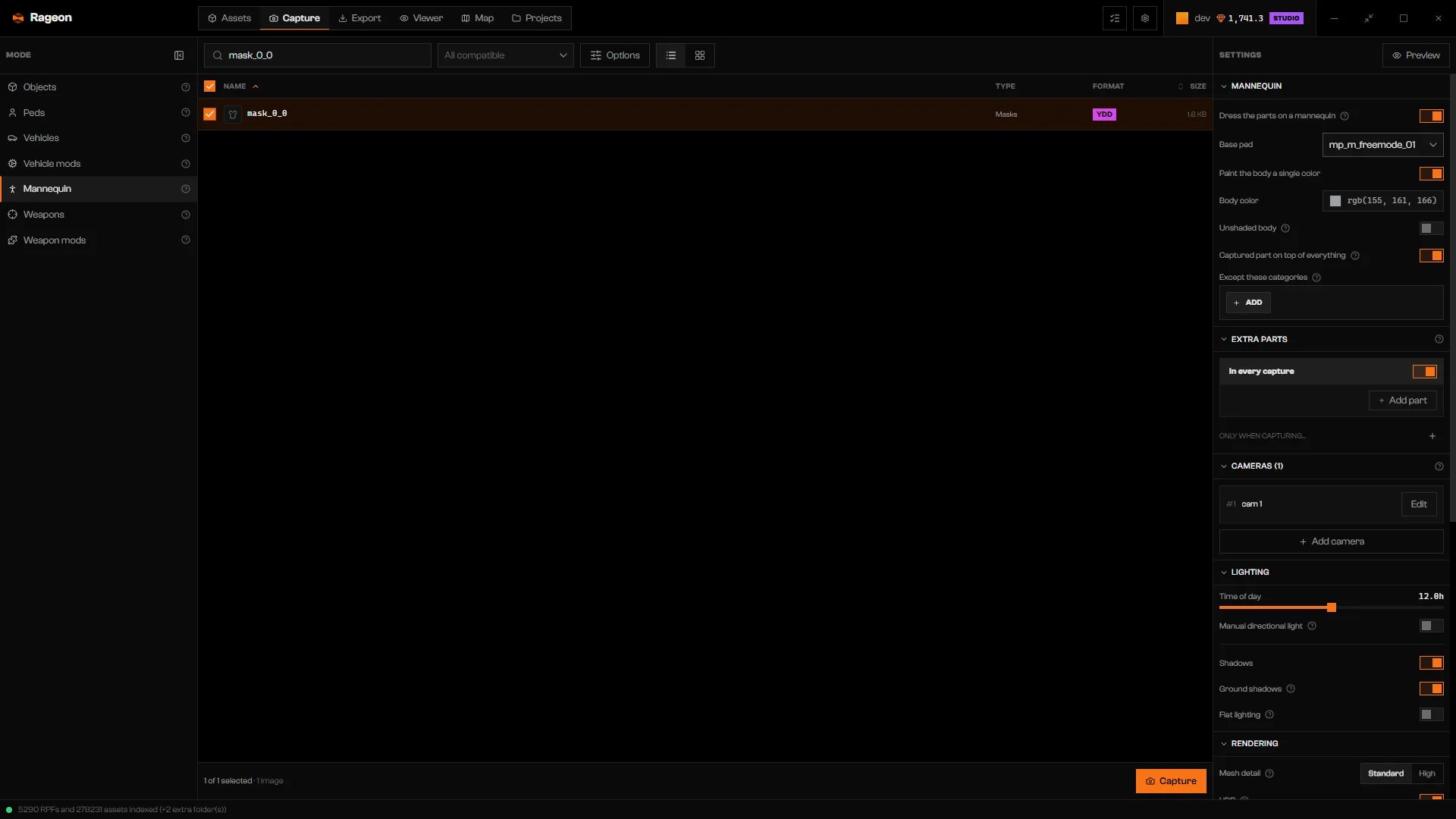
Click Capture, then Mannequin. In Base ped, pick mp_m_freemode_01 or mp_f_freemode_01. The list shows the pieces that fit that body.
2
Pick pieces
All compatible limits the list by category. Search by piece name in Search models…. Names follow component, drawable, and texture, such as mask_0_0. Slots the game leaves empty, like mask_0_0, cannot be captured: see Empty piece below. Each texture is a separate image, so a drawable with three textures counts as three.
3
Set up the body
Use the options below to decide how the body and other clothes appear.
4
Check it in Preview
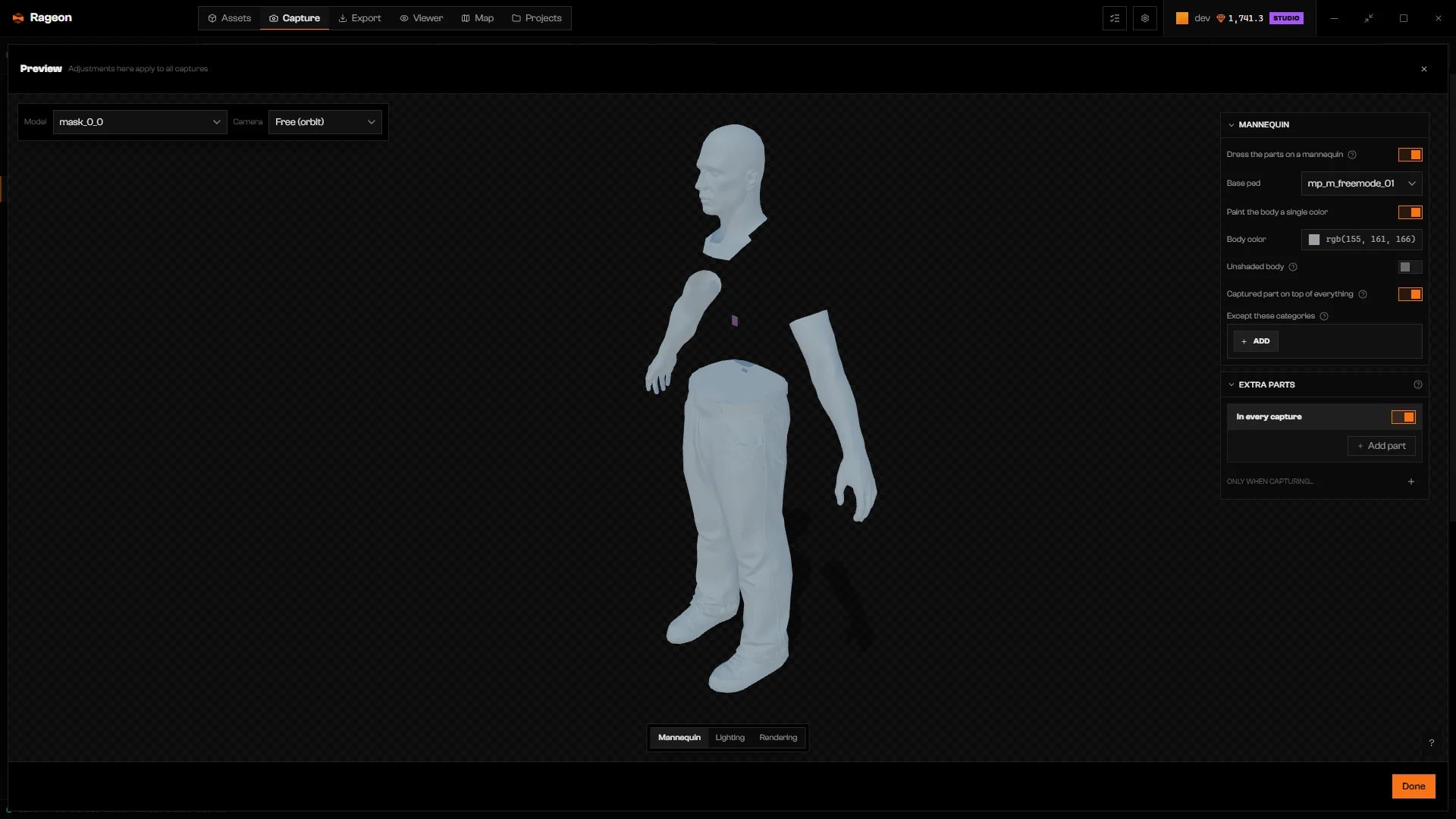
Click Preview, then the Mannequin tab. Model picks the piece and texture to look at.
Preview with the Mannequin panel and the Model menu.
5
Click Capture
Set the camera and output first. In the camera editor, Frame only the part fits the piece instead of the whole body (Cameras).
Pieces are grouped in categories such as masks, hair, torsos, legs, shoes, accessories, T-shirts, tops, hats, glasses, watches, and bracelets. Pieces that fit no category are listed as unclassified.
Extra parts are clothes worn alongside the captured piece.
In every capture dresses extra clothes in every image. Click Add part and pick a piece and texture.
Only when capturing… adds an outfit that applies only to captures of one category. Click the + next to it, pick a category, then click Add part in the new card. Each card has an on/off switch and an × to remove it.
An extra part that does not fit the base ped is ignored in the capture.
Textures above 0 get an automatic _v and the texture number added when the template has no {{variation}}, so textures of the same drawable do not overwrite each other.
Dress the parts on a mannequin is on but no body is set. Pick one in Base ped.
Choose the base ped in Settings › Mannequin to list its clothing.
The list stays empty until you pick a Base ped.
No parts compatible with this base ped. Change the category or clear the search.
Clear the search, set All compatible back to all, or pick the other Base ped.
Does not fit this base ped. Choose another part.
The extra part is for a different body. Pick another one.
This part does not fit the current base ped and will be ignored in the capture.
Replace or remove the extra part, or change the Base ped.
Ped … is not in the index: scan the GTA V files again.
Rageon does not have the freemode ped. Scan your GTA V folder again.
Could not list the peds: …
The Base ped list could not load. Read the reason after the colon, fix it, and open Mannequin again.
No ped available
The Base ped list is empty. Scan your GTA V files again.
Could not list the parts: …
Rageon could not read the clothing list for extra parts. Read the reason after the colon and fix it before adding clothes.
Empty piece: the game ships only a placeholder quad for it
The piece has no real geometry. Uncheck it.
{"docsConfig":{"theme":"mint","$schema":"https://mintlify.com/docs.json","name":"Rageon","colors":{"primary":"#f97316","light":"#fb923c","dark":"#c2410c"},"logo":{"light":"https://mintcdn.com/rageon/NnSHzDe1phDyv79M/logo/mark.png?fit=max\u0026auto=format\u0026n=NnSHzDe1phDyv79M\u0026q=85\u0026s=e0ae0889d31e1576f579125f3ef6685e","dark":"https://mintcdn.com/rageon/NnSHzDe1phDyv79M/logo/mark.png?fit=max\u0026auto=format\u0026n=NnSHzDe1phDyv79M\u0026q=85\u0026s=e0ae0889d31e1576f579125f3ef6685e","href":"https://rageon.dev"},"favicon":"https://mintcdn.com/rageon/tGC-5rfc07564TOG/favicon.png?fit=max\u0026auto=format\u0026n=tGC-5rfc07564TOG\u0026q=85\u0026s=7525da8dae81e50d0056d02037548e02","appearance":{"default":"dark"},"navbar":{"links":[{"href":"https://rageon.dev/pricing","label":"Pricing"}],"primary":{"type":"button","label":"Download","href":"https://rageon.dev/download"}},"footer":{"socials":{"website":"https://rageon.dev"}},"icons":{"library":"lucide"},"styling":{"latex":false},"navigation":{"languages":[{"language":"en","default":true,"href":"start/introduction"},{"language":"pt-BR","href":"pt-BR/start/introduction"},{"language":"es","href":"es/start/introduction"}]}},"deployment":{"deploymentMetadataValue":{"subdomain":"rageon","hasAudioNarration":false,"actualSubdomain":"rageon","customDomains":["docs.rageon.dev"],"gitSource":{"type":"github","owner":"rageoon","repo":"rageon-docs","deployBranch":"main","contentDirectory":"","isPrivate":true,"mountPath":"","label":"","_id":"6ada8d872e2812485d3d490a"},"chroma":{"latestBuiltDeploymentHistoryId":"6ada8d882e2812485d3d4910","collectionId":"d8abb39d-b557-4128-b440-bcb1bb1501eb","liveDeploymentHistoryId":"6ada8d882e2812485d3d4910","schemaVersion":"v3"},"entitlements":{"AI_CHAT":{"status":"ENABLED"},"WEB_MCP":{"status":"ENABLED"},"NARRATION":{"status":"ENABLED"}},"buildId":"6ada8d96fbb15298db52c70c","clientVersion":"0.0.3939","searchFilterCounts":[{"language":"en","tag":"Projects","count":43},{"language":"es","tag":"Proyectos","count":43},{"language":"pt-BR","tag":"Projetos","count":43},{"language":"en","tag":"Structures","count":16},{"language":"es","tag":"Estructuras","count":16},{"language":"pt-BR","tag":"Estruturas","count":16},{"language":"en","tag":"Map","count":15},{"language":"es","tag":"Mapa","count":15},{"language":"pt-BR","tag":"Mapa","count":15},{"language":"en","tag":"Getting started","count":14},{"language":"en","tag":"Viewer","count":14},{"language":"es","tag":"Primeros pasos","count":14},{"language":"es","tag":"Visor","count":14},{"language":"pt-BR","tag":"Primeiros passos","count":14},{"language":"pt-BR","tag":"Visualização","count":14},{"language":"en","tag":"Assets","count":12},{"language":"en","tag":"Capture","count":12},{"language":"es","tag":"Assets","count":12},{"language":"es","tag":"Captura","count":12},{"language":"pt-BR","tag":"Assets","count":12},{"language":"pt-BR","tag":"Captura","count":12},{"language":"en","tag":"Texturing","count":11},{"language":"es","tag":"Texturizado","count":11},{"language":"pt-BR","tag":"Texturização","count":11},{"language":"en","tag":"Export","count":8},{"language":"es","tag":"Exportar","count":8},{"language":"pt-BR","tag":"Exportar","count":8},{"language":"en","tag":"Help","count":6},{"language":"es","tag":"Ayuda","count":6},{"language":"pt-BR","tag":"Ajuda","count":6}],"searchSettings":{"isFiltersEnabled":true,"showContentSnippets":true}},"assistantConfig":{"enableAskAiButton":false,"enableStarterQuestions":false,"enableContextualStarterQuestions":false,"enableAskAiSearchBar":true},"hasChatPermissions":true,"hasWebMcpPermissions":true,"toggles":[{"name":"kill-isr","enabled":true,"variant":{"name":"disabled","enabled":false,"feature_enabled":true},"impressionData":false},{"name":"agent-mintlify-slack","enabled":true,"variant":{"name":"disabled","enabled":false,"feature_enabled":true},"impressionData":false},{"name":"editor-v7-file-tree","enabled":true,"variant":{"name":"disabled","enabled":false,"feature_enabled":true},"impressionData":false},{"name":"agent-integrations-settings","enabled":true,"variant":{"name":"disabled","enabled":false,"feature_enabled":true},"impressionData":false},{"name":"automations-pr-grouping","enabled":true,"variant":{"name":"disabled","enabled":false,"feature_enabled":true},"impressionData":false},{"name":"custom-prefix","enabled":true,"variant":{"name":"disabled","enabled":false,"feature_enabled":true},"impressionData":false},{"name":"analytics-v7","enabled":true,"variant":{"name":"disabled","enabled":false,"feature_enabled":true},"impressionData":false},{"name":"user-flows-analytics","enabled":true,"variant":{"name":"disabled","enabled":false,"feature_enabled":true},"impressionData":false},{"name":"no-publish-flow","enabled":true,"variant":{"name":"disabled","enabled":false,"feature_enabled":true},"impressionData":false},{"name":"workos-onboarding","enabled":true,"variant":{"name":"disabled","enabled":false,"feature_enabled":true},"impressionData":false},{"name":"llms-txt-v2","enabled":true,"variant":{"name":"disabled","enabled":false,"feature_enabled":true},"impressionData":false},{"name":"pause-universal-search-reconcile","enabled":true,"variant":{"name":"disabled","enabled":false,"feature_enabled":true},"impressionData":false},{"name":"snapshot-serving-live","enabled":true,"variant":{"name":"disabled","enabled":false,"feature_enabled":true},"impressionData":false},{"name":"stripTemperatureMiddleware","enabled":true,"variant":{"name":"disabled","enabled":false,"feature_enabled":true},"impressionData":false},{"name":"per-site-search-delta","enabled":true,"variant":{"name":"disabled","enabled":false,"feature_enabled":true},"impressionData":false},{"name":"support-platform-pylon-zendesk","enabled":true,"variant":{"name":"disabled","enabled":false,"feature_enabled":true},"impressionData":false},{"name":"snapshot-serving","enabled":true,"variant":{"name":"disabled","enabled":false,"feature_enabled":true},"impressionData":false},{"name":"instant-rollback","enabled":true,"variant":{"name":"disabled","enabled":false,"feature_enabled":true},"impressionData":false},{"name":"granular-notifications-server","enabled":true,"variant":{"name":"disabled","enabled":false,"feature_enabled":true},"impressionData":false},{"name":"granular-notifications","enabled":true,"variant":{"name":"disabled","enabled":false,"feature_enabled":true},"impressionData":false},{"name":"editor-private-page-search","enabled":true,"variant":{"name":"disabled","enabled":false,"feature_enabled":true},"impressionData":false},{"name":"automations-fable","enabled":true,"variant":{"name":"disabled","enabled":false,"feature_enabled":true},"impressionData":false},{"name":"fixed-ai-action-pricing","enabled":true,"variant":{"name":"disabled","enabled":false,"feature_enabled":true},"impressionData":false},{"name":"automation-resolve-merge-conflict","enabled":true,"variant":{"name":"disabled","enabled":false,"feature_enabled":true},"impressionData":false},{"name":"scoped-publishing","enabled":true,"variant":{"name":"disabled","enabled":false,"feature_enabled":true},"impressionData":false},{"name":"mintql","enabled":true,"variant":{"name":"disabled","enabled":false,"feature_enabled":true},"impressionData":false},{"name":"page-level-analytics","enabled":true,"variant":{"name":"disabled","enabled":false,"feature_enabled":true},"impressionData":false},{"name":"editor-version-history-v2","enabled":true,"variant":{"name":"disabled","enabled":false,"feature_enabled":true},"impressionData":false},{"name":"editor-nav-generations","enabled":true,"variant":{"name":"disabled","enabled":false,"feature_enabled":true},"impressionData":false},{"name":"billing-page-v2","enabled":true,"variant":{"name":"disabled","enabled":false,"feature_enabled":true},"impressionData":false},{"name":"workspace-projects","enabled":true,"variant":{"name":"disabled","enabled":false,"feature_enabled":true},"impressionData":false},{"name":"assistant-v5","enabled":true,"variant":{"name":"disabled","enabled":false,"feature_enabled":true},"impressionData":false},{"name":"byok-sep-25","enabled":true,"variant":{"name":"disabled","enabled":false,"feature_enabled":true},"impressionData":false},{"name":"fork-pr-previews","enabled":true,"variant":{"name":"disabled","enabled":false,"feature_enabled":true},"impressionData":false},{"name":"revalidation-jwt","enabled":true,"variant":{"name":"disabled","enabled":false,"feature_enabled":true},"impressionData":false},{"name":"vite-origin","enabled":true,"variant":{"name":"disabled","enabled":false,"feature_enabled":true},"impressionData":false},{"name":"editor-agent-model-picker","enabled":true,"variant":{"name":"disabled","enabled":false,"feature_enabled":true},"impressionData":false},{"name":"billing-updated-9-15","enabled":true,"variant":{"name":"disabled","enabled":false,"feature_enabled":true},"impressionData":false},{"name":"hobby-abuse-scan","enabled":true,"variant":{"name":"disabled","enabled":false,"feature_enabled":true},"impressionData":false},{"name":"dashboard-inbox","enabled":true,"variant":{"name":"disabled","enabled":false,"feature_enabled":true},"impressionData":false}],"isAtlas":false,"googleFontsInlined":false},"customCss":[],"page":{"pagePath":"capture/mannequin","slug":"/capture/mannequin","pageMetadata":{"title":"Mannequin","icon":"shirt","description":"Capture clothing, hair, and wearable props worn on a freemode ped, one image per piece and texture.","href":"/capture/mannequin"},"description":{"compiledSource":"\"use strict\";\nconst {jsx: _jsx} = arguments[0];\nconst {useMDXComponents: _provideComponents} = arguments[0];\nfunction _createMdxContent(props) {\n const _components = {\n p: \"p\",\n ..._provideComponents(),\n ...props.components\n };\n return _jsx(_components.p, {\n children: \"Capture clothing, hair, and wearable props worn on a freemode ped, one image per piece and texture.\"\n });\n}\nfunction MDXContent(props = {}) {\n const {wrapper: MDXLayout} = {\n ..._provideComponents(),\n ...props.components\n };\n return MDXLayout ? _jsx(MDXLayout, {\n ...props,\n children: _jsx(_createMdxContent, {\n ...props\n })\n }) : _createMdxContent(props);\n}\nreturn {\n default: MDXContent\n};\n","frontmatter":{},"scope":{}},"pageType":"default","mdx":{"mdxSource":{"compiledSource":"\"use strict\";const{Fragment:_Fragment,jsx:_jsx,jsxs:_jsxs}=arguments[0];const{useMDXComponents:_provideComponents}=arguments[0];function _createMdxContent(props){const _components={a:`a`,code:`code`,li:`li`,p:`p`,strong:`strong`,tbody:`tbody`,td:`td`,th:`th`,thead:`thead`,tr:`tr`,ul:`ul`,..._provideComponents(),...props.components},{Accordion,AccordionGroup,Frame,Heading,OptimizedImage,Step,Steps,Table}=_components;if(!Accordion)_missingMdxReference(`Accordion`,true);if(!AccordionGroup)_missingMdxReference(`AccordionGroup`,true);if(!Frame)_missingMdxReference(`Frame`,true);if(!Heading)_missingMdxReference(`Heading`,true);if(!OptimizedImage)_missingMdxReference(`OptimizedImage`,true);if(!Step)_missingMdxReference(`Step`,true);if(!Steps)_missingMdxReference(`Steps`,true);if(!Table)_missingMdxReference(`Table`,true);return _jsxs(_Fragment,{children:[_jsxs(_components.p,{children:[_jsx(_components.strong,{children:`Mannequin`}),` mode renders wearable pieces on a body. `,_jsx(_components.strong,{children:`Peds`}),` renders whole peds instead (`,_jsx(_components.a,{href:`/capture/peds`,children:`Peds`}),`). Use Mannequin for clothing catalogs and store previews.`]}),`\n`,_jsx(Frame,{caption:`Mannequin settings with the base ped, body options, and extra parts.`,children:_jsx(OptimizedImage,{src:`https://mintcdn.com/rageon/tGC-5rfc07564TOG/images/capture/capture-mannequin-settings.webp?fit=max\u0026auto=format\u0026n=tGC-5rfc07564TOG\u0026q=85\u0026s=8deab628f773c59c89c825e0290021c8`,alt:`Mannequin settings with Base ped, Body color, Captured part on top of everything, and Extra parts`,\"data-og-width\":`1920`,width:`1920`,\"data-og-height\":`1080`,height:`1080`,\"data-path\":`images/capture/capture-mannequin-settings.webp`,\"data-optimize\":`true`,\"data-opv\":`3`,srcset:`https://mintcdn.com/rageon/tGC-5rfc07564TOG/images/capture/capture-mannequin-settings.webp?w=280\u0026fit=max\u0026auto=format\u0026n=tGC-5rfc07564TOG\u0026q=85\u0026s=083e5ffe240842b7c5f7a24703eeabd4 280w, https://mintcdn.com/rageon/tGC-5rfc07564TOG/images/capture/capture-mannequin-settings.webp?w=560\u0026fit=max\u0026auto=format\u0026n=tGC-5rfc07564TOG\u0026q=85\u0026s=1fa1e7dcca2e9ce3d0f60a7d6650c475 560w, https://mintcdn.com/rageon/tGC-5rfc07564TOG/images/capture/capture-mannequin-settings.webp?w=840\u0026fit=max\u0026auto=format\u0026n=tGC-5rfc07564TOG\u0026q=85\u0026s=0e9bb8155d9114bee616c9dfee029a4d 840w, https://mintcdn.com/rageon/tGC-5rfc07564TOG/images/capture/capture-mannequin-settings.webp?w=1100\u0026fit=max\u0026auto=format\u0026n=tGC-5rfc07564TOG\u0026q=85\u0026s=69e1a48579265249e87f0350eecd1087 1100w, https://mintcdn.com/rageon/tGC-5rfc07564TOG/images/capture/capture-mannequin-settings.webp?w=1650\u0026fit=max\u0026auto=format\u0026n=tGC-5rfc07564TOG\u0026q=85\u0026s=55dba946749eb717728fd06bf8b5af87 1650w, https://mintcdn.com/rageon/tGC-5rfc07564TOG/images/capture/capture-mannequin-settings.webp?w=2500\u0026fit=max\u0026auto=format\u0026n=tGC-5rfc07564TOG\u0026q=85\u0026s=8fbb8ca1fd84d594ad18a27024f7de2a 2500w`})}),`\n`,_jsx(Heading,{level:`2`,id:`capture-clothing`,children:`Capture clothing`}),`\n`,_jsxs(Steps,{children:[_jsx(Step,{title:`Choose the base ped`,children:_jsxs(_components.p,{children:[`Click `,_jsx(_components.strong,{children:`Capture`}),`, then `,_jsx(_components.strong,{children:`Mannequin`}),`. In `,_jsx(_components.strong,{children:`Base ped`}),`, pick `,_jsx(_components.strong,{children:`mp_m_freemode_01`}),` or `,_jsx(_components.strong,{children:`mp_f_freemode_01`}),`. The list shows the pieces that fit that body.`]})}),_jsx(Step,{title:`Pick pieces`,children:_jsxs(_components.p,{children:[_jsx(_components.strong,{children:`All compatible`}),` limits the list by category. Search by piece name in `,_jsx(_components.strong,{children:`Search models…`}),`. Names follow component, drawable, and texture, such as `,_jsx(_components.code,{children:`mask_0_0`}),`. Slots the game leaves empty, like `,_jsx(_components.code,{children:`mask_0_0`}),`, cannot be captured: see `,_jsx(_components.strong,{children:`Empty piece`}),` below. Each texture is a separate image, so a drawable with three textures counts as three.`]})}),_jsx(Step,{title:`Set up the body`,children:_jsx(_components.p,{children:`Use the options below to decide how the body and other clothes appear.`})}),_jsxs(Step,{title:`Check it in Preview`,children:[_jsxs(_components.p,{children:[`Click `,_jsx(_components.strong,{children:`Preview`}),`, then the `,_jsx(_components.strong,{children:`Mannequin`}),` tab. `,_jsx(_components.strong,{children:`Model`}),` picks the piece and texture to look at.`]}),_jsx(Frame,{caption:`Preview with the Mannequin panel and the Model menu.`,children:_jsx(OptimizedImage,{src:`https://mintcdn.com/rageon/tGC-5rfc07564TOG/images/capture/capture-mannequin.webp?fit=max\u0026auto=format\u0026n=tGC-5rfc07564TOG\u0026q=85\u0026s=be46824247497c82a3e354ed3d7ee009`,alt:`Preview of a freemode body with the Mannequin panel, Lighting, and Rendering tabs`,\"data-og-width\":`1920`,width:`1920`,\"data-og-height\":`1080`,height:`1080`,\"data-path\":`images/capture/capture-mannequin.webp`,\"data-optimize\":`true`,\"data-opv\":`3`,srcset:`https://mintcdn.com/rageon/tGC-5rfc07564TOG/images/capture/capture-mannequin.webp?w=280\u0026fit=max\u0026auto=format\u0026n=tGC-5rfc07564TOG\u0026q=85\u0026s=ef25caa8655ebdda24d0272684dfd249 280w, https://mintcdn.com/rageon/tGC-5rfc07564TOG/images/capture/capture-mannequin.webp?w=560\u0026fit=max\u0026auto=format\u0026n=tGC-5rfc07564TOG\u0026q=85\u0026s=eb1f28b8b3a3c401bfb0cd451b5ed719 560w, https://mintcdn.com/rageon/tGC-5rfc07564TOG/images/capture/capture-mannequin.webp?w=840\u0026fit=max\u0026auto=format\u0026n=tGC-5rfc07564TOG\u0026q=85\u0026s=5bd1d9744845e5ae7cbcacd2864d8882 840w, https://mintcdn.com/rageon/tGC-5rfc07564TOG/images/capture/capture-mannequin.webp?w=1100\u0026fit=max\u0026auto=format\u0026n=tGC-5rfc07564TOG\u0026q=85\u0026s=767ef06ff82052cef4a82cd88be3e552 1100w, https://mintcdn.com/rageon/tGC-5rfc07564TOG/images/capture/capture-mannequin.webp?w=1650\u0026fit=max\u0026auto=format\u0026n=tGC-5rfc07564TOG\u0026q=85\u0026s=18e4b7ce0e76b99c6c8bfc8f7c992e41 1650w, https://mintcdn.com/rageon/tGC-5rfc07564TOG/images/capture/capture-mannequin.webp?w=2500\u0026fit=max\u0026auto=format\u0026n=tGC-5rfc07564TOG\u0026q=85\u0026s=1e720586a15bb277007e8d38a76e4cc6 2500w`})})]}),_jsx(Step,{title:`Click Capture`,children:_jsxs(_components.p,{children:[`Set the camera and `,_jsx(_components.a,{href:`/capture/output`,children:`output`}),` first. In the camera editor, `,_jsx(_components.strong,{children:`Frame only the part`}),` fits the piece instead of the whole body (`,_jsx(_components.a,{href:`/capture/cameras`,children:`Cameras`}),`).`]})})]}),`\n`,_jsx(_components.p,{children:`Pieces are grouped in categories such as masks, hair, torsos, legs, shoes, accessories, T-shirts, tops, hats, glasses, watches, and bracelets. Pieces that fit no category are listed as unclassified.`}),`\n`,_jsx(Heading,{level:`2`,id:`mannequin-options`,children:`Mannequin options`}),`\n`,_jsxs(Table,{children:[_jsx(_components.thead,{children:_jsxs(_components.tr,{children:[_jsx(_components.th,{children:`Option`}),_jsx(_components.th,{children:`What it does`}),_jsx(_components.th,{children:`Default`})]})}),_jsxs(_components.tbody,{children:[_jsxs(_components.tr,{children:[_jsx(_components.td,{children:_jsx(_components.strong,{children:`Dress the parts on a mannequin`})}),_jsx(_components.td,{children:`Puts each piece on the body. Off renders pieces alone.`}),_jsx(_components.td,{children:`On`})]}),_jsxs(_components.tr,{children:[_jsx(_components.td,{children:_jsx(_components.strong,{children:`Base ped`})}),_jsx(_components.td,{children:`Body that wears the pieces, and which pieces are listed.`}),_jsx(_components.td,{children:`None`})]}),_jsxs(_components.tr,{children:[_jsx(_components.td,{children:_jsx(_components.strong,{children:`Paint the body a single color`})}),_jsx(_components.td,{children:`Replaces body textures with one color, so the piece stands out.`}),_jsx(_components.td,{children:`On`})]}),_jsxs(_components.tr,{children:[_jsx(_components.td,{children:_jsx(_components.strong,{children:`Body color`})}),_jsx(_components.td,{children:`The color used. Only with a single color.`}),_jsx(_components.td,{children:`Neutral gray`})]}),_jsxs(_components.tr,{children:[_jsx(_components.td,{children:_jsx(_components.strong,{children:`Unshaded body`})}),_jsx(_components.td,{children:`Keeps the body evenly colored. Off shades it like the scene.`}),_jsx(_components.td,{children:`On`})]}),_jsxs(_components.tr,{children:[_jsx(_components.td,{children:_jsx(_components.strong,{children:`Captured part on top of everything`})}),_jsx(_components.td,{children:`Stops the body and other clothes from hiding the piece.`}),_jsx(_components.td,{children:`On`})]}),_jsxs(_components.tr,{children:[_jsx(_components.td,{children:_jsx(_components.strong,{children:`Except these categories`})}),_jsxs(_components.td,{children:[`Categories allowed to cover the piece, such as a jacket over a shirt. Click `,_jsx(_components.strong,{children:`Add`}),` to pick one.`]}),_jsx(_components.td,{children:`Empty`})]}),_jsxs(_components.tr,{children:[_jsx(_components.td,{children:_jsx(_components.strong,{children:`Hair color`})}),_jsx(_components.td,{children:`Recolors a reference hair. Other textures keep their own colors.`}),_jsx(_components.td,{children:`No tint`})]})]})]}),`\n`,_jsx(_components.p,{children:`Some options show only when they apply:`}),`\n`,_jsxs(_components.ul,{children:[`\n`,_jsxs(_components.li,{children:[`The options under `,_jsx(_components.strong,{children:`Base ped`}),` and the `,_jsx(_components.strong,{children:`Extra parts`}),` section show only while `,_jsx(_components.strong,{children:`Dress the parts on a mannequin`}),` is on.`]}),`\n`,_jsxs(_components.li,{children:[_jsx(_components.strong,{children:`Except these categories`}),` needs `,_jsx(_components.strong,{children:`Captured part on top of everything`}),`.`]}),`\n`,_jsxs(_components.li,{children:[`The `,_jsx(_components.strong,{children:`Hair color`}),` section appears only when your selection includes a hair piece with texture 0.`]}),`\n`]}),`\n`,_jsx(Heading,{level:`2`,id:`extra-parts`,children:`Extra parts`}),`\n`,_jsx(_components.p,{children:`Extra parts are clothes worn alongside the captured piece.`}),`\n`,_jsxs(_components.ul,{children:[`\n`,_jsxs(_components.li,{children:[_jsx(_components.strong,{children:`In every capture`}),` dresses extra clothes in every image. Click `,_jsx(_components.strong,{children:`Add part`}),` and pick a piece and texture.`]}),`\n`,_jsxs(_components.li,{children:[_jsx(_components.strong,{children:`Only when capturing…`}),` adds an outfit that applies only to captures of one category. Click the `,_jsx(_components.strong,{children:`+`}),` next to it, pick a category, then click `,_jsx(_components.strong,{children:`Add part`}),` in the new card. Each card has an on/off switch and an × to remove it.`]}),`\n`]}),`\n`,_jsx(_components.p,{children:`An extra part that does not fit the base ped is ignored in the capture.`}),`\n`,_jsx(Heading,{level:`2`,id:`file-names`,children:`File names`}),`\n`,_jsxs(_components.p,{children:[`Besides the `,_jsx(_components.a,{href:`/capture/output#file-names`,children:`general variables`}),`, Mannequin adds these.`]}),`\n`,_jsxs(Table,{children:[_jsx(_components.thead,{children:_jsxs(_components.tr,{children:[_jsx(_components.th,{children:`Variable`}),_jsx(_components.th,{children:`Result`})]})}),_jsxs(_components.tbody,{children:[_jsxs(_components.tr,{children:[_jsxs(_components.td,{children:[_jsx(_components.code,{children:`{{texture_id}}`}),`, `,_jsx(_components.code,{children:`{{variation}}`})]}),_jsx(_components.td,{children:`Texture number, starting at 0`})]}),_jsxs(_components.tr,{children:[_jsx(_components.td,{children:_jsx(_components.code,{children:`{{drawable_id}}`})}),_jsx(_components.td,{children:`Game drawable number`})]}),_jsxs(_components.tr,{children:[_jsxs(_components.td,{children:[_jsx(_components.code,{children:`{{component_id}}`}),`, `,_jsx(_components.code,{children:`{{component_name}}`})]}),_jsx(_components.td,{children:`Clothing component ID and name`})]})]})]}),`\n`,_jsxs(_components.p,{children:[`Textures above 0 get an automatic `,_jsx(_components.code,{children:`_v`}),` and the texture number added when the template has no `,_jsx(_components.code,{children:`{{variation}}`}),`, so textures of the same drawable do not overwrite each other.`]}),`\n`,_jsx(Heading,{level:`2`,id:`troubleshooting`,children:`Troubleshooting`}),`\n`,_jsxs(AccordionGroup,{children:[_jsx(Accordion,{title:`Choose the base ped in Settings › Mannequin.`,id:`choose-the-base-ped-in-settings-mannequin`,children:_jsxs(_components.p,{children:[_jsx(_components.strong,{children:`Dress the parts on a mannequin`}),` is on but no body is set. Pick one in `,_jsx(_components.strong,{children:`Base ped`}),`.`]})}),_jsx(Accordion,{title:`Choose the base ped in Settings › Mannequin to list its clothing.`,id:`choose-the-base-ped-in-settings-mannequin-to-list-its-clothing`,children:_jsxs(_components.p,{children:[`The list stays empty until you pick a `,_jsx(_components.strong,{children:`Base ped`}),`.`]})}),_jsx(Accordion,{title:`No parts compatible with this base ped. Change the category or clear the search.`,id:`no-parts-compatible-with-this-base-ped-change-the-category-or-clear-the-search`,children:_jsxs(_components.p,{children:[`Clear the search, set `,_jsx(_components.strong,{children:`All compatible`}),` back to all, or pick the other `,_jsx(_components.strong,{children:`Base ped`}),`.`]})}),_jsx(Accordion,{title:`Does not fit this base ped. Choose another part.`,id:`does-not-fit-this-base-ped-choose-another-part`,children:_jsx(_components.p,{children:`The extra part is for a different body. Pick another one.`})}),_jsx(Accordion,{title:`This part does not fit the current base ped and will be ignored in the capture.`,id:`this-part-does-not-fit-the-current-base-ped-and-will-be-ignored-in-the-capture`,children:_jsxs(_components.p,{children:[`Replace or remove the extra part, or change the `,_jsx(_components.strong,{children:`Base ped`}),`.`]})}),_jsx(Accordion,{title:`Ped … is not in the index: scan the GTA V files again.`,id:`ped-is-not-in-the-index-scan-the-gta-v-files-again`,children:_jsx(_components.p,{children:`Rageon does not have the freemode ped. Scan your GTA V folder again.`})}),_jsx(Accordion,{title:`Could not list the peds: …`,id:`could-not-list-the-peds`,children:_jsxs(_components.p,{children:[`The `,_jsx(_components.strong,{children:`Base ped`}),` list could not load. Read the reason after the colon, fix it, and open `,_jsx(_components.strong,{children:`Mannequin`}),` again.`]})}),_jsx(Accordion,{title:`No ped available`,id:`no-ped-available`,children:_jsxs(_components.p,{children:[`The `,_jsx(_components.strong,{children:`Base ped`}),` list is empty. Scan your GTA V files again.`]})}),_jsx(Accordion,{title:`Could not list the parts: …`,id:`could-not-list-the-parts`,children:_jsx(_components.p,{children:`Rageon could not read the clothing list for extra parts. Read the reason after the colon and fix it before adding clothes.`})}),_jsx(Accordion,{title:`Empty piece: the game ships only a placeholder quad for it`,id:`empty-piece-the-game-ships-only-a-placeholder-quad-for-it`,children:_jsx(_components.p,{children:`The piece has no real geometry. Uncheck it.`})})]})]})}function MDXContent(props={}){const{wrapper:MDXLayout}={..._provideComponents(),...props.components};return MDXLayout?_jsx(MDXLayout,{...props,children:_jsx(_createMdxContent,{...props})}):_createMdxContent(props)}return{default:MDXContent};function _missingMdxReference(id,component){throw new Error(`Expected `+(component?`component`:`object`)+\" `\"+id+\"` to be defined: you likely forgot to import, pass, or provide it.\")}","frontmatter":{},"scope":{"config":{},"pageMetadata":{"title":"Mannequin","icon":"shirt","description":"Capture clothing, hair, and wearable props worn on a freemode ped, one image per piece and texture.","href":"/capture/mannequin"}}},"mdxSourceWithNoJs":null},"mdxExtracts":{"tableOfContents":[{"title":"Capture clothing","slug":"capture-clothing","depth":2,"children":[]},{"title":"Mannequin options","slug":"mannequin-options","depth":2,"children":[]},{"title":"Extra parts","slug":"extra-parts","depth":2,"children":[]},{"title":"File names","slug":"file-names","depth":2,"children":[]},{"title":"Troubleshooting","slug":"troubleshooting","depth":2,"children":[]}],"codeExamples":{}},"jsLinks":[],"subdomain":"rageon","siteName":"Rageon","title":"Mannequin - Rageon","navMaps":{"firstHrefInVersion":{},"firstHrefInLanguage":{"en":{"href":"/capture/mannequin","matchLevel":0},"pt-BR":{"href":"/pt-BR/capture/mannequin","matchLevel":1},"es":{"href":"/es/capture/mannequin","matchLevel":1}}},"lastModified":"2026-10-22T22:26:55.044Z","originalFileLocation":"capture/mannequin.mdx","locale":"en"},"headHtml":"\u003cscript data-mint-head>(function(){var d=document.documentElement,p=null;if(!p){try{p=localStorage.getItem(\"isDarkMode\")}catch(e){}if(p==='true')p='dark';else if(p==='false')p='light';if(p!=='light'\u0026\u0026p!=='dark'\u0026\u0026p!=='system')p=\"dark\"}var r=p==='system'?(matchMedia(\"(prefers-color-scheme: dark)\").matches?'dark':'light'):p;d.classList.remove(r==='dark'?'light':'dark');d.classList.add(r);d.setAttribute(\"data-theme-preference\",p)})();\u003c/script>\u003cmeta data-mint-head name=\"description\" content=\"Capture clothing, hair, and wearable props worn on a freemode ped, one image per piece and texture.\">\u003cmeta data-mint-head name=\"application-name\" content=\"Rageon\">\u003cmeta data-mint-head name=\"generator\" content=\"Mintlify\">\u003clink data-mint-head rel=\"icon\" type=\"image/png\" sizes=\"192x192\" href=\"/mintlify-assets/_mintlify/favicons/rageon/ZtuCQ-reSINKWczI/_generated/favicon/android-chrome-192x192.png\" media=\"(prefers-color-scheme: light)\">\u003clink data-mint-head rel=\"apple-touch-icon\" type=\"image/png\" sizes=\"180x180\" href=\"/mintlify-assets/_mintlify/favicons/rageon/ZtuCQ-reSINKWczI/_generated/favicon/apple-touch-icon.png\">\u003clink data-mint-head rel=\"icon\" type=\"image/png\" sizes=\"16x16\" href=\"/mintlify-assets/_mintlify/favicons/rageon/ZtuCQ-reSINKWczI/_generated/favicon/favicon-16x16.png\" media=\"(prefers-color-scheme: light)\">\u003clink data-mint-head rel=\"icon\" type=\"image/png\" sizes=\"32x32\" href=\"/mintlify-assets/_mintlify/favicons/rageon/ZtuCQ-reSINKWczI/_generated/favicon/favicon-32x32.png\" media=\"(prefers-color-scheme: light)\">\u003clink data-mint-head rel=\"shortcut icon\" type=\"image/x-icon\" href=\"/mintlify-assets/_mintlify/favicons/rageon/ZtuCQ-reSINKWczI/_generated/favicon/favicon.ico\" media=\"(prefers-color-scheme: light)\">\u003clink data-mint-head rel=\"icon\" type=\"image/png\" sizes=\"192x192\" href=\"/mintlify-assets/_mintlify/favicons/rageon/ZtuCQ-reSINKWczI/_generated/favicon-dark/android-chrome-192x192.png\" media=\"(prefers-color-scheme: dark)\">\u003clink data-mint-head rel=\"icon\" type=\"image/png\" sizes=\"16x16\" href=\"/mintlify-assets/_mintlify/favicons/rageon/ZtuCQ-reSINKWczI/_generated/favicon-dark/favicon-16x16.png\" media=\"(prefers-color-scheme: dark)\">\u003clink data-mint-head rel=\"icon\" type=\"image/png\" sizes=\"32x32\" href=\"/mintlify-assets/_mintlify/favicons/rageon/ZtuCQ-reSINKWczI/_generated/favicon-dark/favicon-32x32.png\" media=\"(prefers-color-scheme: dark)\">\u003clink data-mint-head rel=\"shortcut icon\" type=\"image/x-icon\" href=\"/mintlify-assets/_mintlify/favicons/rageon/ZtuCQ-reSINKWczI/_generated/favicon-dark/favicon.ico\" media=\"(prefers-color-scheme: dark)\">\u003cmeta data-mint-head property=\"og:title\" content=\"Mannequin - Rageon\">\u003cmeta data-mint-head property=\"og:description\" content=\"Capture clothing, hair, and wearable props worn on a freemode ped, one image per piece and texture.\">\u003cmeta data-mint-head property=\"og:site_name\" content=\"Rageon\">\u003cmeta data-mint-head property=\"og:url\" content=\"https://docs.rageon.dev/capture/mannequin\">\u003cmeta data-mint-head property=\"og:type\" content=\"website\">\u003cmeta data-mint-head property=\"og:image\" content=\"https://rageon.mintlify.app/_mintlify/api/og/v2?division=Capture+modes\u0026amp;title=Mannequin\u0026amp;description=Capture+clothing%2C+hair%2C+and+wearable+props+worn+on+a+freemode+ped%2C+one+image+per+piece+and+texture.\u0026amp;theme=dc798bdc6d01b550c8b95f0f\u0026amp;signature=2f02dbcce3168d1701fbaeb3022fe275a606afe7f54dca39b7bad2fcd7156d26\">\u003cmeta data-mint-head property=\"og:image:width\" content=\"1200\">\u003cmeta data-mint-head property=\"og:image:height\" content=\"630\">\u003cmeta data-mint-head name=\"twitter:card\" content=\"summary_large_image\">\u003cmeta data-mint-head name=\"twitter:title\" content=\"Mannequin - Rageon\">\u003cmeta data-mint-head name=\"twitter:description\" content=\"Capture clothing, hair, and wearable props worn on a freemode ped, one image per piece and texture.\">\u003cmeta data-mint-head name=\"twitter:image\" content=\"https://rageon.mintlify.app/_mintlify/api/og/v2?division=Capture+modes\u0026amp;title=Mannequin\u0026amp;description=Capture+clothing%2C+hair%2C+and+wearable+props+worn+on+a+freemode+ped%2C+one+image+per+piece+and+texture.\u0026amp;theme=dc798bdc6d01b550c8b95f0f\u0026amp;signature=2f02dbcce3168d1701fbaeb3022fe275a606afe7f54dca39b7bad2fcd7156d26\">\u003cmeta data-mint-head name=\"twitter:image:width\" content=\"1200\">\u003cmeta data-mint-head name=\"twitter:image:height\" content=\"630\">\u003cmeta data-mint-head name=\"msapplication-config\" content=\"/mintlify-assets/_mintlify/favicons/rageon/ZtuCQ-reSINKWczI/_generated/favicon/browserconfig.xml\">\u003cmeta data-mint-head name=\"apple-mobile-web-app-title\" content=\"Rageon\">\u003cmeta data-mint-head name=\"msapplication-TileColor\" content=\"#f97316\">\u003clink data-mint-head rel=\"canonical\" href=\"https://docs.rageon.dev/capture/mannequin\">\u003clink data-mint-head rel=\"alternate\" type=\"application/xml\" href=\"/sitemap.xml\">\u003clink data-mint-head rel=\"alternate\" type=\"text/markdown\" href=\"/capture/mannequin.md\">\u003clink data-mint-head rel=\"alternate\" hreflang=\"en\" href=\"https://docs.rageon.dev/capture/mannequin\">\u003clink data-mint-head rel=\"alternate\" hreflang=\"pt-BR\" href=\"https://docs.rageon.dev/pt-BR/capture/mannequin\">\u003clink data-mint-head rel=\"alternate\" hreflang=\"es\" href=\"https://docs.rageon.dev/es/capture/mannequin\">\u003clink data-mint-head rel=\"alternate\" hreflang=\"x-default\" href=\"https://docs.rageon.dev/capture/mannequin\">\u003cscript data-mint-head type=\"application/ld+json\">{\"@context\":\"https://schema.org\",\"@graph\":[{\"@type\":\"Organization\",\"@id\":\"https://docs.rageon.dev/#organization\",\"name\":\"Rageon\",\"url\":\"https://docs.rageon.dev\",\"logo\":{\"@type\":\"ImageObject\",\"url\":\"https://mintcdn.com/rageon/NnSHzDe1phDyv79M/logo/mark.png?fit=max\u0026auto=format\u0026n=NnSHzDe1phDyv79M\u0026q=85\u0026s=e0ae0889d31e1576f579125f3ef6685e\"}},{\"@type\":\"WebSite\",\"@id\":\"https://docs.rageon.dev#website\",\"name\":\"Rageon\",\"url\":\"https://docs.rageon.dev\",\"publisher\":{\"@id\":\"https://docs.rageon.dev/#organization\"}},{\"@type\":\"WebPage\",\"@id\":\"https://docs.rageon.dev/capture/mannequin#webpage\",\"url\":\"https://docs.rageon.dev/capture/mannequin\",\"name\":\"Mannequin\",\"description\":\"Capture clothing, hair, and wearable props worn on a freemode ped, one image per piece and texture.\",\"dateModified\":\"2026-10-22T22:26:55.044Z\",\"isPartOf\":{\"@id\":\"https://docs.rageon.dev#website\"},\"breadcrumb\":{\"@id\":\"https://docs.rageon.dev/capture/mannequin#breadcrumb\"}},{\"@type\":\"BreadcrumbList\",\"@id\":\"https://docs.rageon.dev/capture/mannequin#breadcrumb\",\"itemListElement\":[{\"@type\":\"ListItem\",\"position\":1,\"name\":\"Capture modes\",\"item\":\"https://docs.rageon.dev/capture/peds\"},{\"@type\":\"ListItem\",\"position\":2,\"name\":\"Mannequin\",\"item\":\"https://docs.rageon.dev/capture/mannequin\"}]},{\"@type\":[\"Article\",\"TechArticle\"],\"@id\":\"https://docs.rageon.dev/capture/mannequin#article\",\"headline\":\"Mannequin\",\"name\":\"Mannequin\",\"description\":\"Capture clothing, hair, and wearable props worn on a freemode ped, one image per piece and texture.\",\"url\":\"https://docs.rageon.dev/capture/mannequin\",\"mainEntityOfPage\":{\"@id\":\"https://docs.rageon.dev/capture/mannequin#webpage\"},\"dateModified\":\"2026-10-22T22:26:55.044Z\",\"publisher\":{\"@id\":\"https://docs.rageon.dev/#organization\"},\"isPartOf\":{\"@id\":\"https://docs.rageon.dev#website\"}}]}\u003c/script>\u003cscript data-mint-head type=\"application/ld+json\">{\"@context\":\"https://schema.org\",\"@type\":\"WebSite\",\"name\":\"Rageon\",\"creator\":{\"@type\":\"Organization\",\"name\":\"Mintlify\",\"url\":\"https://mintlify.com\"}}\u003c/script>","siteName":"Rageon","nav":{"global":null,"languages":[{"language":"en","default":true,"tabs":[{"tab":"Getting started","icon":"rocket","pages":[{"title":"Getting started","href":"/start/introduction"}]},{"tab":"Assets","icon":"box","pages":[{"title":"Assets","href":"/assets/browse"}]},{"tab":"Viewer","icon":"eye","pages":[{"title":"Viewer","href":"/viewer/overview"}]},{"tab":"Capture","icon":"camera","groups":[{"group":"Capture","icon":"camera","pages":[{"title":"Capture overview","icon":"camera","href":"/capture/overview"},{"title":"Cameras","icon":"video","href":"/capture/cameras"},{"title":"Preview and environment","icon":"sun","href":"/capture/preview-and-environment"},{"title":"Output and running a capture","icon":"image-down","href":"/capture/output"}]},{"group":"Capture modes","icon":"shapes","pages":[{"title":"Peds","icon":"user","href":"/capture/peds"},{"title":"Vehicles and vehicle mods","icon":"car","href":"/capture/vehicles"},{"title":"Weapons and weapon mods","icon":"crosshair","description":"Capture weapons with their magazines, variants, and tints, or attachments on the weapon they belong to.","href":"/capture/weapons"},{"title":"Mannequin","icon":"shirt","href":"/capture/mannequin"}]}]},{"tab":"Export","icon":"download","pages":[{"title":"Export","href":"/export/overview"}]},{"tab":"Map","icon":"map","pages":[{"title":"Map","href":"/map/library"}]},{"tab":"Projects","icon":"folder-kanban","pages":[{"title":"Projects","href":"/projects/overview"}]},{"tab":"Account and settings","icon":"user-cog","pages":[{"title":"Account and settings","href":"/account/overview"}]},{"tab":"Help","icon":"life-buoy","pages":[{"title":"Help","href":"/help/troubleshooting"}]}]},{"language":"pt-BR","pages":[{"title":"pt-BR","href":"/pt-BR/capture/mannequin"}]},{"language":"es","pages":[{"title":"es","href":"/es/capture/mannequin"}]}]},"title":"Mannequin - Rageon","buildId":"dpl_5UDDZ9hnigTkoV7QtvQ39eUp84nu","deploymentId":"dpl_5UDDZ9hnigTkoV7QtvQ39eUp84nu","dynamics":["07c022d89b","a74be98ba7"],"chunks":["Frame-CUTvSGqu.js","DynamicMarkdown-BGu84FgU.js","zoom-image-lightbox-ChyC7Hte.js","PlusIcon-DXkY3IBj.js","lightbox-handle-r17bVUz3.js"]}