
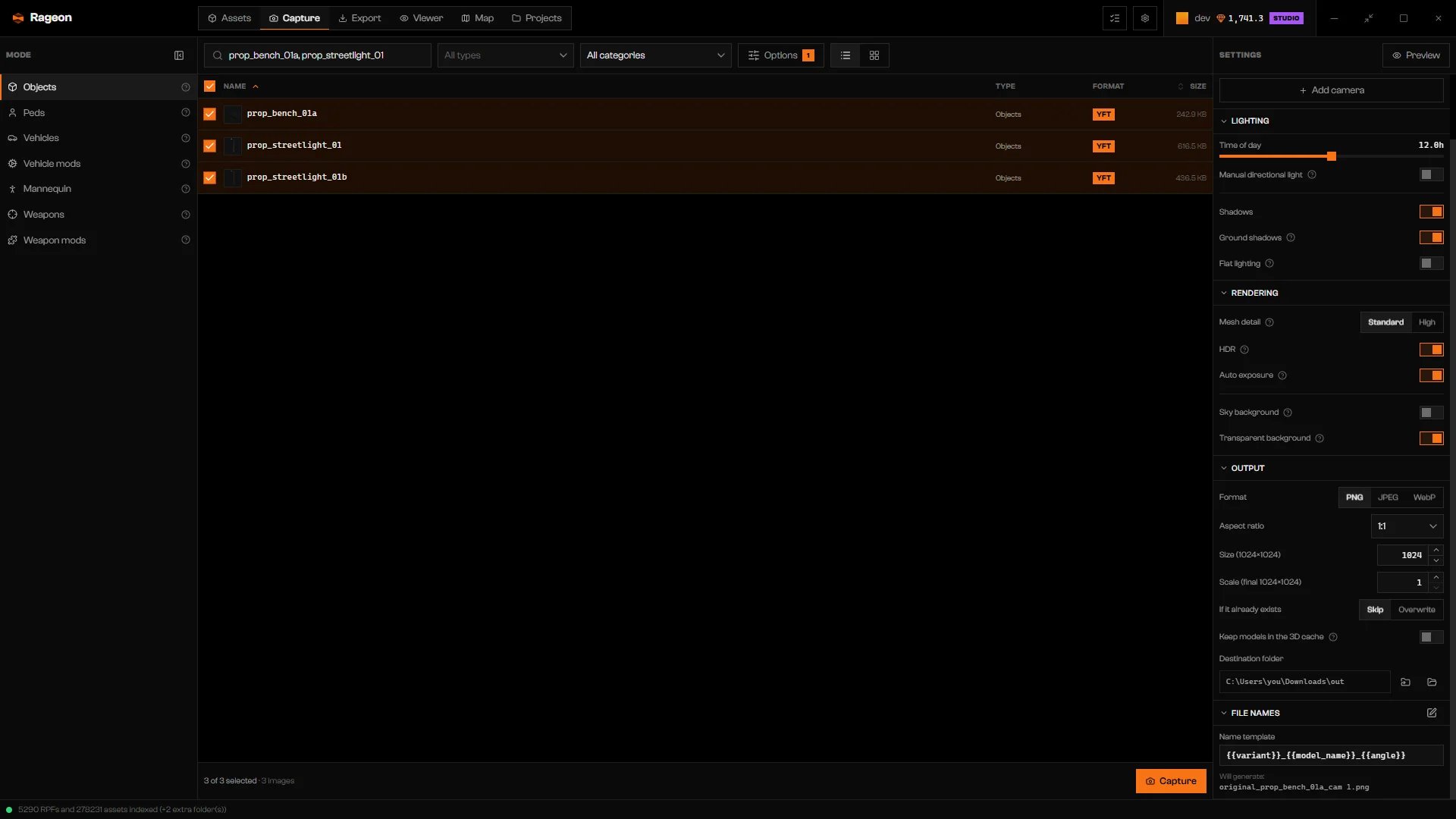
Output settings with PNG, 1:1, 1024, and Skip, plus the destination folder.
Format and size
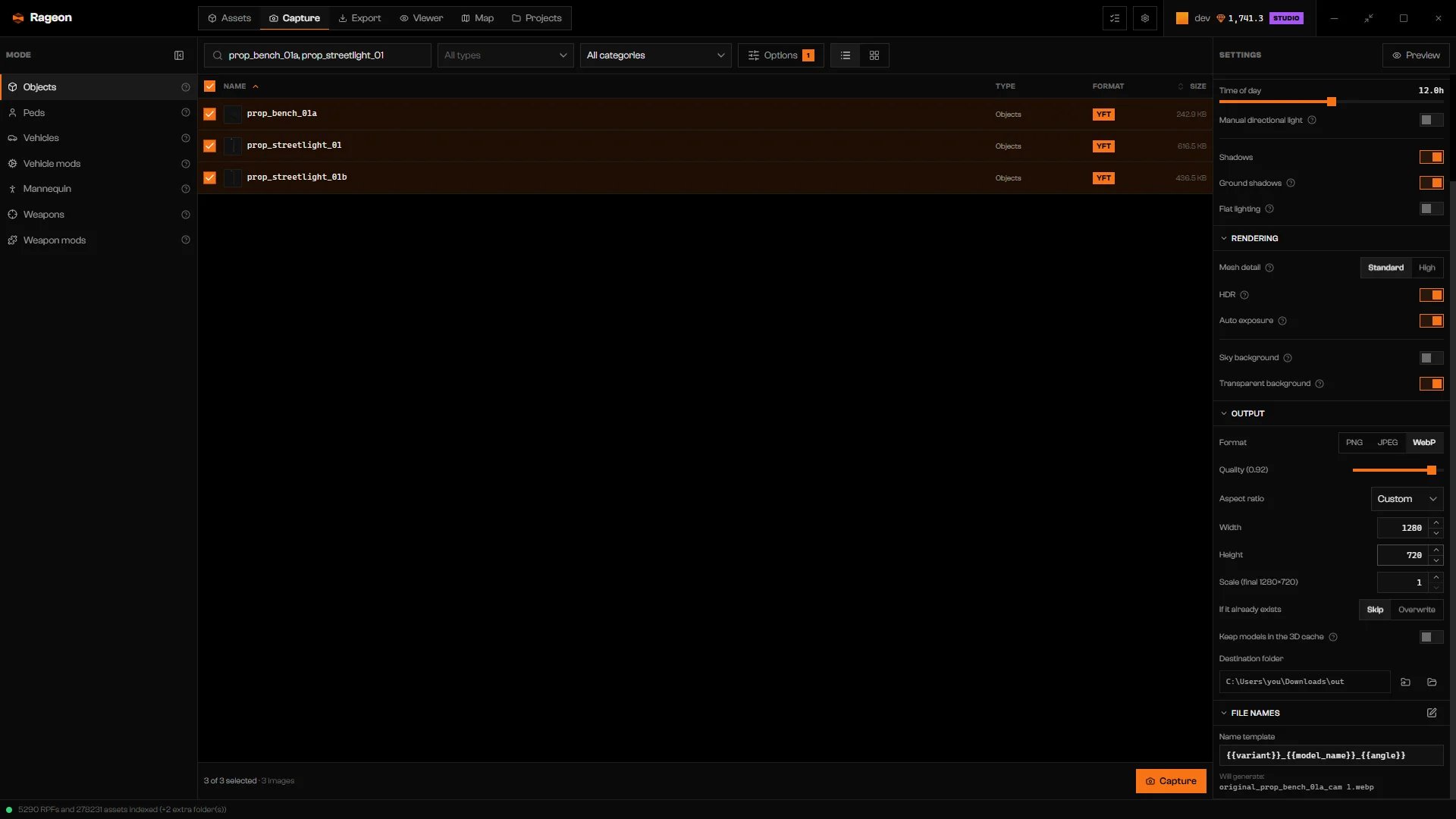
WebP at a custom 1280 × 720.
Destination folder
Click the folder icon next to the path (Choose the folder) and pick where the images go. The path appears under Destination folder, and the second folder icon opens it in Explorer. Capture needs a folder.File names
The Name template under File names builds each file name from text and variables in double braces. The default is{{variant}}_{{model_name}}_{{angle}}. Will generate: below it previews up to three names. Click the edit icon (Edit the name template and see the placeholders) for a larger editor and the full variable list.
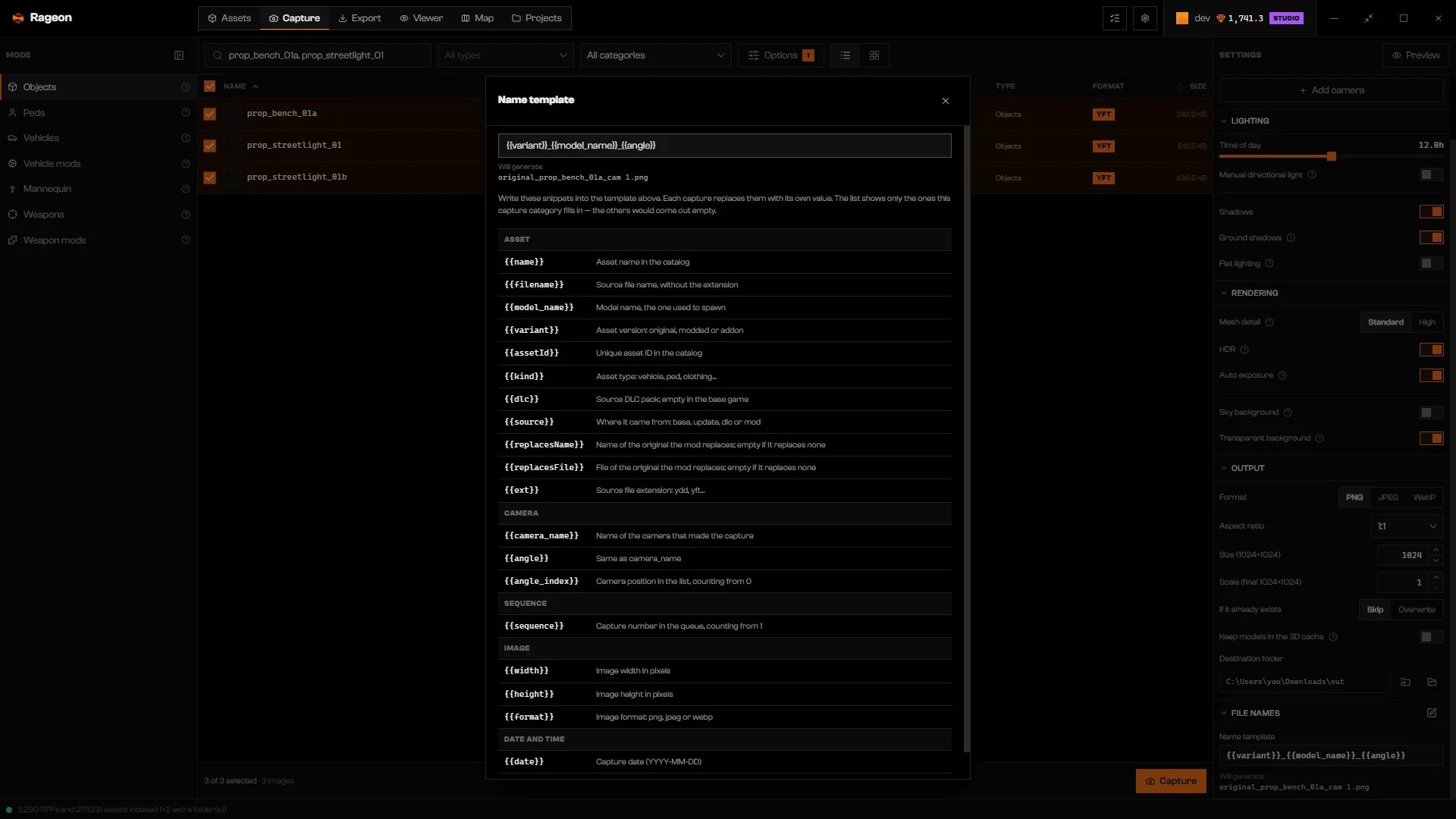
The name template editor with the variable reference.
Run a capture
Click Capture
Choose versions if asked
Watch the progress
Read the result
When an original and its mod are both selected
Original or mod? appears when you select a game model and a mod that replaces it. Choose for each entry:- Use mod captures the replacement.
- Use original captures the game version.
- Ignore captures both.
{{variant}}, {{source}}, or {{assetId}} to the Name template first. Without one, the original and the mod write the same file.
Limits and plans
Capture has a weekly allowance that depends on your plan. See rageon.dev/pricing for what each plan includes. A batch that does not fit in what you have left is refused before any image renders. Make the batch smaller, wait for the renewal date if one is shown, or change plan. A limited allowance is checked online, so a refusal can come from not being connected.Troubleshooting
Choose the destination folder in Settings › Output.
Choose the destination folder in Settings › Output.
Preparing the renderer…
Preparing the renderer…
Reduce the image size in Settings › Output.
Reduce the image size in Settings › Output.
…×… exceeds the 16 megapixel limit per image. Reduce the size.
…×… exceeds the 16 megapixel limit per image. Reduce the size.
Add {{variant}} (or {{source}} / {{assetId}}) to the name template in Settings › Output — without it, the capture of the original and of the mod write the SAME file.
Add {{variant}} (or {{source}} / {{assetId}}) to the name template in Settings › Output — without it, the capture of the original and of the mod write the SAME file.
The file already exists and Conflict is set to “Skip”.
The file already exists and Conflict is set to “Skip”.
asset without a 3D source
asset without a 3D source
Failed to convert/load the model
Failed to convert/load the model
Empty piece: the game ships only a placeholder quad for it
Empty piece: the game ships only a placeholder quad for it
Another model load interrupted this one.
Another model load interrupted this one.
Could not finish writing the capture.
Could not finish writing the capture.
The capture stopped because of an error: …. Nothing was lost — fix it and run again.
The capture stopped because of an error: …. Nothing was lost — fix it and run again.
Sign in to your account to continue.
Sign in to your account to continue.
Your session predates the plan limits. Sign in to your account again.
Your session predates the plan limits. Sign in to your account again.
Weekly capture quota used up: … of … used. It renews on ….
Weekly capture quota used up: … of … used. It renews on ….
Weekly capture quota used up: … of … used. The request is larger than the weekly quota.
Weekly capture quota used up: … of … used. The request is larger than the weekly quota.
Too many requests in a row to the server. Try again in … s.
Too many requests in a row to the server. Try again in … s.