
.ytd dictionary or the ones a model uses, including textures it takes from another dictionary.
If Textures disappears, the file has no readable textures. Try a related .ytd in Files. If the status reports Texture error: …, reopen the file or try another dictionary.
Filter and enlarge
Use Filter by name or format to match part of a texture name or format. Matching ignores case, and the filter resets when you open another file.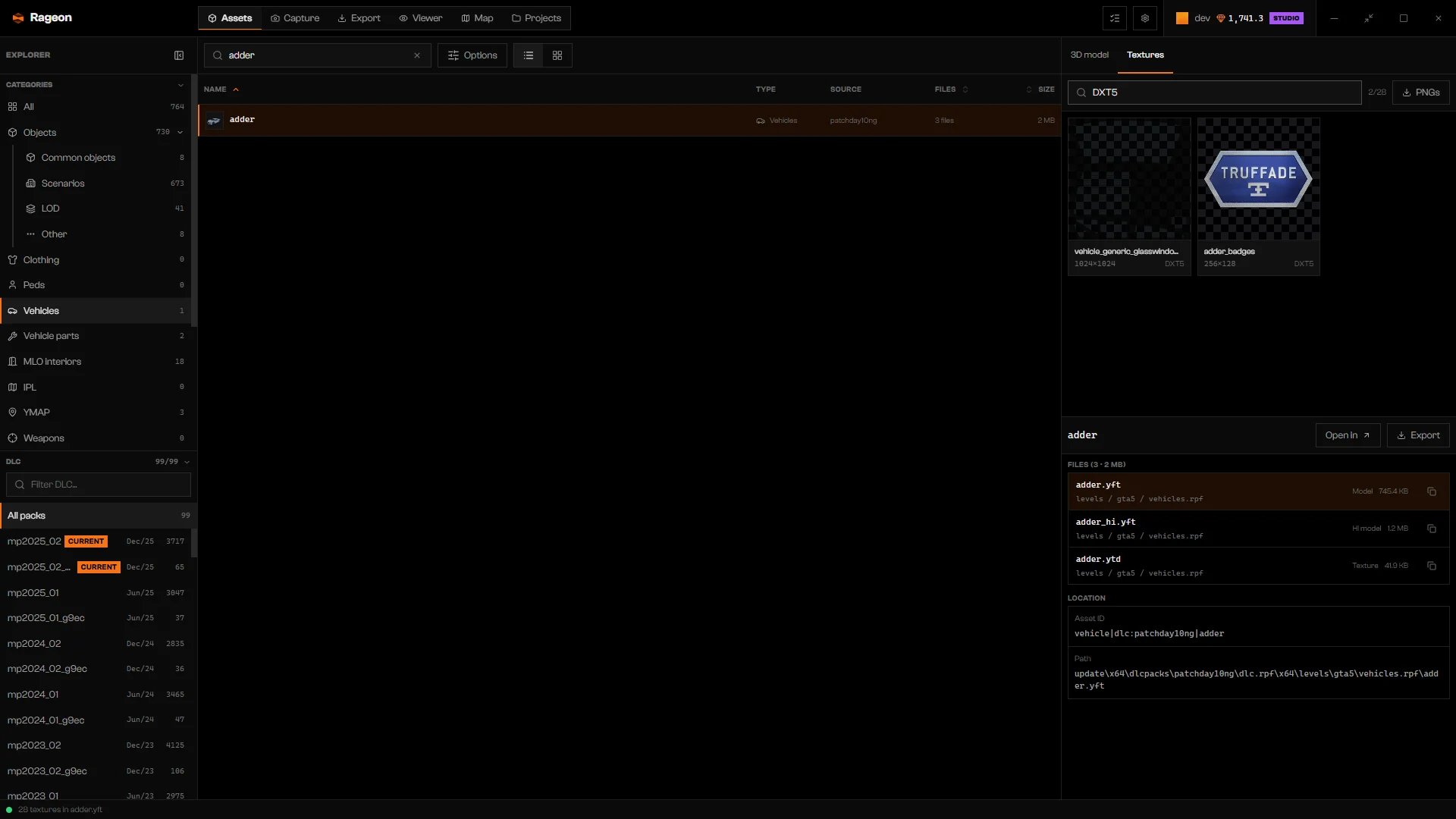
adder textures filtered to DXT5.
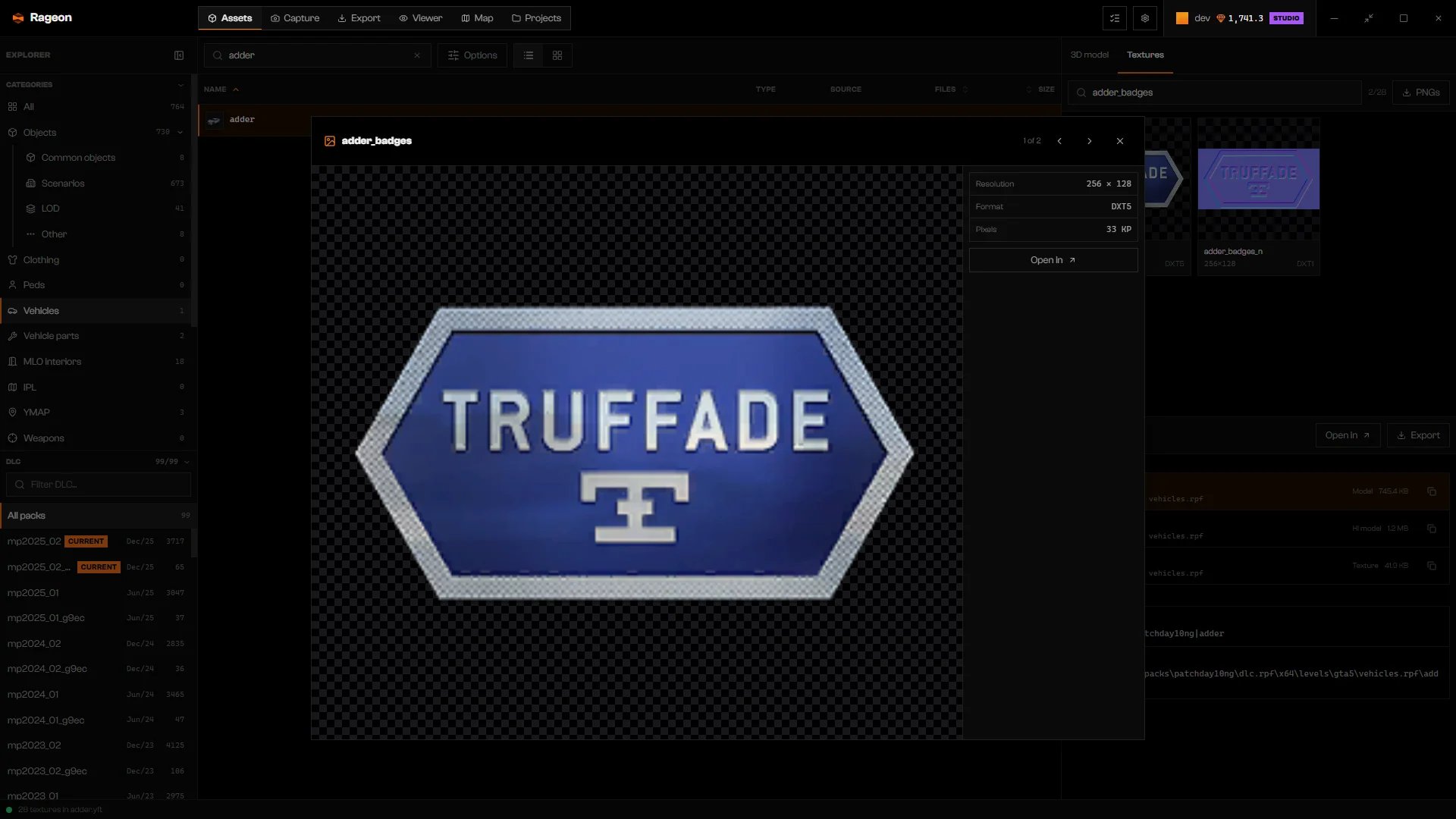
adder_badges enlarged.
Save as PNG
Click PNGs and choose an empty folder. It saves every texture of the selected file as PNG, including cards hidden by the filter. Rageon reports how many textures were written out of the total and where. For clothing, PNGs exports the textures of the selected texture variation. There is no button for a single texture.PNGs counts against your export quota, like Extract and Render. See rageon.dev/pricing.
Troubleshooting
No embedded textures
No embedded textures
This file has no textures of its own. A model can take its textures from a separate dictionary. Look for a
.ytd under Files and open it (Inspect files).No textures
No textures
A .… has no texture to show. The selected file is not a model or a
.ytd. Pick one in Files.Nothing found
Nothing found
No texture matches the filter. Clear Filter by name or format.
No preview
No preview
The card has no thumbnail. Open it to see its details, or save the file with PNGs.
Error exporting textures: …
Error exporting textures: …
Check the destination folder and your export quota, then try again with another folder.