
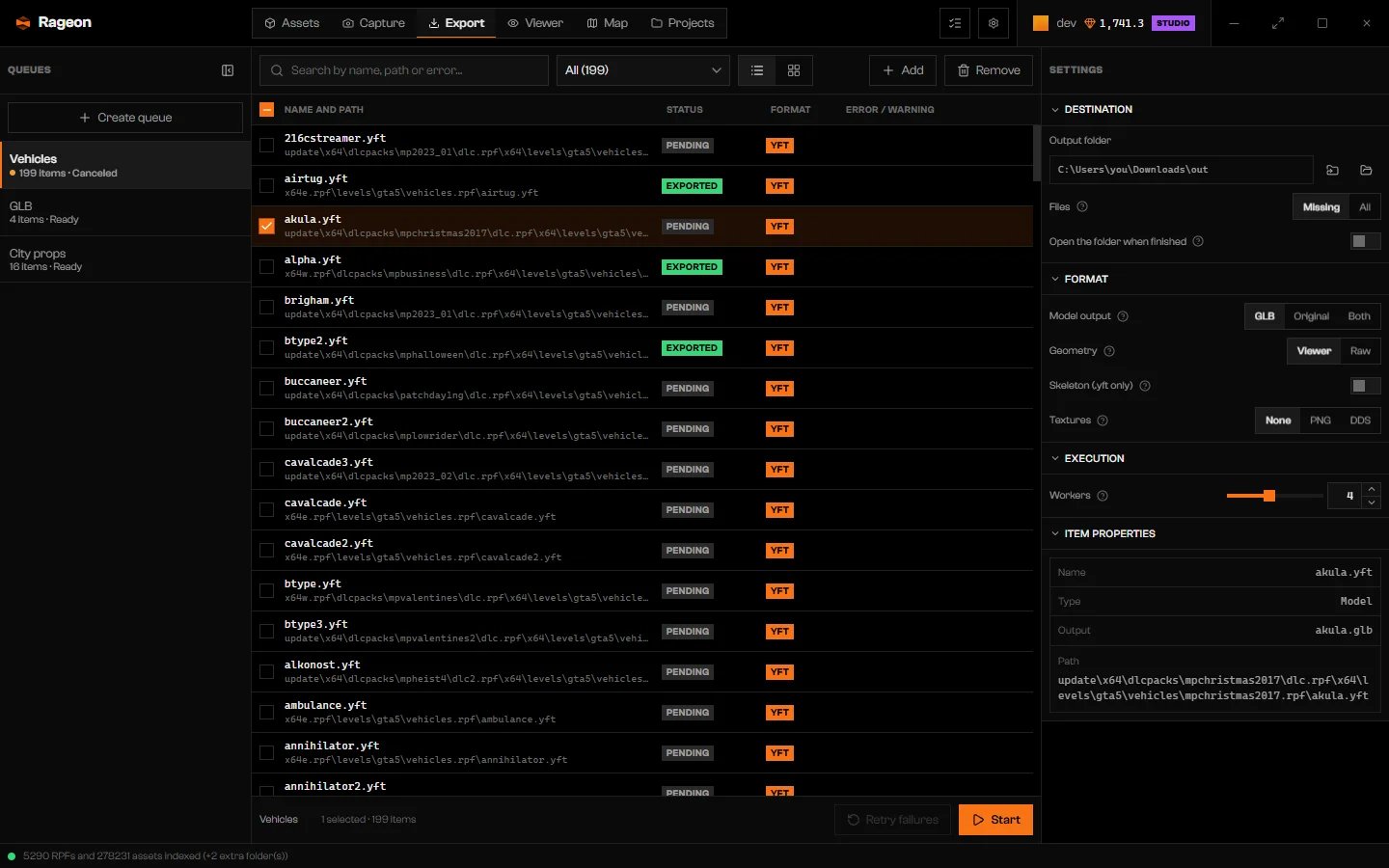
Settings for a queue with items.
Options
Geometry, Skeleton, and Textures do not apply to Original, because the file is copied without conversion. Interiors always export as GLB with embedded textures.
Which output to choose
- Pick GLB to open the model in Blender or another 3D program. Textures are already inside, so leave Textures on None unless you want loose image files to edit.
- Pick Original to copy game files into a folder, for example into a resource. They stay unchanged.
- Pick Both to keep the two side by side.
- For loose textures, choose PNG for general editing or DDS for the game’s own format.
- Turn on Skeleton (.yft only) when you need a vehicle’s or prop’s rig in your 3D program. It only affects
.yftfiles. - Use Raw geometry when the converted model is missing parts.
- Keep Files on Missing. Choose All to replace a file you suspect is incomplete. It only affects Pending and Failed items. To run a finished item again, remove it and add it again, or reopen Rageon.