
Start a queue
Choose the output folder and check Output
Click Start
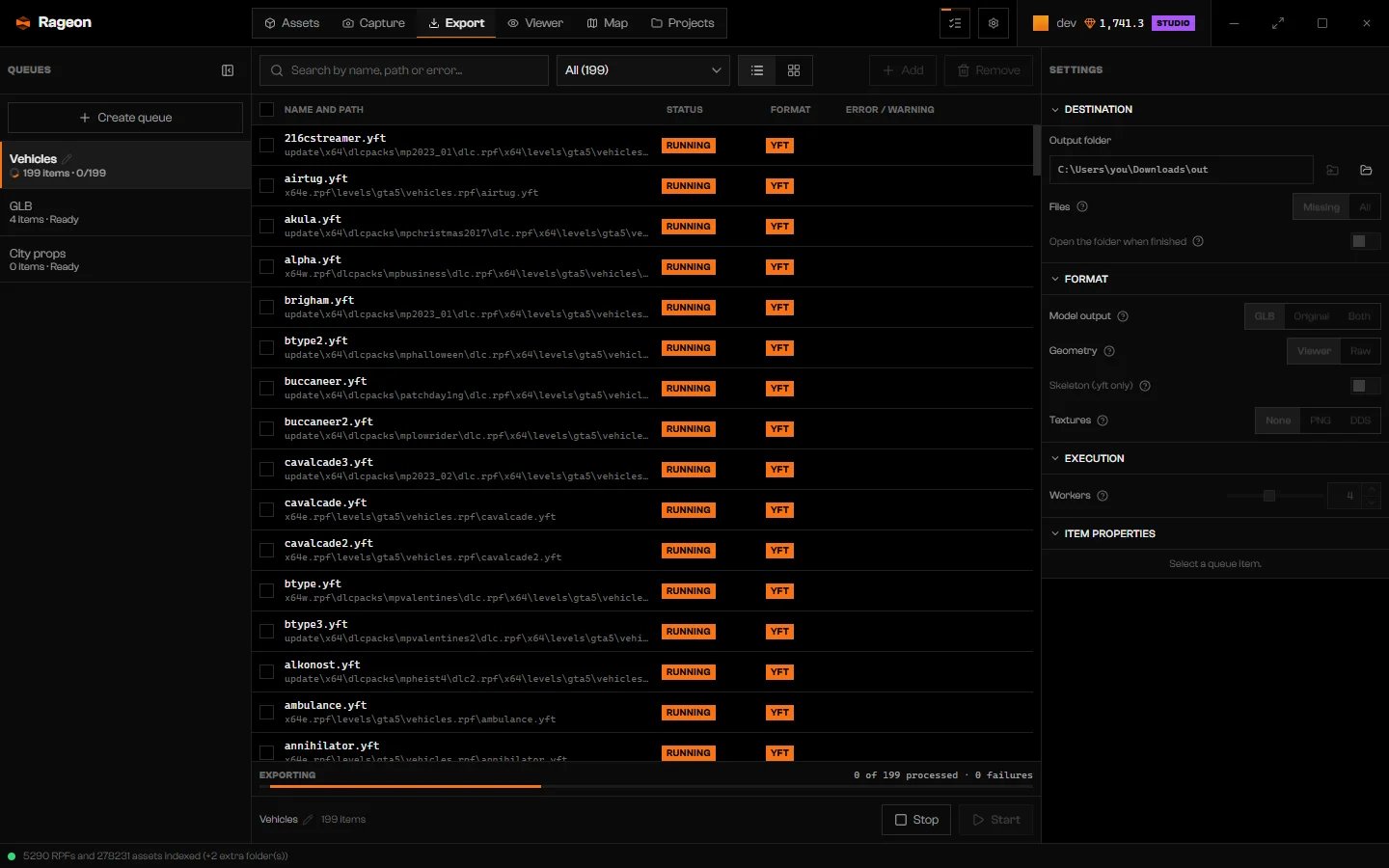
A queue in progress.
Item statuses
Stop a run
Stop cancels the run. Files already exported stay, and unfinished items go back to Pending.Fix failures
Select a Failed item to read its error.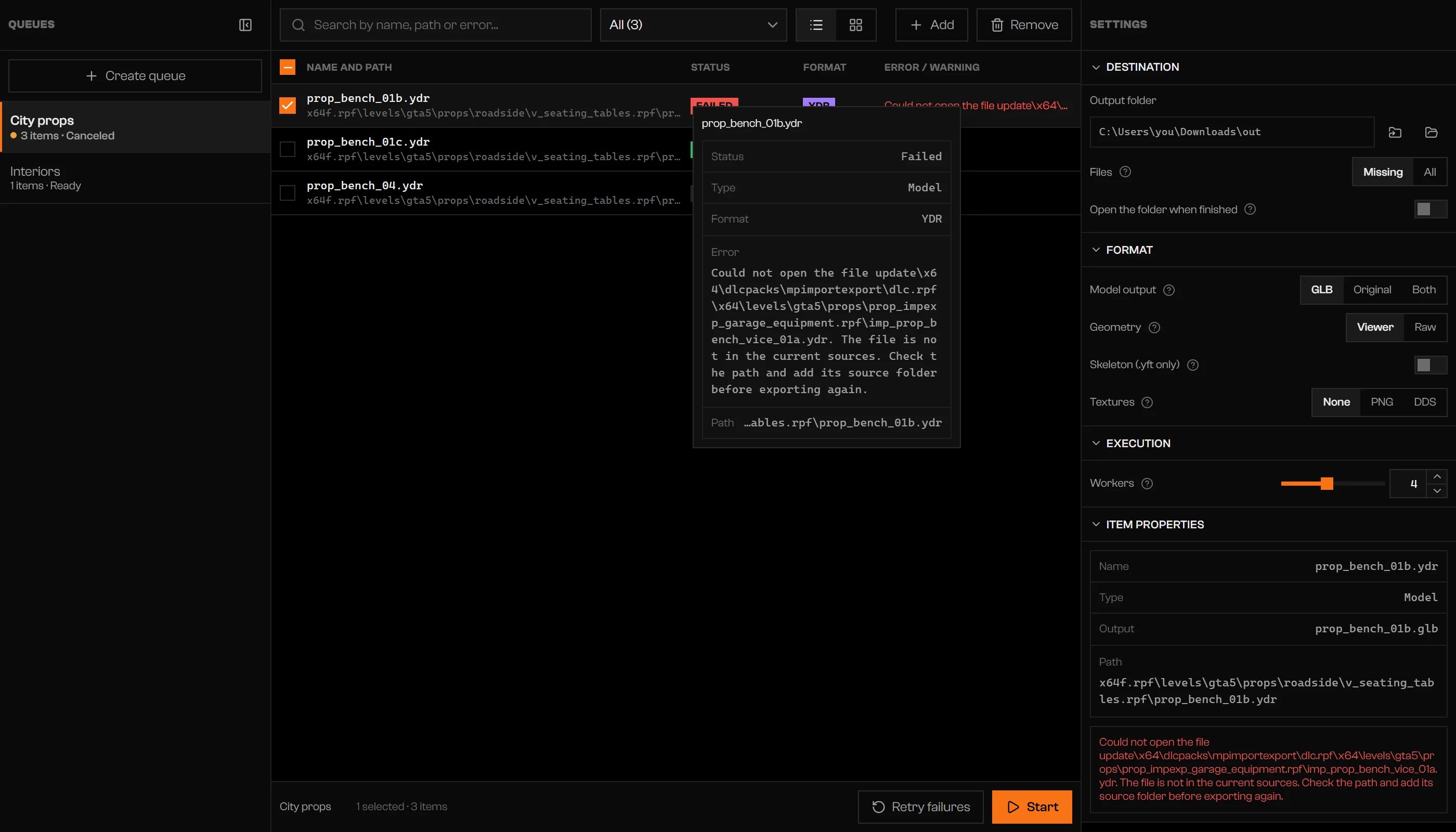
A failed item with its error and the Retry failures button.
Duplicate file names
Two items that would write the same file block Start. The affected items show Duplicate output name and a banner counts them.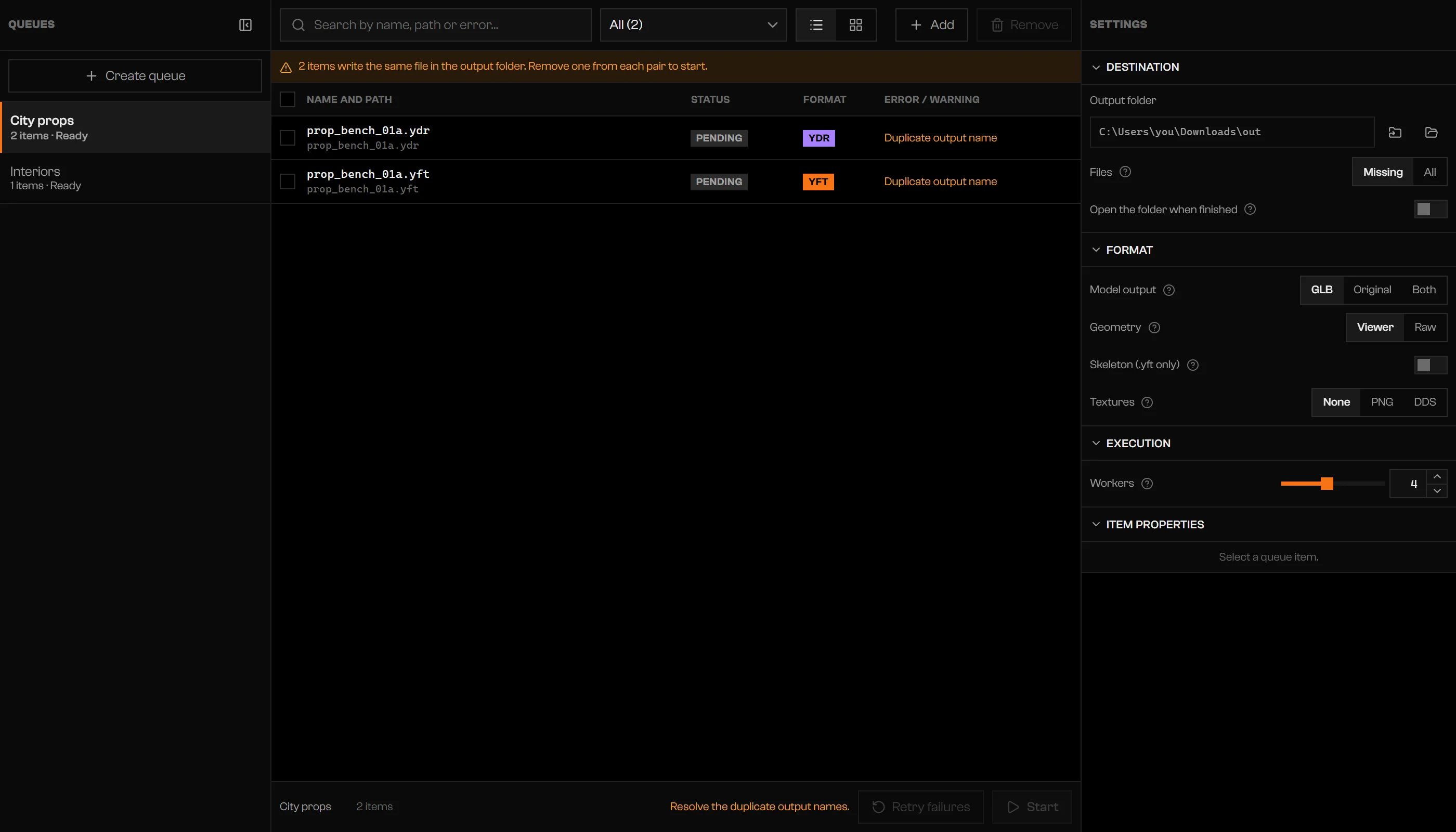
Two items that would write the same file, with Start blocked.
- GLB:
prop_bench_01a.ydrandprop_bench_01a.yftboth writeprop_bench_01a.glb, so they clash. - Original: they keep their own extensions and can coexist.
- Both: both files are checked.
Where the files land
Files go straight into the output folder..rageon-exports folder also appears. Rageon uses it to tell finished outputs from incomplete ones when Files is on Missing, so keep it if you want finished files reused.
Click Open the folder in Explorer in Settings to see the result.
Limits and plans
Start and Retry failures need a plan with batch export. Without it, both are disabled and the queue shows Your plan does not include batch export. Creating queues, changing settings, and adding items still work.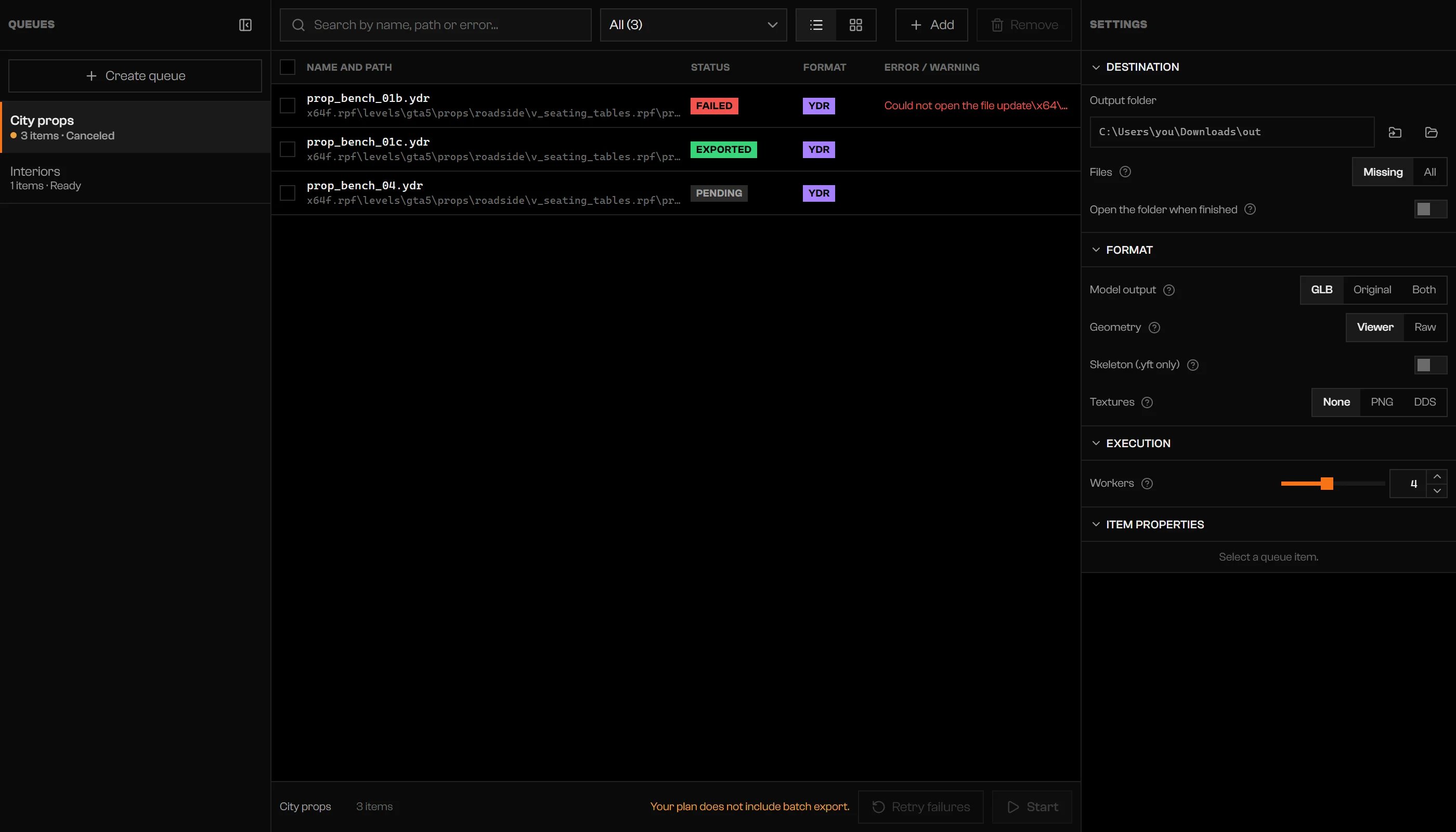
A plan without batch export.
Troubleshooting
Your plan does not include batch export.
Your plan does not include batch export.
Choose the output folder in Settings › Destination.
Choose the output folder in Settings › Destination.
Resolve the duplicate output names.
Resolve the duplicate output names.
{count} items write the same file in the output folder. Remove one from each pair to start.
{count} items write the same file in the output folder. Remove one from each pair to start.
Duplicate output name
Duplicate output name
Add items to the queue.
Add items to the queue.
No pending items.
No pending items.
Could not save the queues on this device.
Could not save the queues on this device.
The queue is running or was deleted.
The queue is running or was deleted.
YTYP not found: {name}
YTYP not found: {name}
No interior found. Open the map to prepare the index.
No interior found. Open the map to prepare the index.
No model found.
No model found.
No items found
No items found
The items are already in this queue.
The items are already in this queue.
Select an item to add.
Select an item to add.
Sign in to your account to continue.
Sign in to your account to continue.
Your session predates the plan limits. Sign in to your account again.
Your session predates the plan limits. Sign in to your account again.
Too many requests in a row to the server. Try again in {key} s.
Too many requests in a row to the server. Try again in {key} s.
Weekly export quota used up: {used} of {max} used. It renews on {date}.
Weekly export quota used up: {used} of {max} used. It renews on {date}.
Weekly export quota used up: {used} of {max} used. The request is larger than the weekly quota.
Weekly export quota used up: {used} of {max} used. The request is larger than the weekly quota.
{ok} ok · {fail} failed
{ok} ok · {fail} failed