
Title bar
The window has no Windows frame. It opens at 1440 × 900 the first time and cannot be made smaller than 900 × 600.
The title bar: tabs, Tasks, Settings, account chip, and window controls.
Closing the window quits Rageon. It does not minimize to the tray.
When the window is narrow, the chip gives up space in order: first the credit balance, then your name and the plan badge, until only your photo is left.

At the 900 px minimum width the chip keeps only the photo.
Status bar
The strip at the bottom shows the latest message from the app or from your most urgent task. A green dot means everything is fine, red means an error or a failed task, gray means a canceled task, and an orange spinner means something is loading or running. The time on the message is when it was written or when the task ended.
A finished scan: Ready on the left, the indexed totals on the right.
When the bar shows a task, click it to jump to the tab that owns the task.
Tasks
Capture runs, exports, Map preparation, and AI generation run in the background and keep going when you change tabs. Click Tasks to see them. An orange line over the icon means something is running. A red, still line means a failure is waiting for you to dismiss it.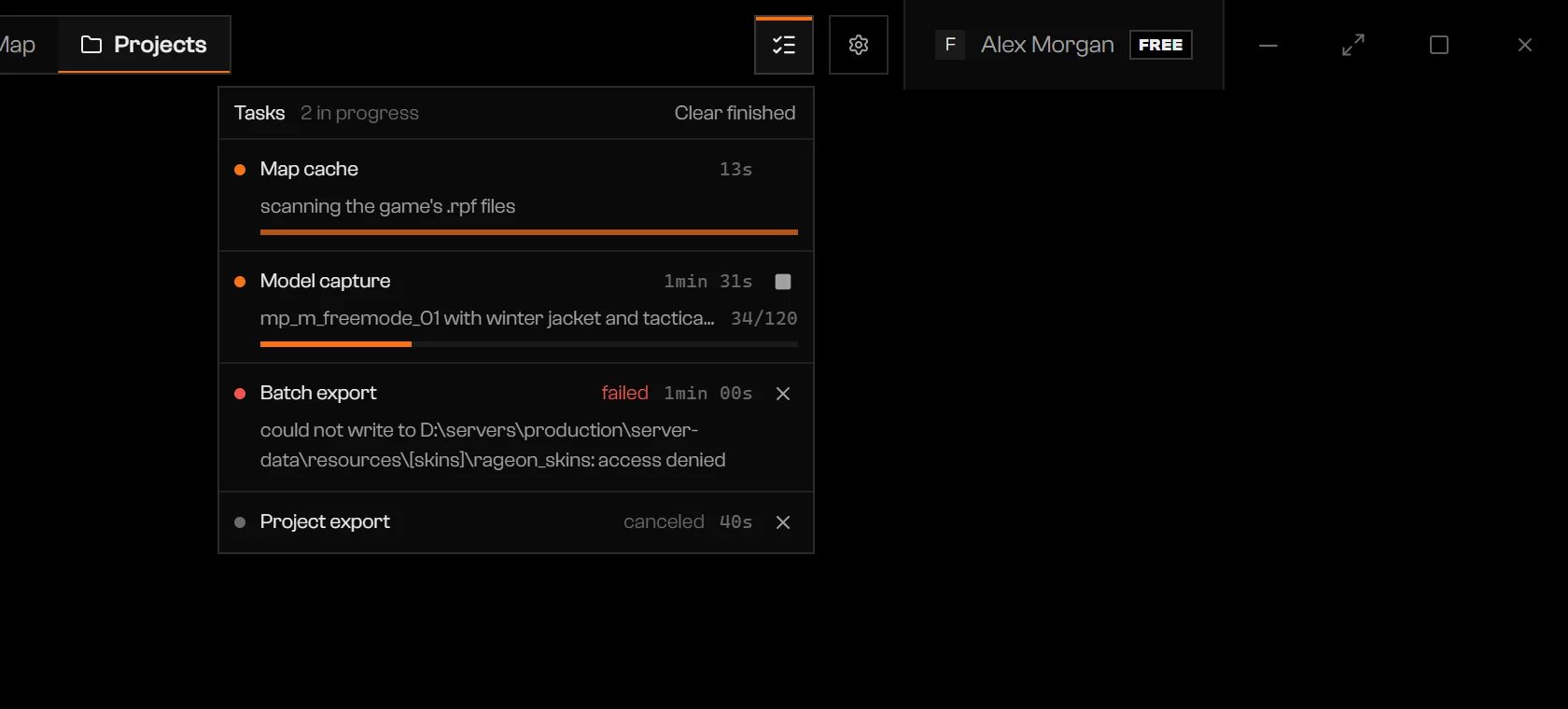
One task of each kind: running, failed, and canceled.
- Click a row to open the tab that owns it. Capture and structure exports also reopen their run window.
- Click the square Cancel button on a task that accepts it.
- A finished task stays in the list. Click Dismiss on a row, or Clear finished for all of them.
- A failed row shows the error in up to three lines.

The empty list.
Tray icon and taskbar button
While Rageon runs, its Windows tray icon mirrors the task list. An orange dot means a task is running; a red dot means a failure is waiting. Hover over it to see each running task with its progress. Click the icon to bring the window forward, restoring it if it was minimized. Right-click the icon for a menu that brings the window forward or quits Rageon, like the window’s close button. With tasks running or finished, each one also gets its own entry to open, cancel, or dismiss it, and finished tasks can be cleared together. The Rageon button on the Windows taskbar shows progress too: a green bar with the percentage, a running bar when there is no total, and a full red bar while a failure remains. It flashes when the last task ends and the window is not in front.Search assets with Ctrl+P
Press Ctrl+P in any tab, even with the cursor in a text field.
The search before you type.
.rpf file. Click one: the search closes, Assets opens, and the asset is selected.
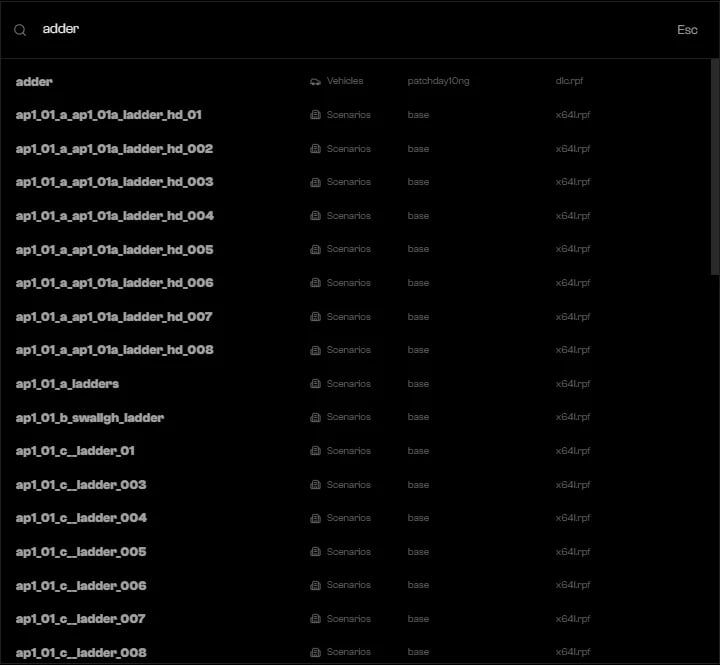
Results for adder.
Troubleshooting
Type at least 2 characters.
Type at least 2 characters.
The Ctrl+P search starts after two characters.
No assets found.
No assets found.
Nothing matches. Try another part of the name, the model, or the DLC.
Error: …
Error: …
The scan failed. Check GTA V folder in Settings › App, then click Save and scan. See First setup.